

If at any point your screen does not look like the picture, stop and email support@lexbrief.au – we would rather help than have you guess.
Before you start
A note on wording used throughout this guide:
- The dark strip of links down the left-hand side of the screen is the menu.
- The row of words across the top of the Settings page (Profile, Banking, and so on) are the tabs. Click a tab to switch to it.
- A box that pops up over the page and dims everything behind it is a pop-up box. Its buttons are along the bottom, and Cancel always closes it without doing anything.
Why backups matter
Your matters, invoices, contacts, expenses and receipts are precious – rebuilding them by hand would be painful, and in some cases impossible. A backup is a safety copy of all of it, taken at a moment in time. If your computer fails, a file is deleted by mistake, or you simply want to be able to wind the clock back, a backup is what lets you recover.
Every backup LexBrief makes is encrypted and password-protected, so even though it holds confidential client information, the file itself is scrambled and unreadable to anyone without the password.
What is in a backup
A backup captures everything that makes up your practice in LexBrief:
- All your matters, time entries, invoices, payments, contacts and expenses – the whole database.
- Your uploaded expense receipts.
- Your document templates.
- Any filed and pinned documents on a matter (these are always included, because they cannot be re-created).
- Your settings.
In short: everything you would need to pick up exactly where you left off.
Opening the Backup tab
- Click Settings at the very bottom of the left-hand menu.
- Click the Backup tab across the top.
The Backup tab has its own row of smaller tabs just beneath it: Destination, Inclusions, Automatic Backups and History.
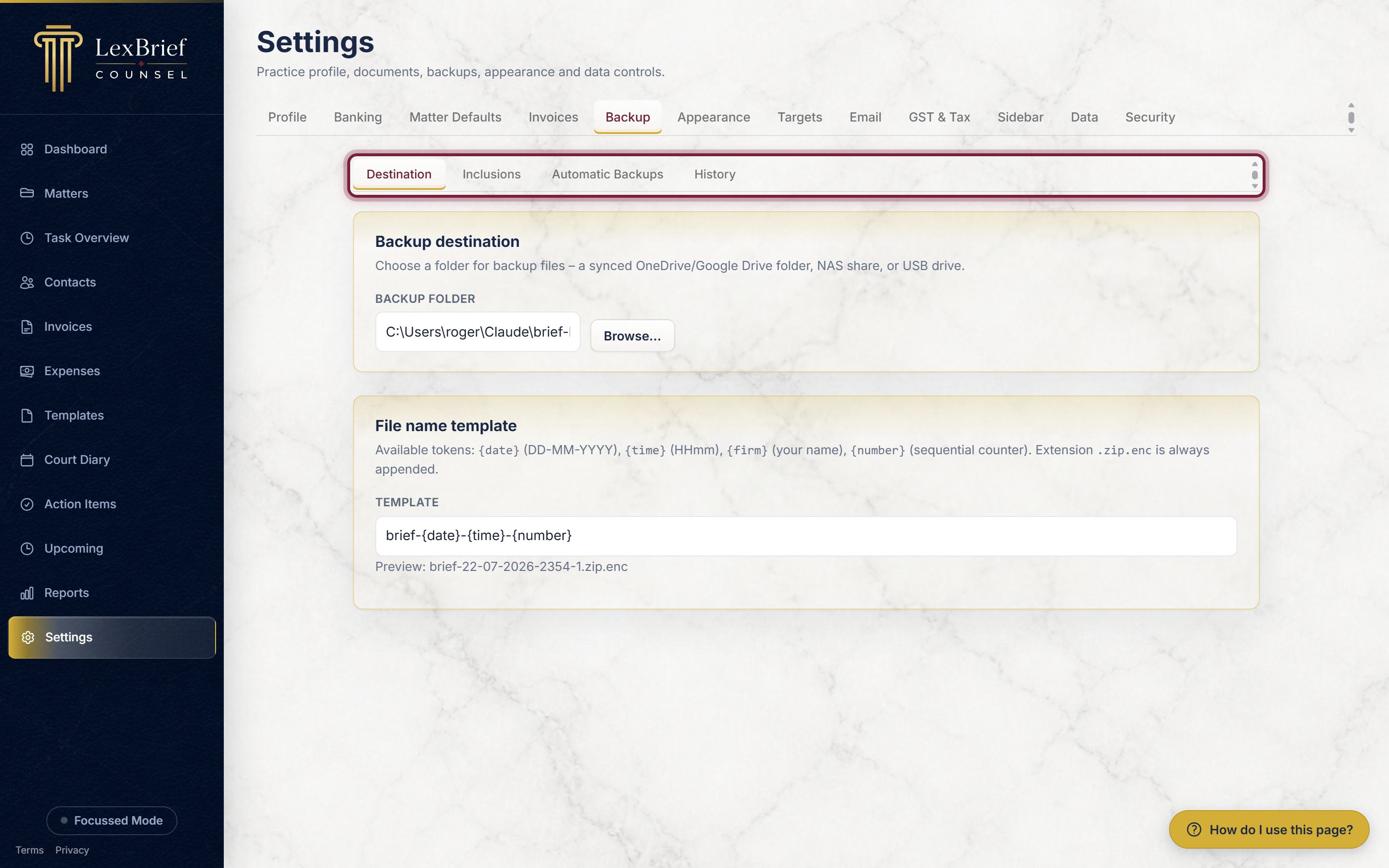
What you should see: the Destination inner tab is selected first.
Where your backups are kept
If you run LexBrief on your own computer, the Destination tab is where you choose the folder the backup files are saved into. A folder that is already synced to the cloud – such as OneDrive or Google Drive – or a folder on a NAS or USB drive is ideal, because it lands the backup somewhere other than your main machine.
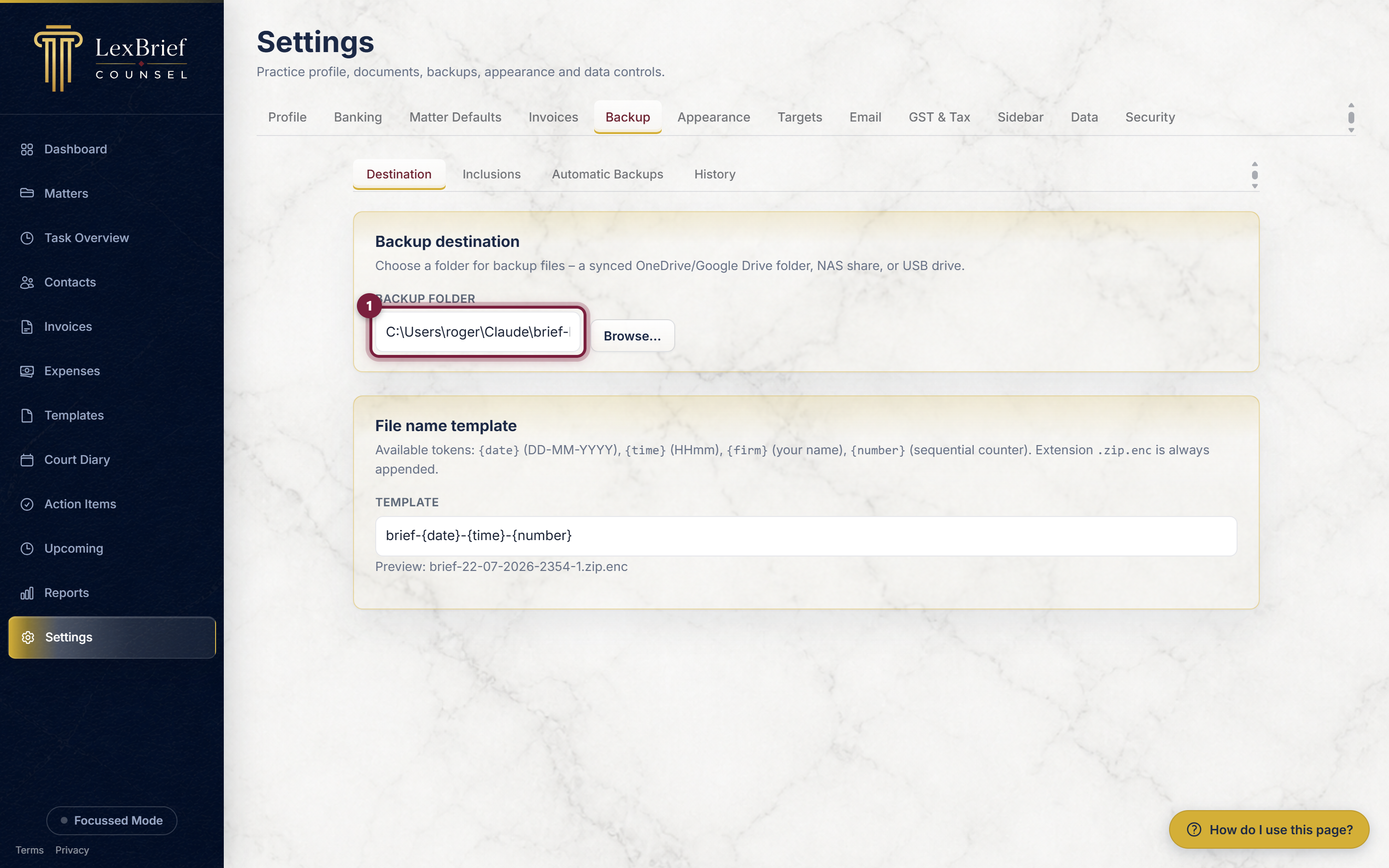
- Click Browse… and pick a folder, or type its location into the Backup folder box.
- Click Save backup settings lower down.
Making a backup now
You can make a backup at any moment – for example, just before you import a lot of data, or before you tidy up old records.
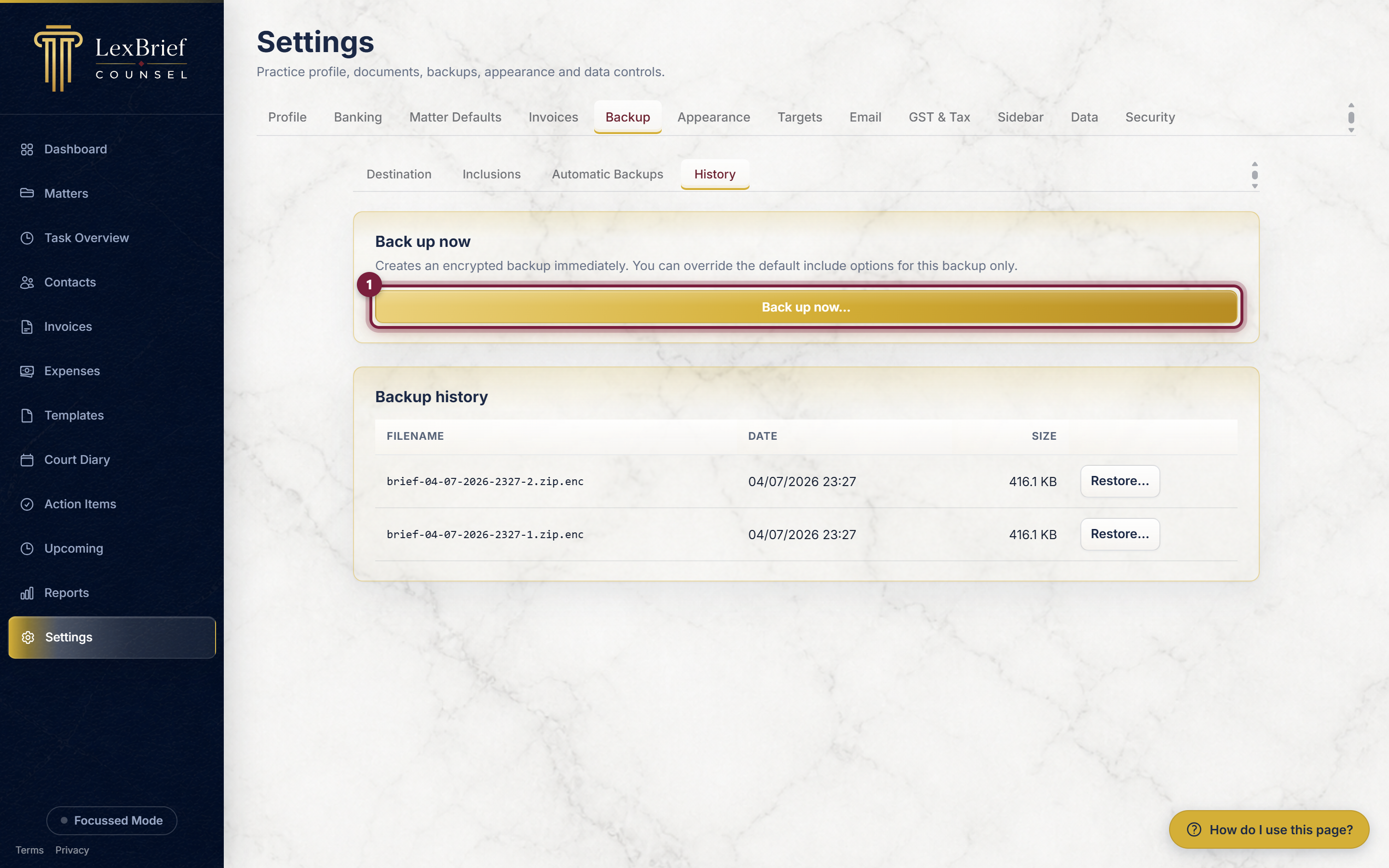
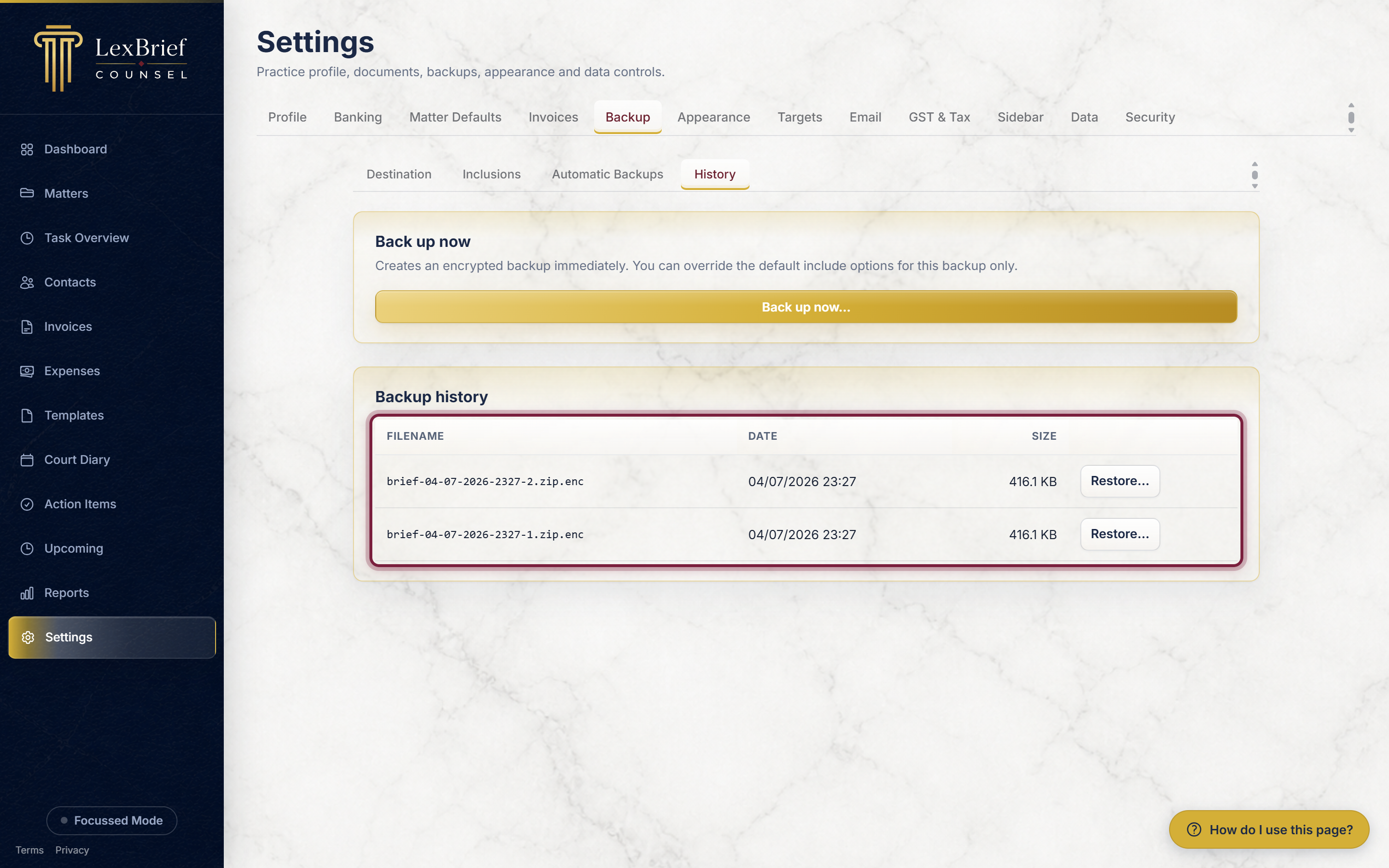
- On the Backup tab, click the History inner tab.
- Click the Back up now… button.
A pop-up box appears. It lets you choose what to include (the database, receipts, templates and, if you want, the latest of each report) and enter the backup password.
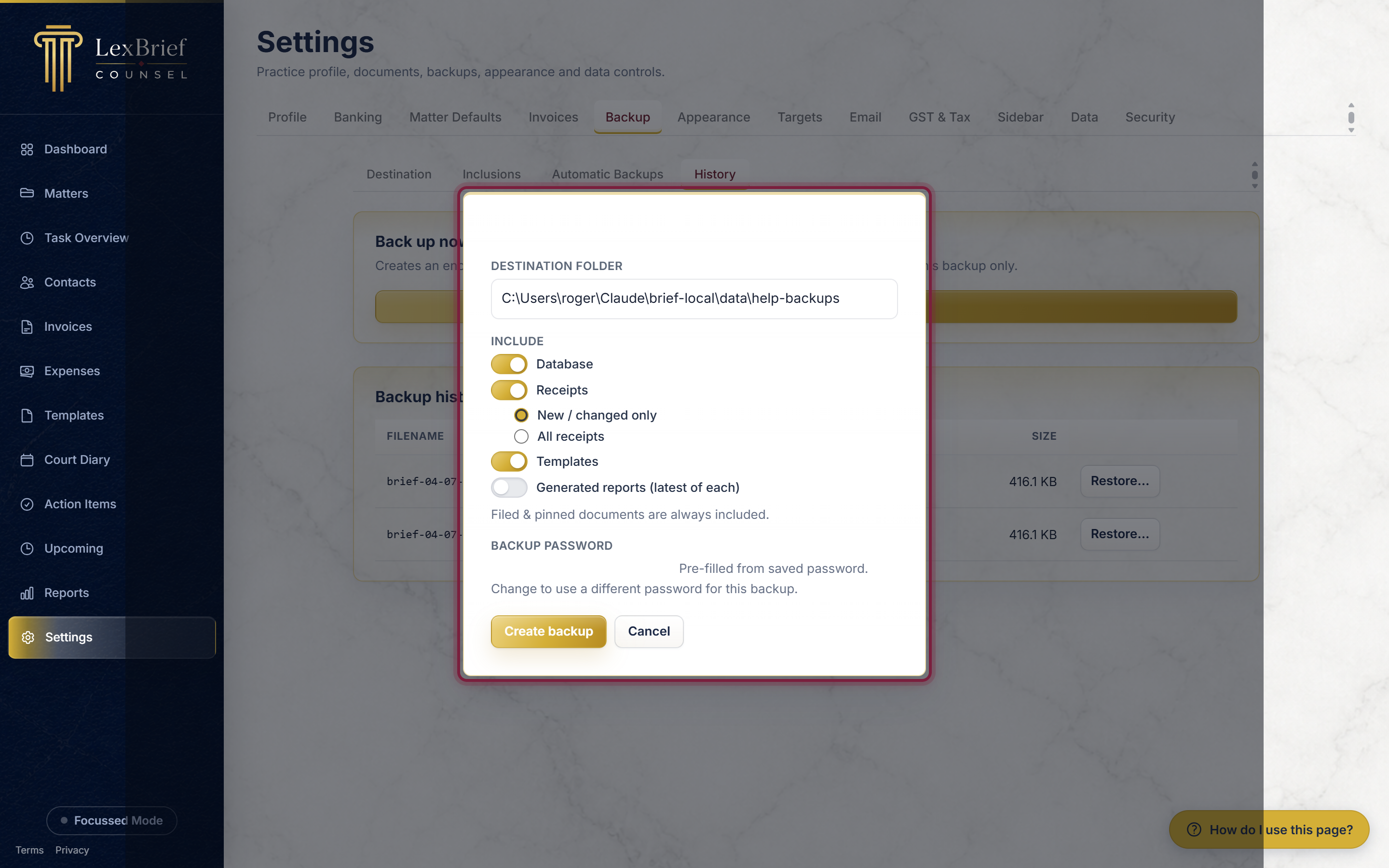
- Leave the switches as they are for a full backup (the Database one is the important one).
- If the Backup password box is empty, type a password and keep it somewhere safe – you will need it to open this backup later. (See Keeping a backup safe.)
- Click Create backup.
What you should see: the new backup appears at the top of the Backup history list, with its date, time and size. Each backup is a single encrypted file ending in .zip.enc.
Automatic backups
The safest habit is not to have to remember at all. LexBrief can make backups for you on a schedule.
On the hosted LexBrief service this is always on: your data is backed up automatically several times a day and kept for you, with no setup needed. You can skip to Restoring.
If you run LexBrief on your own computer, you turn scheduled backups on yourself:
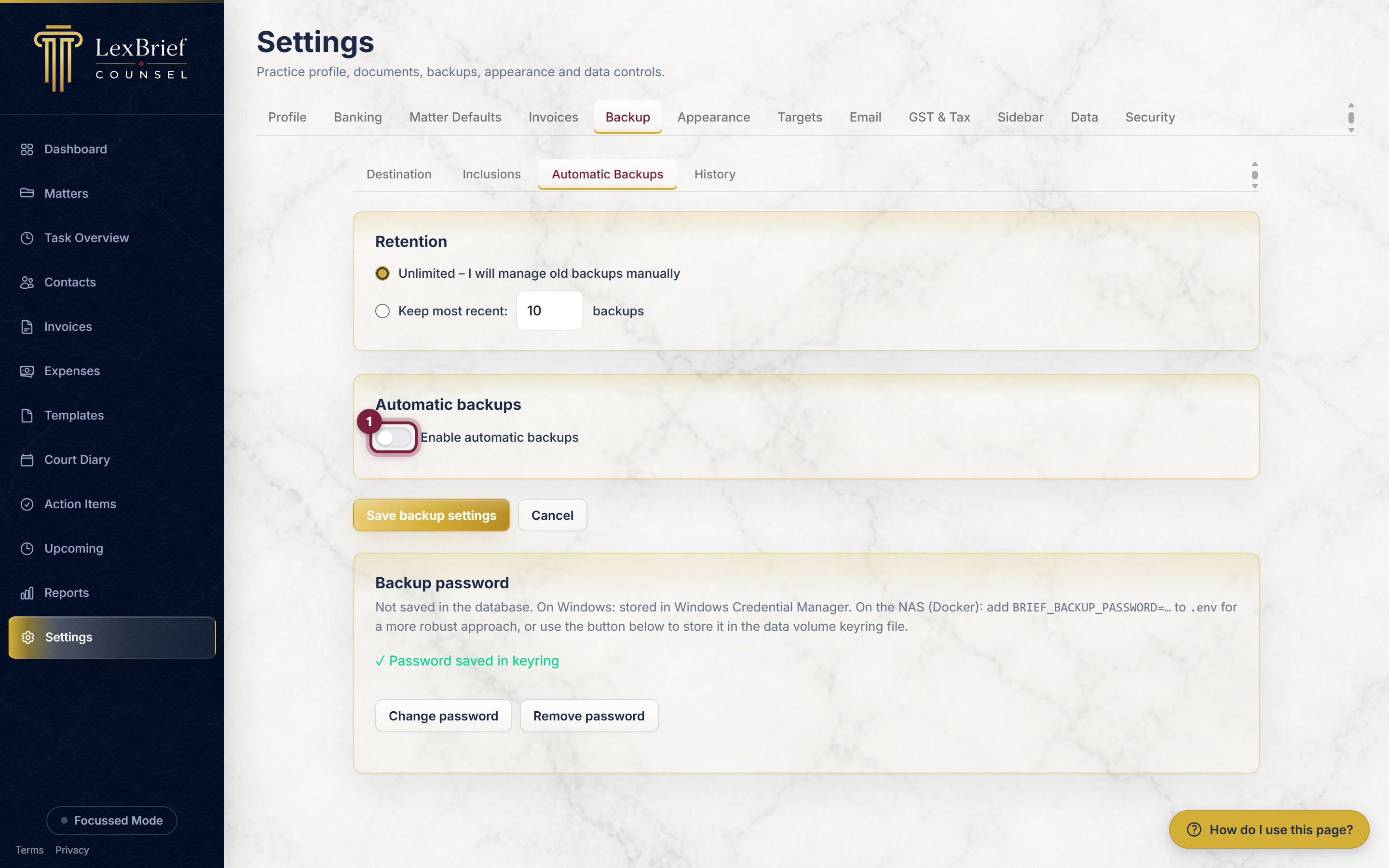
- On the Backup tab, click the Automatic Backups inner tab.
- Tick Enable automatic backups.
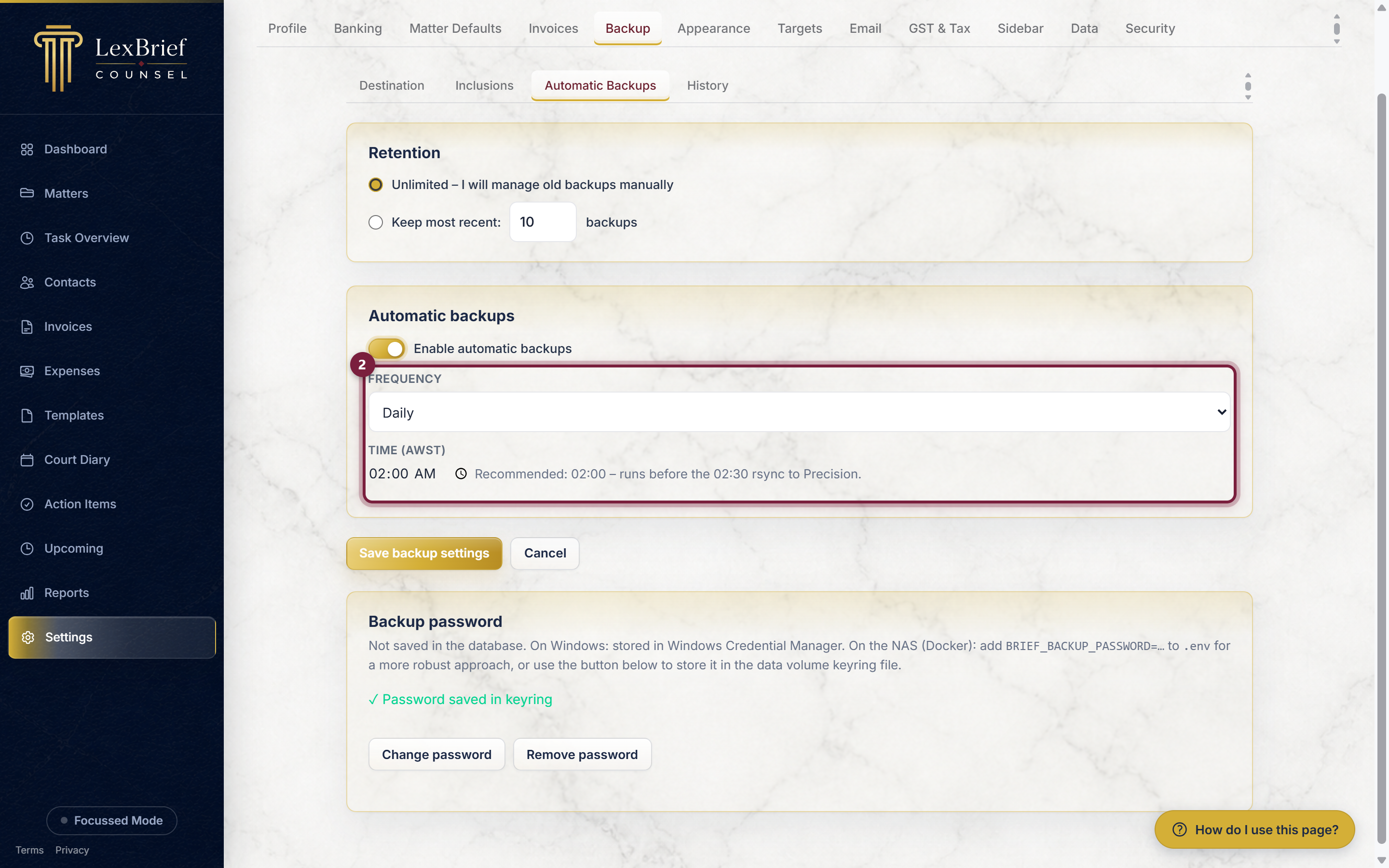
A few more choices appear. Set how often and when a backup should run:
- Choose a Frequency from the list – Daily, Weekly or Monthly.
- For weekly, pick the day of the week; for monthly, pick the day of the month.
- Set the Time the backup should run (a quiet time such as overnight is a good choice).
- Click Save backup settings.
Keeping a backup safe
A backup only helps if it is somewhere you can reach it when things have gone wrong – and if you can still open it. Three simple rules:
- Keep it off the same machine. A backup that sits only on the computer it came from will be lost with that computer. Save it to a cloud-synced folder, a NAS, or a USB drive you keep elsewhere.
- Keep the password. Backups are password-protected, and without the password the backup cannot be opened – not by us, not by anyone. Store the password in a password manager or another safe place, separate from the backup file itself.
- Treat the file as confidential. Even though it is encrypted, a backup contains client information, so do not email it around or upload it to public services.
Restoring from a backup
Restoring takes a backup file and puts its contents back into LexBrief. You would do this to recover after a problem, or to move your data onto a new computer.
To restore a backup:
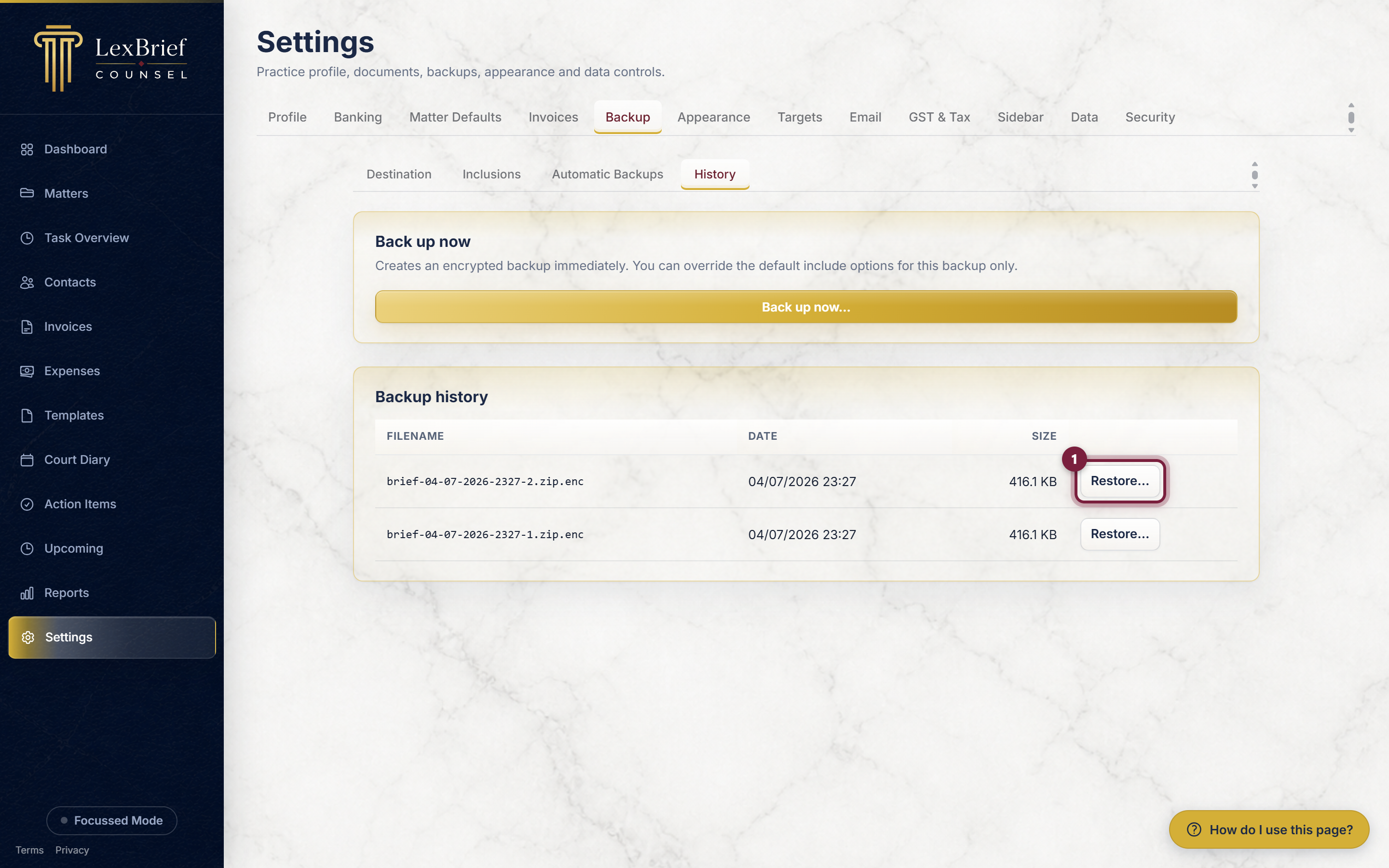
- On the Backup tab, click the History inner tab.
- Find the backup you want in the list and click its Restore… button.
A pop-up box appears with a plain warning that your current data will be replaced, the name of the backup, and a box for the password this backup was made with.
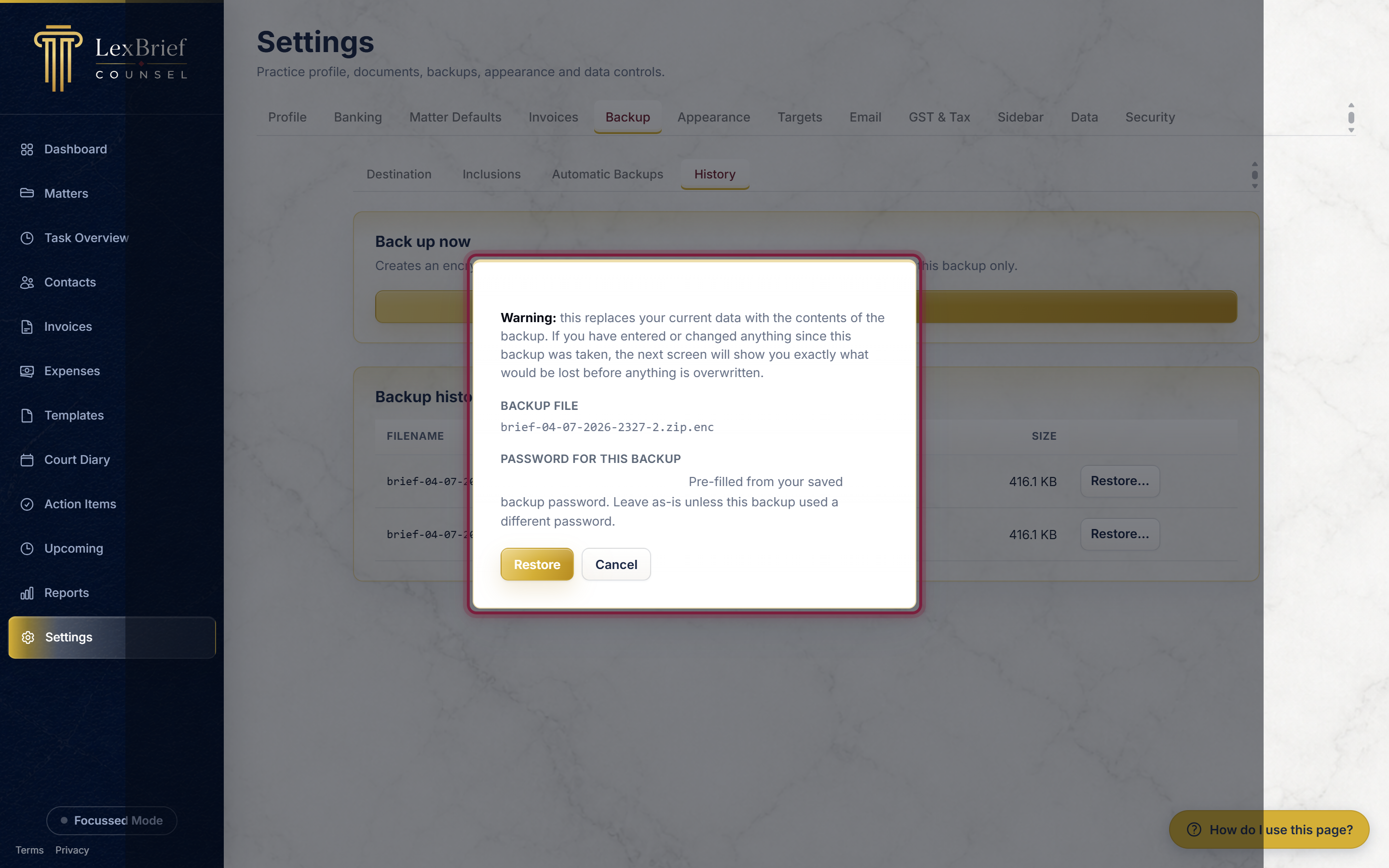
- Read the warning.
- Enter the password this backup was encrypted with (it may already be filled in for you).
- Only if you are certain, click Restore. LexBrief asks you to confirm once more, and – so nothing is a surprise – first shows you exactly which records would change before anything is overwritten.
If you decide not to go ahead, click Cancel; nothing is changed.
What next
- Settings – the Backup tab in context, alongside your other settings.
- Moving your data from BarBooks – the Data tab's import, for bringing data in from BarBooks.
- Browse all help guides
Not sure whether to restore, or worried about losing something? Email support@lexbrief.au before you confirm anything – a real person reads it, usually the same working day.