

If at any point your screen does not look like the picture, stop and email support@lexbrief.au – we would rather pause than have you guess.
The whole process takes about ten minutes for most barristers. You will be:
- Installing a small Firefox add-on called the Brief Migrator.
- Logging into your existing BarBooks account in the normal way.
- Clicking one button to download a file containing all of your BarBooks data.
- Uploading that file into LexBrief Counsel.
Your BarBooks password is never asked for, stored, or seen by us. The add-on only works while you are already logged in to BarBooks in your own browser.
Before you start
A few quick things to have ready:
- Mozilla Firefox installed on your computer. The Brief Migrator is currently a Firefox add-on only. If you normally use Chrome, Edge or Safari that is fine – you can install Firefox just for this migration and uninstall it again afterwards. It takes about two minutes to install:
- Windows / Mac: download from firefox.com, double-click the installer, follow the prompts.
- You do not need to import bookmarks or sign in to a Mozilla account when prompted – both can be skipped.
- We will explain how to uninstall Firefox at the end of the guide if you decide to remove it.
- Your BarBooks login (email address, password, and the BarBooks Authenticator code from your phone if you have set up two-step verification).
- Your LexBrief login (the welcome email from us has the link and a password-reset link).
- About ten minutes of uninterrupted time. The export will not run in the background – your browser needs to stay open until it finishes.
Why Firefox only? We are currently going through the Chrome Web Store's review process. Once Chrome is supported we will update this guide and email all users. For now, Firefox is the only supported browser. (We are sorry for the small inconvenience.)
Section 1 – Install the Brief Migrator in Firefox
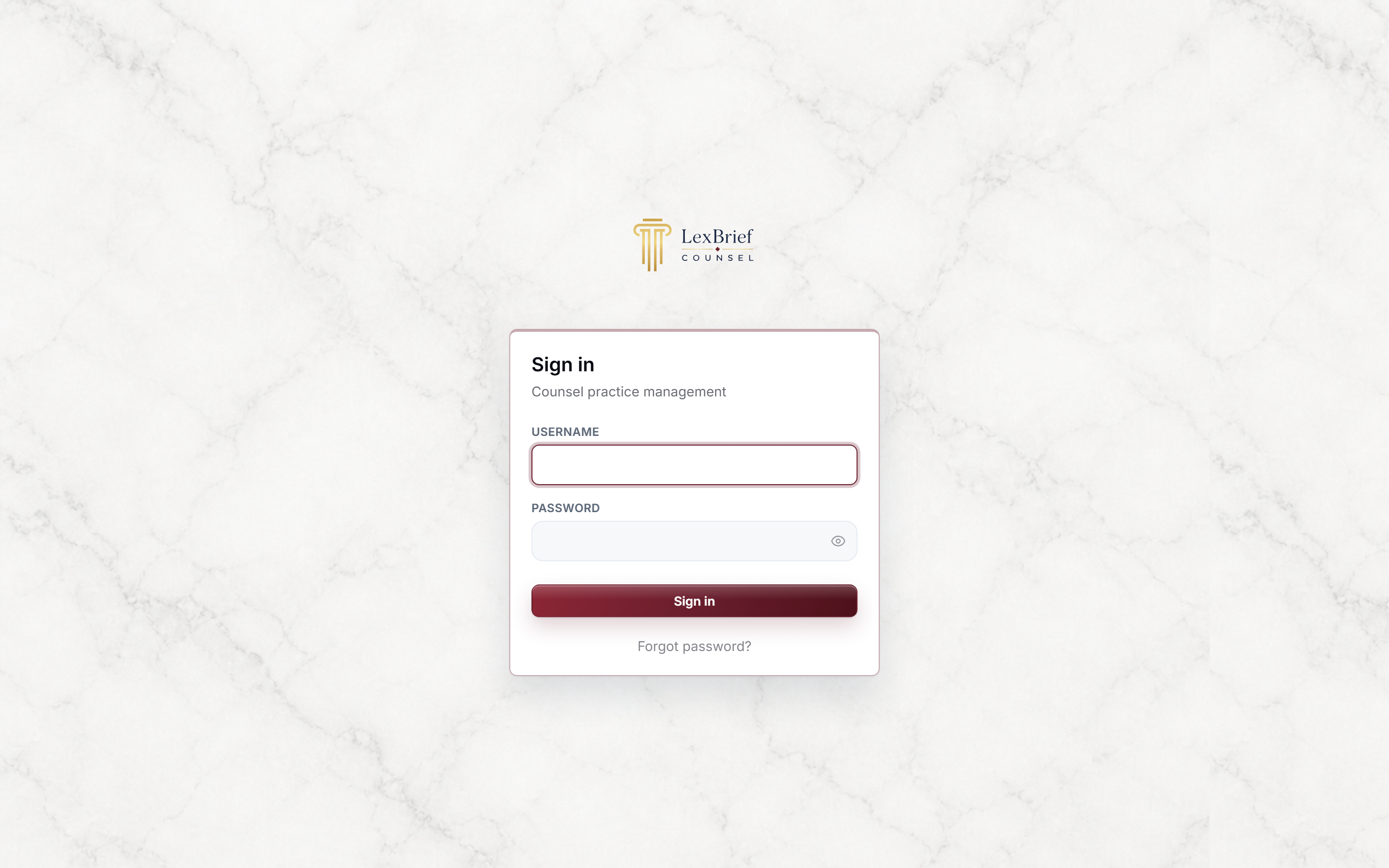
1.1 Log in to LexBrief Counsel
Open Firefox and go to your LexBrief URL (the one we emailed you – it looks like https://yourname-counsel.lexbrief.au). Log in with your LexBrief email and password.
1.2 Open Settings → Data
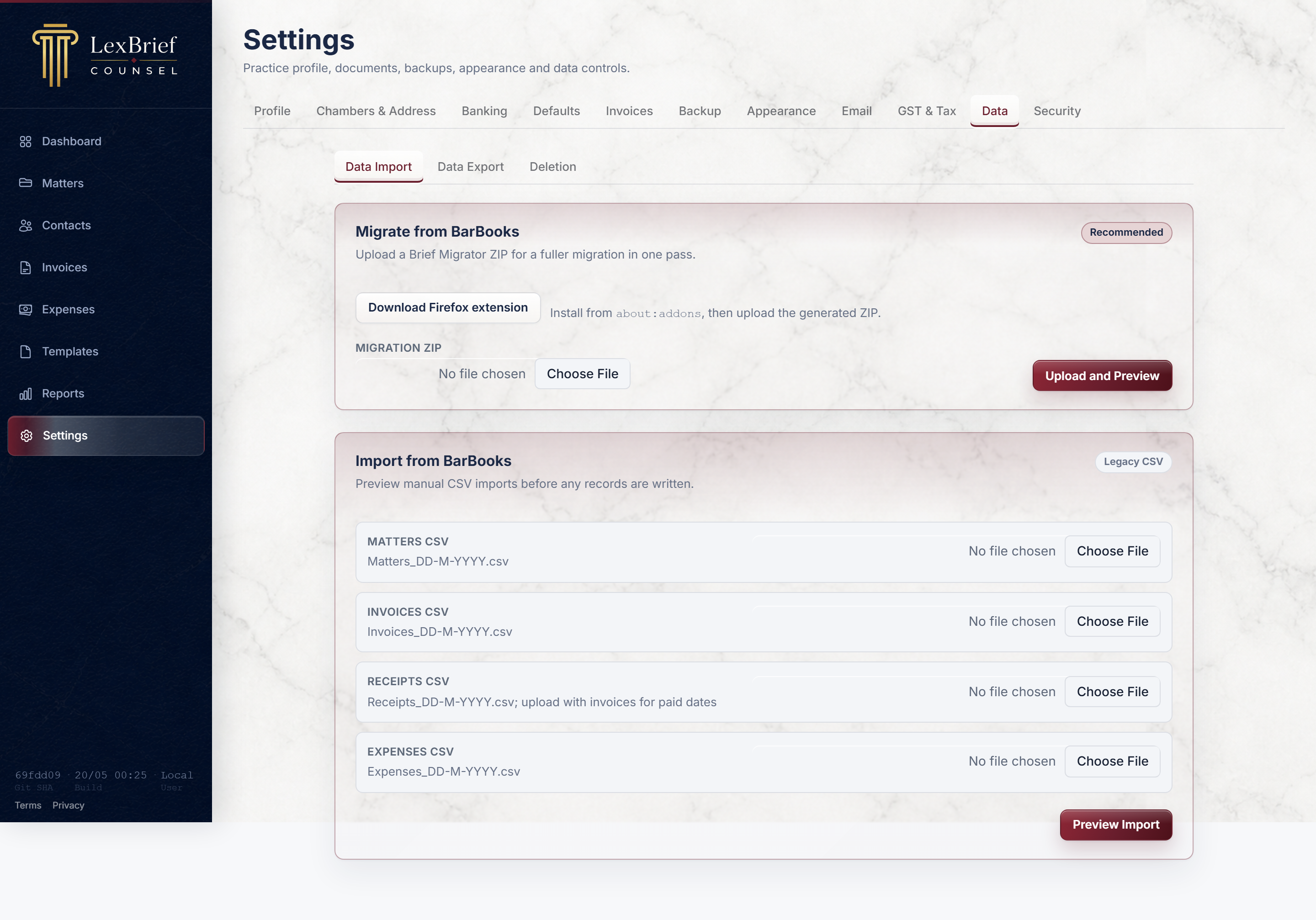
Click Settings in the top navigation (or your name in the top-right corner and then Settings). On the Settings page, click the Data section in the left sidebar. You will land on the Data Import tab, which has a card titled "Migrate from BarBooks":
1.3 Click "Download Firefox extension"
Inside the "Migrate from BarBooks" card you will see a button "Download Firefox extension". Click it.
Firefox will recognise the downloaded file as an add-on and immediately show you an install prompt. It looks like this:
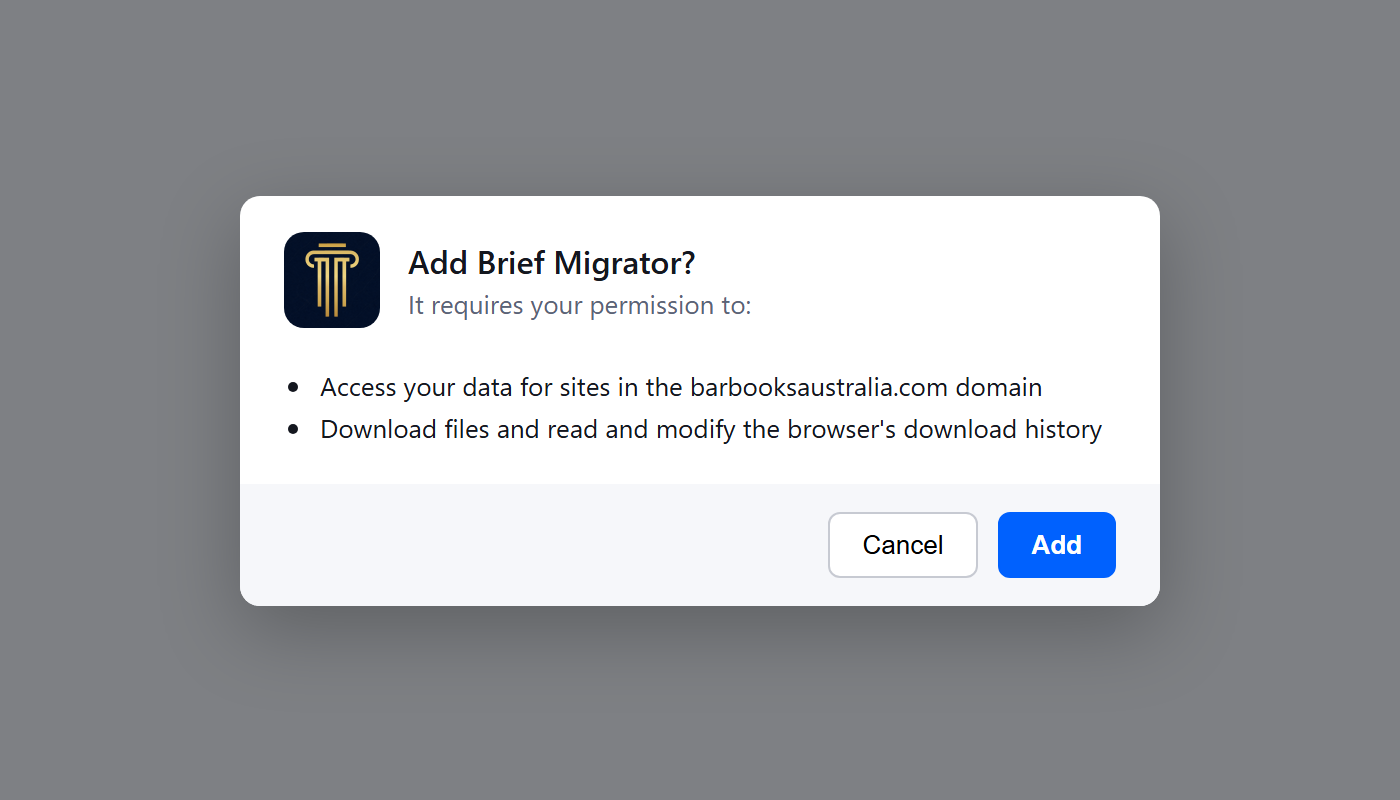
The dialog explains what the add-on can do: read data on the BarBooks website, and save a file to your Downloads folder. Nothing else.
1.4 Click "Add"
Click the blue "Add" button. A second small box will appear saying the add-on has been added – you can close that.
1.5 Find the Brief Migrator icon in your toolbar
Look at the top-right corner of your Firefox window. You should see the Brief Migrator icon – a small gold classical pillar on a dark navy tile.

If you cannot see the icon, click the small puzzle-piece icon next to your address bar – the Brief Migrator will be in the dropdown. To make it permanent, click the little gear next to it and choose "Pin to Toolbar".
Section 2 – Log in to BarBooks (as you normally would)
The migrator works by reading data while you are logged in to BarBooks. Your next step is to log in to BarBooks the way you always do – but this time in Firefox.
2.1 Open a new tab and go to BarBooks
In the same Firefox window (it must be Firefox – the add-on does not work in Chrome or any other browser), open a new tab and go to:
https://app.barbooksaustralia.com
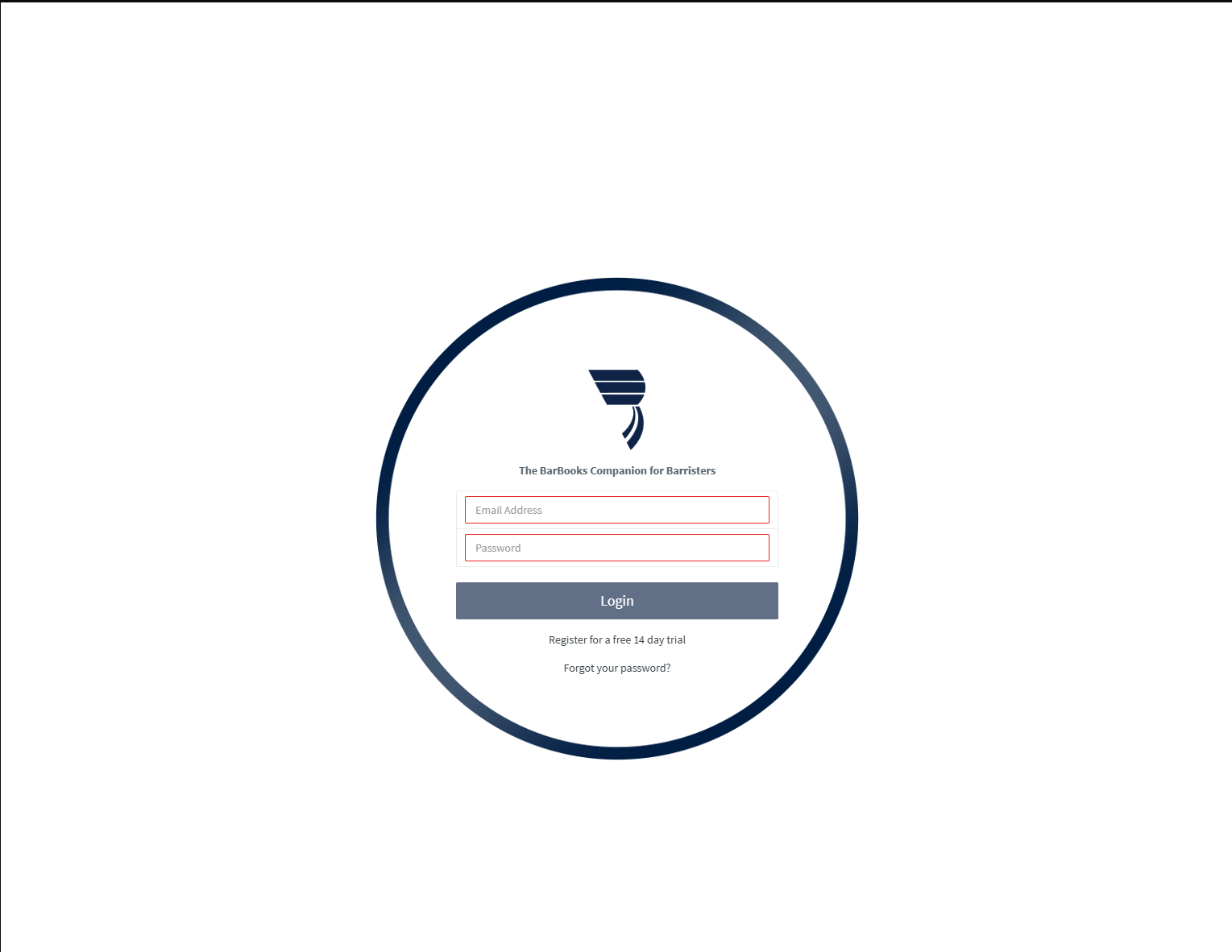
You should see the BarBooks login screen:
2.2 Enter your email and password
Type your BarBooks email address and password, then click the grey "Login" button.
2.3 Enter your two-step authentication code (if BarBooks asks)
If you have two-step verification enabled on your BarBooks account, BarBooks will now ask for a six-digit code from your authenticator app:
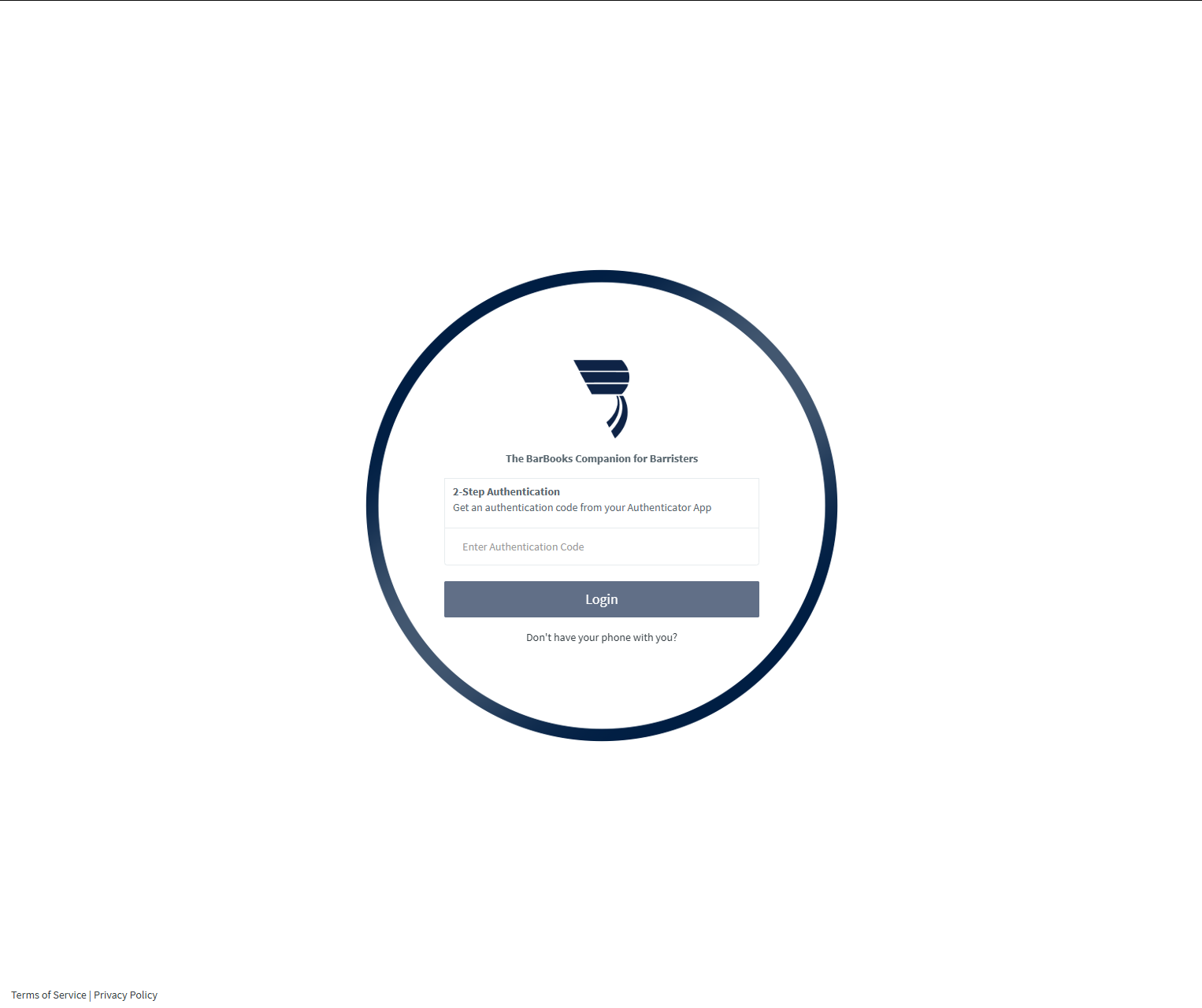
Open your authenticator app on your phone (Google Authenticator, Authy, 1Password, or whichever you set up), find the BarBooks code, and type it in. Click "Login" again.
If BarBooks did not ask you for a code, you do not have two-step verification turned on – skip this step.
2.4 You should now be on the BarBooks dashboard
You should land on your normal BarBooks dashboard with trend charts and an overview:
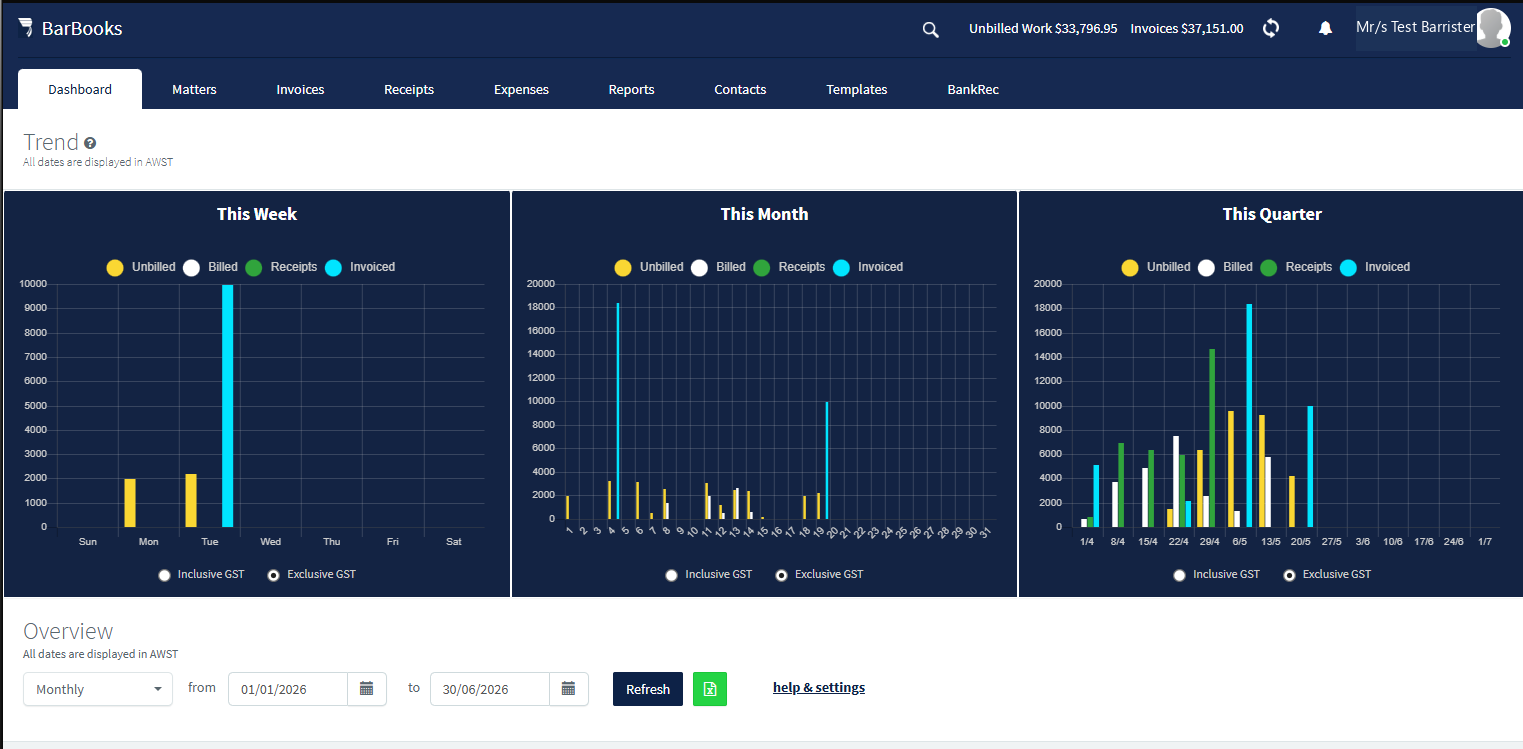
Leave this tab open. Do not close it. The migrator needs it open to work.
Section 3 – Run the migration
Now you tell the Brief Migrator to do its job.
3.1 Open the migrator
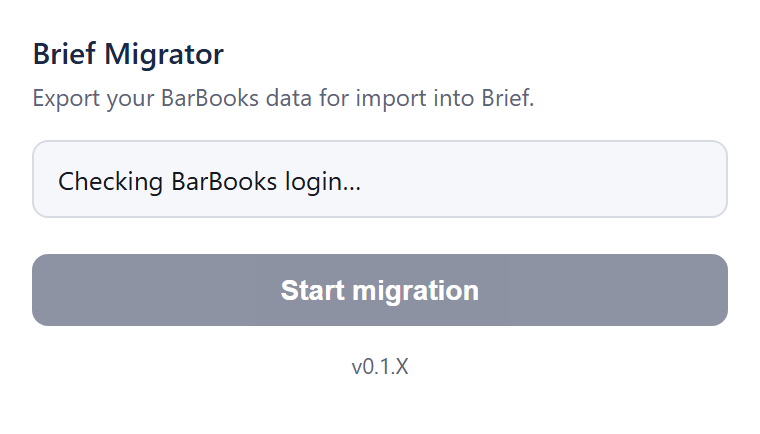
Click the Brief Migrator icon in your Firefox toolbar (top-right). A small panel will open. The very first thing it does is check that you are logged in to BarBooks. While it checks, it looks like this:
After a second or two, it should change to a green box confirming you are logged in:
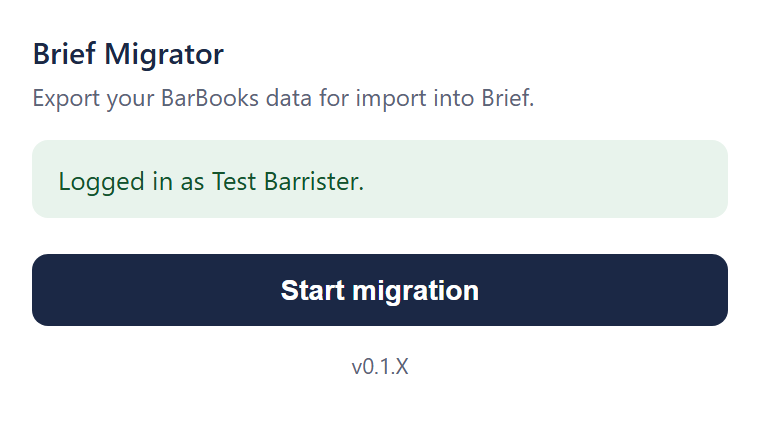
If instead you see a yellow or red message saying it could not detect a BarBooks login:
- Make sure the BarBooks tab is still open and you are actually logged in (refresh that tab if unsure).
- Close the migrator panel and open it again.
- Still stuck? Email support@lexbrief.au with a screenshot.
3.2 Click "Start migration"
When the green confirmation is showing, click the big navy "Start migration" button.
The panel will now show a running log of what it is doing – fetching matters, then tasks, then invoices, then expenses, then contacts, then packing everything into a ZIP file. This typically takes between thirty seconds and three minutes, depending on how much data you have.
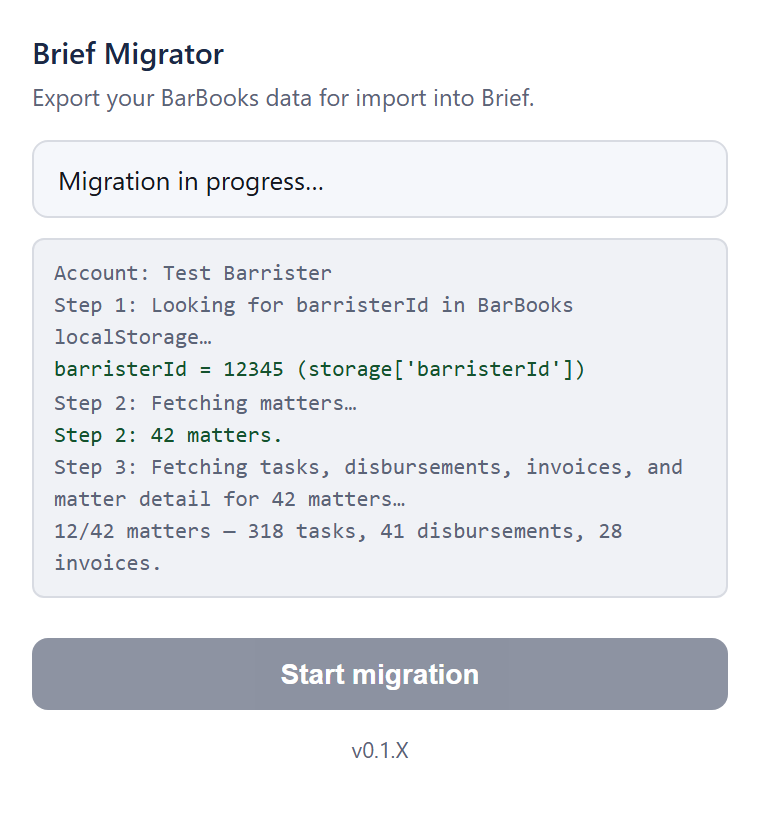
3.3 Wait for the "Done!" message
When it finishes, the status box turns green and tells you the file name:
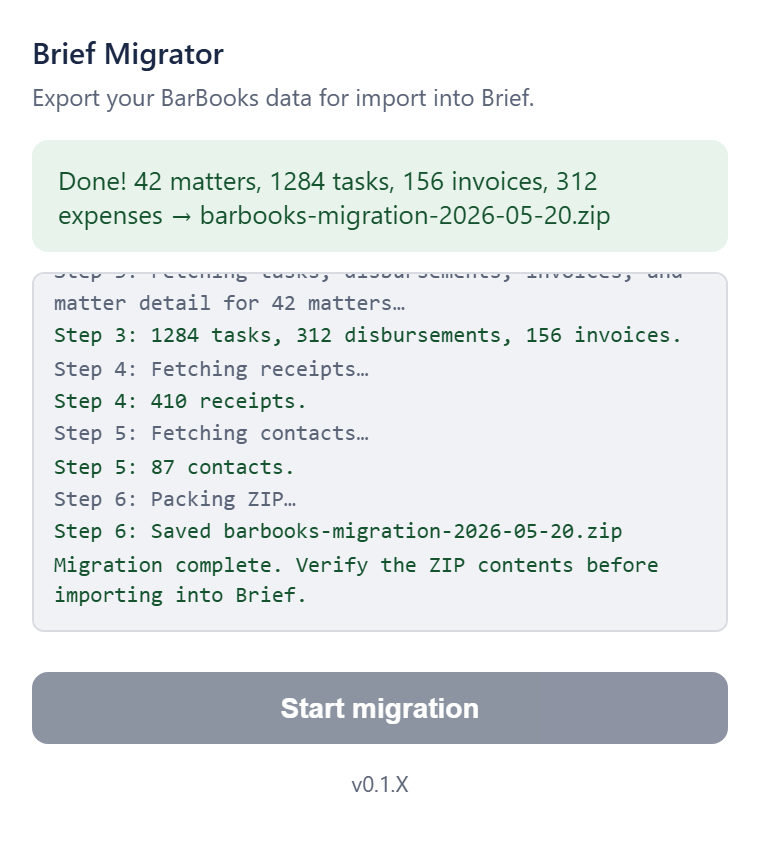
The file is called something like barbooks-migration-2026-05-20.zip (the date will be today's date). It has been saved automatically to your Downloads folder.
You can now close the migrator panel. You can also close the BarBooks tab if you wish – the data is now safely on your own computer.
Section 4 – Find the file in your Downloads folder
Just to confirm the file actually arrived:
- Open your Downloads folder. On Windows the easy way is to press the Windows key, type "Downloads", and hit Enter. On a Mac, click the Downloads icon in the Dock.
- You should see the file at the top of the list:
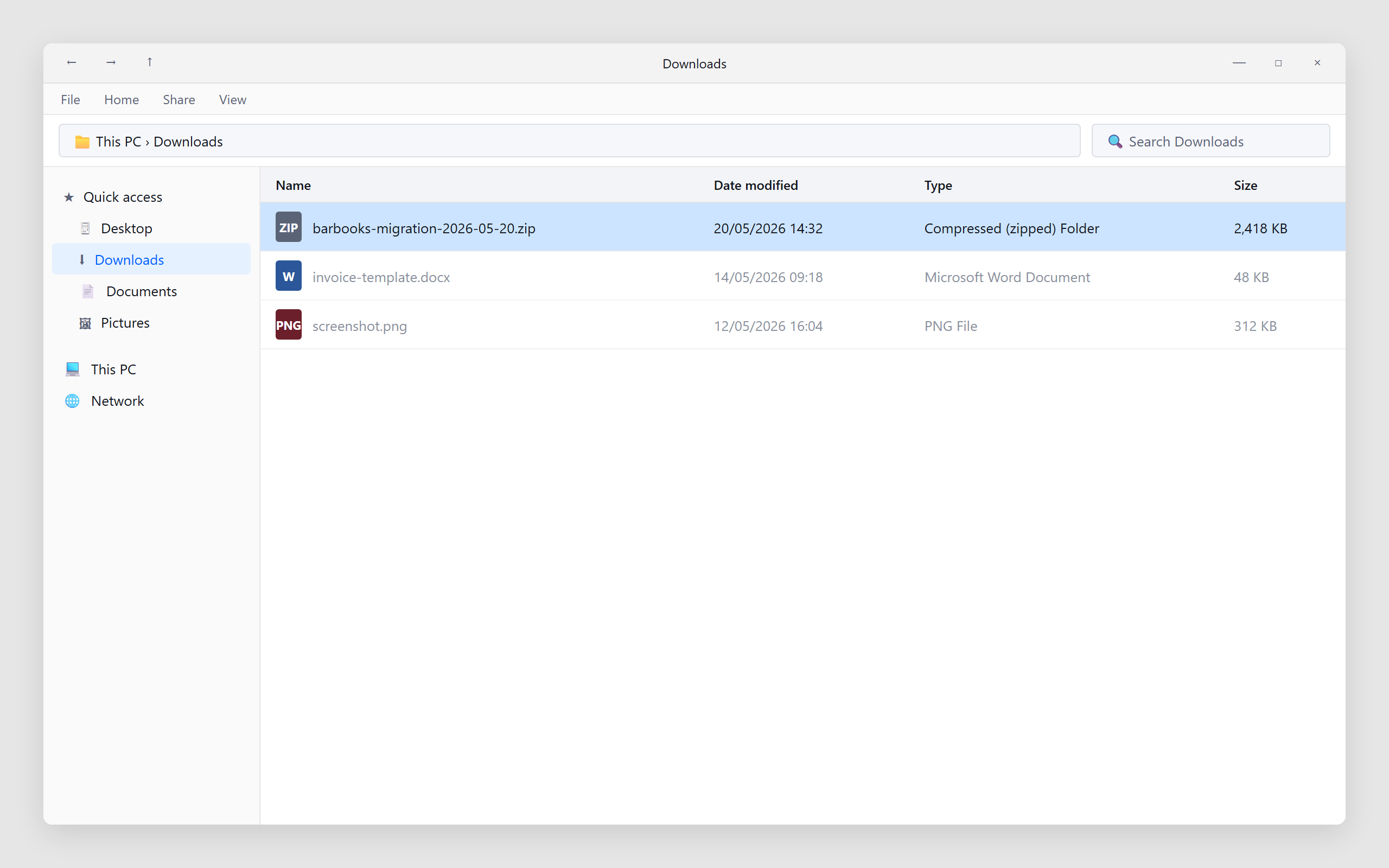
You do not need to unzip this file or open it. LexBrief will read it as-is in the next section.
Section 5 – (If your LexBrief account already has data) start with a clean slate
Skip this section if your LexBrief account is brand new and you have never added anything to it beyond looking around.
5.1 Go back to LexBrief Counsel
Switch back to the LexBrief tab you opened in Section 1. (If you closed it, open it again at https://yourname-counsel.lexbrief.au and log in.)
5.2 Open Settings → Data → Deletion
You should still be on Settings → Data. Click the "Deletion" tab (it is the third tab, next to "Data Export").
You will see a red-bordered "Danger Zone" card listing the categories of data you can clear: Contacts, Matters, Tasks, Invoices, Expenses.
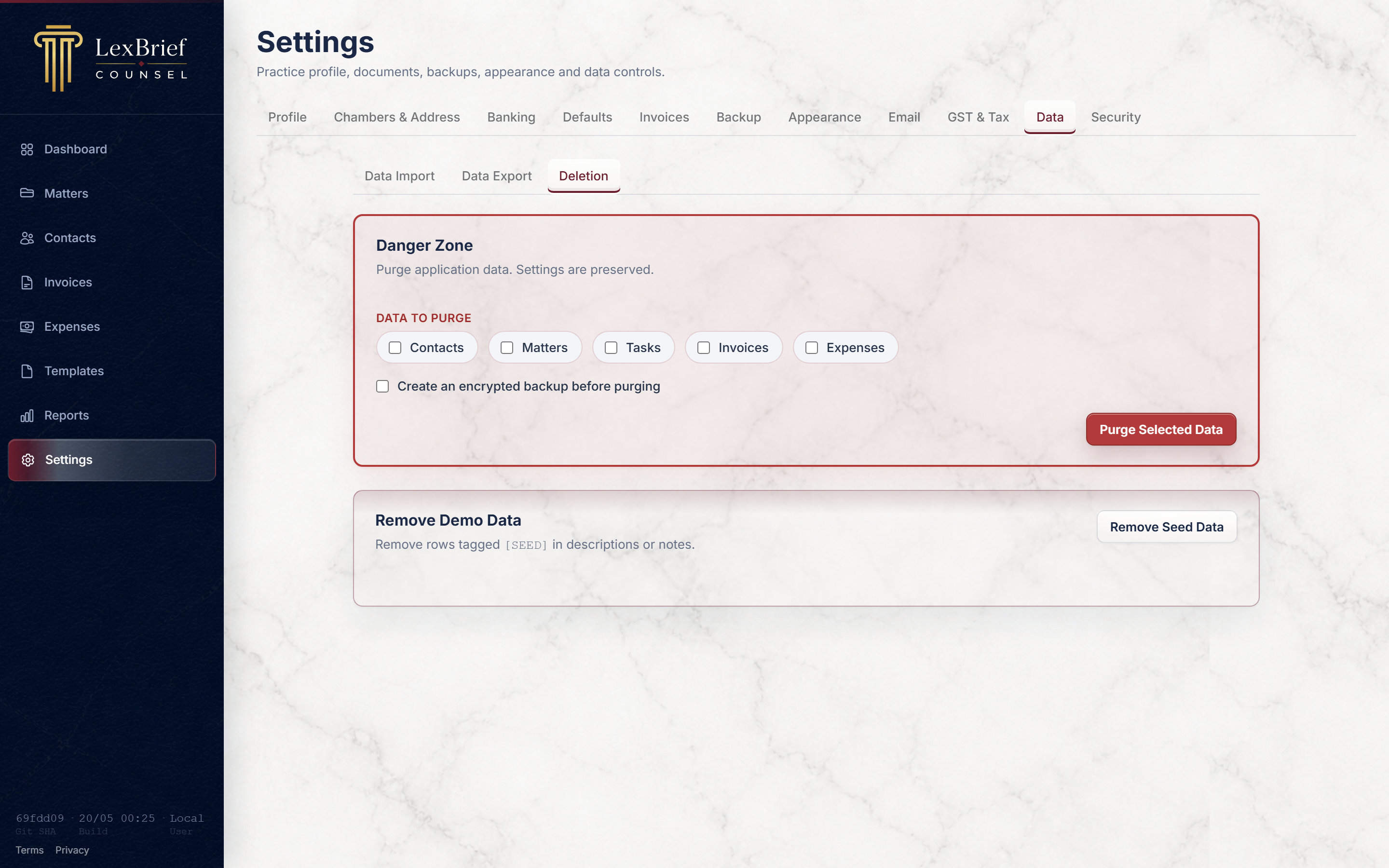
5.3 Tick every category and purge
Tick the checkbox next to every category. Then switch on "Create an encrypted backup before purging" at the bottom – this gives you a safety net if you change your mind.
Click the red "Purge Selected Data" button. LexBrief will ask you to confirm twice (this is deliberate – purging cannot be undone except from the backup). Click OK on both confirmations.
When you see the green success banner, your LexBrief account is clean and ready for the import.
Section 6 – Upload the file into LexBrief
You are now going to give the ZIP file to LexBrief.
6.1 Switch back to the Data Import tab
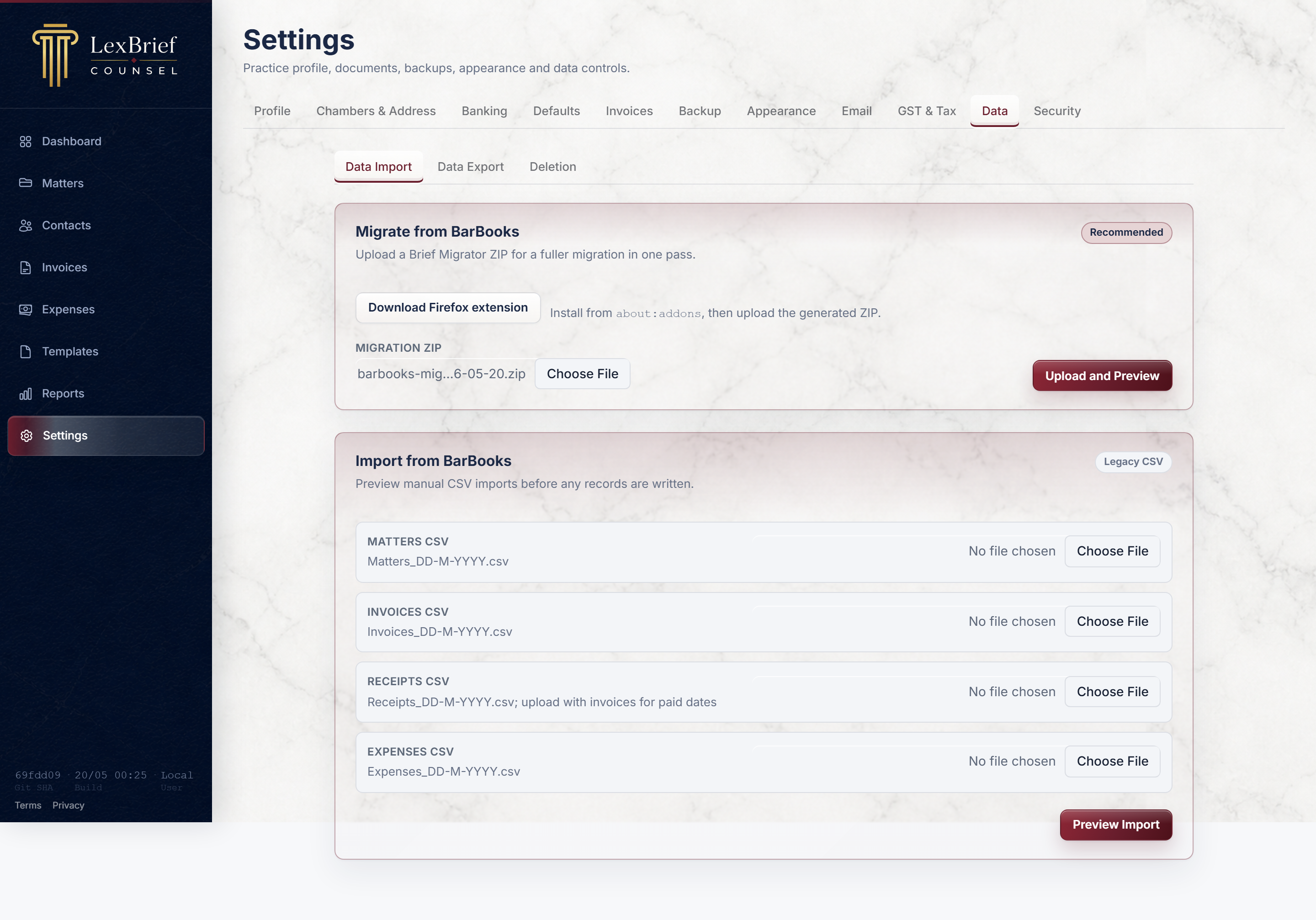
Click the "Data Import" tab (the first tab). The first card is "Migrate from BarBooks":
6.2 Choose your ZIP file
Click the "Choose File" button inside the "Migrate from BarBooks" card. A file picker will open – navigate to your Downloads folder and select the barbooks-migration-…zip file you produced in Section 3.
After selecting the file, the form looks like this:
6.3 Click "Upload and Preview"
Click the "Upload and Preview" button. LexBrief will read the ZIP and show you a preview of what it found – how many matters, invoices, tasks, expenses, and contacts. Nothing has been imported yet at this point – this is just a preview so you can sanity-check the numbers.
If the numbers look right, click "Confirm Import" at the bottom of the preview screen.
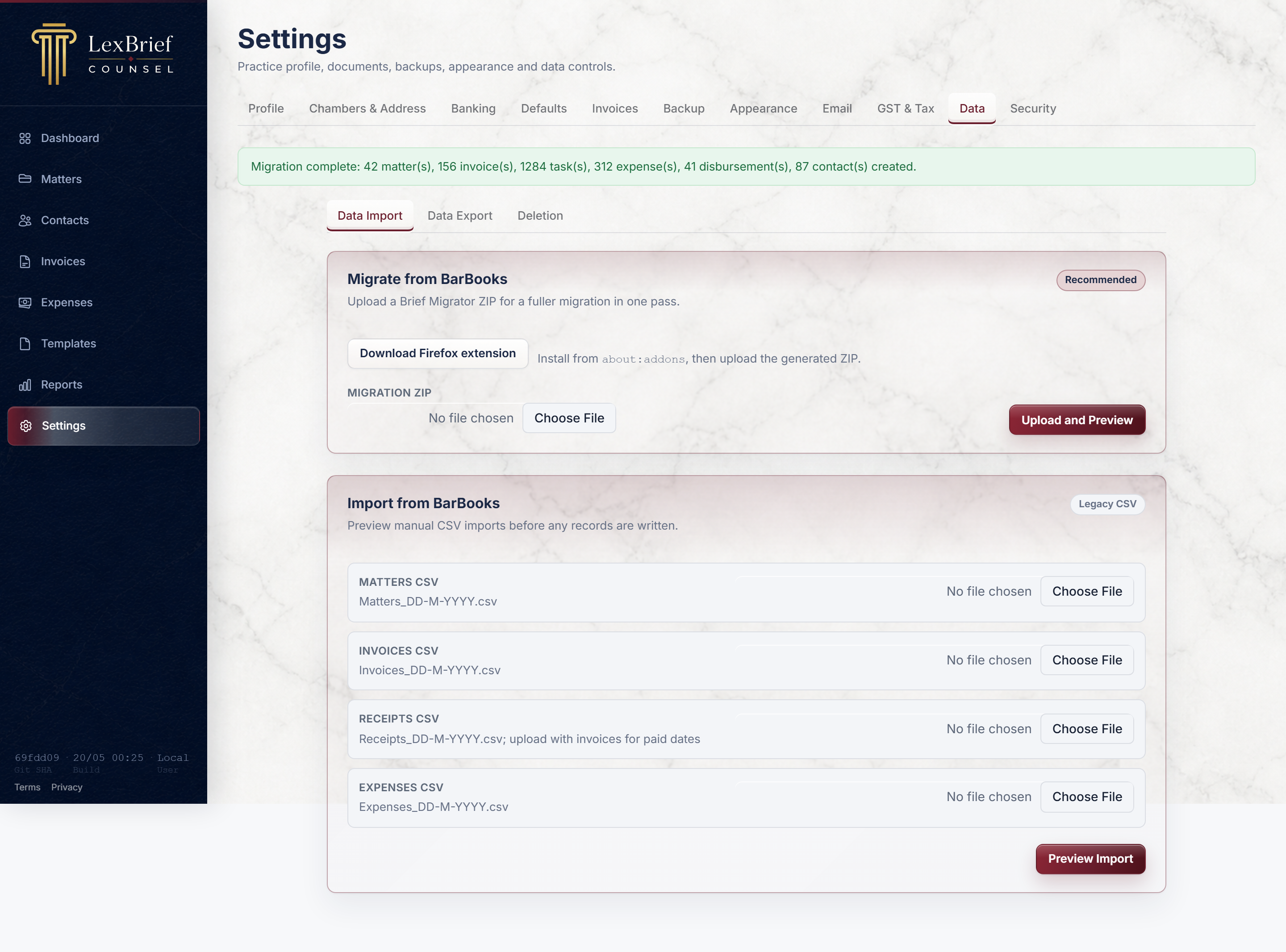
6.4 Wait for the green success banner
After a few seconds, you will see a green banner at the top of the page:
That's it. Your data is now in LexBrief. Click "Matters" in the top navigation to see your imported matters, "Invoices" to see your invoices, and so on.
Section 7 – (Optional) Remove the Brief Migrator and Firefox
If you installed Firefox just for the migration, you can remove both the add-on and Firefox itself now. You do not have to – they cause no harm if left installed – but if you prefer a tidy machine, here's how.
7.1 Remove the Brief Migrator add-on
In Firefox, click the menu button (three horizontal lines, top-right) → Add-ons and themes → find Brief Migrator in the list → click the three-dot menu next to it → Remove.
7.2 Uninstall Firefox (Windows)
Press the Windows key, type "Add or remove programs", hit Enter. Find Mozilla Firefox in the list, click it, and click Uninstall.
7.3 Uninstall Firefox (Mac)
Open Finder → Applications → drag the Firefox application to the Trash. Then empty the Trash.
You can always reinstall Firefox later if you want to re-export data from BarBooks again.
Section 8 – Things that sometimes go wrong (and how to fix them)
Most users finish without any of these. But just in case:
"Could not detect BarBooks login"
The migrator popup is yellow/orange instead of green. Fix: Make sure the BarBooks tab is open in Firefox (not in another browser). Refresh the BarBooks tab. Then close and re-open the migrator popup.
"Your BarBooks session has expired"
The migration started, then stopped with a red error. Fix: Switch to the BarBooks tab, log in again (BarBooks sometimes logs you out after long periods), then go back to the migrator popup. You will see a green "Resume migration" button – click it. It will pick up where it left off, not restart from the beginning.
"Could not read the ZIP file"
LexBrief refuses your upload with this message. Fix: Double-check you are uploading the file from your Downloads folder named barbooks-migration-…zip (and not, for example, a ZIP file you made yourself, or a half-downloaded file). If in doubt, re-run the migrator (Section 3) and use the fresh ZIP.
Firefox shows the file as a regular download instead of an install prompt
You clicked "Download Firefox extension" but the file just landed in your Downloads folder without any install prompt appearing. Fix: Open your Downloads folder, find the file (it ends in .xpi), and drag it onto an open Firefox window. That will trigger the install prompt.
Nothing happens when I click "Start migration"
The button doesn't respond. Fix: Close the migrator popup, close any extra BarBooks tabs (leave just one), and try again. If still stuck, restart Firefox.
Something else / I'm not sure
Email support@lexbrief.au. Please include:
- A screenshot of the migrator popup (the small panel) showing whatever error you are seeing.
- A rough description of what step you were on when it went wrong.
We usually reply within a working day.
A short note on privacy
Three things worth knowing:
- The migrator only reads data from BarBooks while you are logged in to it. It does not ask for, store, or transmit your BarBooks password.
- The exported ZIP file is saved to your own computer's Downloads folder. We do not see a copy. You decide whether to upload it to LexBrief.
- After the import is successful, you can safely delete the ZIP from your Downloads folder. We recommend keeping it for at least a week in case you want to re-run the import.
Welcome to LexBrief Counsel. If you got this far, you are done. Open the Matters tab in LexBrief and you should see everything you had in BarBooks.
What next
Your BarBooks data is now in LexBrief. From here, these guides pick up where the migration leaves off, in the same plain, step-by-step way:
- Your first day in LexBrief Counsel – the whole cycle from signing in to sending an invoice.
- Matters – checking over the matters that came across, and creating new ones.
- Invoices – drafting, issuing, and getting paid.
- Contacts – the firms, solicitors and clients that came across with your matters.
- Browse all help guides
Stuck on anything at all? Email support@lexbrief.au – a real person reads it, usually the same working day.