

If at any point your screen does not look like the picture, stop and email support@lexbrief.au – we would rather help than have you guess.
Before you start
If this is your very first time in LexBrief, read Your first day in LexBrief Counsel first. This guide is about invoices on their own.
An invoice bills the work on a matter, so you need a matter with some time (or a fixed fee) recorded against it before you can invoice it. If you have not set one up yet, see the Matters guide.
A note on wording: the dark strip of links down the left-hand side of the screen is the menu. When we say "click Invoices in the left-hand menu", we mean click the word Invoices in that dark strip.
What an invoice is – the three stages
Every invoice moves through three stages, and LexBrief shows which stage it is at with a coloured label:
- Draft – a work-in-progress. You choose which time entries and costs go on it. Nothing is fixed yet, and a draft has no invoice number. You can change or delete a draft freely.
- Issued – the finished bill you send to the client. Issuing an invoice gives it its number and locks the time entries on it so the figures cannot drift. This is the version of record.
- Paid – marked once you have received the money. LexBrief then counts it as income.
Your invoices list
Click Invoices in the left-hand menu. You see a list of every invoice, with its number, dates, matter, status and amount.
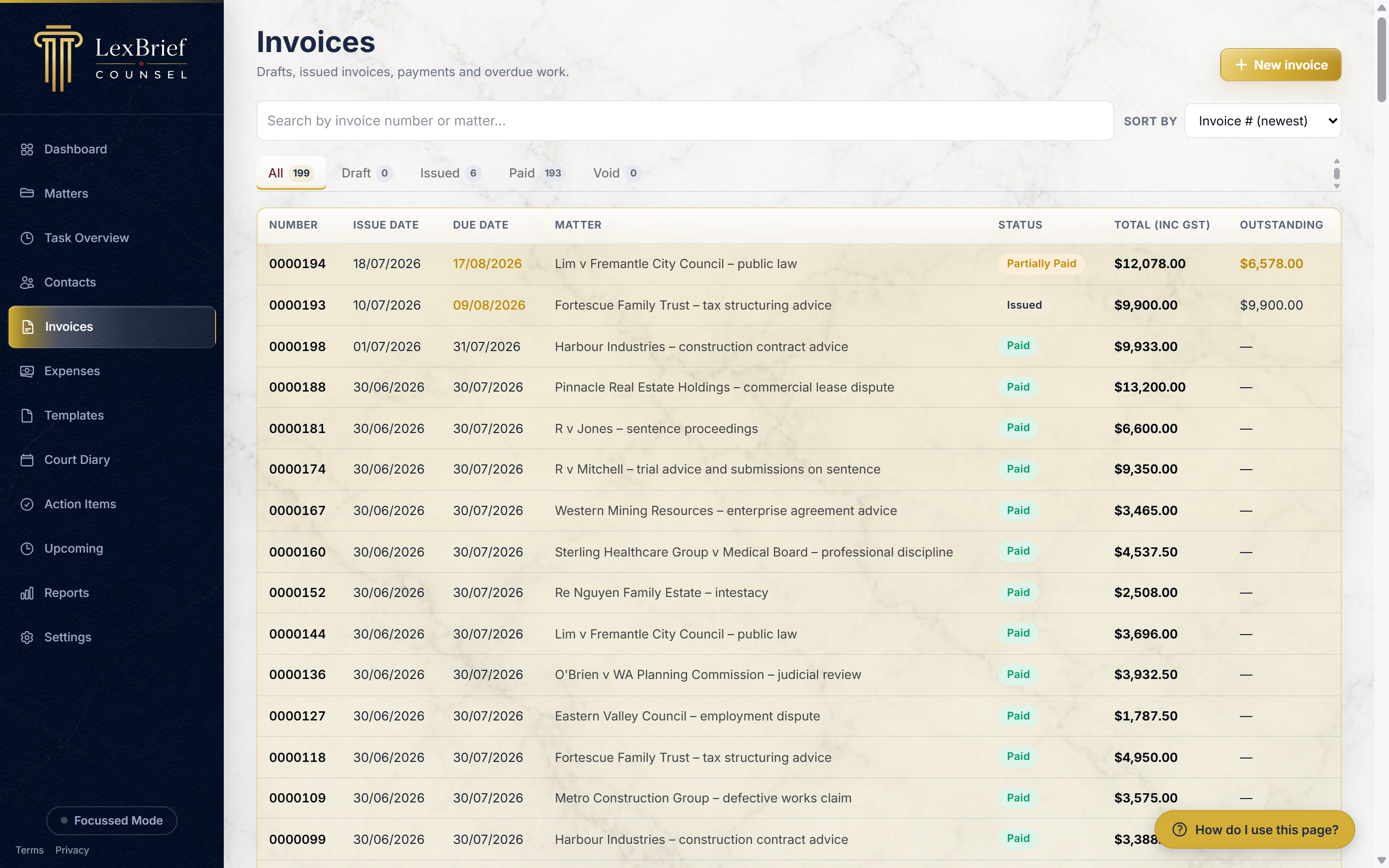
Just above the list is a row of tabs – All, Draft, Issued, Paid and Void. Click a tab to see only invoices at that stage. The number on each tab is how many you have of that kind. There is also a search box to find an invoice by its number or by the matter it is for.
Create a draft invoice
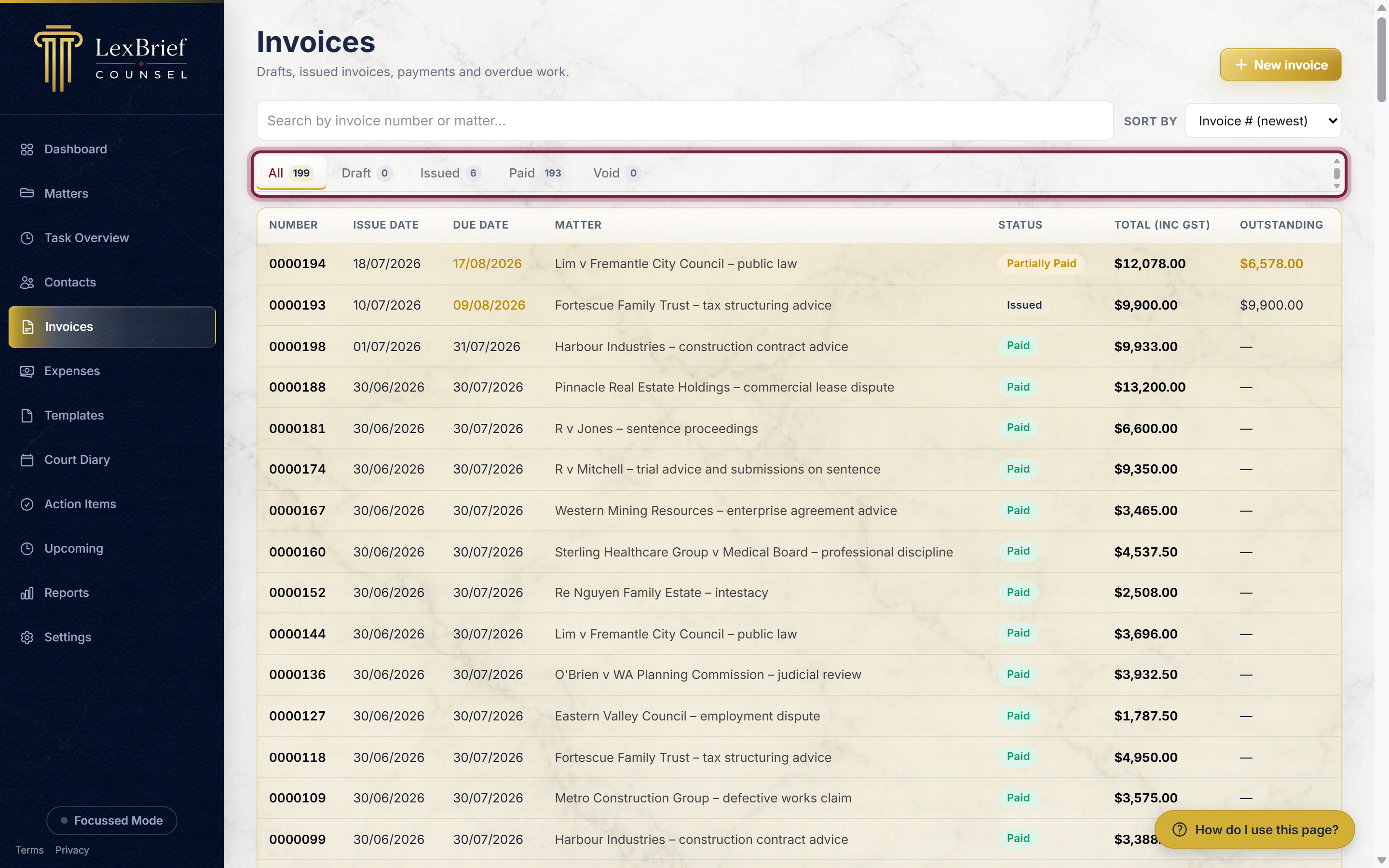
1. Start a new invoice
On the Invoices page, click the gold New invoice button in the top-right corner.
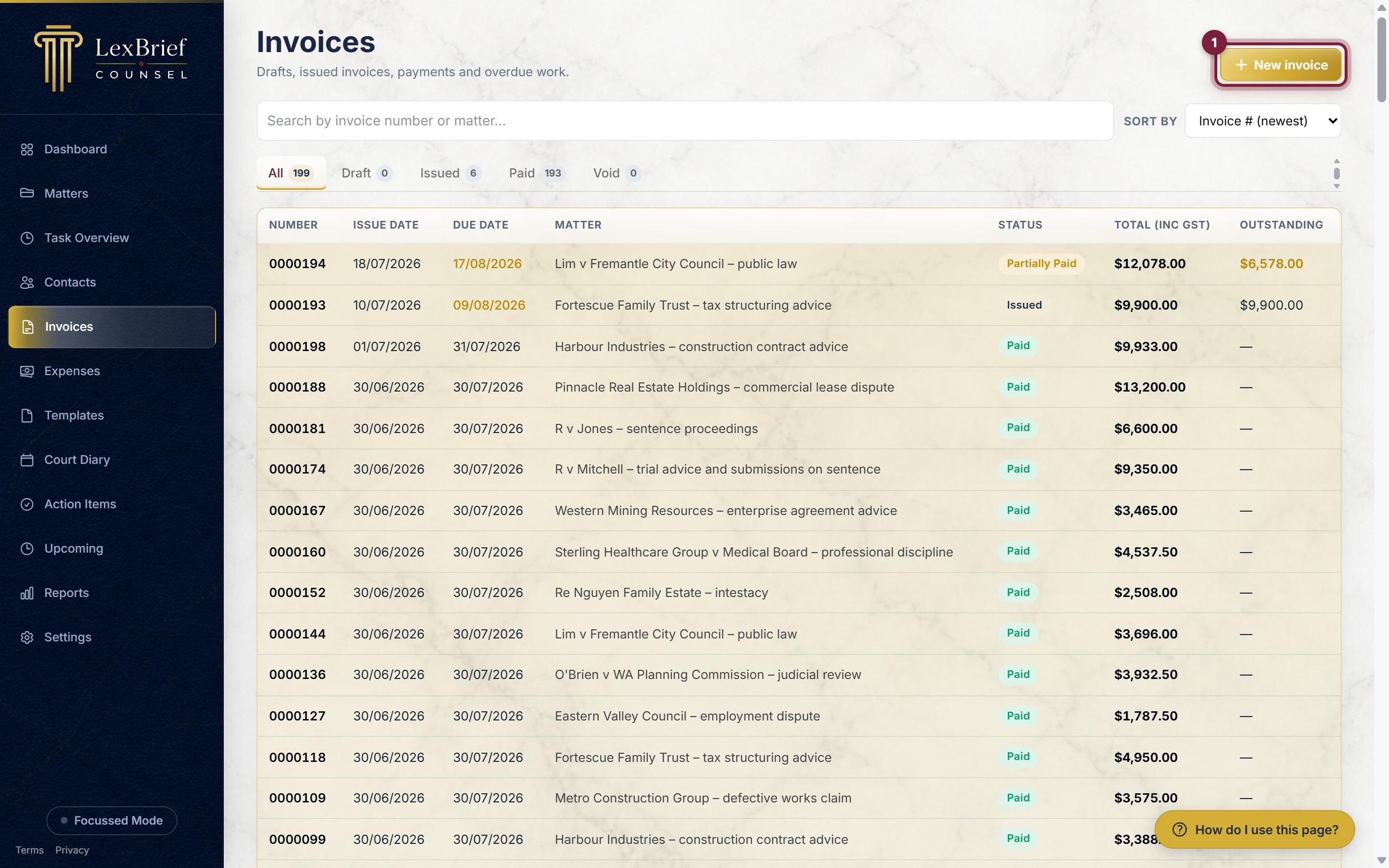
2. Pick the matter to bill
LexBrief shows a list of your matters, with the unbilled work (the "WIP") on each. Click the matter you want to invoice.
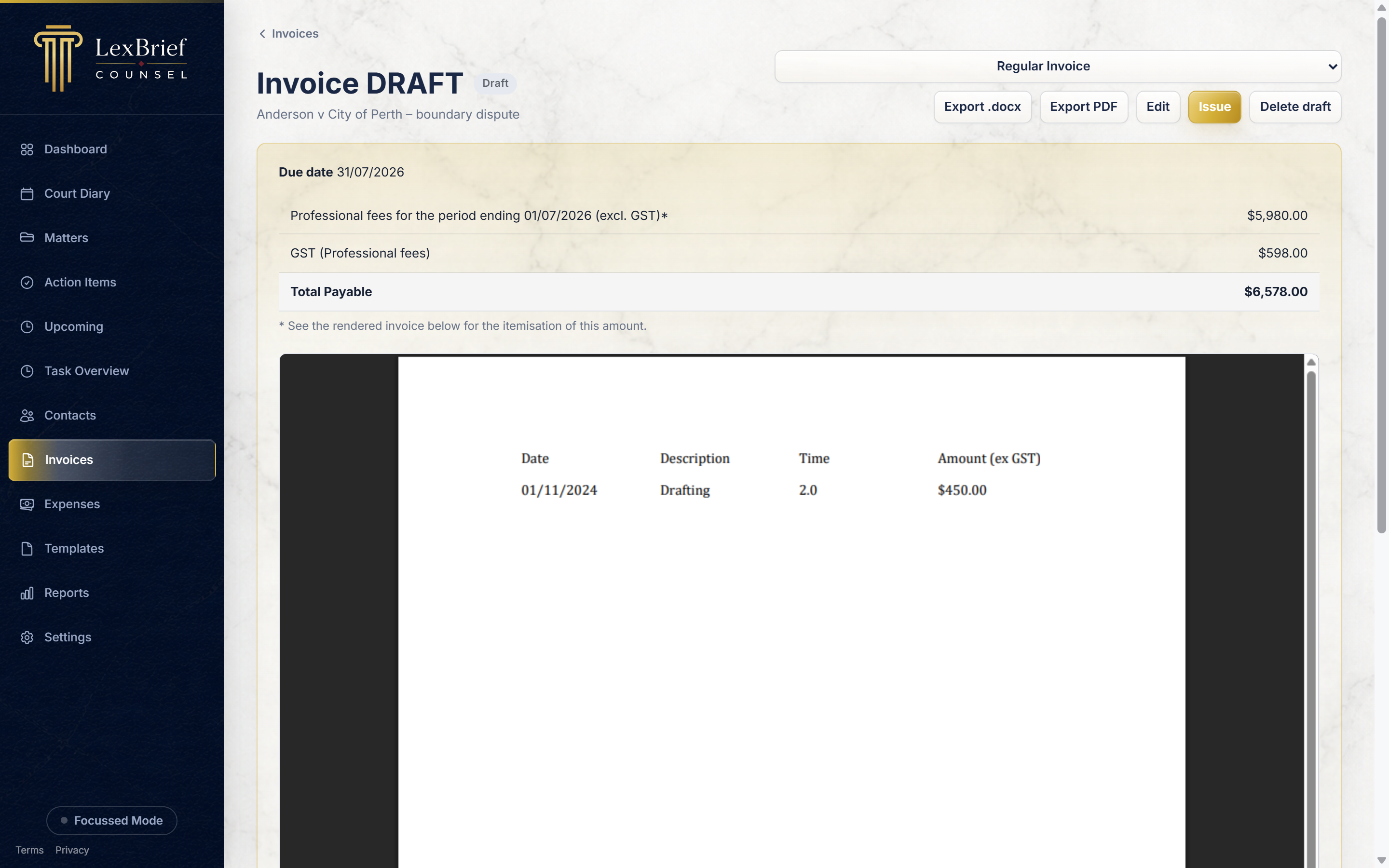
LexBrief builds a draft from that matter's unbilled time and any disbursements on it, and opens the draft for you. The draft shows a summary of the fees, GST and total. You can review it, and if you need to change which items are included you can edit the draft.
Issue it
Issuing turns the draft into the finished, numbered invoice you send to the client.
1. Click "Issue"
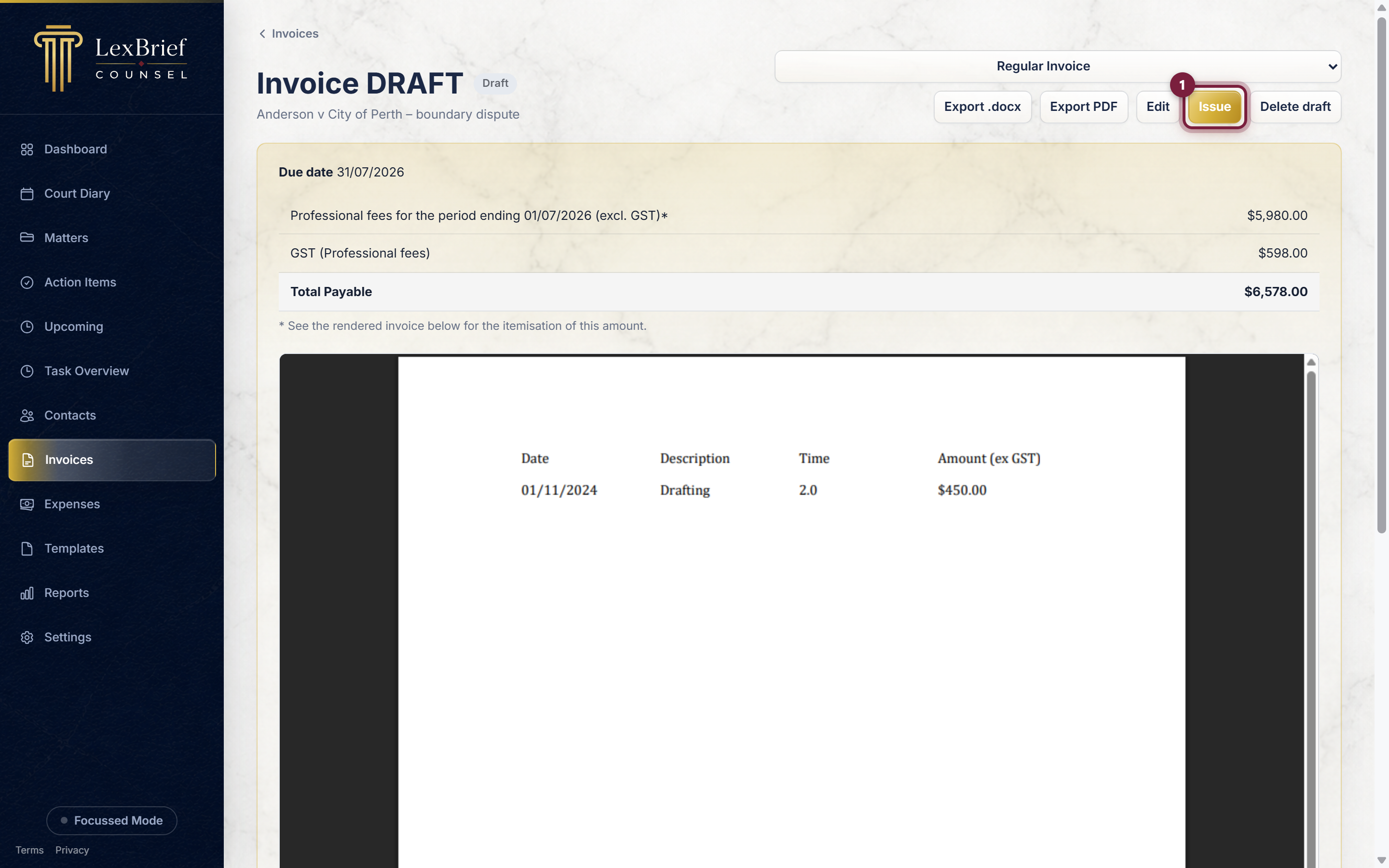
On the draft invoice, click the Issue button near the top-right. A small pop-up box asks you to confirm the issue date – leave it on today or change it – then click Issue invoice.
Send it – as a PDF or Word file
Once issued, the invoice appears on screen exactly as it will print. This on-screen version is the real invoice, produced from your invoice template – so what you see is what the client will see.
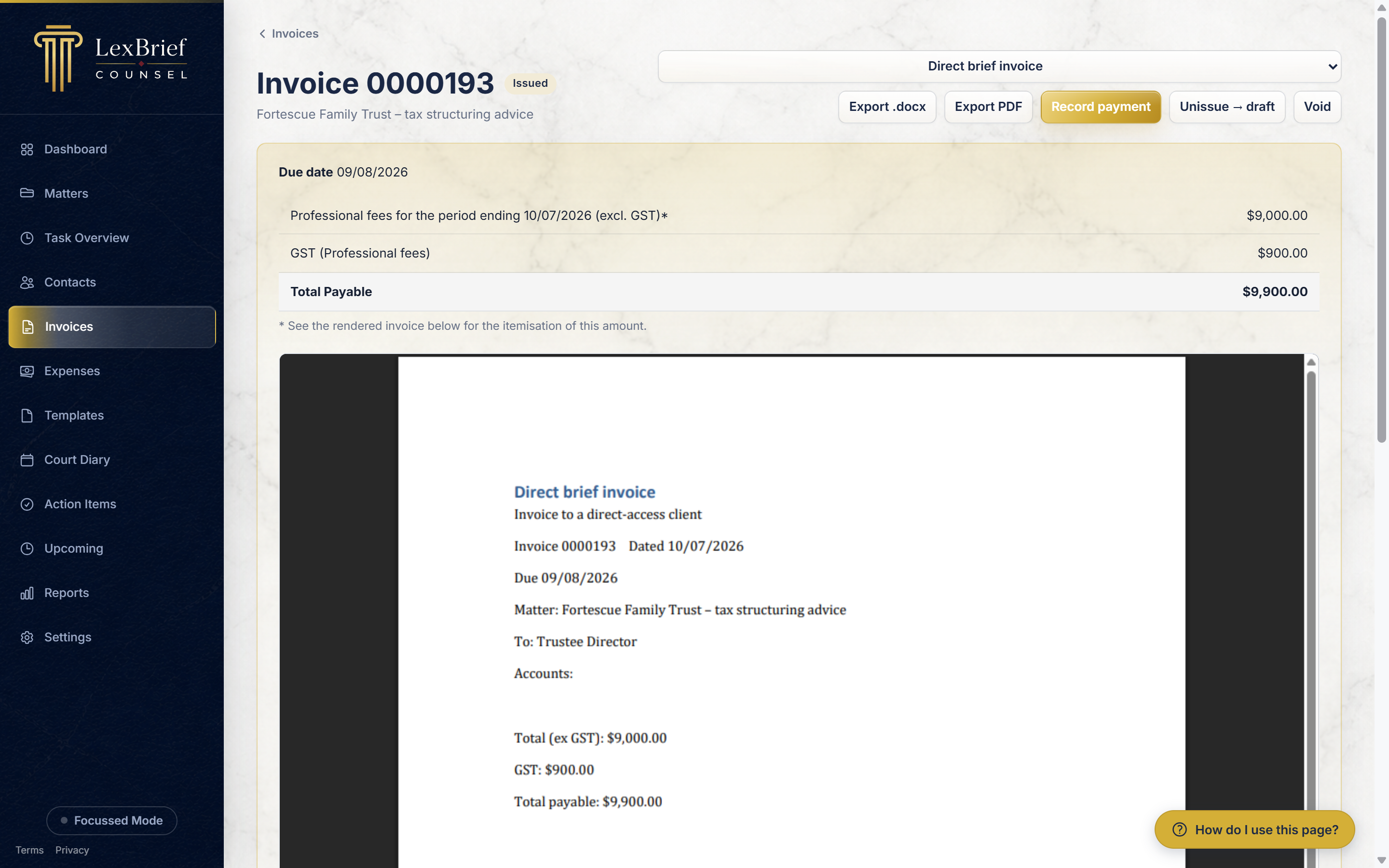
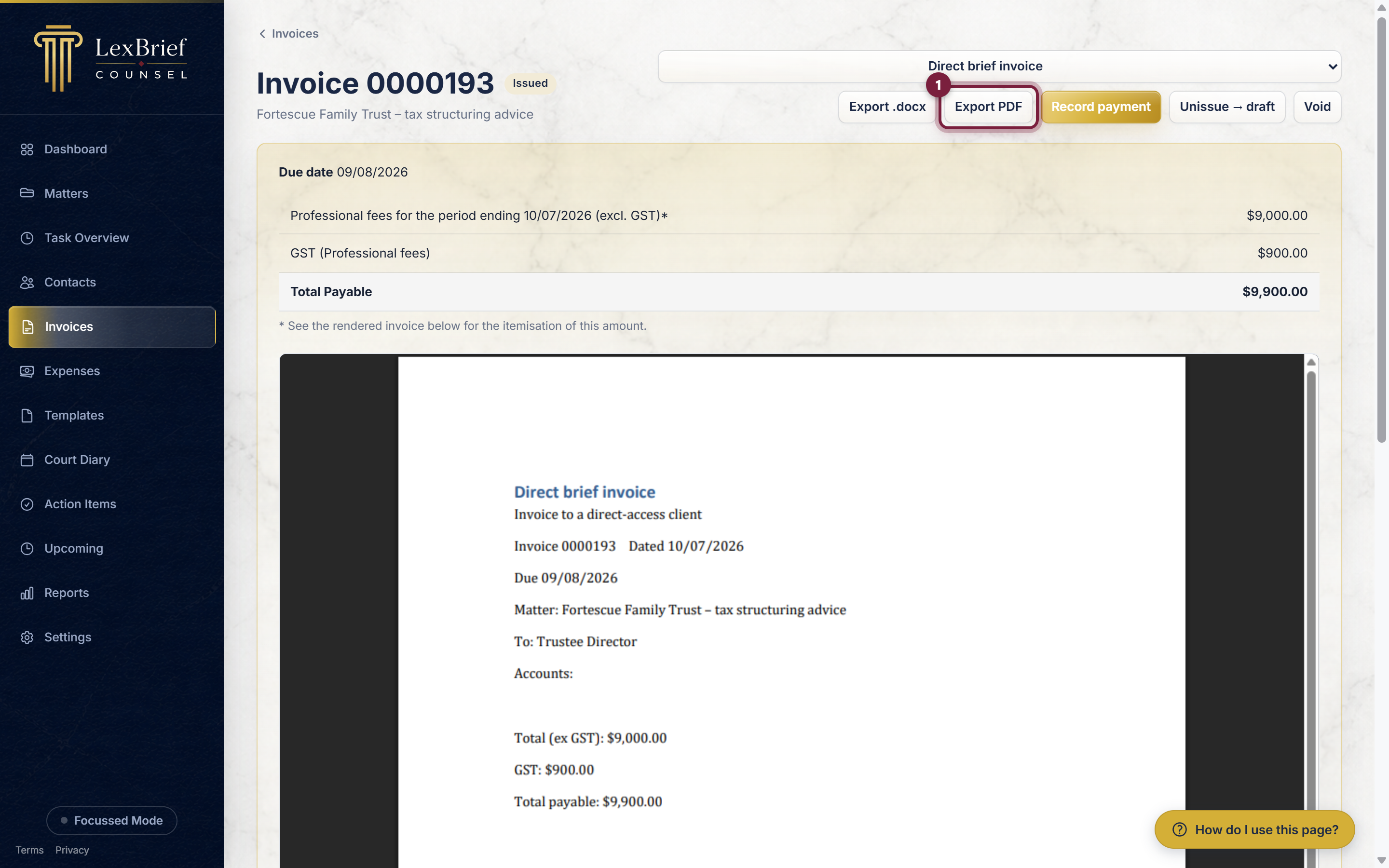
To save a copy to send, use the buttons near the top-right:
- Export PDF – downloads the invoice as a PDF, ready to email.
- Export .docx – downloads it as a Word file, if you want to edit it first.
If you have more than one invoice template, the list to the left of those buttons lets you choose which one to use; the invoice on screen updates to match.
LexBrief chooses that template for you. It looks at how the matter was briefed – firm brief (an instructing solicitor briefed you) or direct brief (the client came to you directly) – and picks the template you have set for that kind of brief. You can still change the list by hand for a single invoice, and only that invoice is affected.
< > : " / \ | ? *) is replaced with a space. If the matter has no description, the file is named invoice-0000153.pdf instead.
Record a payment
When the money arrives, record it against the invoice so LexBrief can count it as income and keep your outstanding figures right.
1. Click "Record payment"
Open the issued invoice and click the Record payment button near the top-right.
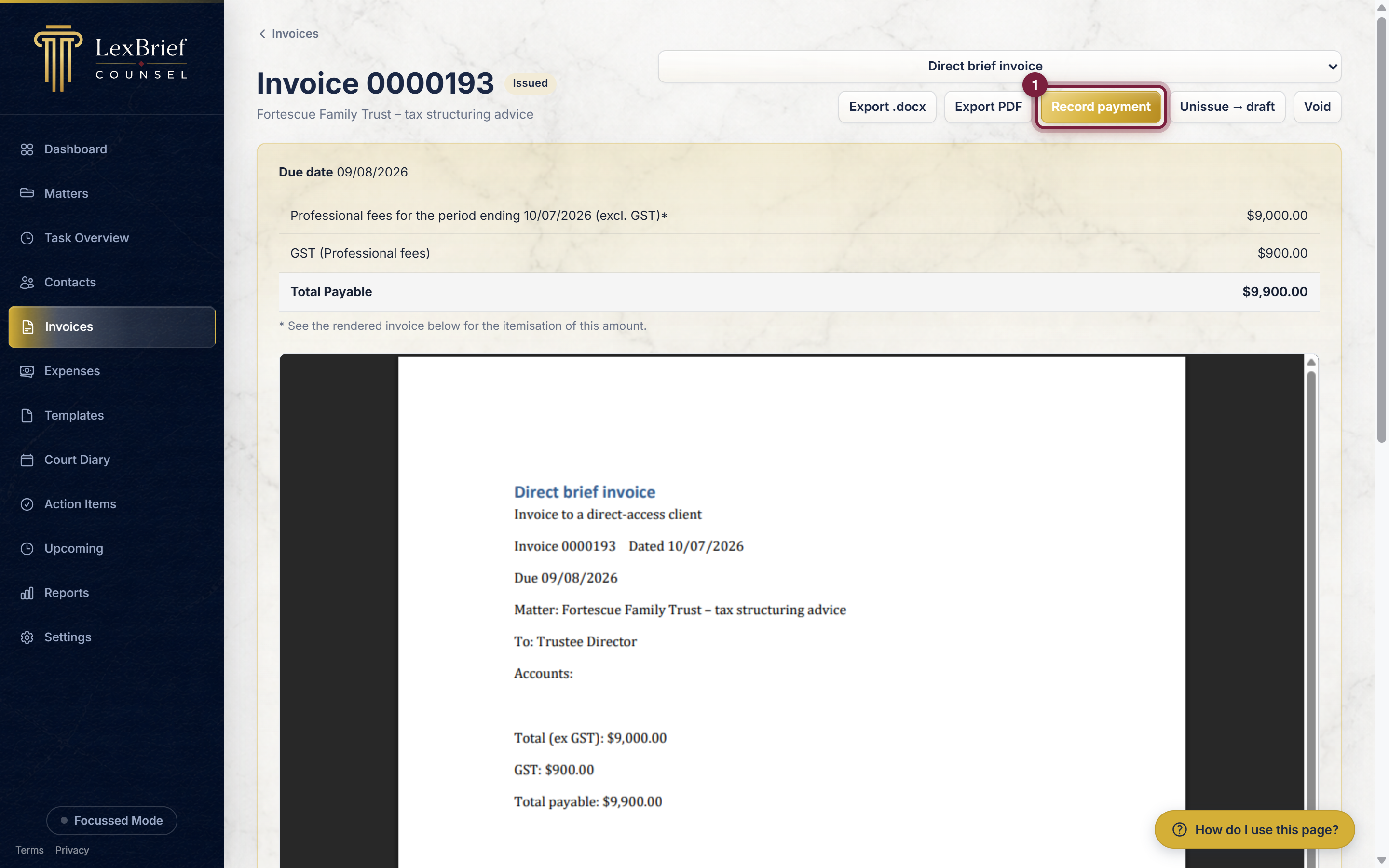
2. Enter the payment
A pop-up box appears with the outstanding amount already filled in. Check the payment date, adjust the amount if needed, and add the method (for example EFT). Click Record payment.
Once the full amount has been received, the invoice moves to the Paid stage.
Fixing mistakes
Everyone bills the wrong thing occasionally. LexBrief gives you three ways to put it right, and which one you want depends on what happened. You will find them on the invoice, near the top-right.
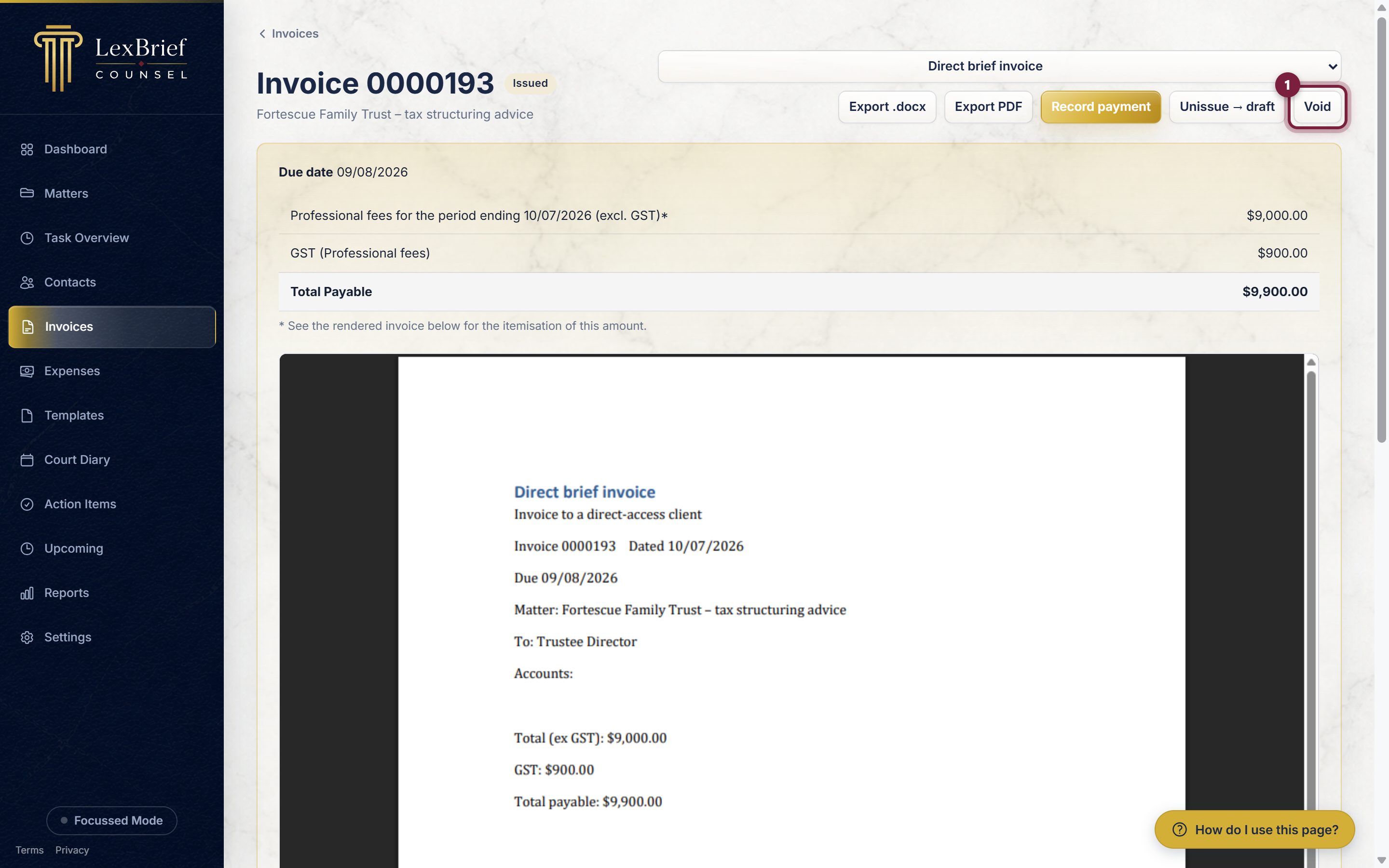
- Unissue → draft – the invoice is right in principle but wrong in its detail, and you want to correct it.
- Void – the invoice should never have gone out at all, and you want to cancel it.
- Write-off – the invoice was correct, but some or all of it will never be paid.
For a draft you have not issued yet, the tidiest option is simply Delete draft – there is no number to keep, so it just disappears and its time entries are freed up again.
How to correct an invoice
Use Unissue → draft. Open the invoice, click the Unissue → draft button near the top-right, and confirm in the pop-up box. The invoice returns to draft, you change what you need, and you issue it again.
What you should see: the invoice is back at the Draft stage, and its time entries are unlocked so you can edit them.
Unissue keeps the invoice number. When you re-issue, the same number comes back, so your client sees one invoice, corrected – not two.
How to void an invoice
Voiding is for an invoice you should not have sent, and where no money has been received.
- Open the invoice and click the Void button near the top-right.
- In the pop-up box, type VOID in the box provided. The Void invoice button stays greyed out until you have typed it correctly.
- Click Void invoice.
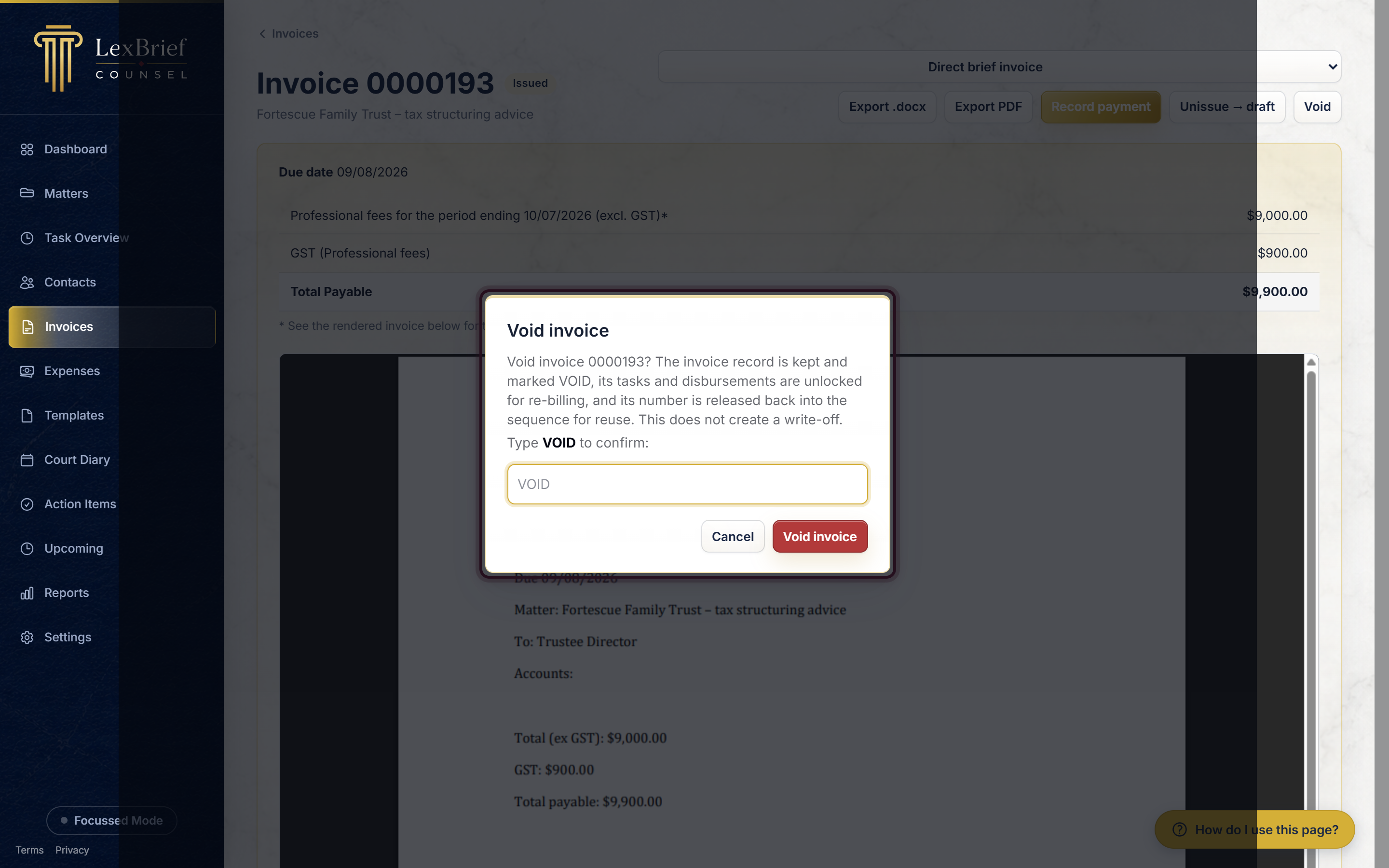
What you should see: the invoice is still there, now labelled VOID instead of showing a number. Its time entries and disbursements are unlocked, so you can put them on a different invoice.
Voiding releases the invoice number back into your sequence, and the next invoice you issue takes that number. That is deliberate: it keeps the run of numbers you send clients unbroken.
What to do if a payment has already been recorded
Once you have recorded any payment against an invoice – including a part-payment, where the invoice shows Partially Paid – the Unissue → draft and Void buttons are no longer shown. In their place you will see the line "Payments recorded – remove them before unissuing or voiding."
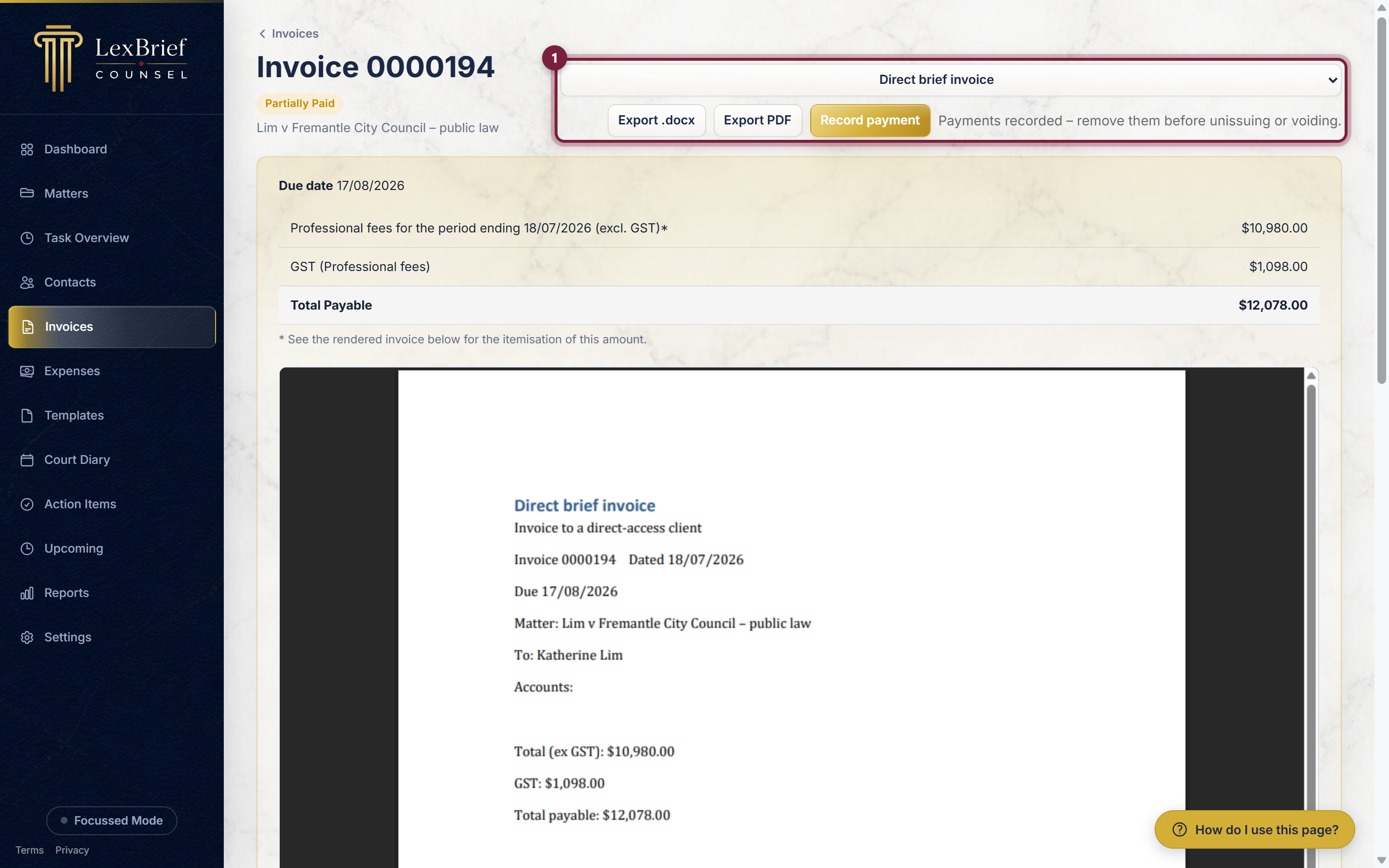
This is on purpose. A recorded payment is a record that money actually reached your account, and it feeds your income figures and your reports. LexBrief will not quietly delete that record behind your back.
You have two honest ways forward.
- Remove the payment first, if it was recorded in error or the money was returned. In the payments table on the invoice, click Remove next to the payment and confirm. To clear every payment at once on an invoice that is fully paid, click Unmark paid near the top-right. Once no payments remain, the Unissue → draft and Void buttons reappear.
- Record a write-off instead, if the money genuinely was received but the rest of the invoice will never be paid. See below.
How to write off an amount you will not be paid
Scroll down the invoice page to the Write-off box.
- In Amount (incl GST), type the amount you are giving up.
- Set the date and, if you wish, a short Reason (for example uncollectable).
- Click the Save write-off button.
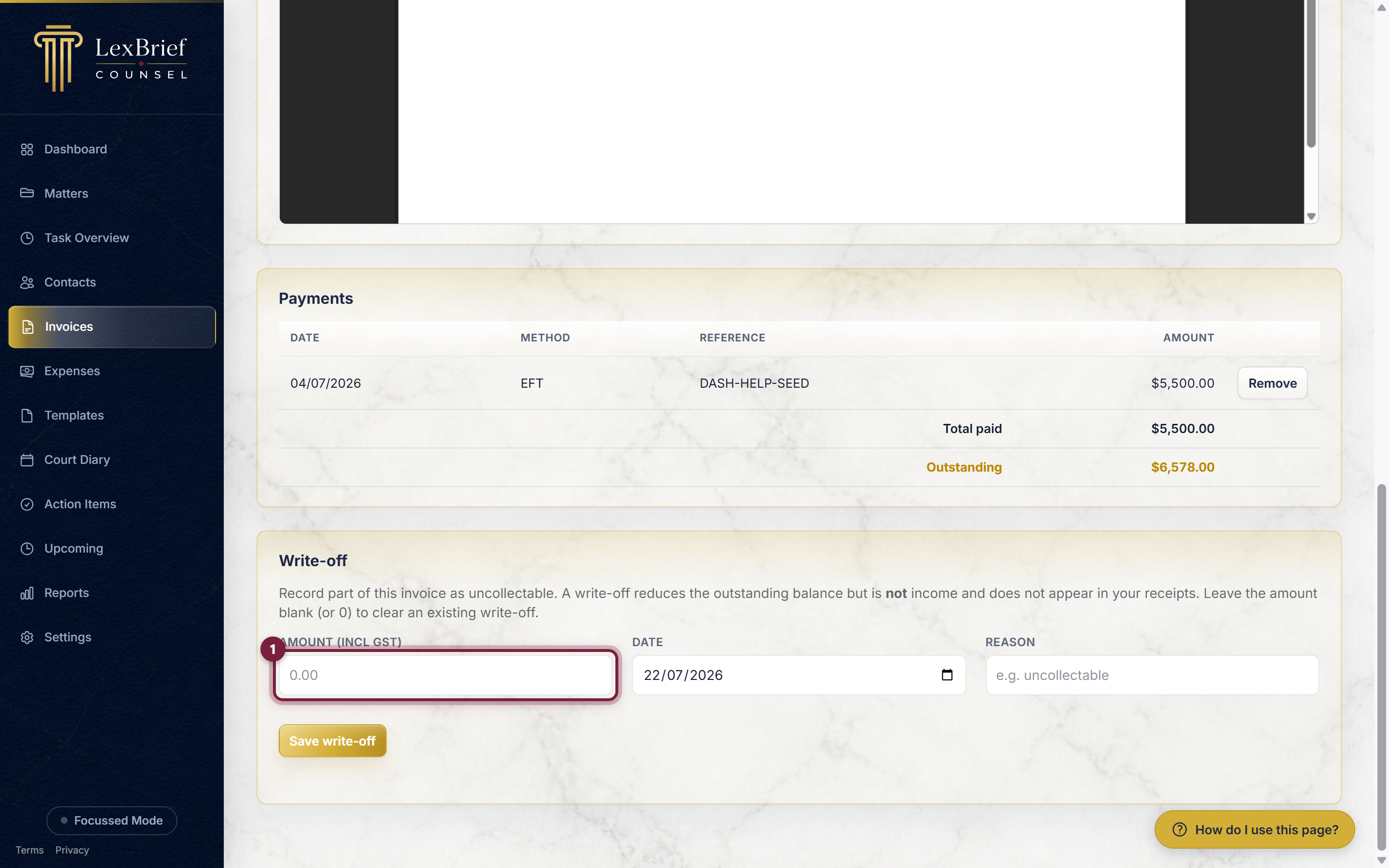
What you should see: the invoice's outstanding balance drops by the amount you entered.
A write-off reduces what is outstanding but is not income, so it never appears in your receipts. To undo one, come back to the same box, clear the amount (or set it to 0) and click Save write-off again.
What next
Invoices connect to the rest of your practice:
- Matters – an invoice bills the work on a matter; record time there first.
- Expenses – disbursements you record on a matter are billed on its invoice.
- Browse all help guides
Stuck on anything at all? Email support@lexbrief.au – a real person reads it, usually the same working day.