

If at any point your screen does not look like the picture, stop and email support@lexbrief.au – we would rather help than have you guess.
Before you start
If this is your very first time in LexBrief, read Your first day in LexBrief Counsel first. This guide is about expenses on their own.
A note on wording: the dark strip of links down the left-hand side of the screen is the menu. When we say "click Expenses in the left-hand menu", we mean click the word Expenses in that dark strip.
The kinds of expense
When you record an expense you tell LexBrief what kind it is. This decides how it is treated in your reports. The kinds are:
- General expense – the everyday running costs of your practice: chambers fees, software, insurance, stationery. This is the usual choice.
- Capital expense – a larger one-off purchase, such as equipment.
- Disbursement – a cost you incur on a particular matter and pass on to the client, such as a filing fee or a transcript. A disbursement is always attached to a matter (see Disbursements below).
- Tax payment – money you pay the ATO, such as a BAS payment, a PAYG instalment, or your end-of-year tax bill.
- Personal expense – personal spending or drawings you want tracked but which is not a business cost.
You do not have to get this perfect – you can change the kind later by opening the expense and editing it.
Your expenses list
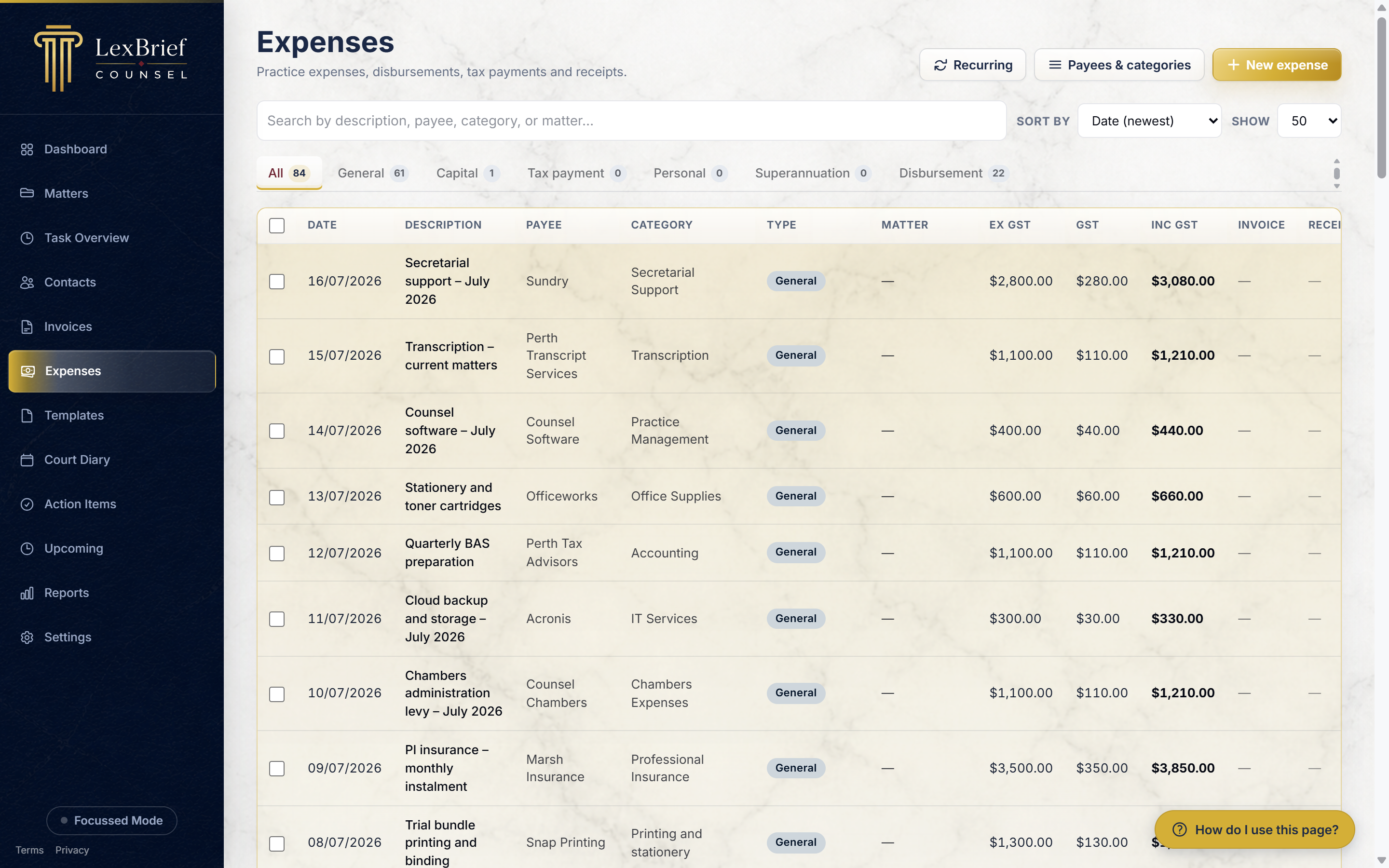
Click Expenses in the left-hand menu. You see a list of everything you have recorded, with the date, description, payee, category, amounts and GST.
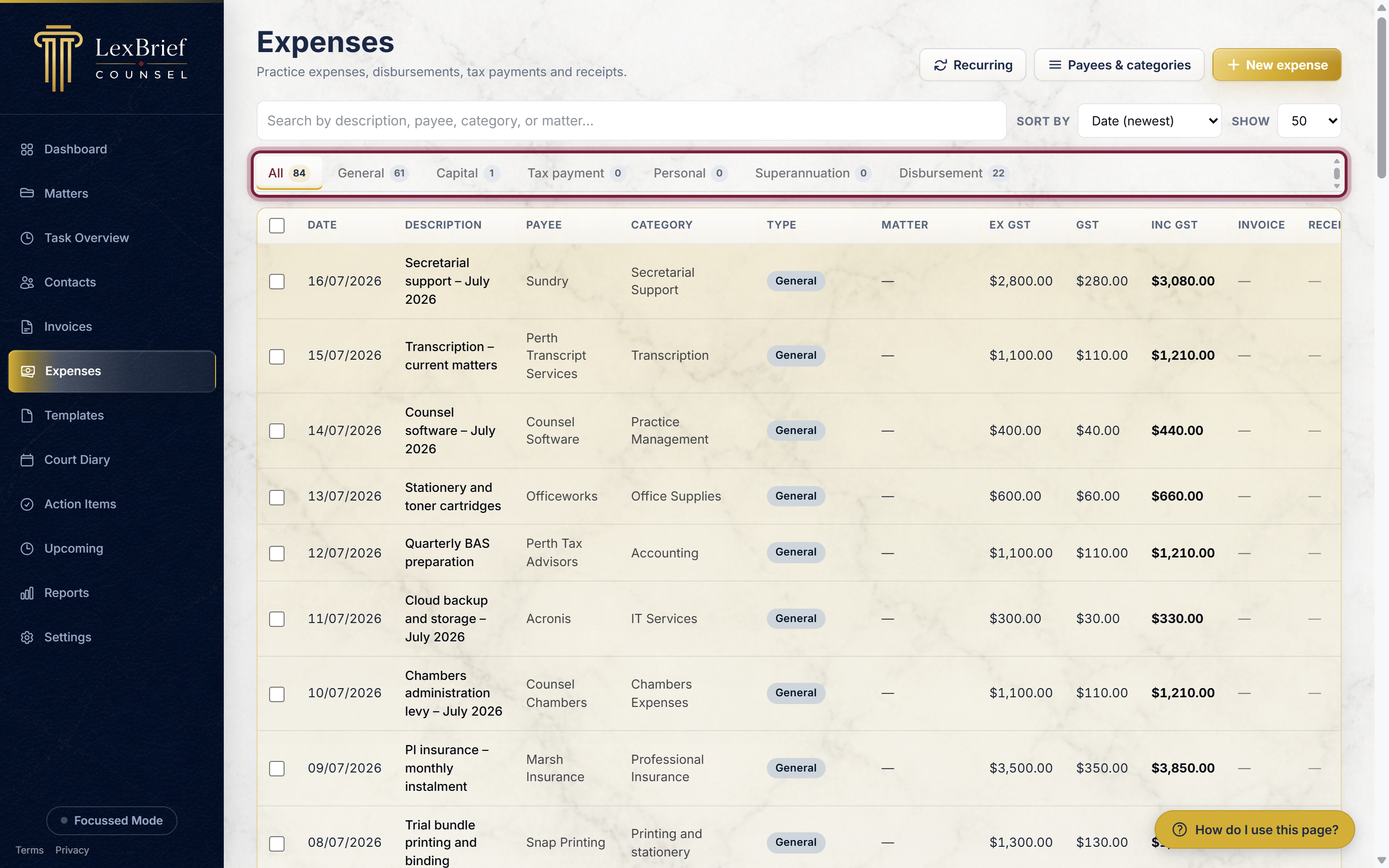
Just above the list is a row of tabs – All, General, Capital, Tax payment, and so on. Click a tab to see only that kind of expense. The number on each tab is how many you have of that kind.
Record an expense
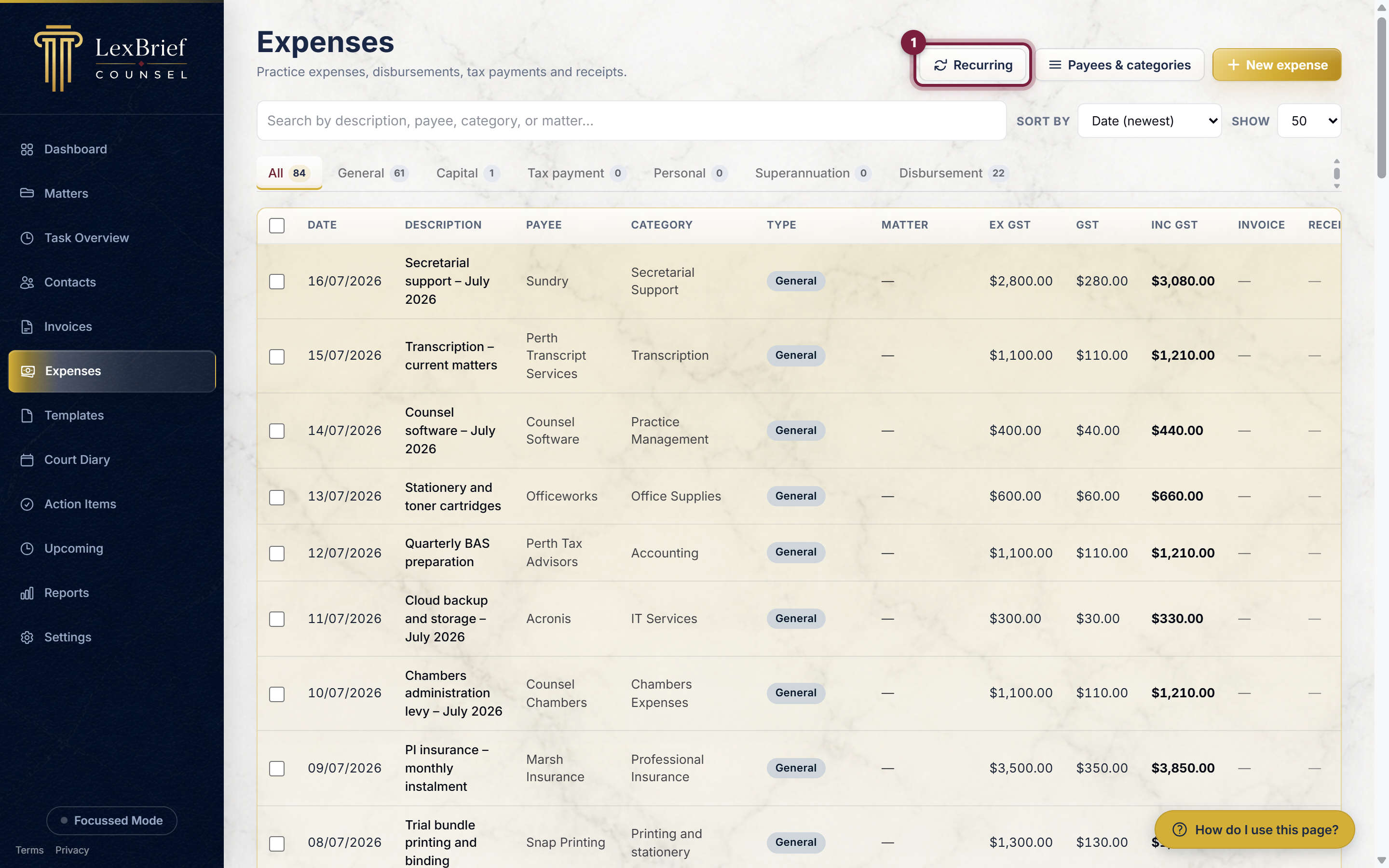
1. Click "New expense"
On the Expenses page, click the gold New expense button in the top-right corner.
2. Choose the kind of expense
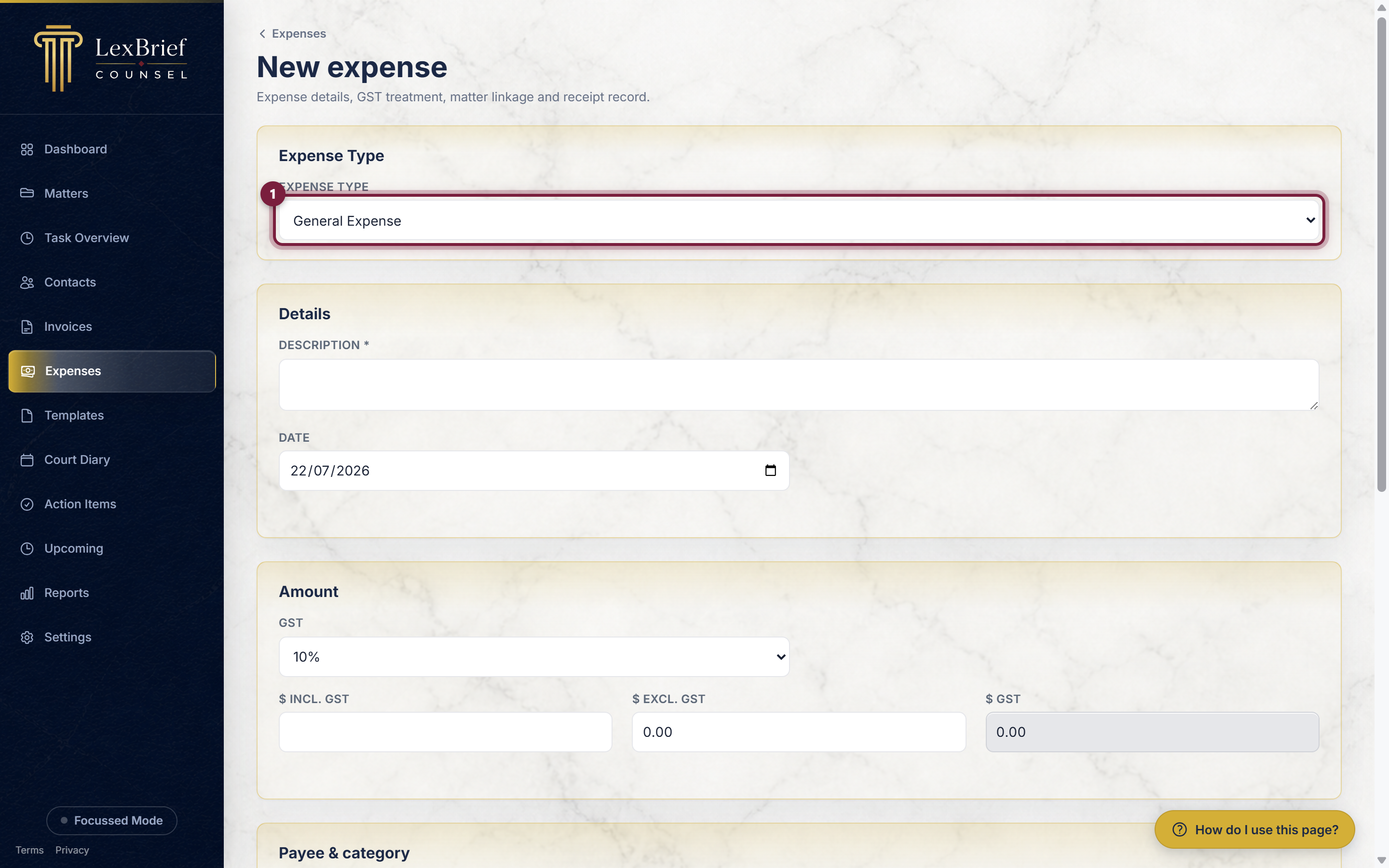
At the top of the form, the Expense Type box sets the kind (see The kinds of expense above). It starts on General Expense – leave it there for an ordinary practice cost.
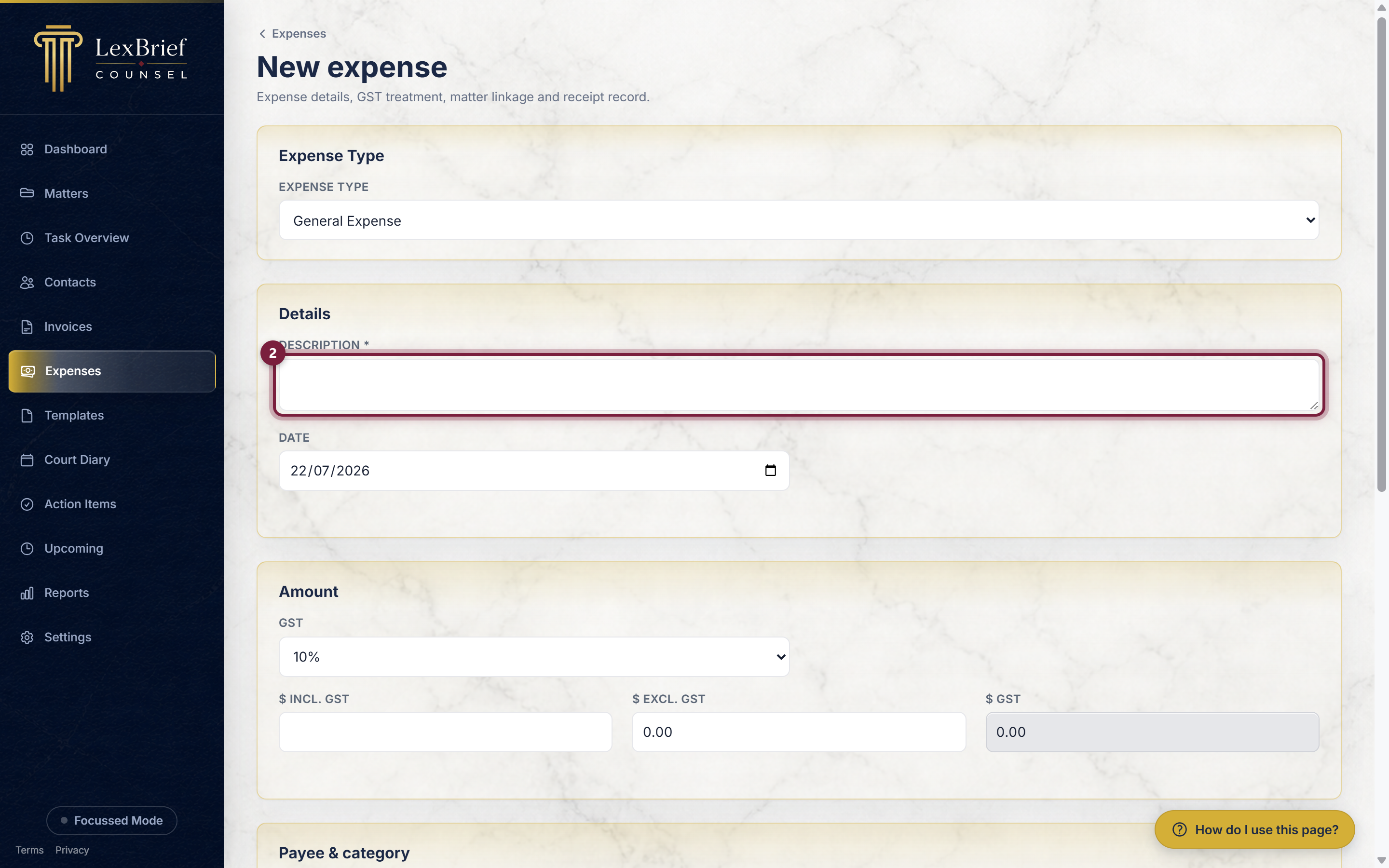
3. Describe it
In the Description box, type what the expense was for – for example Chambers rent – July 2026. Check the Date below it (it starts on today; change it if the cost was on another day).
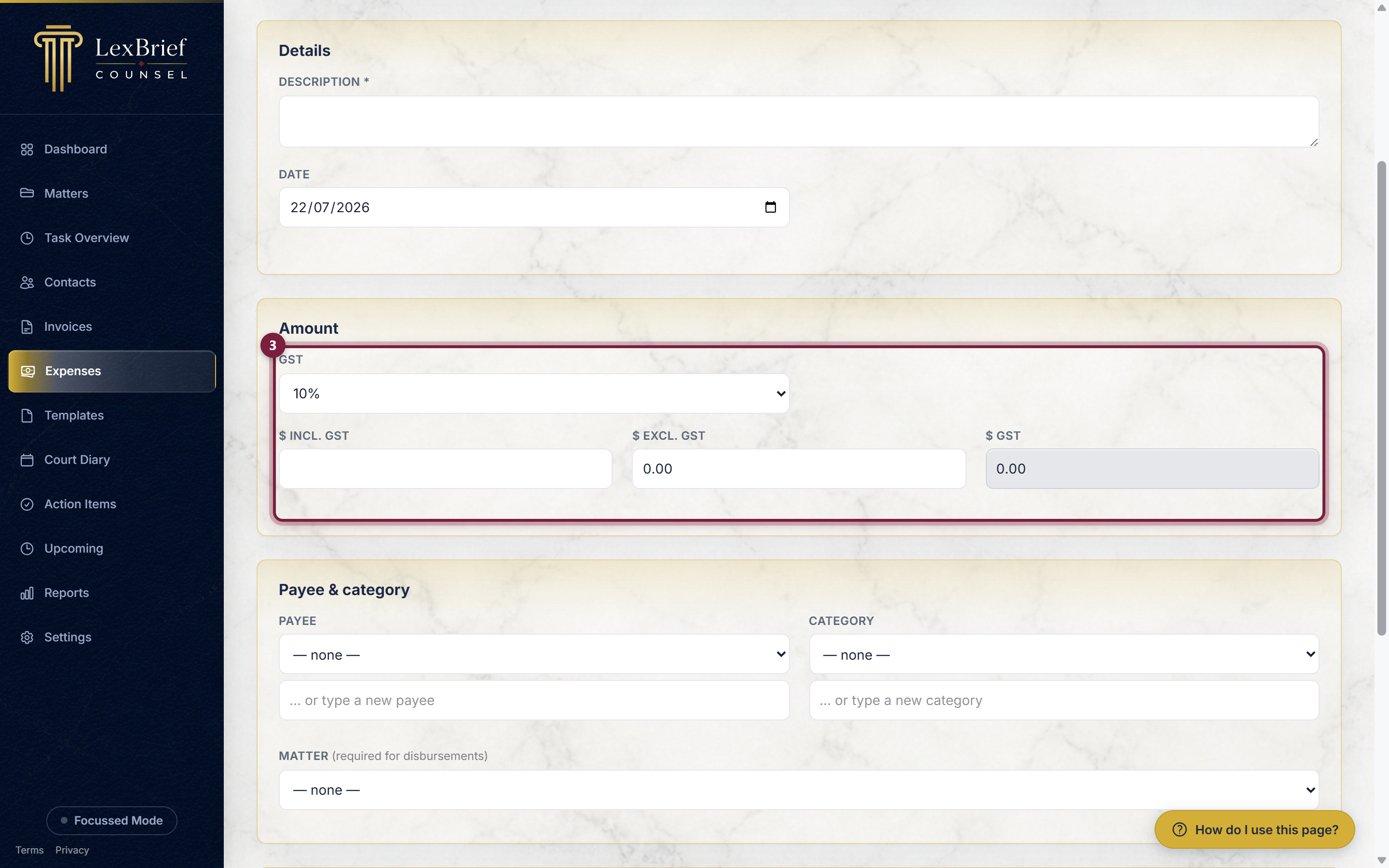
4. Enter the amount
In the Amount section, type what you paid. You can enter it three ways, whichever you have to hand:
- $ incl. GST – the total you paid, GST included.
- $ excl. GST – the amount before GST.
- $ GST – the GST portion on its own.
Fill in the one you know and LexBrief works out the others. The GST box on the left controls whether GST is added at the standard 10%, set to nil, or entered by hand.
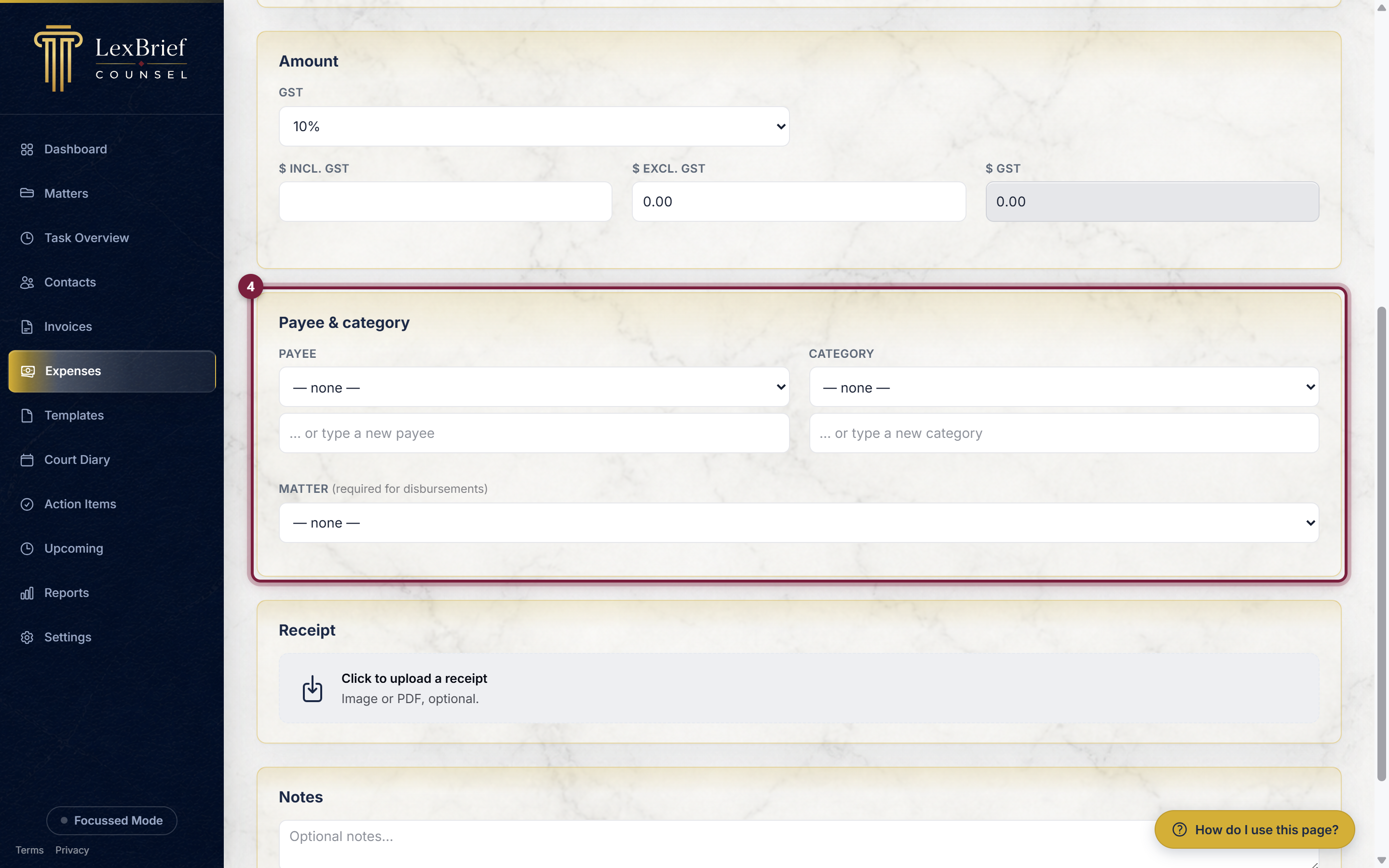
5. Add the payee and category (optional)
In Payee & category you can record who you paid and put the expense in a category (such as Insurance or Software) so your reports group it sensibly. Pick from the lists, or type a new payee or category to add it.
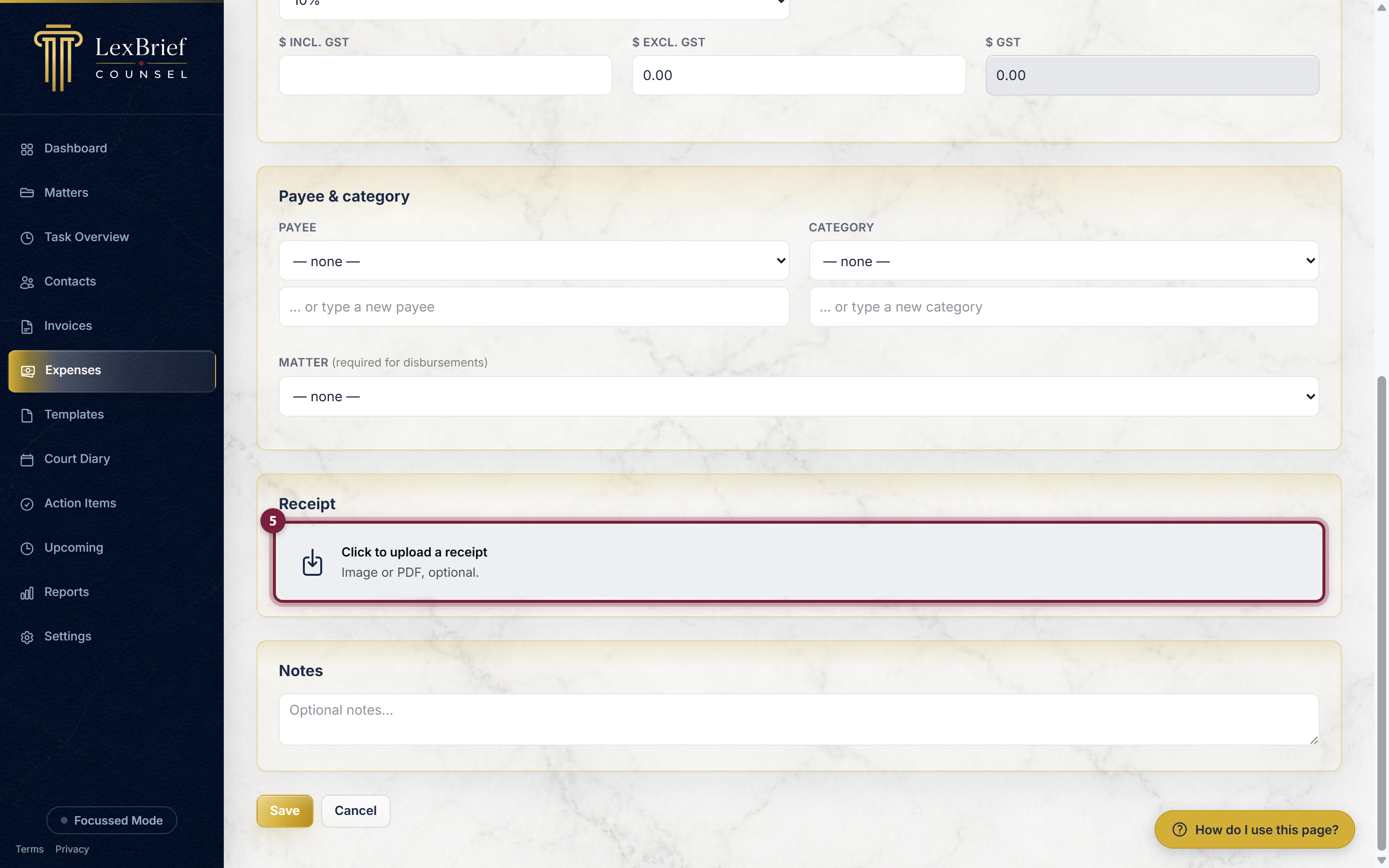
6. Attach a receipt (optional)
To keep the receipt with the expense, click the Click to upload a receipt box and choose the file (a photo or a PDF).
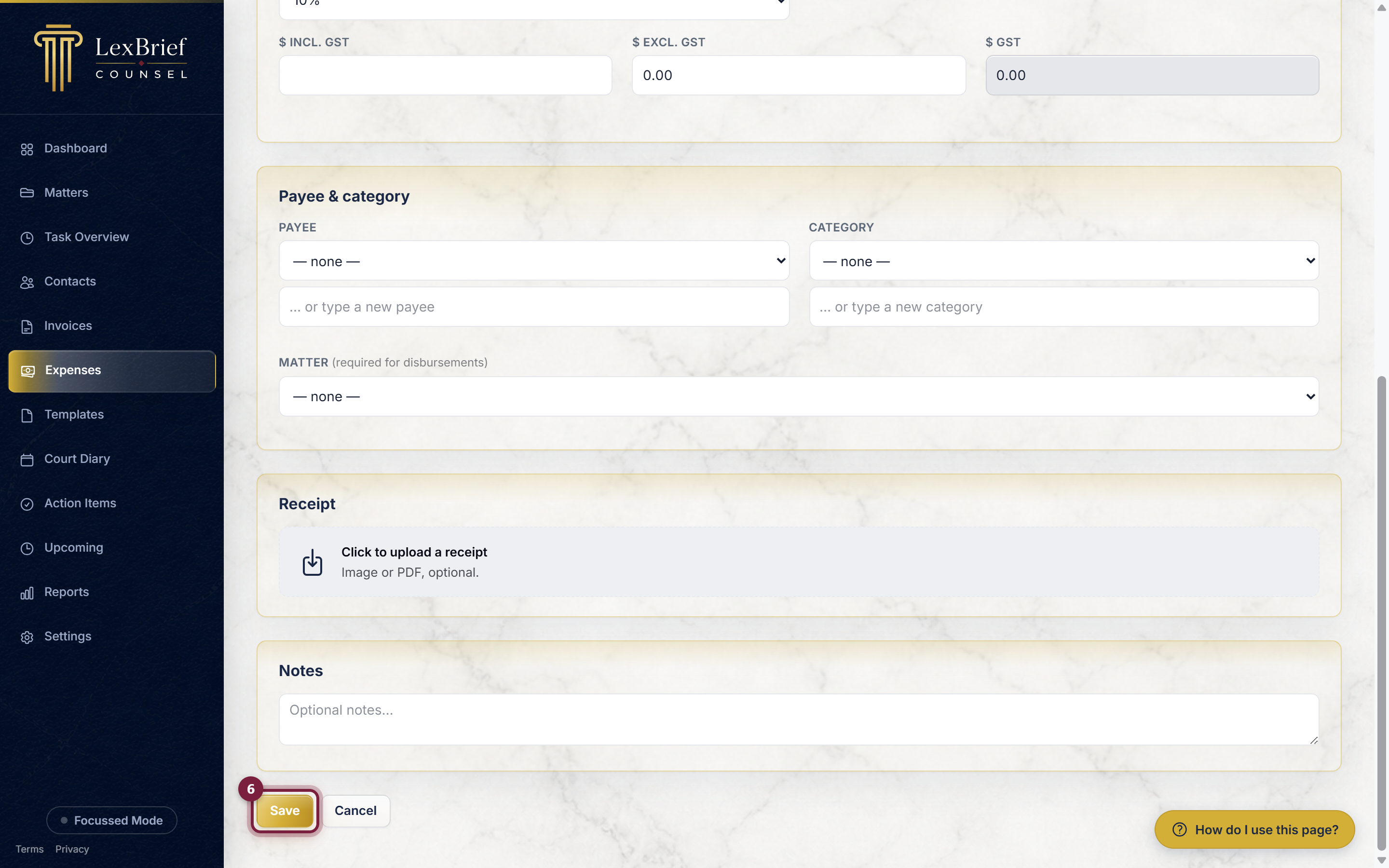
7. Save
Click Save at the bottom. The expense now appears in your Expenses list.
Disbursements – costs you pass on to a client
A disbursement is a cost you incur on a particular matter and pass on to the client – a court filing fee, a transcript, an expert's account. It is recorded like any other expense, with one difference: it must be attached to a matter, so it can be billed on that matter's invoice.
There are two easy ways to record one:
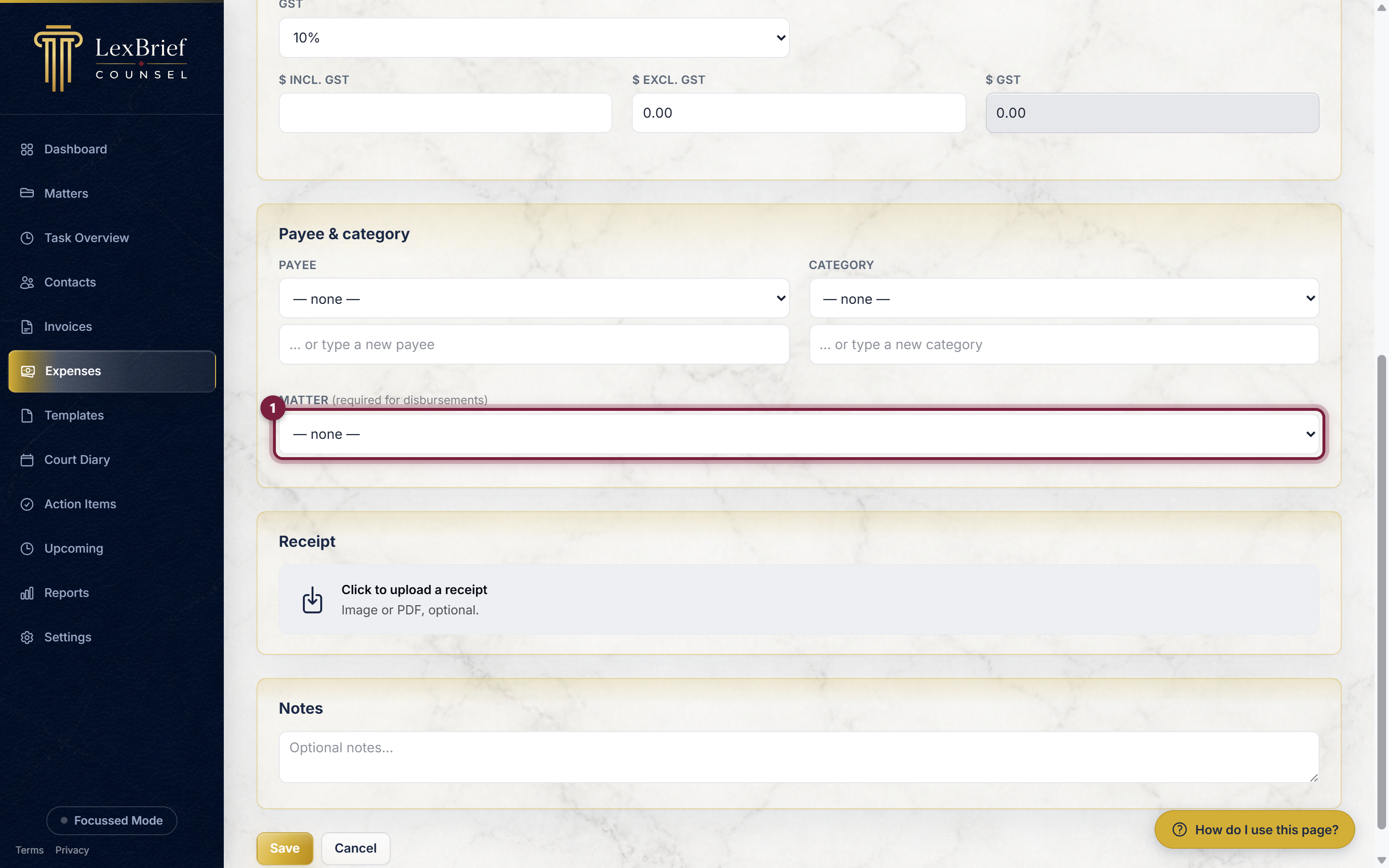
- On the Expenses form, set the Expense Type to Disbursement. A Matter box then must be filled in – choose the matter it belongs to.
- Or, from the matter itself: open the matter, go to its Disbursements tab, and click New disbursement – the matter is filled in for you.
Expenses that repeat
Some costs come round on a schedule: chambers rent every month, insurance every quarter, your practising certificate once a year. Instead of typing each one out again, you can set it up once as a recurring expense. LexBrief then reminds you each time it falls due.
Open the recurring expenses page
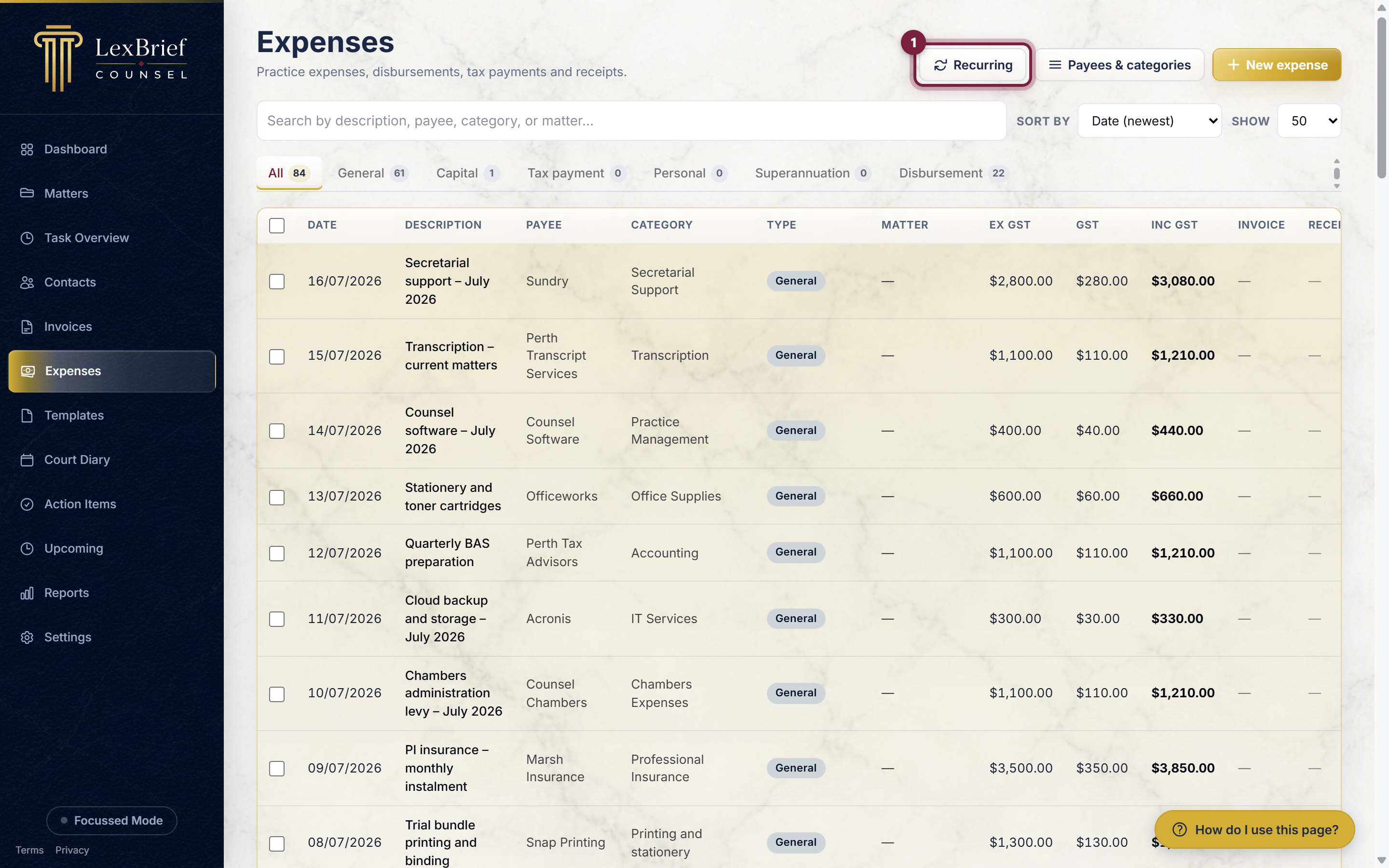
Click Expenses in the left-hand menu, then click the Recurring button along the top of the page.
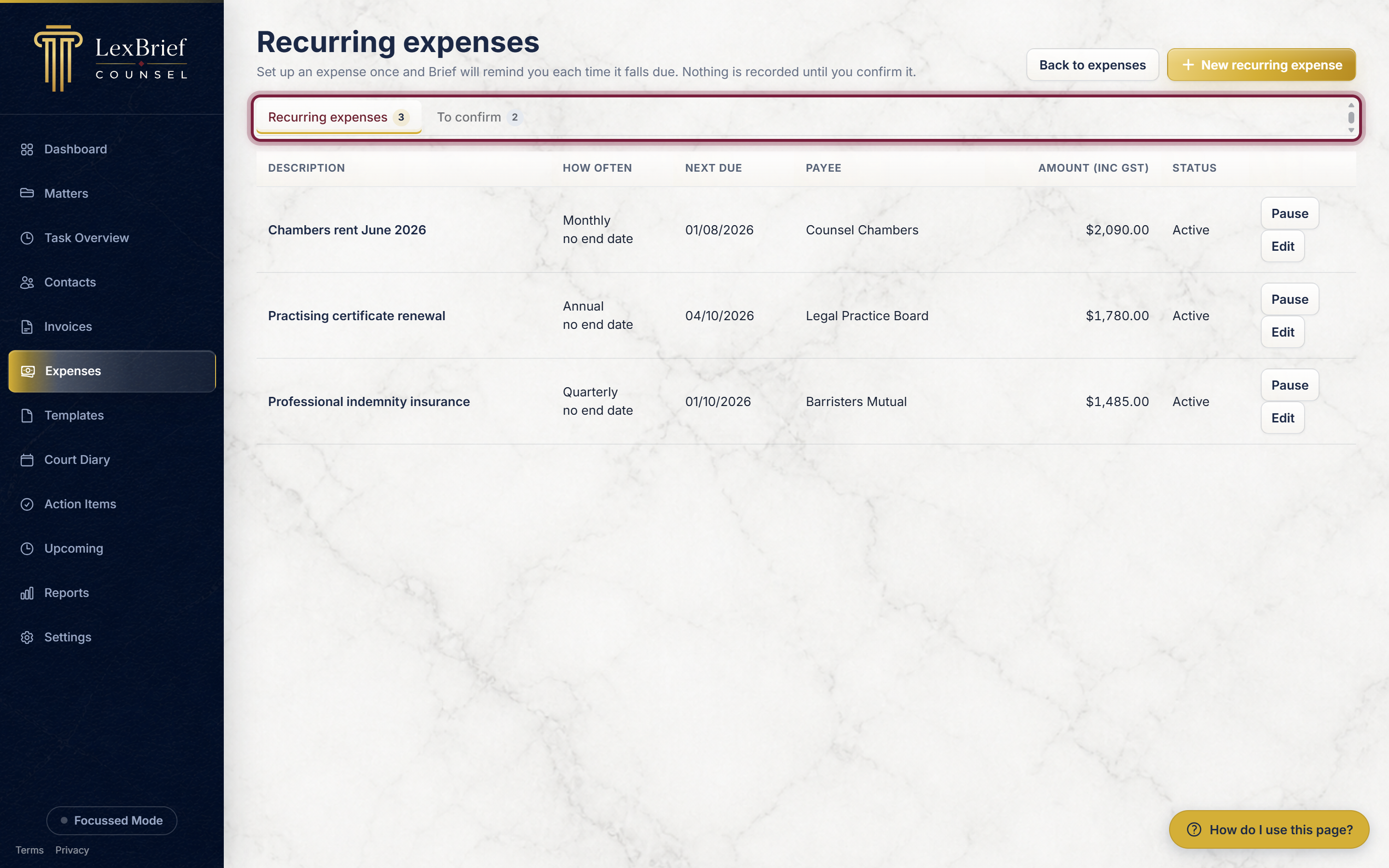
What you should see: a page headed Recurring expenses, with two tabs across the top: Recurring expenses (the list of the ones you have set up) and To confirm (the ones that have fallen due and are waiting on you). The number beside each tab tells you how many.
How to set up an expense that repeats
1. Start a new one
On the Recurring expenses page, click the gold New recurring expense button in the top-right corner.
2. Choose the kind of expense
The Expense Type box at the top works exactly as it does on an ordinary expense (see The kinds of expense above). It starts on General Expense.
3. Describe it
In the Description box, type what the cost is for – for example Chambers rent June 2026.
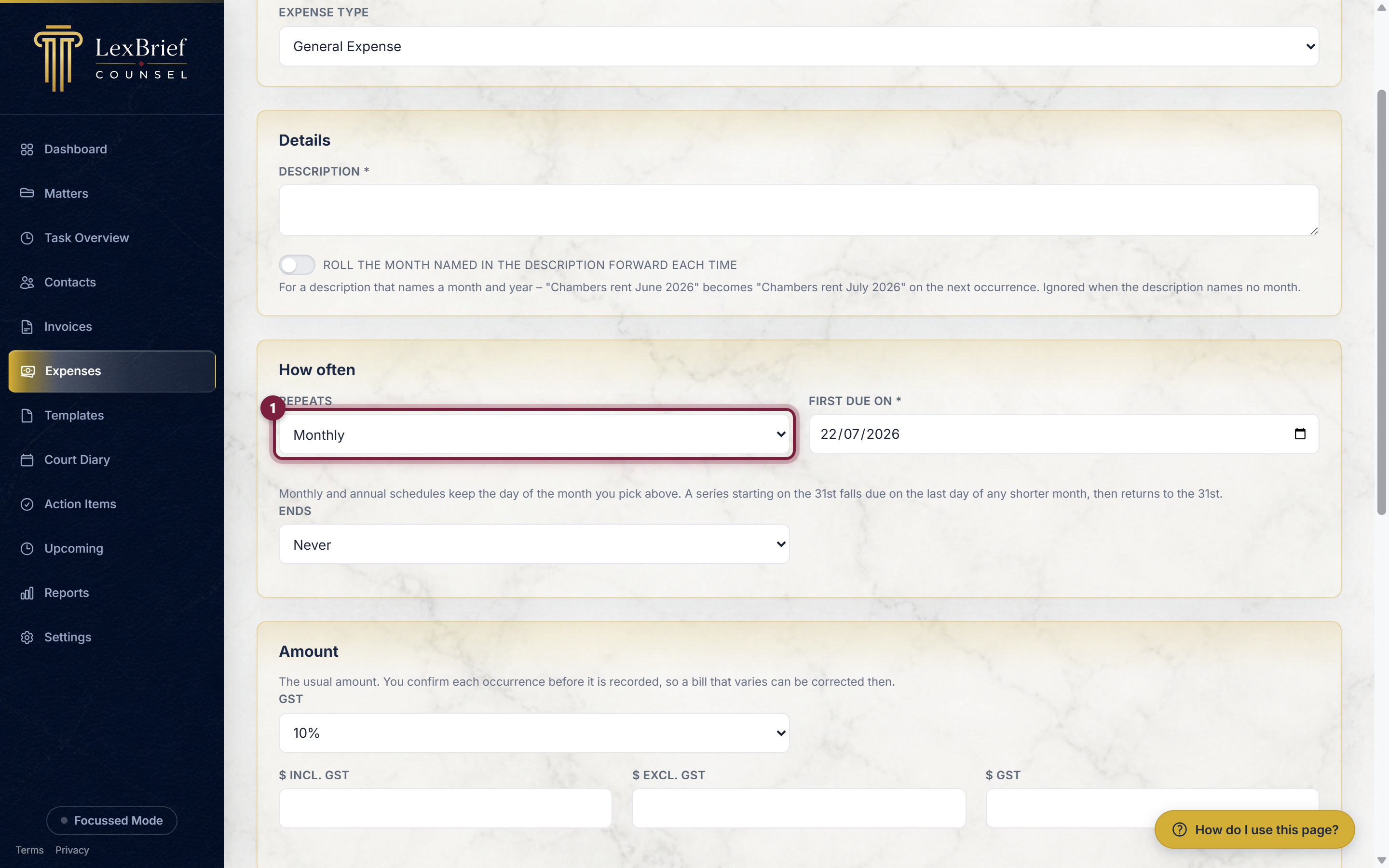
Underneath is a switch: Roll the month named in the description forward each time. Switch it on if your description names a month. Chambers rent June 2026 then becomes Chambers rent July 2026 on the next occurrence, and so on. If the description names no month, the switch does nothing.
4. Say how often it repeats
In the How often section, use the Repeats box to pick one of: Daily, Weekly, Fortnightly, Monthly, Quarterly, Half-yearly or Annual. If none of those fits, choose Custom… and two more boxes appear so you can say Every so many days, weeks, months or years.
5. Set the first date
In the First due on box, put the date it is next due – for example 01/08/2026. Every later occurrence is worked out from this date.
6. Say when it should stop
The Ends box has three choices. Say what you know:
- Never – it keeps going until you pause or end it. This is the usual choice for rent.
- On a date – a Last due on box appears. Use this for a fixed-term cost.
- After a number of times – a Number of times box appears. Use this for, say, twelve instalments.
7. Fill in the amount and the rest
The Amount, Payee & category, Matter and Notes sections are the same as on an ordinary expense. Put in the usual amount. If the bill differs one month, you correct it when you confirm it – you are not locked in.
8. Save
Click Create recurring expense at the bottom.
What you should see: you are returned to the Recurring expenses list, with your new one in it showing its description, how often it repeats, the Next due date, the payee, the amount and a Status of Active.
Confirming an expense that has fallen due
When the date arrives, the expense does not post itself. It waits for you, in two places – whichever you happen to be looking at.
From your dashboard
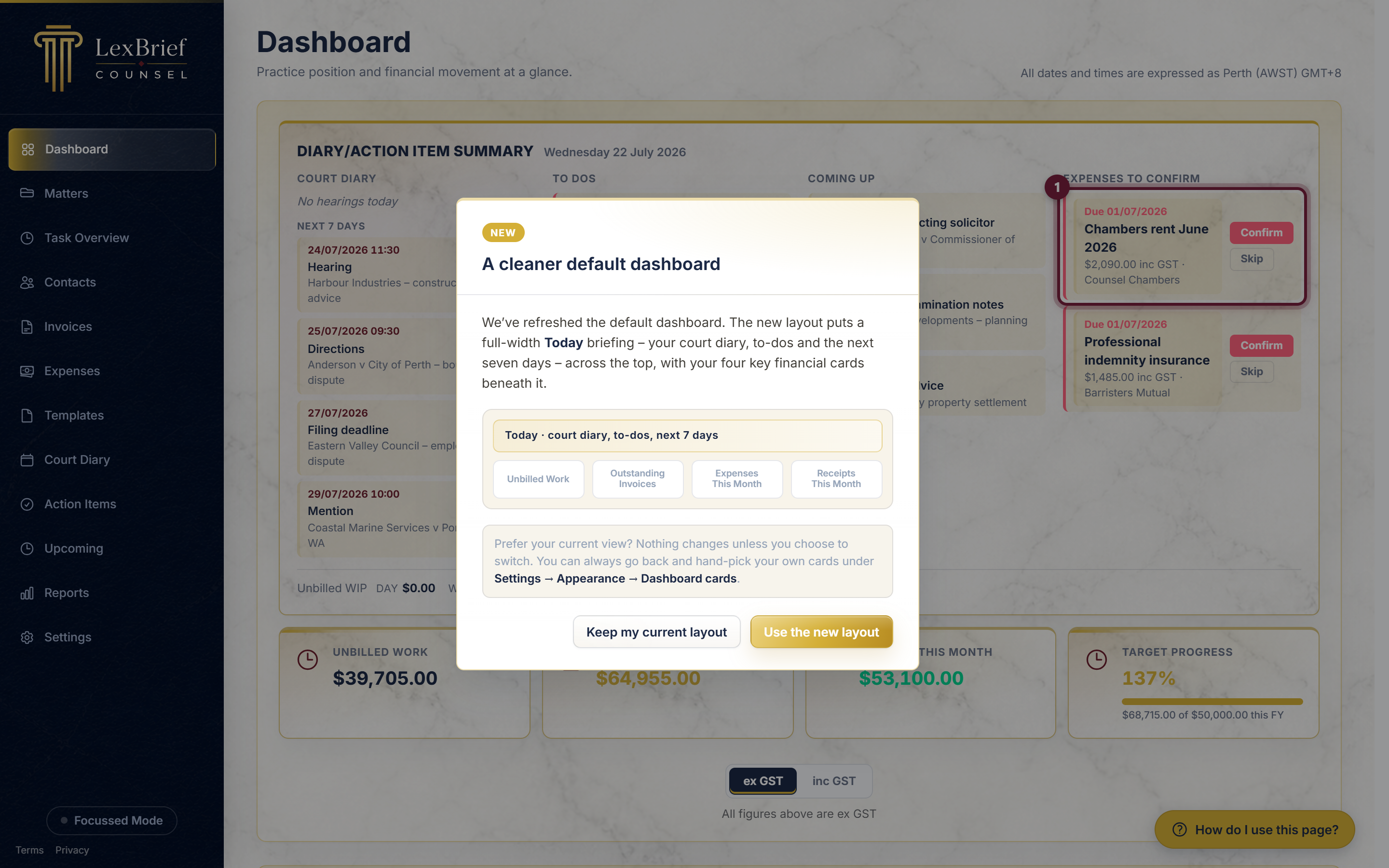
Click Dashboard in the left-hand menu. On the Diary/Action Item Summary card you will see a column headed Expenses to confirm, listing each due expense with its date, description and amount including GST. Each one has two buttons:
- Confirm – records the expense, at the amount shown, then and there.
- Skip – dismisses this one occurrence. The series carries on as normal; only this instance is passed over.
The column only appears when something is actually due, so an empty dashboard means there is nothing waiting.
From the To confirm tab
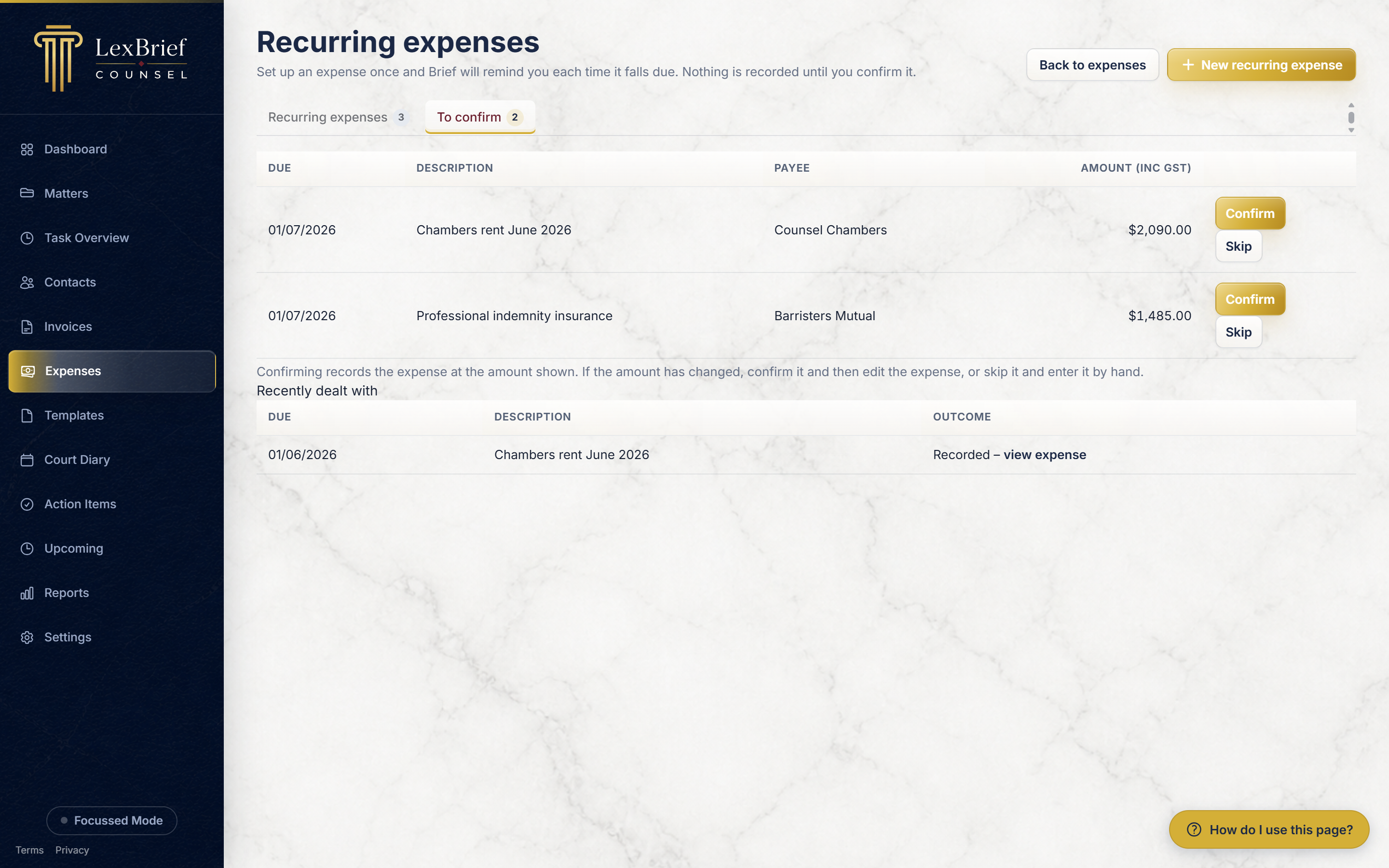
Click Expenses in the left-hand menu, then Recurring, then the To confirm tab across the top. You get the same list in a fuller table, with the same Confirm and Skip buttons.
Below it, Recently dealt with shows the ones you have already handled and what happened to each – Recorded (with a view expense link straight to it) or Skipped. It is there so you can check you did not miss anything.
If the amount has changed
This will happen often with utilities. You have two ways to deal with it, both fine:
- Click Confirm, then open the new expense from your Expenses list and edit the amount (and attach the receipt while you are there).
- Or click Skip, and record the expense by hand with New expense.
One thing LexBrief will not let you do: confirm an expense dated inside a financial year you have already lodged a tax return for. It will say so, and ask you to record it at a date in the current financial year instead. That is protecting your lodged figures.
Pausing, changing or ending a repeating expense
Go to Expenses in the left-hand menu, then Recurring, and stay on the Recurring expenses tab. Each row has its own buttons on the right:
- Pause – stops it falling due for now, without losing the setup. The Status changes to Paused and the row goes grey.
- Resume – appears in place of Pause once something is paused. Click it to start the reminders again.
- Edit – opens the same form you filled in, so you can change the amount, how often it repeats, or when it ends. Click Save changes at the bottom.
To stop one for good, open it with Edit and click the red Delete recurring expense button at the bottom. A small pop-up box asks you to confirm.
What next
These guides cover the areas expenses connect to:
- Matters – disbursements attach to a matter and get billed on its invoice.
- Browse all help guides
Stuck on anything at all? Email support@lexbrief.au – a real person reads it, usually the same working day.