

If at any point your screen does not look like the picture, stop and email support@lexbrief.au – we would rather help than have you guess.
Before you start
If this is your very first time in LexBrief, read Your first day in LexBrief Counsel first – it walks you all the way from signing in to sending an invoice. This guide goes deeper on matters alone.
A note on wording: the dark strip of links down the left-hand side of the screen is the menu. When we say "click Matters in the left-hand menu", we mean click the word Matters in that dark strip.
What a matter is
A matter is a single brief or file – one dispute, one client engagement, one piece of work. For example, Smith v Jones – contract dispute is a matter.
Everything you do in LexBrief attaches to a matter:
- the time you record,
- the invoices you raise,
- the disbursements (out-of-pocket costs) you incur,
- and, if you use them, your court dates, action items, file notes and chronology.
So for any new piece of work, the first thing you do is create a matter.
Your matters list
Click Matters in the left-hand menu. You see a list of all your matters, with the client, instructing firm, fee mode, and the money position for each.
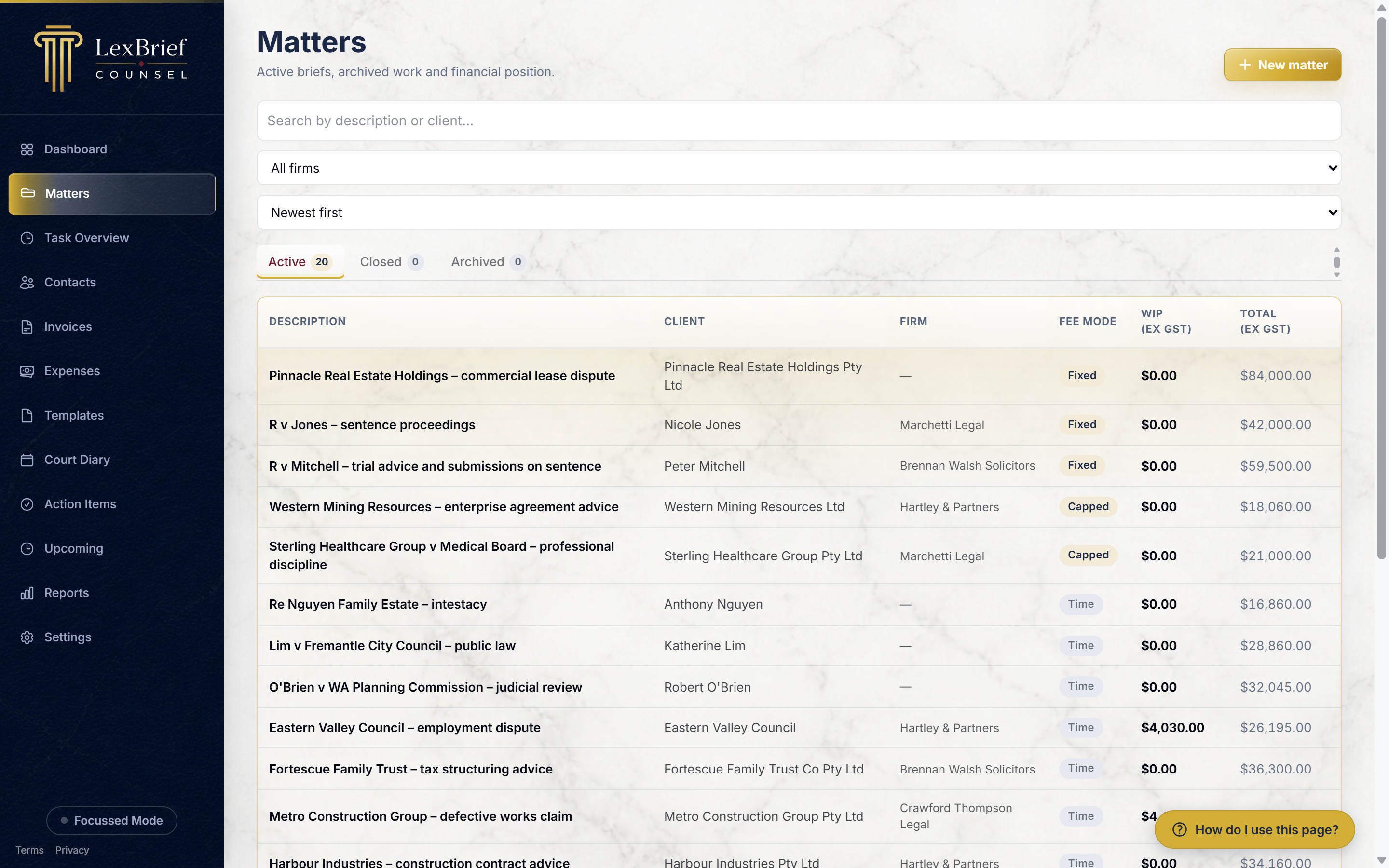
Two of the columns are about money:
- WIP (ex GST) – "work in progress": time you have recorded but not yet billed.
- Total (ex GST) – everything recorded on the matter to date, billed or not.
Active, Closed and Archived
Just above the list are three tabs – Active, Closed and Archived. A new matter starts as Active. When a matter is finished you can Close or Archive it to move it out of your day-to-day list (covered at the end of this guide). Click a tab to see the matters in that state.
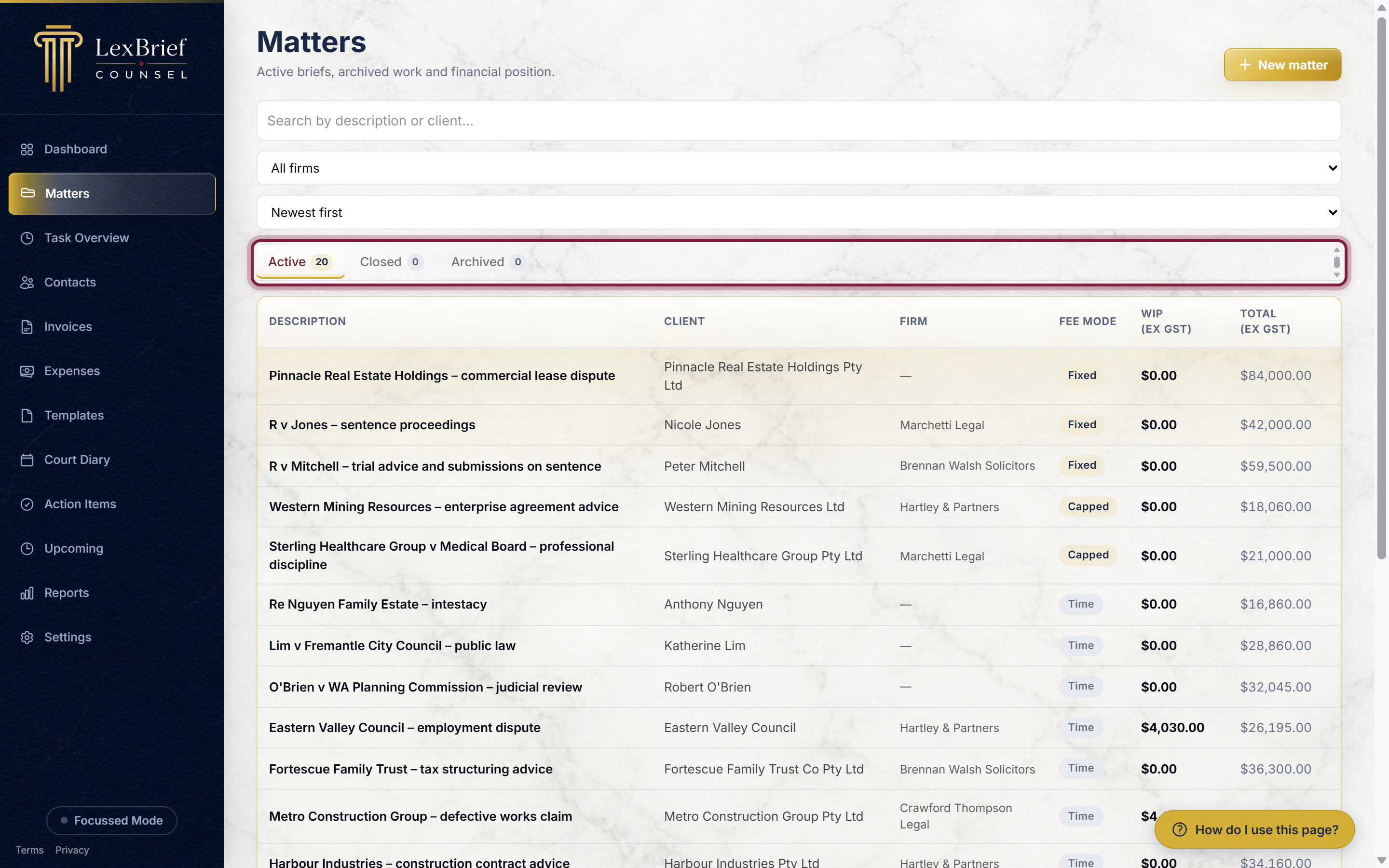
You can also search by description or client, and sort the list, using the boxes above the tabs.
Create a matter
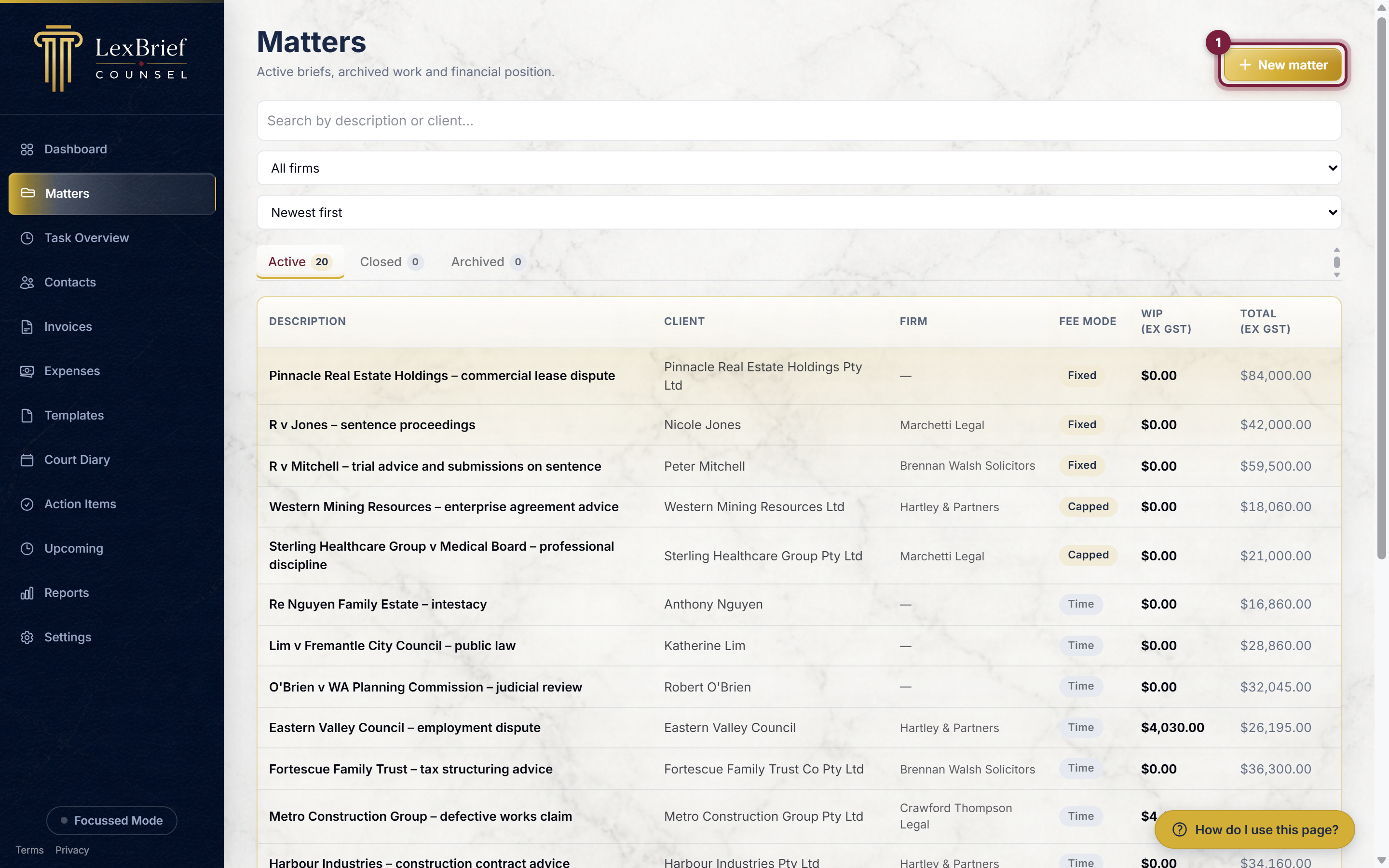
1. Click "New matter"
On the Matters page, click the gold New matter button in the top-right corner.
2. Choose how you were briefed
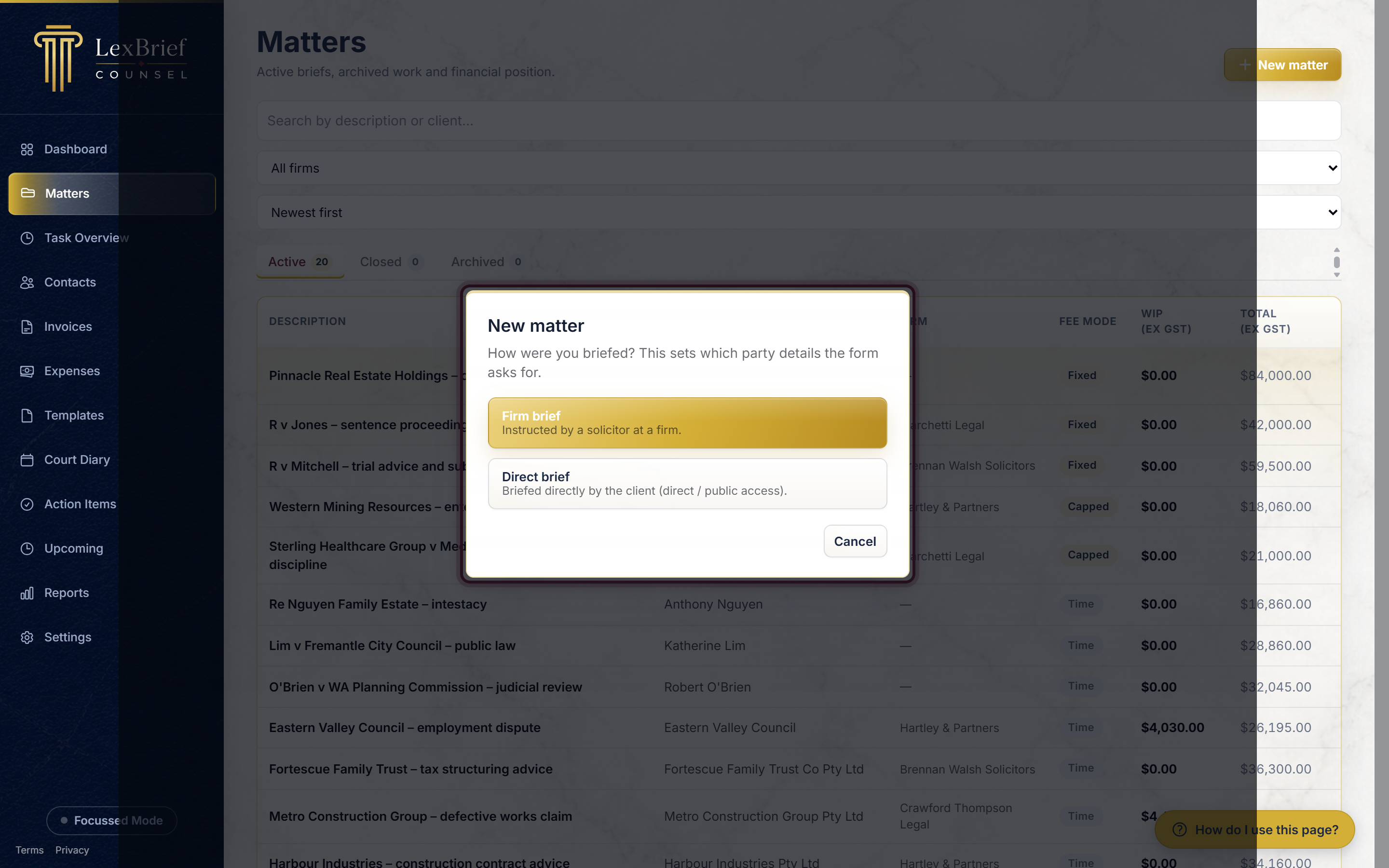
A small box pops up asking how you were briefed. This only decides which party details the form asks you for – it is not a big decision, and you can change the matter afterwards.
- Firm brief – a solicitor at a firm instructed you. This is the usual choice.
- Direct brief – a client came to you directly (direct or public access), with no instructing firm.
Click the one that applies.
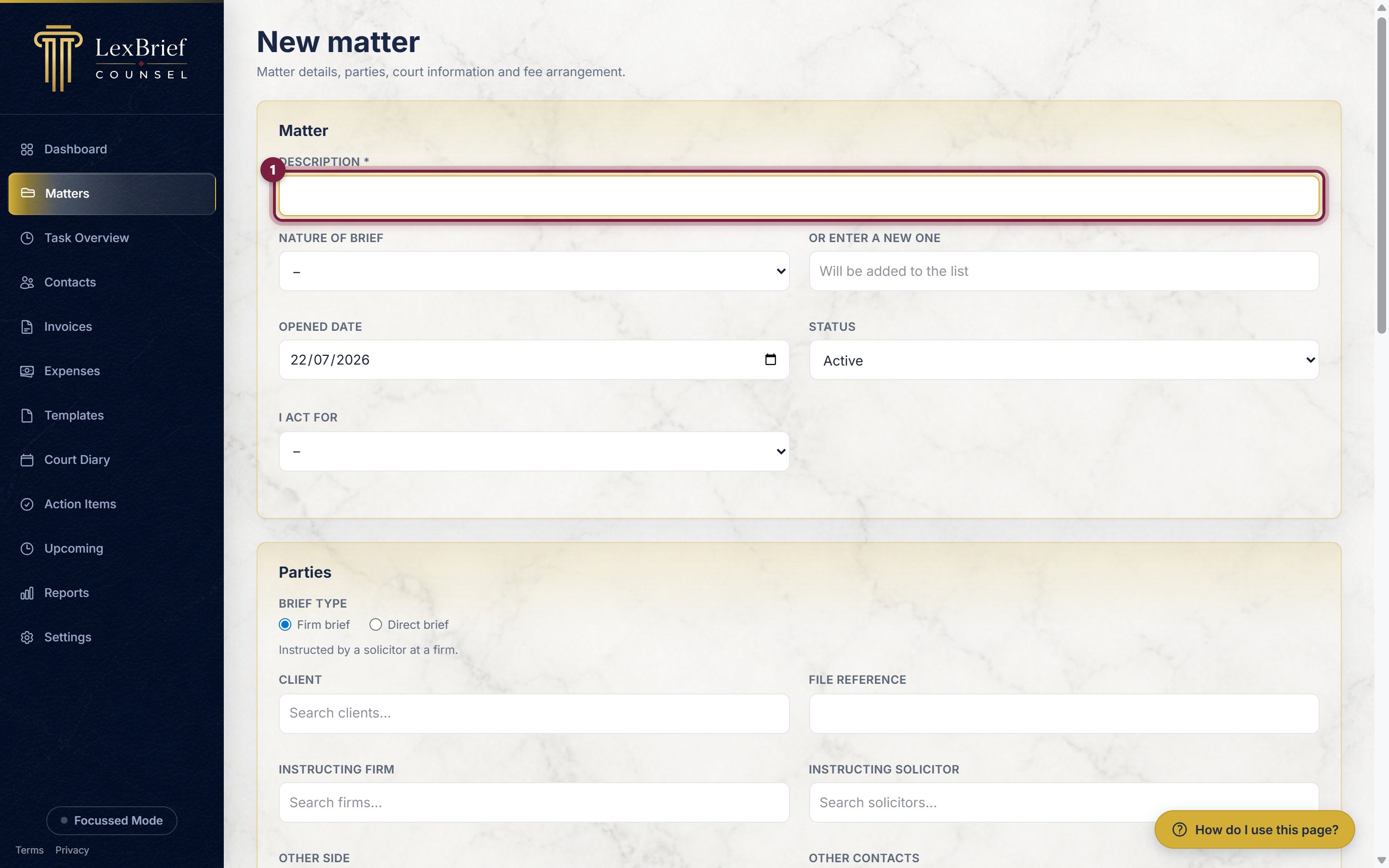
3. Give the matter a description
The Description is the name of the matter, and it is the only box you must fill in. Type it in – for example Smith v Jones – contract dispute.
4. Add the parties (optional)
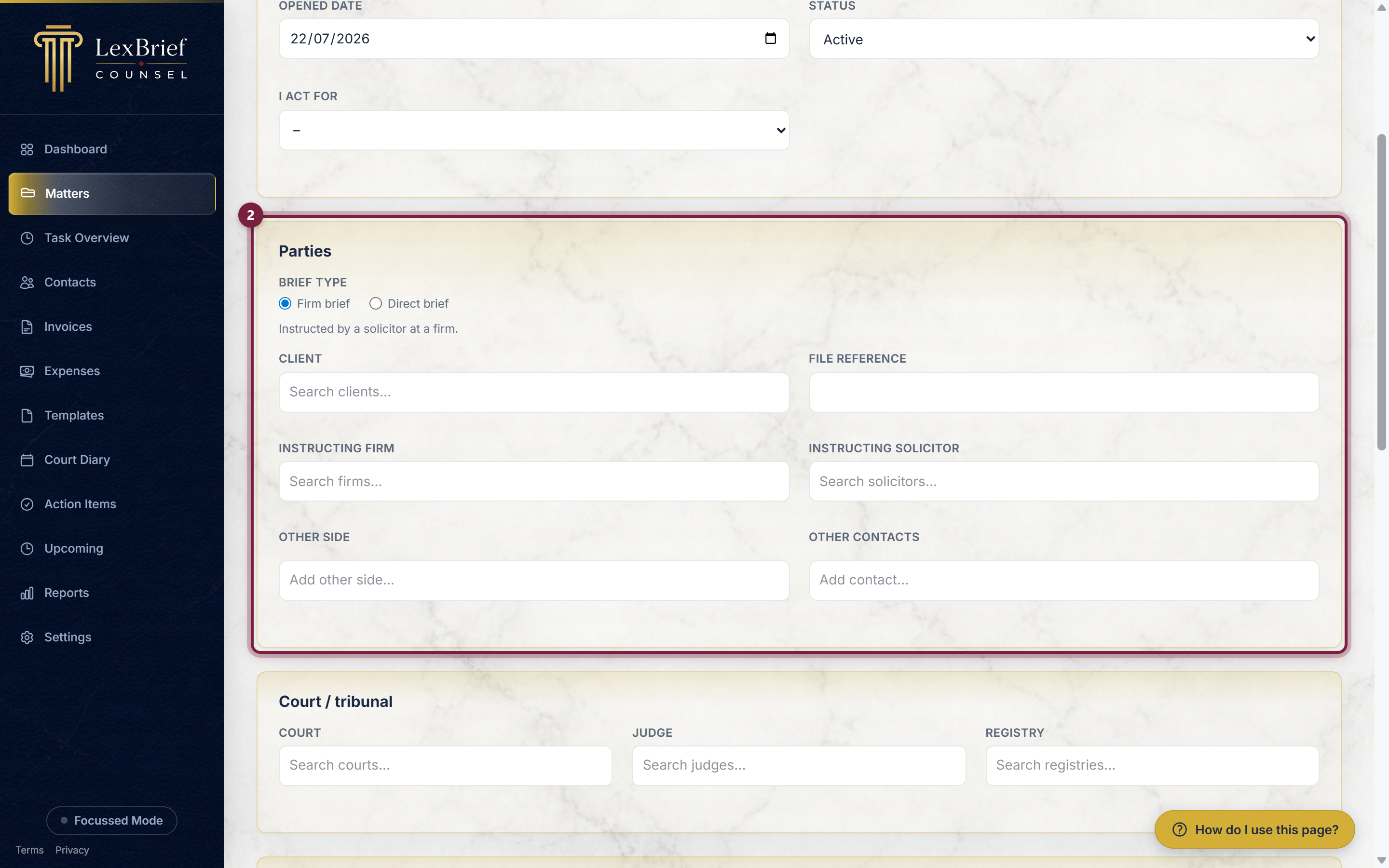
In the Parties section you can record who is involved:
- Client – who the matter is for.
- Instructing firm and Instructing solicitor – on a firm brief, who instructed you. Choosing a firm first narrows the solicitor list to that firm.
- File reference – the instructing firm's own reference for the matter (or, on a direct brief, the client's reference).
- Other side and Other contacts – anyone else on the matter.
5. Choose how you charge (the fee mode)
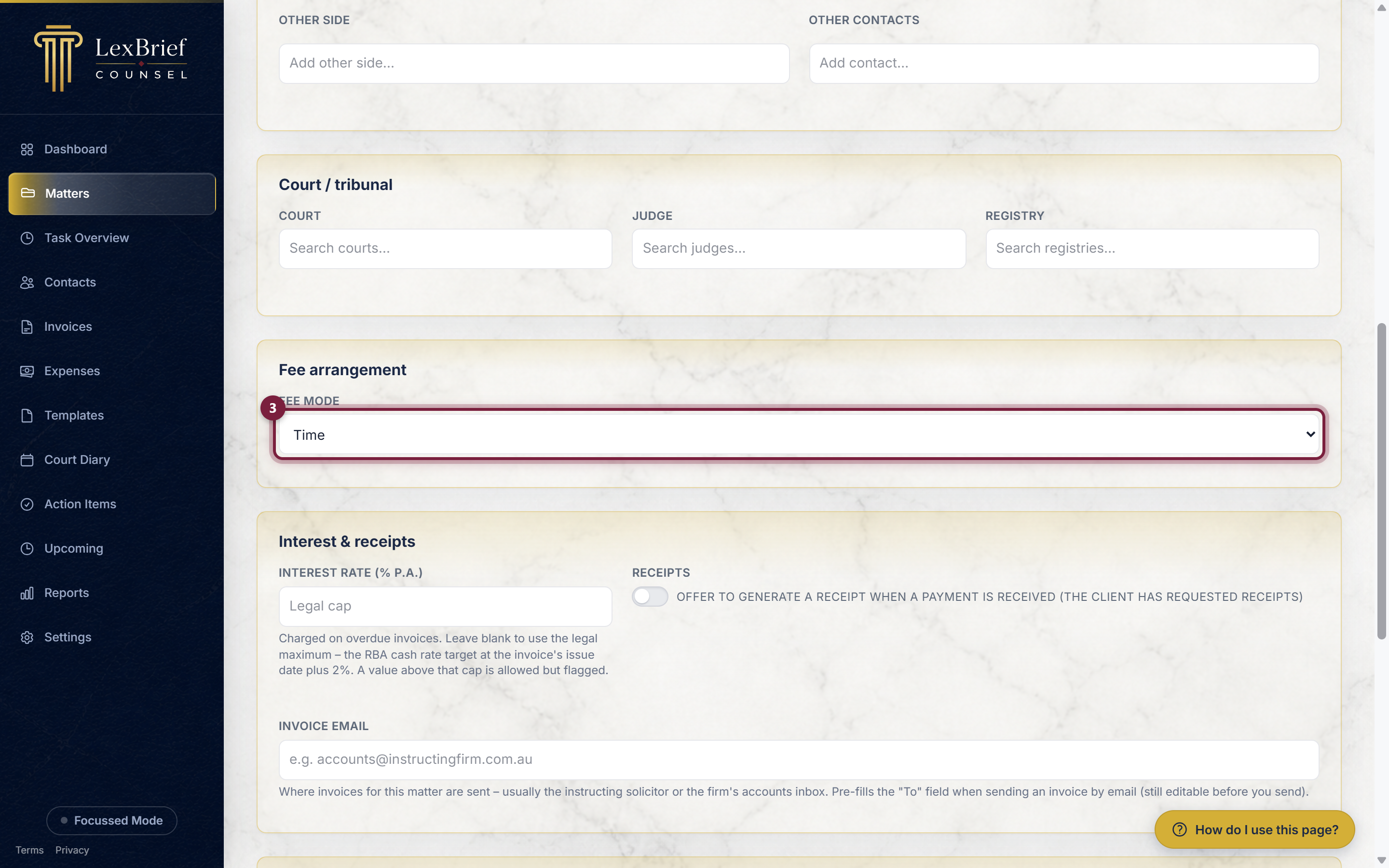
Scroll down to Fee arrangement. The Fee mode box decides how you charge on this matter:
- Time – you charge for the time you spend, at an hourly or per-unit rate. This is the usual choice and is selected by default.
- Fixed – one flat fee for the whole matter, no matter how long it takes.
- Capped – you charge for your time, but never above an agreed ceiling.
6. Set the fee amount (Fixed and Capped only)
If you choose Fixed or Capped, an extra box appears: Fee amount (ex GST). Type the flat fee (Fixed) or the ceiling (Capped) in dollars, excluding GST.
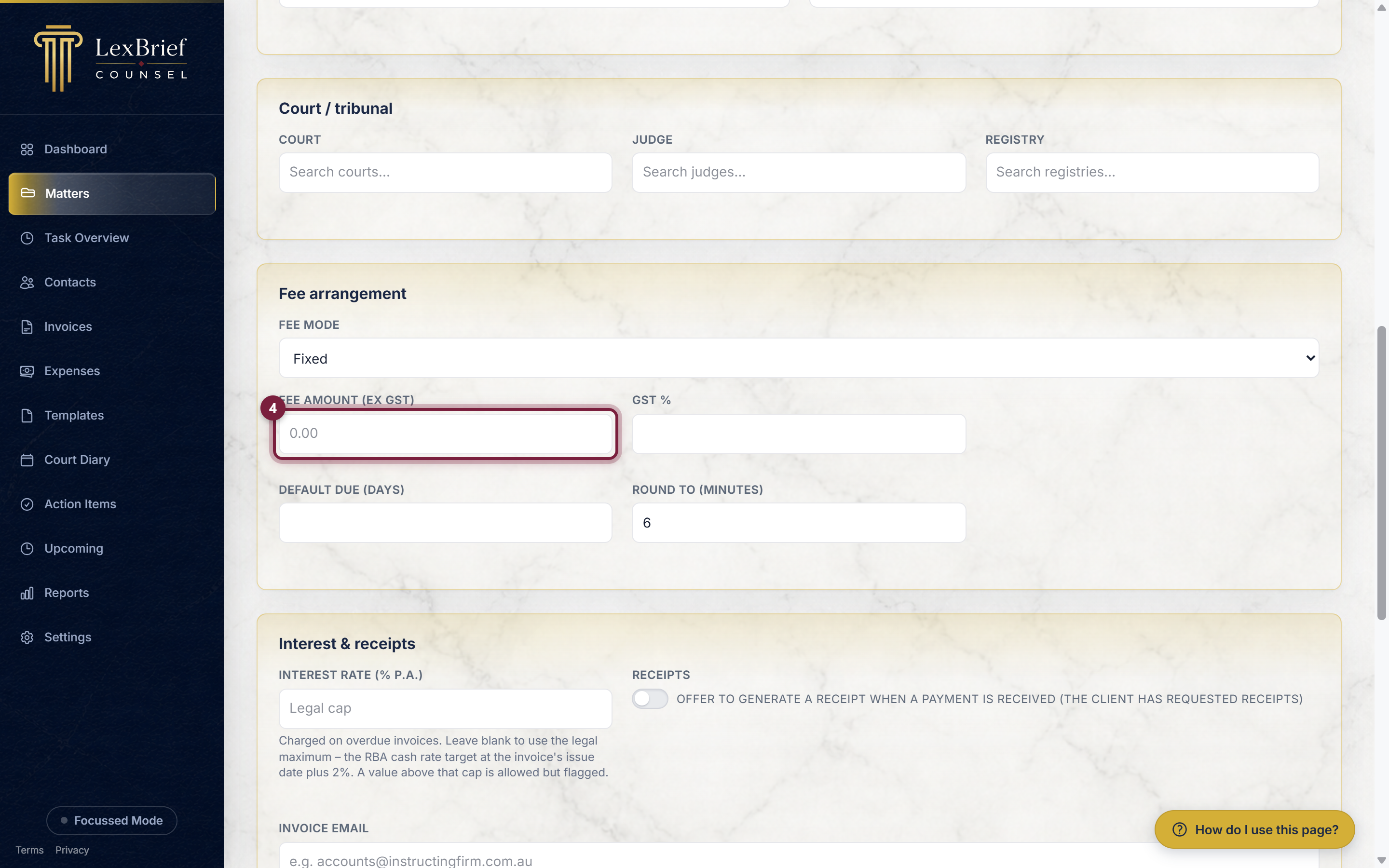
On a Time matter you do not set an amount here – you set your rate instead (see Set your rates and fees below).
7. Save the matter
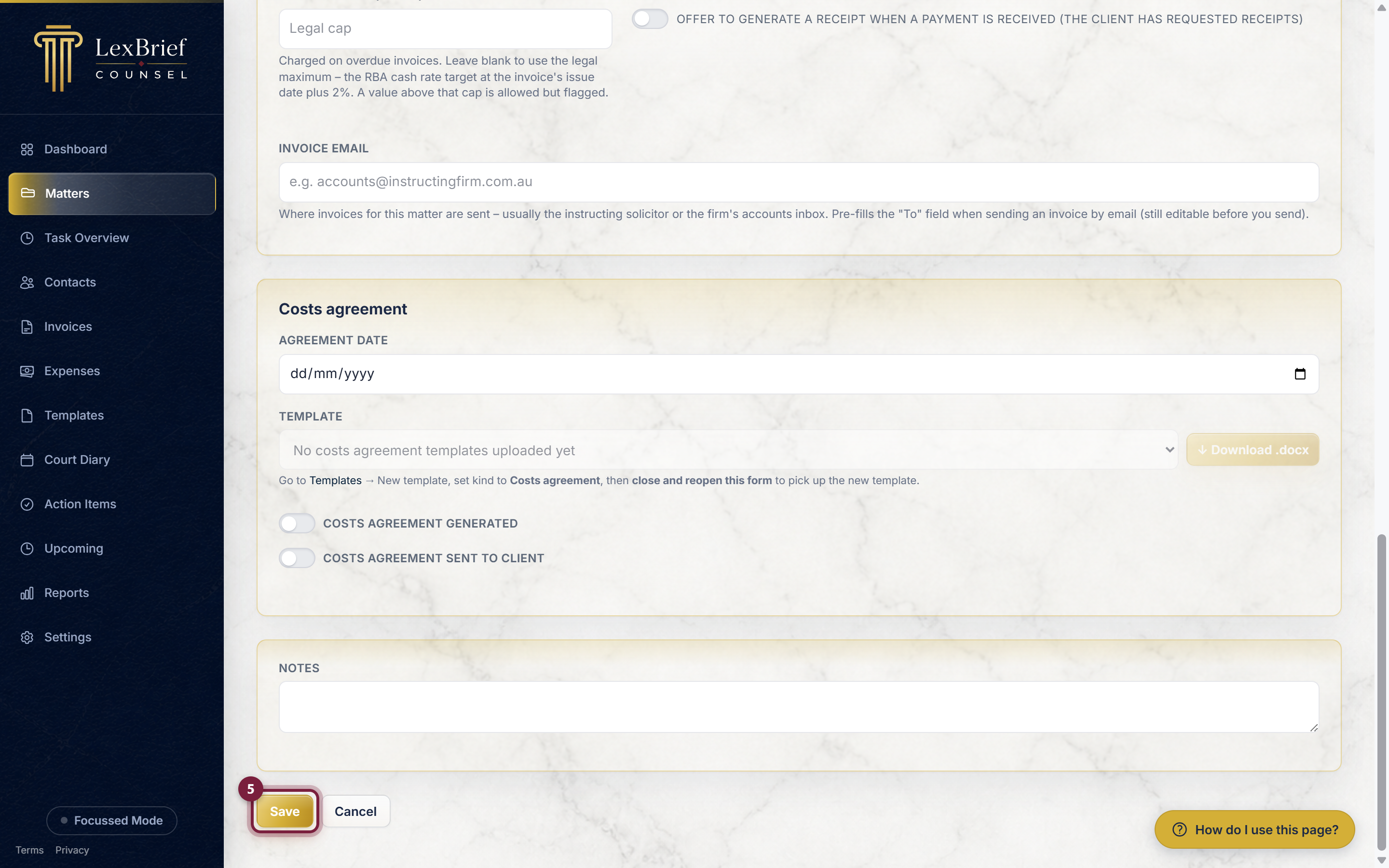
Scroll to the bottom and click Save. (Everything else on the form – court, interest, costs agreement, notes – is optional and can be added later.)
What you should see. The matter's own page opens, with a row of tabs across the middle. The new matter now also appears at the top of your Matters list.
The matter page
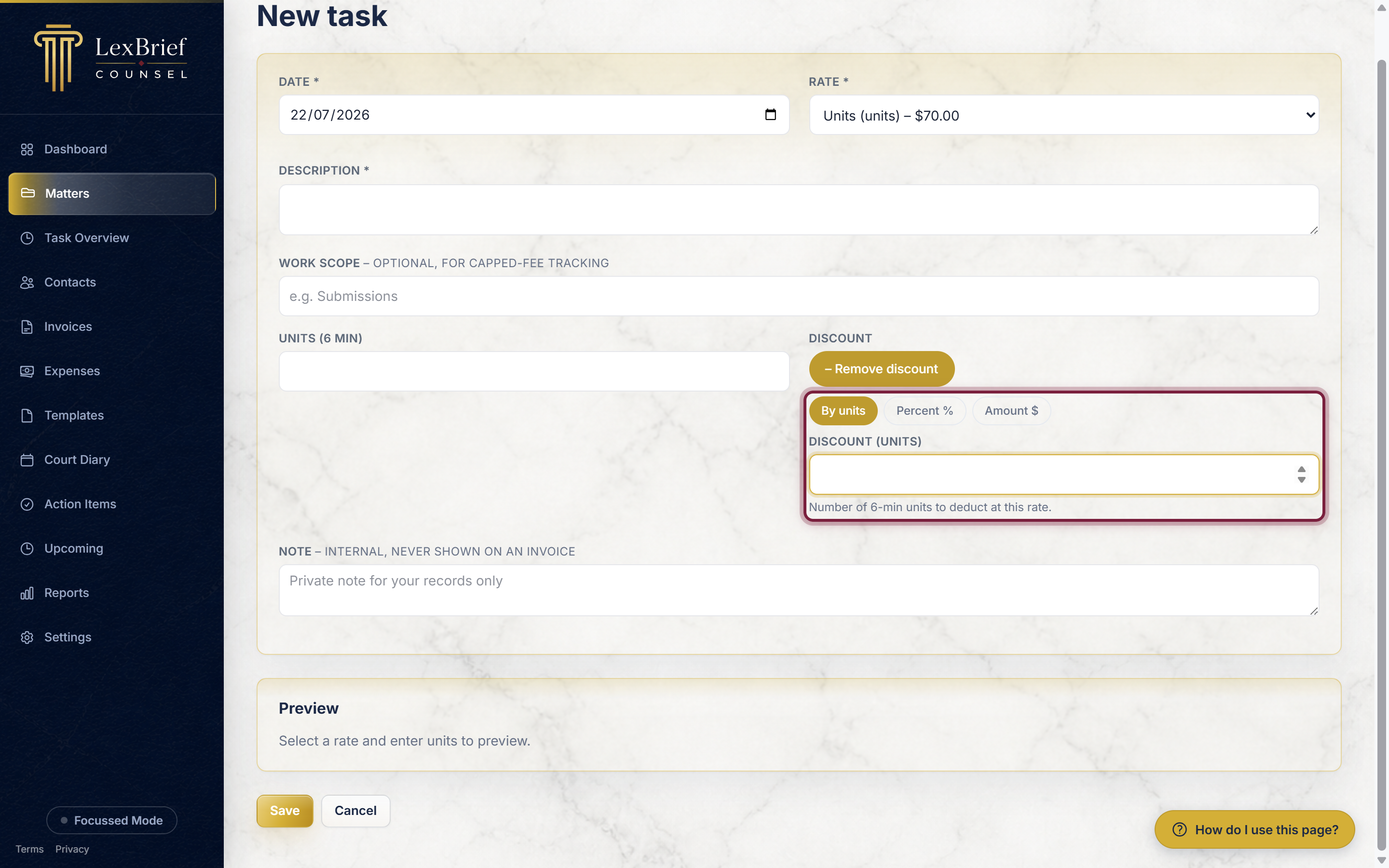
Every matter has its own page, reached by clicking it in the Matters list. Across the middle is a row of tabs – this is how you move between the different parts of the matter.
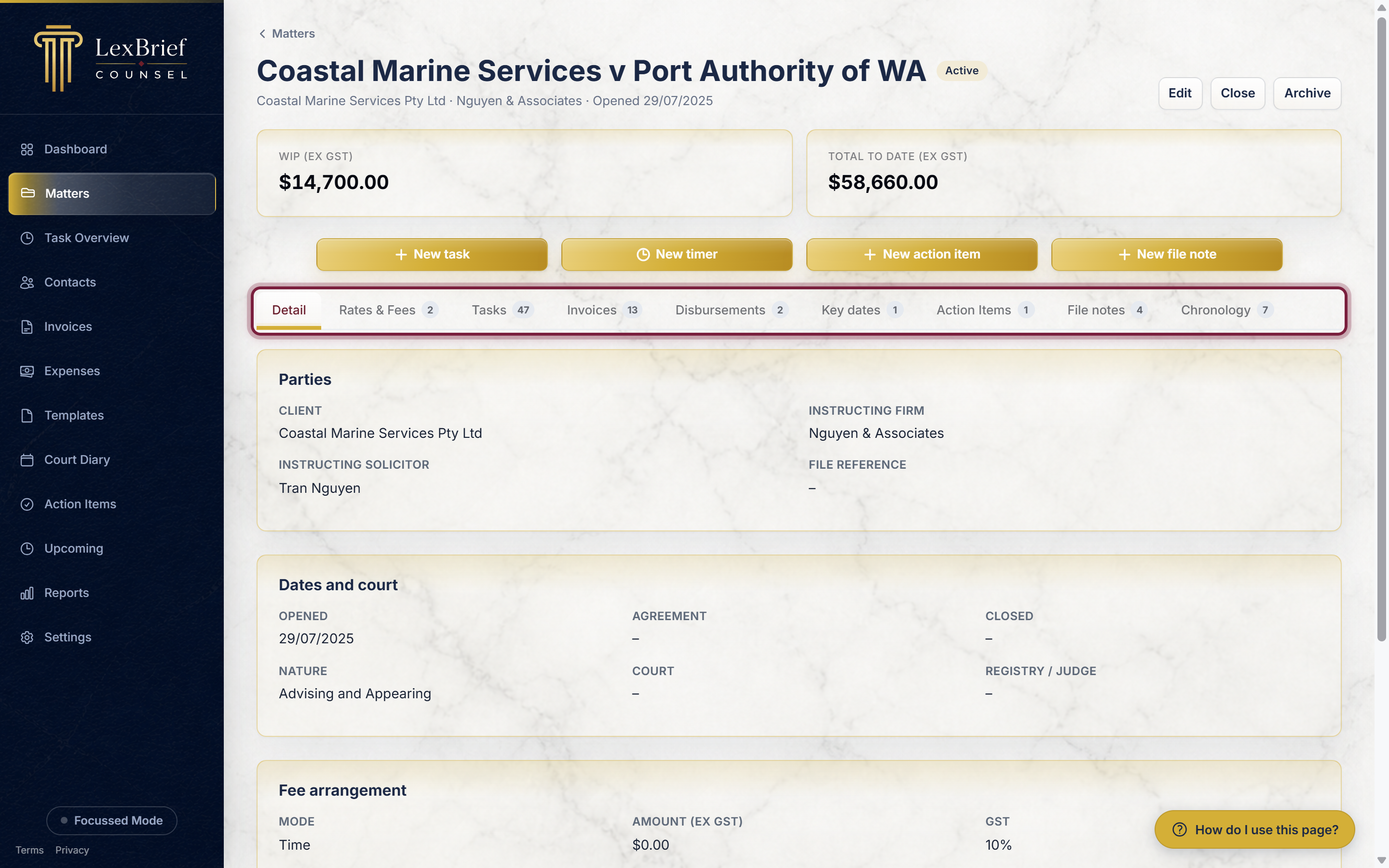
The tabs you will use most are:
- Detail – the summary: parties, court, fee arrangement, costs agreement.
- Rates & Fees – what you charge on this matter (next section but one).
- Tasks – the time you have recorded. This is also where you raise an invoice.
- Invoices – the invoices you have raised on the matter.
- Disbursements – out-of-pocket costs (filing fees, transcript, and so on).
- Documents – where you create a document from one of your templates, filled in with this matter's details.
Depending on which features are switched on for you, you may also see Key dates, Action Items, File notes and Chronology tabs. Each has its own guide.
At the very top-right of the page there are three buttons only: Edit, Close and Archive. Everything else you do day to day now starts either from the four shortcut buttons below the money figures, or from a tab.
The four shortcut buttons
Between the money figures (WIP (ex GST) and Total to date (ex GST)) and the row of tabs there is a small centred row of four buttons. They are shortcuts – each one starts a job on this matter without you having to find the right tab first.
- New task – record time you have already spent. A form opens with this matter already chosen.
- New timer – start the clock running now, to time work as you do it (see the next section).
- New action item – add a to-do on this matter.
- New file note – write a note of a call, conference or instruction.
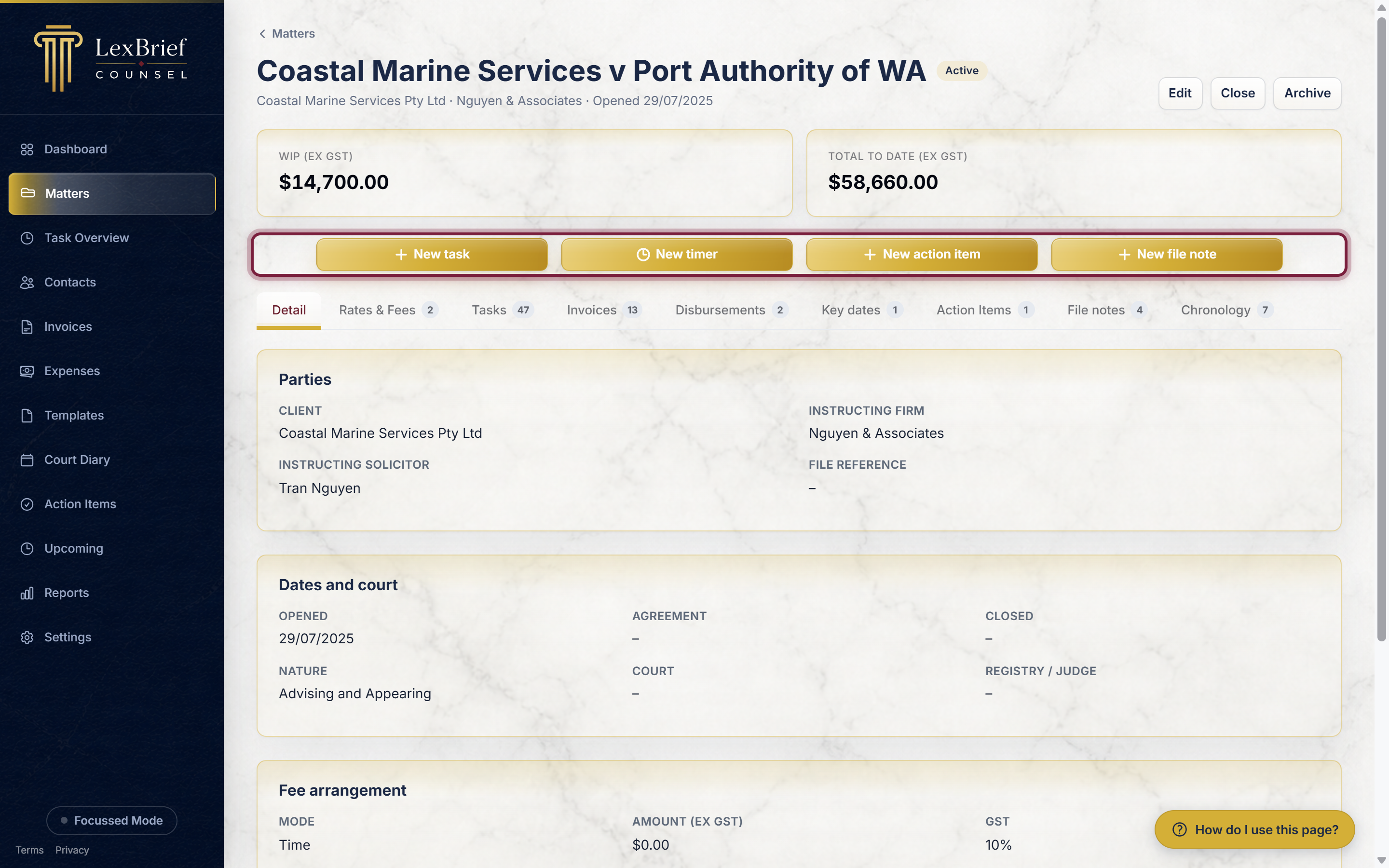
You will only see New action item and New file note if those features are switched on for you, and New action item only appears while the matter is Active.
Nothing about how you write a task, action item or file note has changed – only where you start it. Full instructions are in Recording your time, Action items and File notes.
Start a timer on a matter
A timer times work while you do it, instead of you estimating afterwards.
1. Click "New timer"
On the matter's page, click New timer in the row of four shortcut buttons.
What you should see. LexBrief takes you away from the matter page to the Task Overview page, with a timer already running and its details open. The matter is already filled in, and so is that matter's usual rate. You do not have to choose either.
2. If a timer is already running
You are only ever running one timer at a time. If another timer is already going, LexBrief asks on the Task Overview page whether you want to pause it and start a new one. Say yes and the new timer starts, still with this matter already filled in.
Stopping the timer, tidying the description and saving it as billable time are all covered in Recording your time.
Set your rates and fees
On a Time or Capped matter, LexBrief needs to know what you charge before you can record time. You do this once per matter, on the Rates & Fees tab. (This tab used to be called just Rates.)
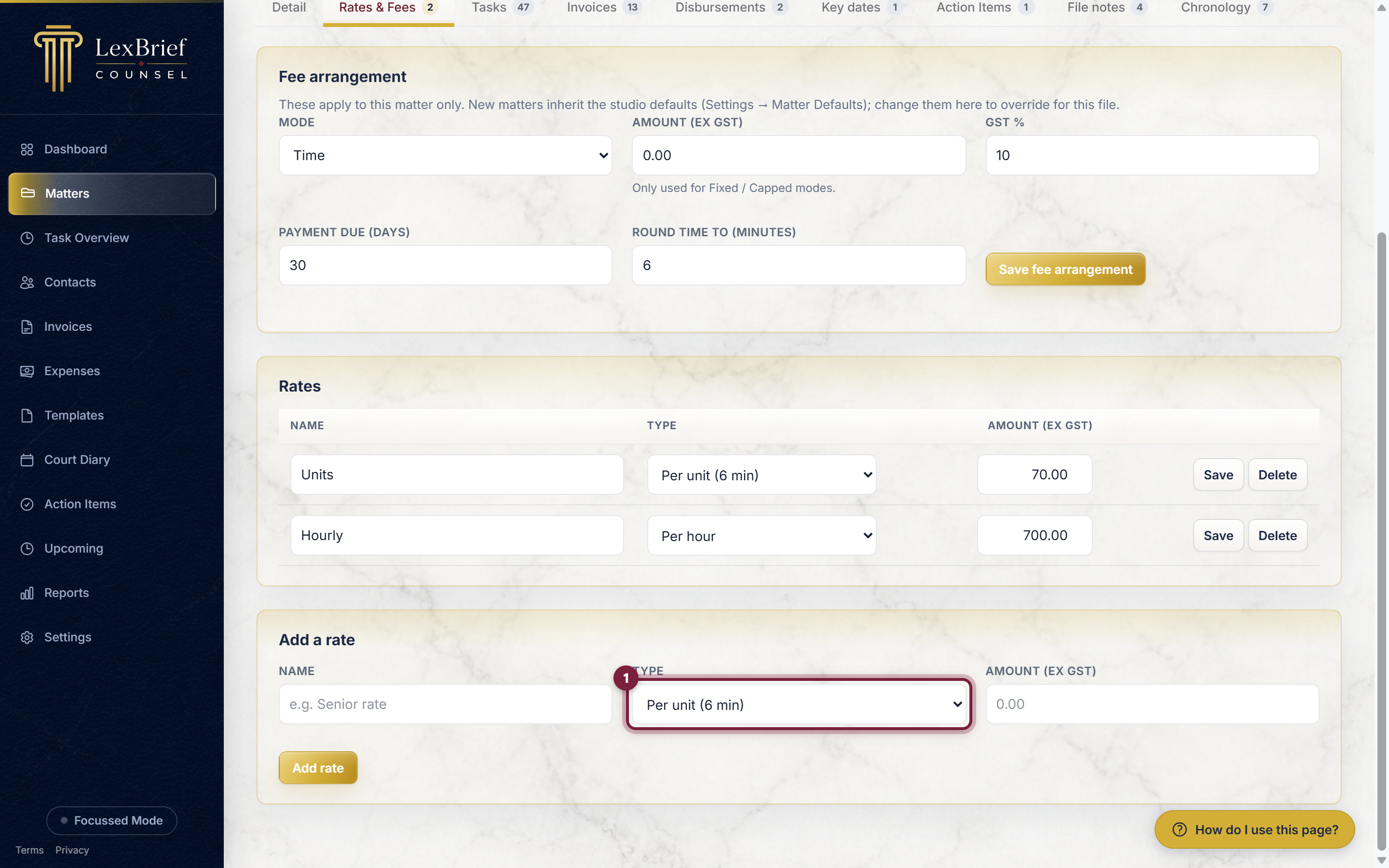
1. Open the Rates & Fees tab and fill in the "Add a rate" row
Click the Rates & Fees tab. Below the Fee arrangement card is a card called Rates, and near the bottom of it an Add a rate row. Give the rate a Name (for example Standard rate), then choose its Type:
- Per hour – the amount is per hour. LexBrief works out the time in six-minute units for you.
- Per unit (6 min) – the amount is per six-minute unit.
- Fixed per task – a flat amount for the task, ignoring how long it took.
2. Type the amount and click "Add rate"
Type the Amount (ex GST) in dollars – for example 650 for $650 per hour – then click Add rate. The rate appears in the list above and is ready to use when you record time.
Change the fee arrangement
At the top of the Rates & Fees tab is a card called Fee arrangement. It holds five settings that govern how this one matter is charged and billed. You can change them here and click Save, without opening the full matter Edit form.
New matters start with whatever you have set as your studio defaults, under Settings → Matter Defaults. If you have never set those, a matter can show up here reading $0.00, 0% and 0 days. That is not an error – it just means nothing has been filled in yet, and this is where you fill it in.
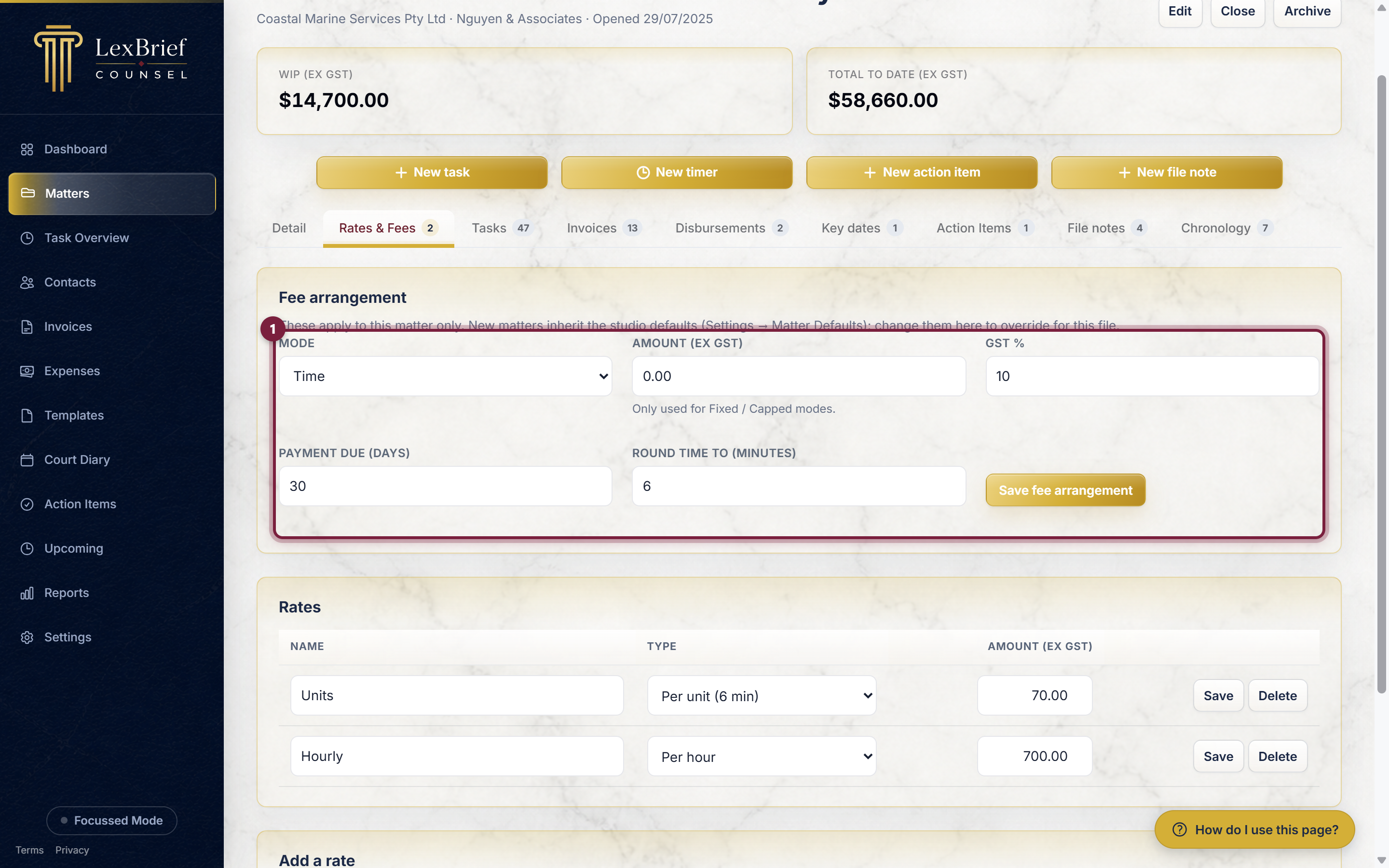
The five settings, and what each one means:
- Mode – how you charge on this matter: Time (for the time you spend), Fixed (one flat fee) or Capped (time, but never above a ceiling). Choose the one that matches your costs agreement.
- Amount (ex GST) – the money figure that goes with Fixed or Capped: the flat fee, or the ceiling. Type it in dollars, excluding GST. On a Time matter it is not used, so you can leave it at 0.00.
- GST % – the rate of GST added to this matter's invoices. If you are registered for GST, type
10. If a matter is not to carry GST, type0. - Payment due (days) – how many days after you issue an invoice payment falls due. LexBrief uses this to work out the due date printed on the invoice, and to decide when an invoice counts as overdue. For example, type
30for 30 days. - Round time to (minutes) – the block you round recorded time up to. A timer that runs 6 minutes and 30 seconds is charged as 12 minutes if this is set to
6. Six-minute units are the usual choice at the Bar, so type6unless you have agreed otherwise.
When you have set them, click Save fee arrangement.
What you should see. The page reloads on the same Rates & Fees tab with your figures showing in the boxes. The read-only Fee arrangement summary on the Detail tab now shows the same figures.
Discount a task
Sometimes you want to charge a client less than the rate would give for a single task – a courtesy reduction, or an agreed write-down. When you add or edit a task on a matter (its Tasks tab), a Discount option lets you take an amount off that one task.
By default there is nothing to fill in – the discount stays out of the way until you ask for it. Under Discount, click + Add discount to reveal it. Clicking it again (– Remove discount) hides it and clears anything you entered, so leaving it alone means no discount at all.
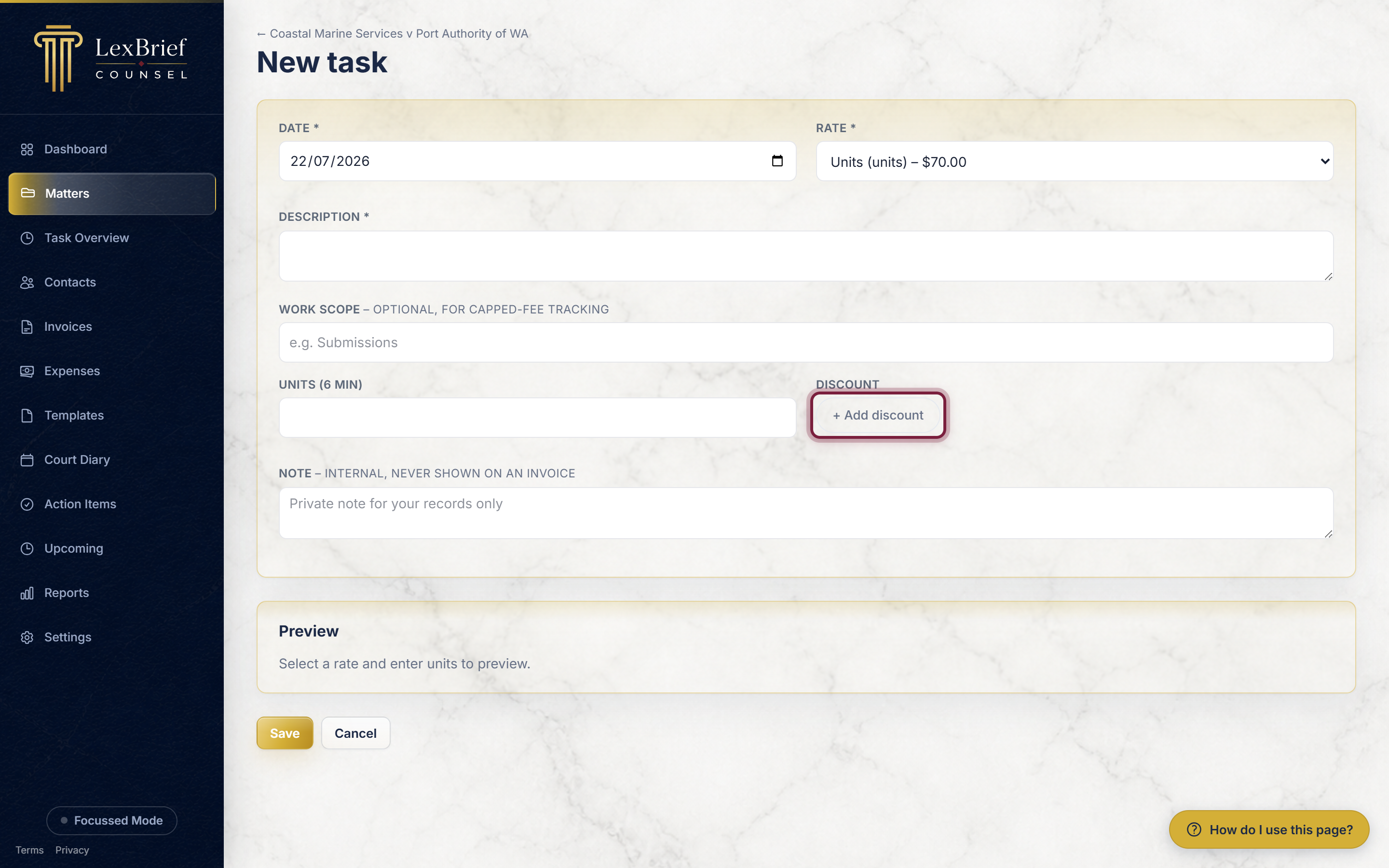
Once revealed, you choose how to express the discount with three buttons:
- By units / minutes / $ – in the rate's own terms. On a per-unit rate this is a number of six-minute units; on a per-hour rate it is a number of minutes; on a fixed rate it is a dollar amount. The button and the field label change to match the rate you picked (for example an hourly rate shows Discount (minutes)).
- Percent % – a percentage off the task's pre-discount amount.
- Amount $ – a flat dollar amount to take off, excluding GST.
Only the button you pick shows a box, and only that figure is used. The Preview below the form updates as you type so you can see the reduced amount before you save.
Create a document from a template
A template is one of your own Word documents – a costs agreement, a brief cover sheet – with blanks in it that LexBrief fills from the matter. Creating a document from a template now happens on the matter's Documents tab.
1. Open the Documents tab
On the matter's page, click the Documents tab. You will see this tab as long as you have at least one template that can be used on a matter. (Invoice templates do not count here – invoices are produced from the invoice itself.)
If you cannot see a Documents tab at all, you have no matter templates set up yet. Templates shows you how to add one.
2. Choose the template
At the top of the tab is a card called Add a new document. In it is a list of your templates. Click the list and choose the one you want.
3. Click Create .docx or Create PDF
Next to the list are two buttons:
- Create .docx – a Word document you can still edit.
- Create PDF – a finished PDF, ready to send.
Click whichever you need.
What you should see. The file downloads to your computer in the usual way, with this matter's details already filled in. Nothing is changed on the matter itself.
Closing and archiving a matter
When a matter is finished, you can move it out of your day-to-day Active list without deleting anything. At the top-right of the matter's page are Close and Archive buttons.
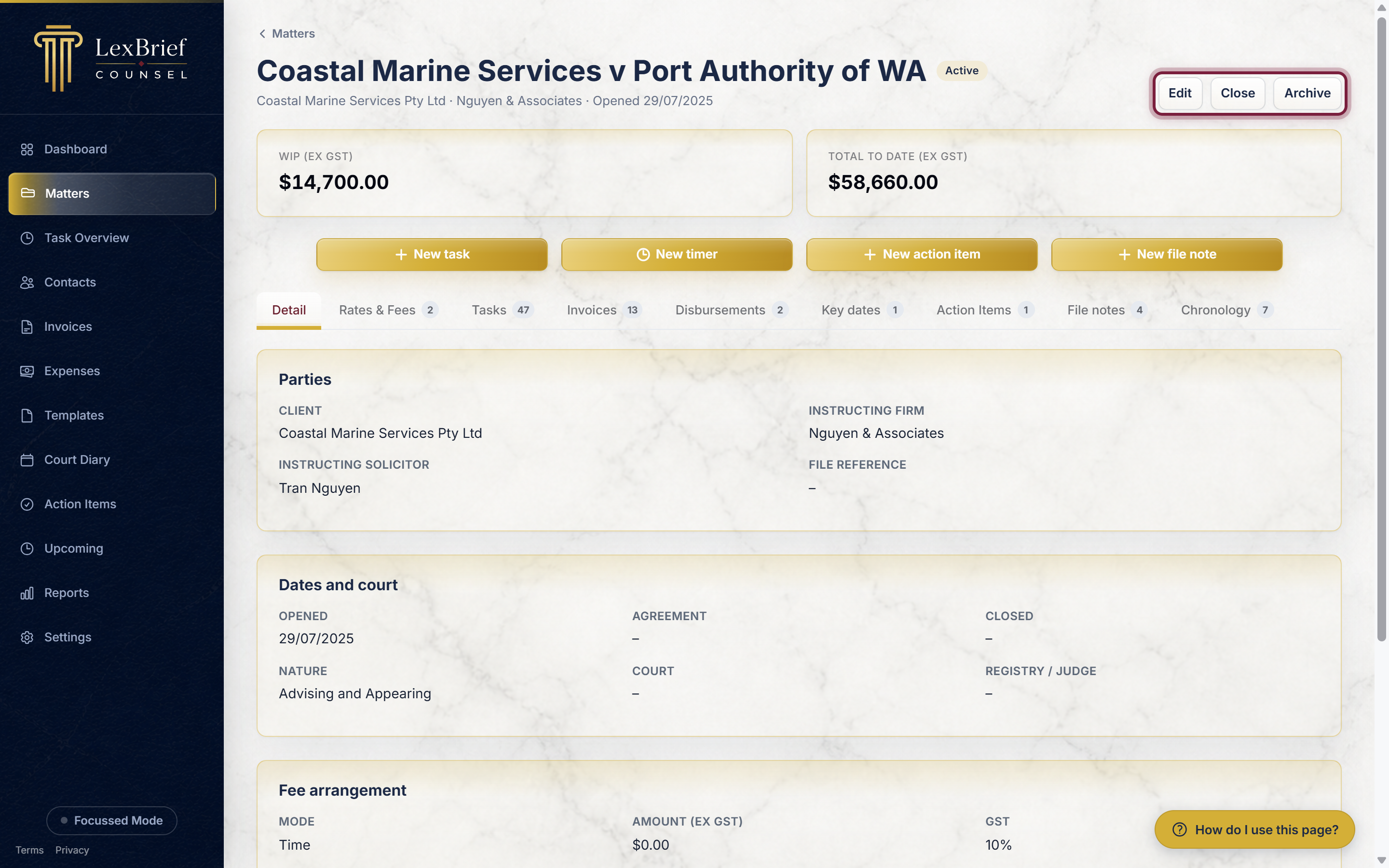
- Close – the everyday work is done. The matter moves to the Closed tab.
- Archive – put it away for the long term. The matter moves to the Archived tab.
- Reopen – on a closed or archived matter, this button brings it back to Active.
Nothing is lost when you close or archive – all the tasks, invoices and history stay exactly as they were, and you can reopen the matter at any time.
What next
Now that you can create and manage matters, these guides cover the day-to-day work you do on them:
- Your first day in LexBrief Counsel – the whole cycle end to end.
- Browse all help guides
Stuck on anything at all? Email support@lexbrief.au – a real person reads it, usually the same working day.