

If at any point your screen does not look like the picture, stop and email support@lexbrief.au – we would rather help than have you guess.
Before you start
If this is your very first time in LexBrief, read Your first day in LexBrief Counsel first. This guide is about templates on their own.
You do not need anything set up in advance to add a template. To use one, you will need a matter or an invoice to fill it with – see the Matters and Invoices guides.
A note on wording: the dark strip of links down the left-hand side of the screen is the menu. When we say "click Templates in the left-hand menu", we mean click the word Templates in that dark strip.
What a template is
Think of a template like a mail-merge letter. It is an ordinary Microsoft Word .docx document that you have written once – your invoice layout, a standard letter, a costs agreement – except that the parts which change from one matter to the next are left as merge fields instead of fixed text.
A merge field is a blank that LexBrief fills in for you. In the document it is written as a short piece of text inside double curly brackets, for example {{ matter.client_name }}. When you produce a document, LexBrief swaps each merge field for the real value – the client's actual name, the invoice total, today's date – and hands you back a finished Word or PDF file. Your template is never changed; it is ready to use again for the next matter.
The Templates page
Click Templates in the left-hand menu. You see a list of your templates, each with its name, its Type, and whether a Word file has been uploaded for it. On the right of each row are the buttons to work with that template.
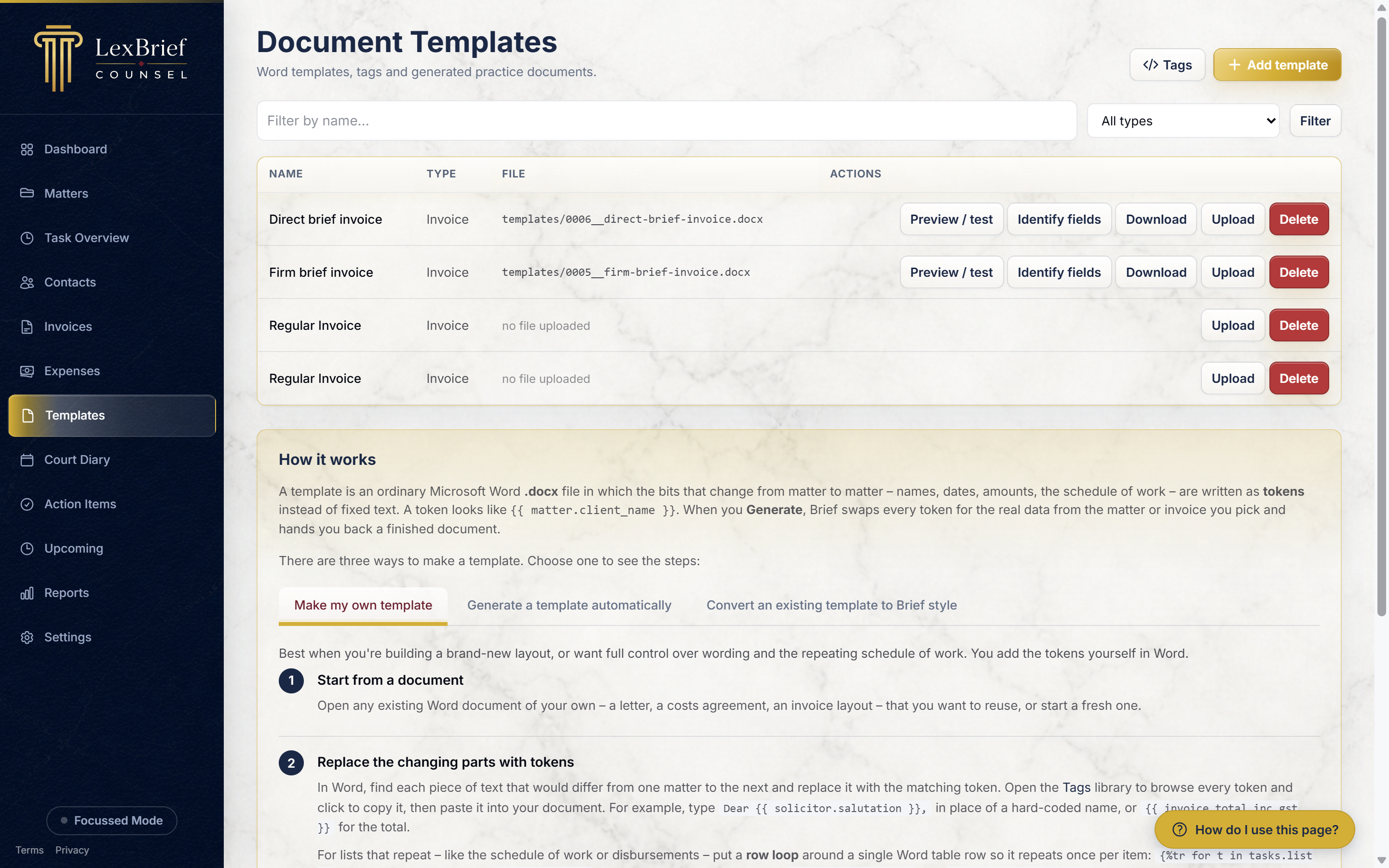
Below the list is a How it works panel that explains the three ways to build a template, with a tab for each. We cover those next.
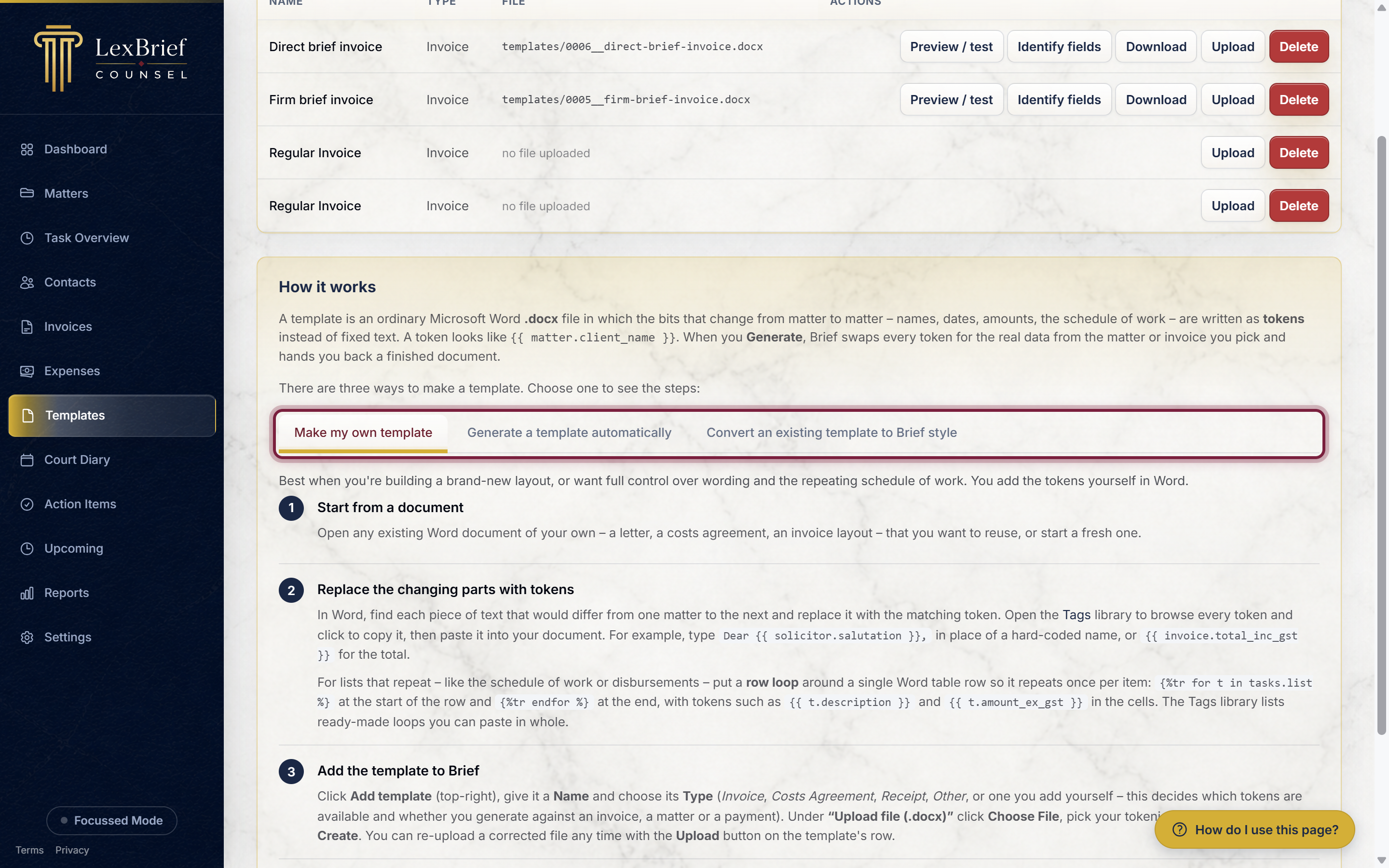
Three ways to get a template
There is more than one way to end up with a working template. Pick whichever suits the document you are starting from:
- Make your own – you open a Word document, drop in the merge fields yourself (copying them from the Tags page), and upload it. Best when you want full control over the wording and layout. This is the main method, and the rest of this guide follows it.
- Identify fields – you upload a finished document that has no merge fields yet, and LexBrief reads it and offers to turn the changing parts (names, dates, amounts) into fields for you. Best when you already have a polished letter or agreement and would rather not type the fields by hand.
- Convert from BarBooks – if you have a Word invoice you downloaded from BarBooks, LexBrief recognises BarBooks' own merge fields and swaps each one for its LexBrief equivalent. Best when you are moving a template across from BarBooks.
The How it works panel on the Templates page has a tab and a numbered walkthrough for each of these three. We describe Identify fields and Convert briefly further down; the section below covers the everyday "make your own" path.
Add a template
1. Start a new template
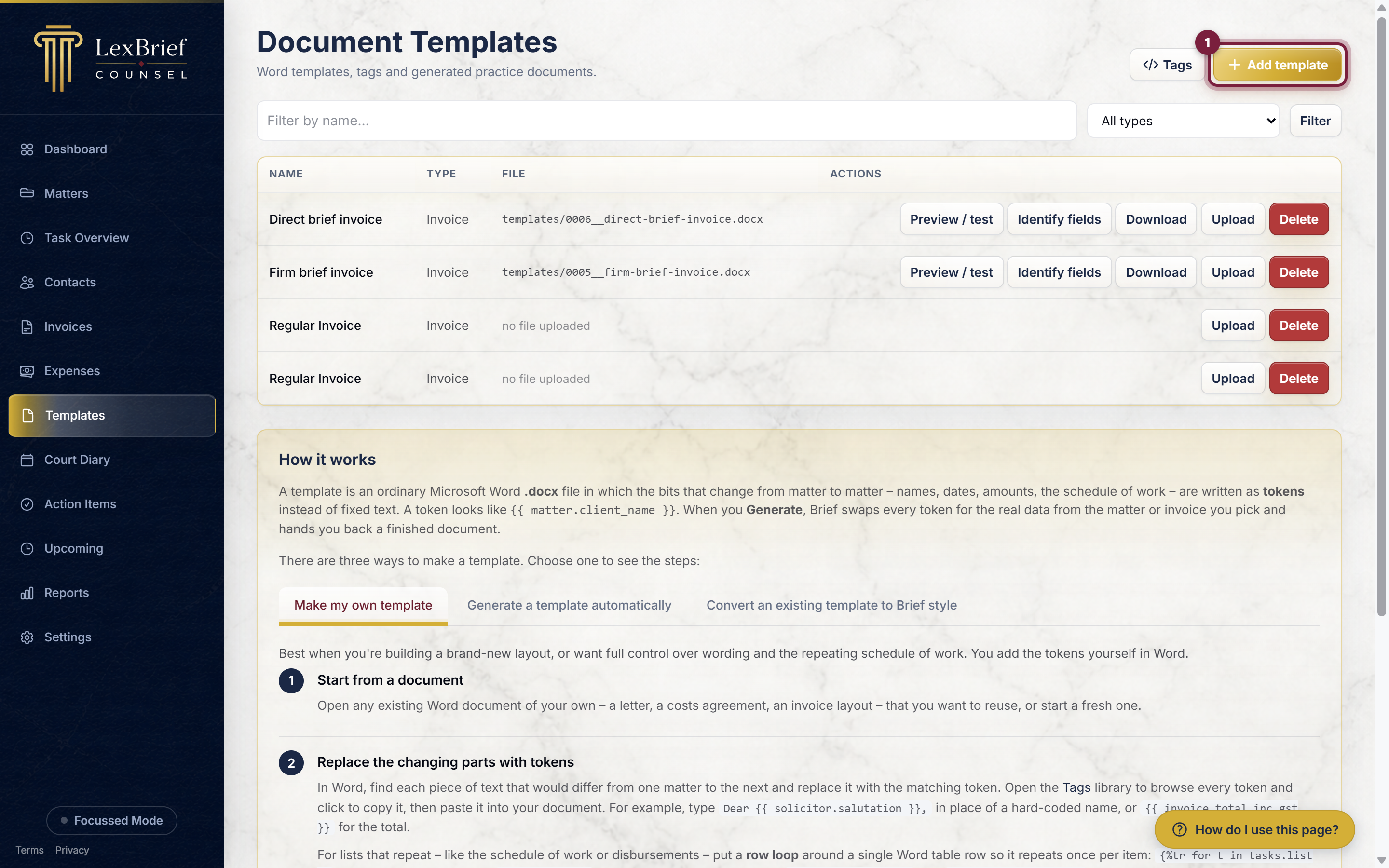
On the Templates page, click the gold Add template button in the top-right corner.
2. Give it a name and choose a type
On the form that appears, type a Name for the template – whatever helps you recognise it, for example Regular Invoice or Client Letter.
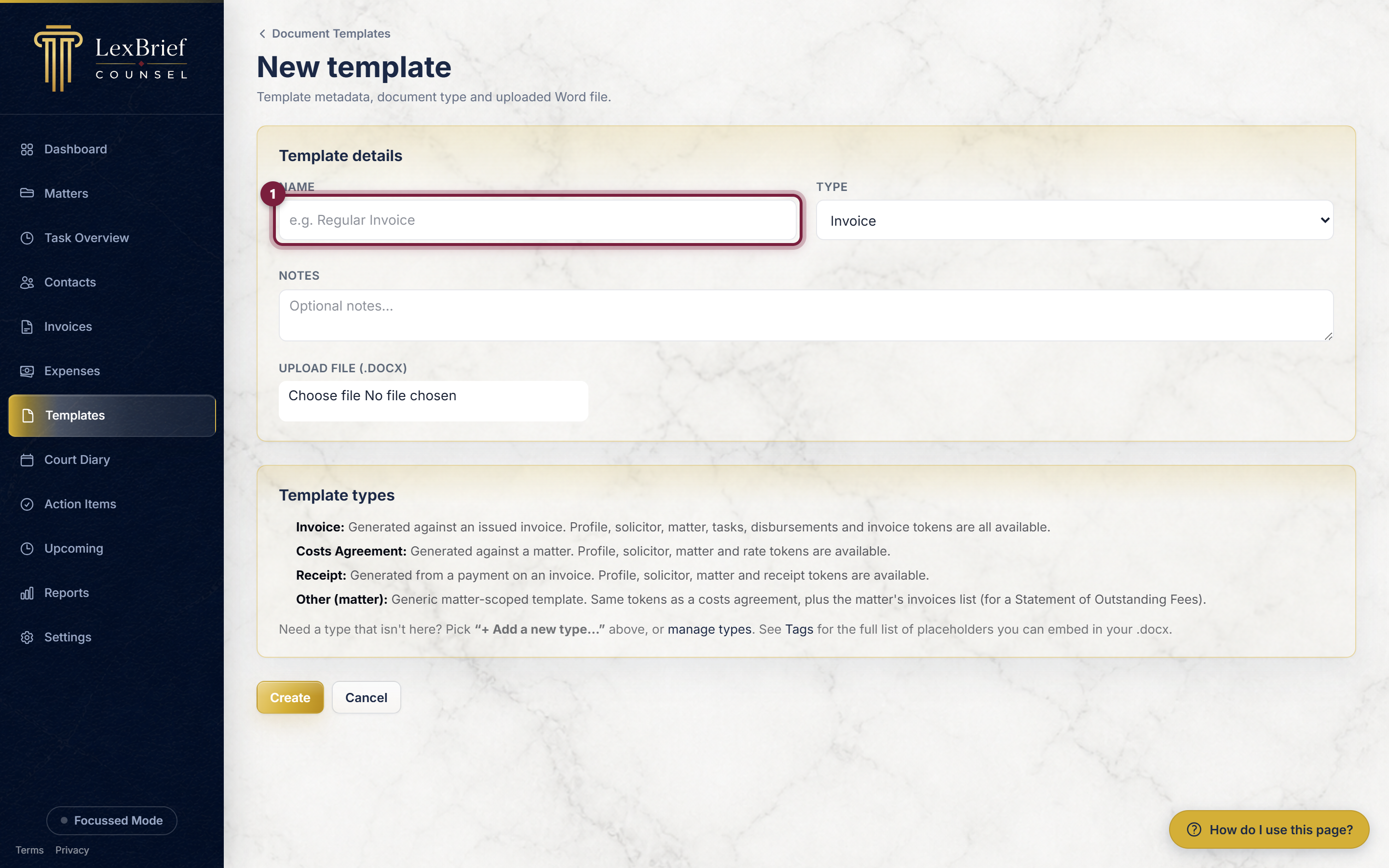
Then choose its Type from the list. The Type is important: it decides which merge fields the template can use, and where in LexBrief the template is offered.
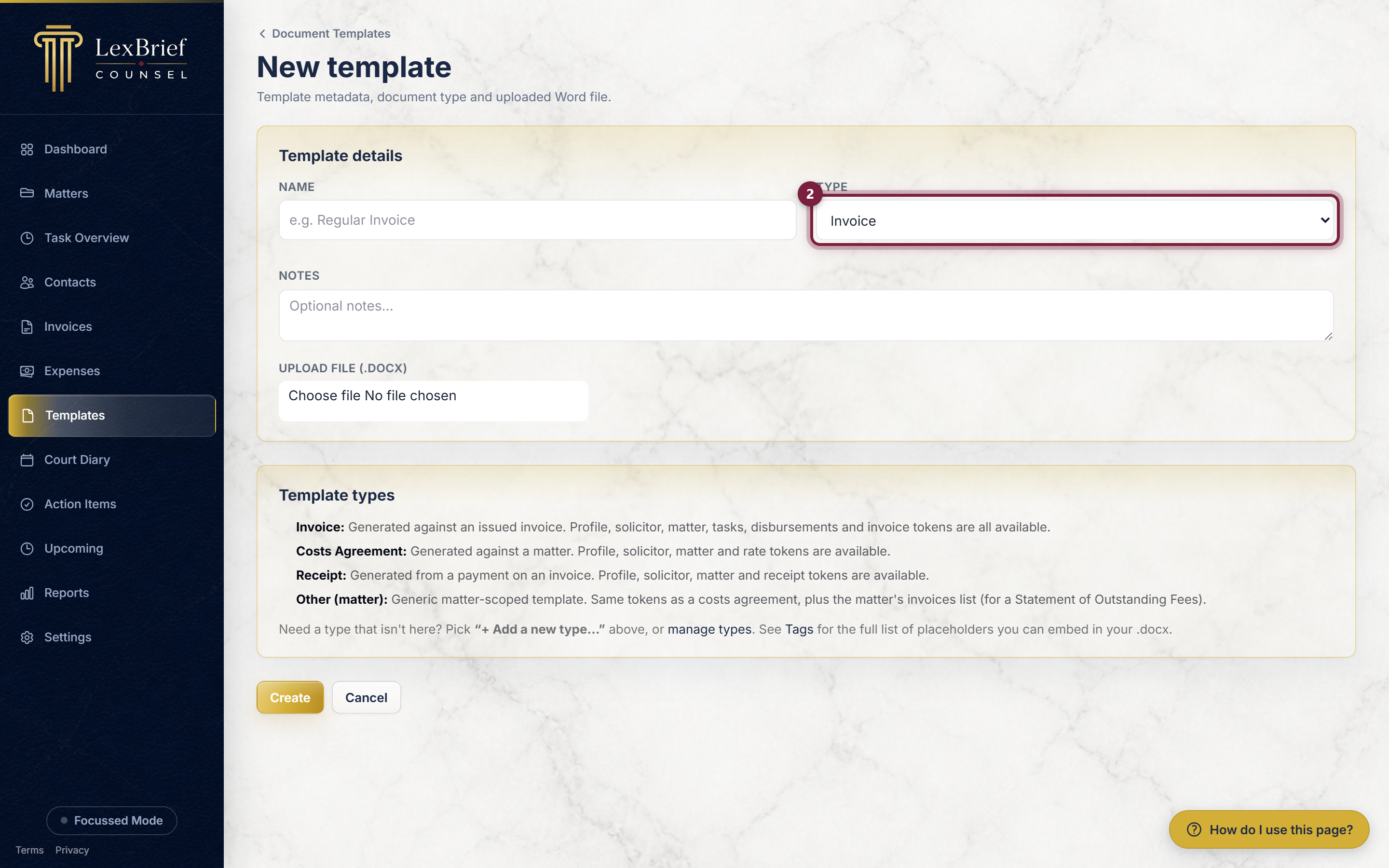
- Invoice – filled from an invoice; offered on the invoice page. Use this for your bill layout.
- Costs Agreement – filled from a matter; offered on the matter page.
- Receipt – filled from a payment on an invoice.
- Other – a general document filled from a matter (for example a letter). You can also add your own type if none of these fit.
3. Upload your Word file
Under Upload file (.docx), click Choose File and pick your Word document – the one with the merge fields already in it. (If you have not added the fields yet, see the next section first, or upload the plain document and use Identify fields to add them.)
4. Save it
Click the gold Create button at the bottom. Your new template now appears in the list on the Templates page.
Merge fields and the Tags page
To turn your Word document into a template, you replace the changing text with merge fields. You do not have to remember them – LexBrief lists every field you can use on the Tags page.
On the Templates page, click the Tags button in the top-right. You see a table of every available field, grouped into sections (your Profile, the Matter, the Client, the Invoice, and so on). Each row shows the field, the token to paste, and a Rendered value so you can see what it will look like when filled in.
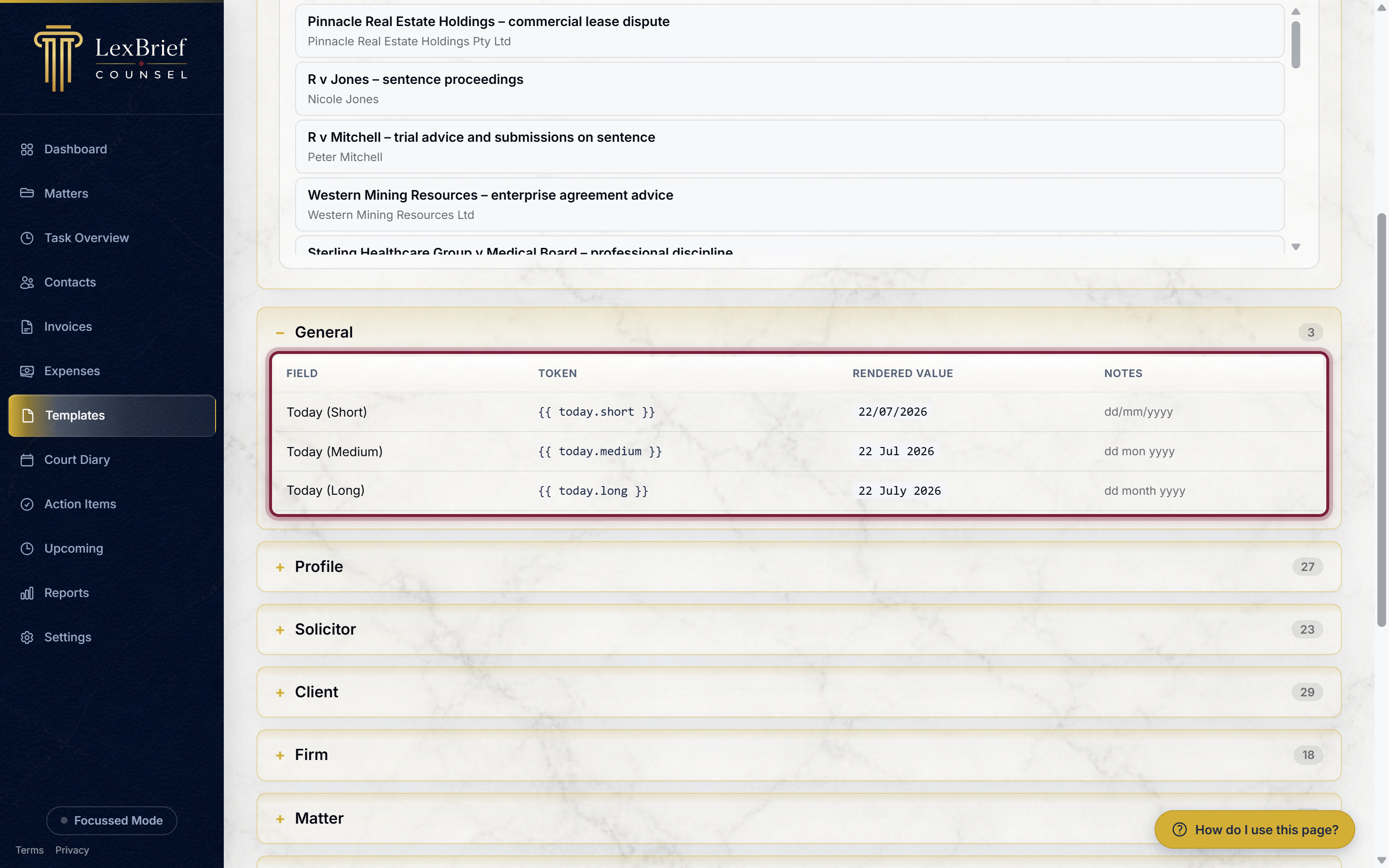
To use one, click the token to copy it, then paste it into your Word document where the real value should appear. For example, in place of a hard-coded name you might type Dear {{ solicitor.salutation }}, and in place of a total, {{ invoice.total_inc_gst }}. Save the Word file, then upload it as your template.
For lists that repeat on an invoice – the schedule of work, or a list of disbursements – there is a way to make a single table row repeat once per item. This is more advanced; if you need it, the How it works panel has a "Set up repeating rows" helper, or just email us and we will set it up with you.
Client email fields, and a client's surname
In the Client section of the Tags page there are two email fields, and it is worth knowing which is which:
- Contact Person Email –
{{ client.email }}. The email address of the person you actually deal with at the client. - Accounts Email –
{{ client.accounts_email }}. The address for a company client's accounts people, that is, where the bill should go. It is only filled in for a company client, because an individual has just the one address.
So if you send your bills to a company's accounts department rather than to your day-to-day contact, use Accounts Email in your invoice template.
There is also Contact Person Last Name – {{ client.contact_last }}. For a company client this is every word after the first of the contact person's name, so a surname such as van der Spuy comes through whole rather than just the last word of it. For an individual client it is simply their last name.
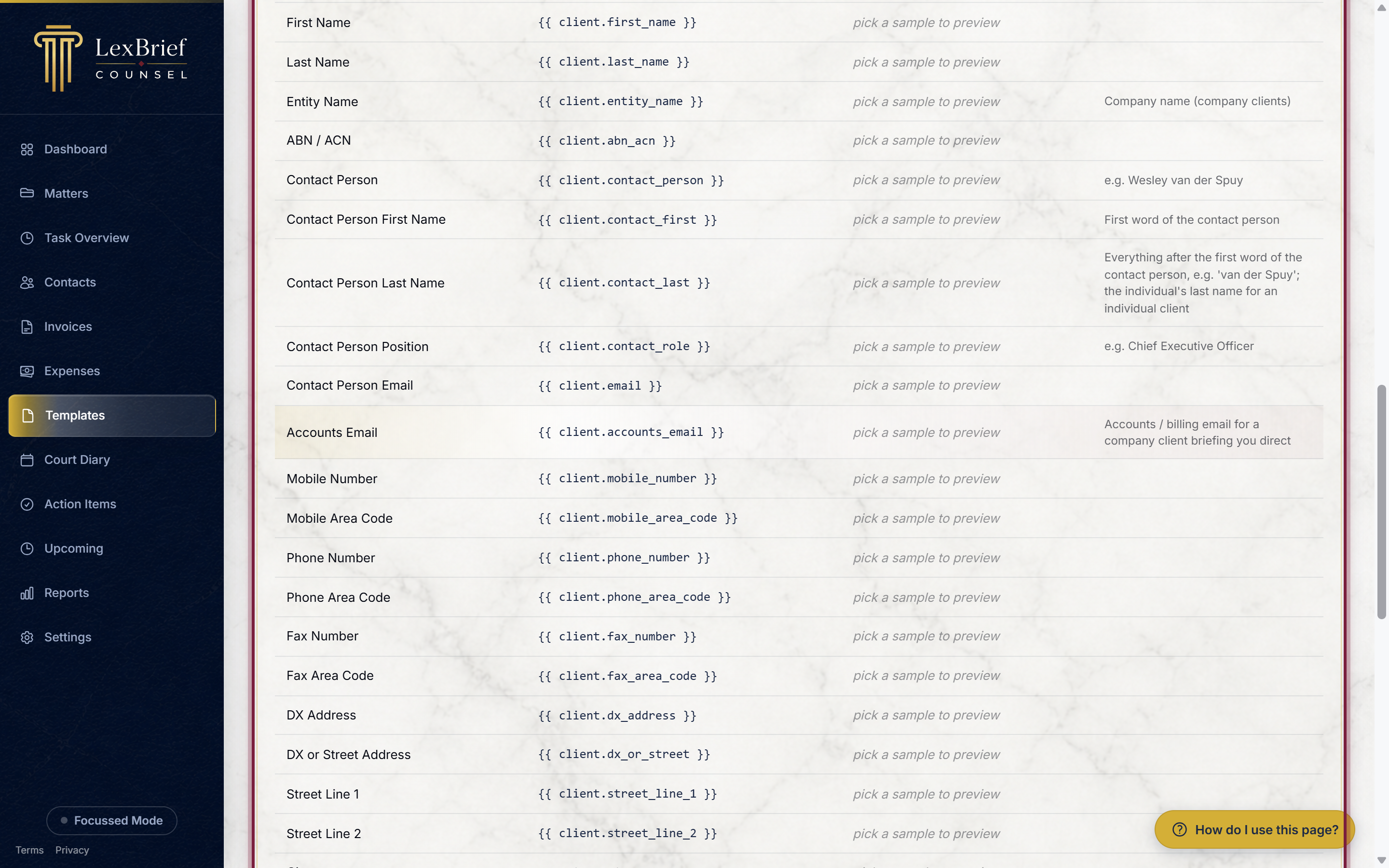
{{ client.email }}, so any template you have already built keeps working exactly as before. You do not need to change anything.
You fill both email boxes, and the contact person's name, in on the client's record. See the Contacts guide.
Let LexBrief find the fields for you
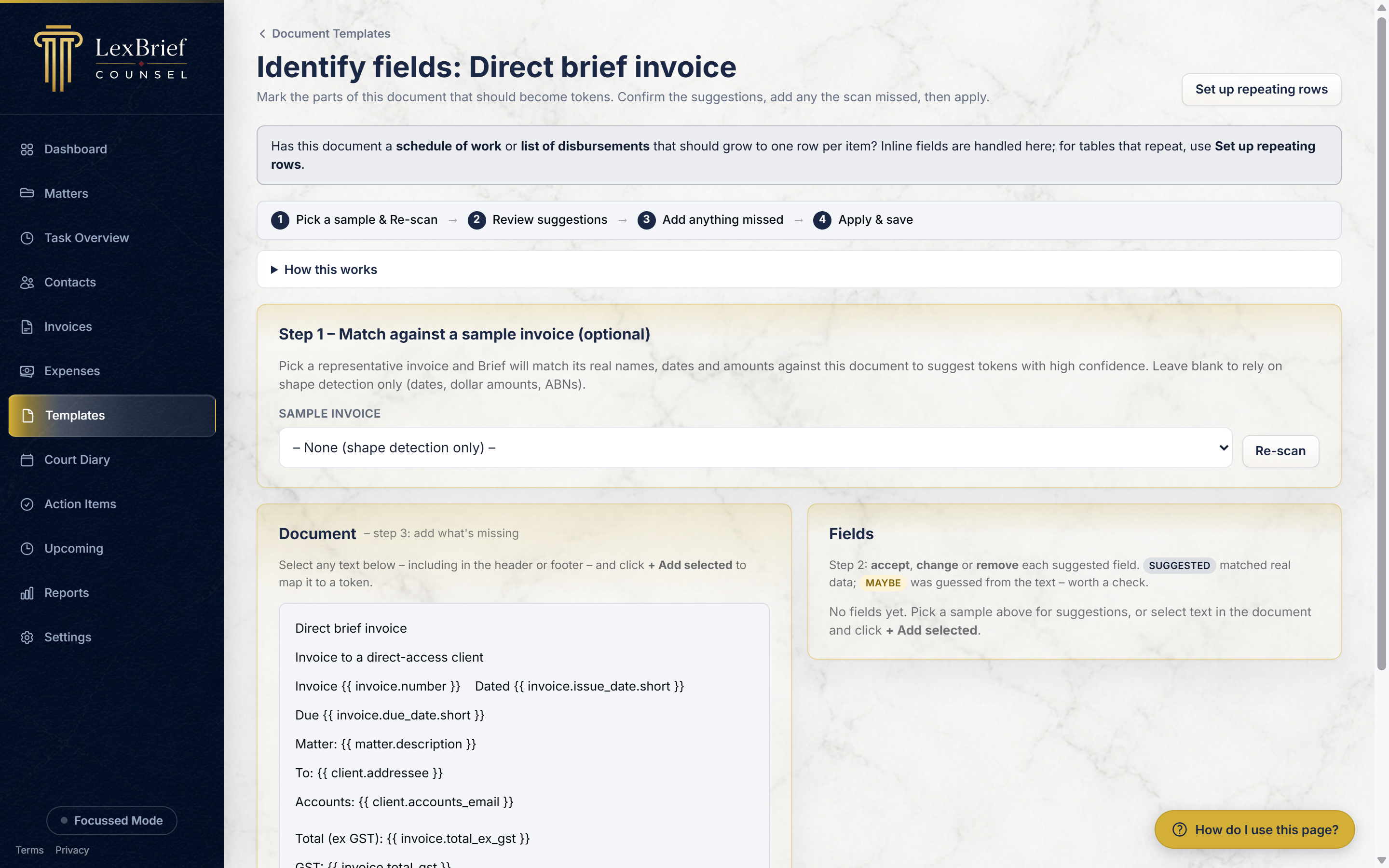
If you already have a finished document with no merge fields in it, you do not have to add them by hand. Upload the plain document, then click Identify fields on its row. LexBrief reads the document and suggests which parts to turn into fields, for you to accept or adjust.
Bringing a template across from BarBooks
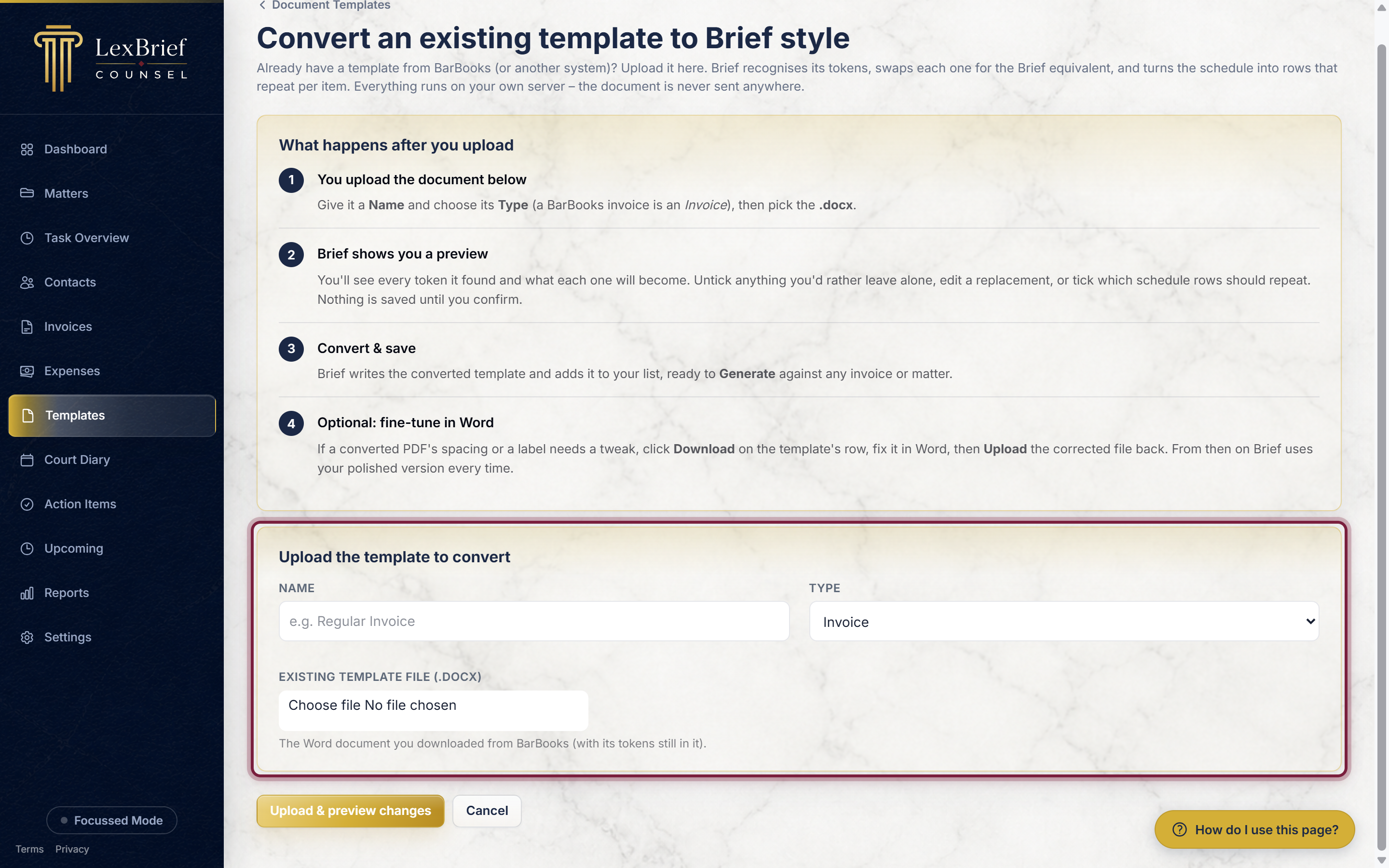
Moving from BarBooks? If you have a Word invoice you downloaded from BarBooks, use the converter instead. On the How it works panel, open the Convert an existing template tab and click through to the converter. Upload the BarBooks document and LexBrief swaps its fields for LexBrief ones and shows you a preview before saving.
Use a template to make a document
Once a template has a Word file, you produce a finished document from wherever the data lives:
- Invoice templates are used on the invoice page. Open an issued invoice: near the top-right is a list of your invoice templates and the Export .docx / Export PDF buttons. Pick the template you want, then click the format you want to save.
- Matter templates (Costs Agreement, Other) are used on the matter page. Open the matter and use its Create .docx / Create PDF control the same way.
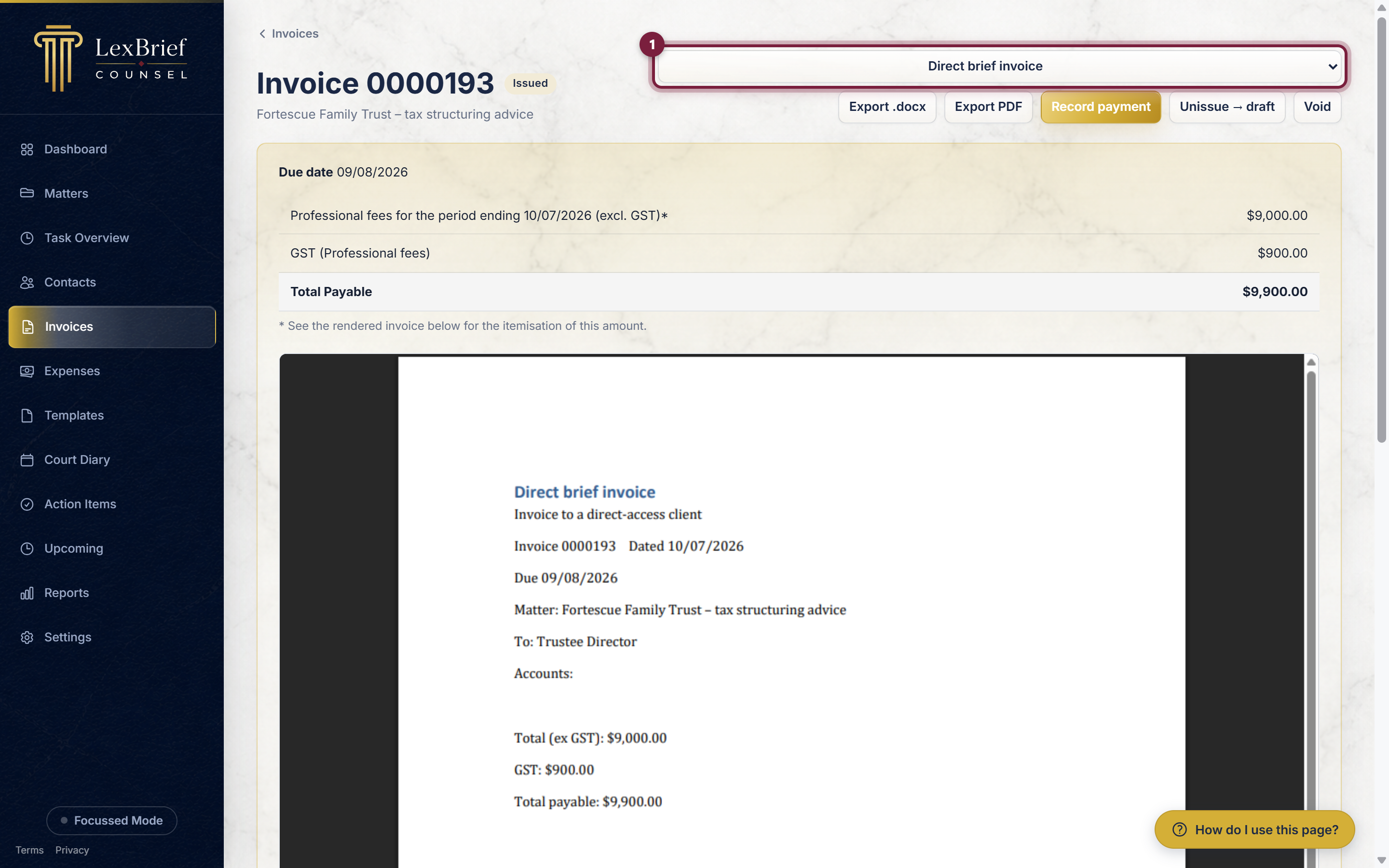
What you should see: a Word or PDF file downloads, with every merge field replaced by the real values from that invoice or matter. Your template stays untouched, ready for the next one.
What next
Templates connect to the parts of LexBrief that hold your data:
- Invoices – your invoice template is used from the invoice page when you export.
- Matters – letters and costs agreements are produced from the matter page.
- Browse all help guides
Stuck on anything at all? Email support@lexbrief.au – a real person reads it, usually the same working day. Templates in particular are something we are happy to set up with you.