

If at any point your screen does not look like the picture, stop and email support@lexbrief.au – we would rather help than have you guess.
Before you start
If this is your very first time in LexBrief, read Your first day in LexBrief Counsel first. This guide is about contacts on their own.
A note on wording: the dark strip of links down the left-hand side of the screen is the menu. When we say "click Contacts in the left-hand menu", we mean click the word Contacts in that dark strip.
What contacts are
LexBrief keeps your contacts in groups, so the right ones show up in the right place:
- Firms – the law firms that instruct you.
- Solicitors – the individual solicitors at those firms.
- Clients – who your matters are for. A client can be a person (individual) or an organisation (company).
- Other side and Other contacts – opposing parties, experts, and anyone else on a matter.
- Courts and Judges – so you can record where a matter is on foot.
You do not have to add everything up front. The easiest habit is to add a contact the first time you need it – for example when you create the matter it is for.
Your contacts page
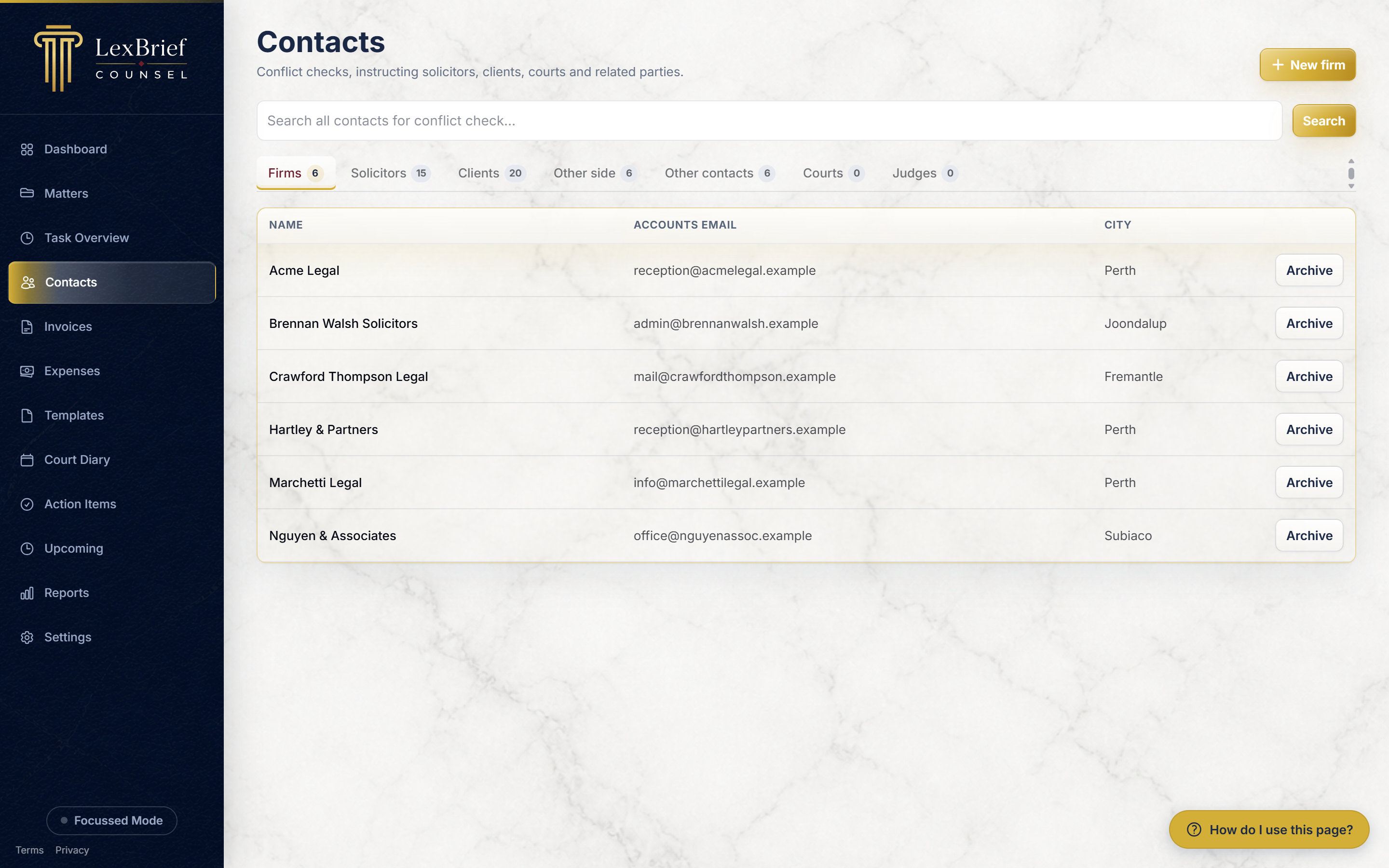
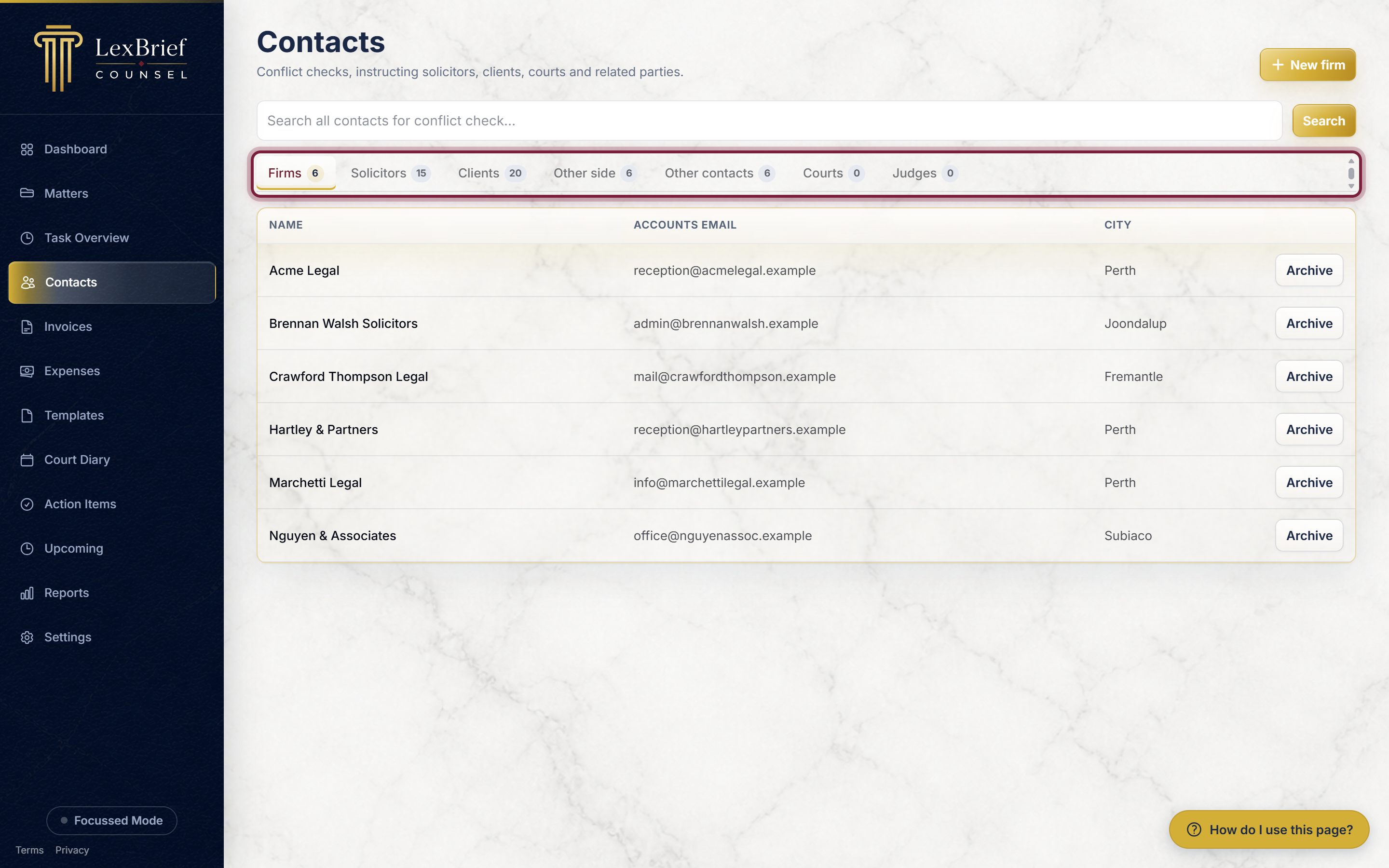
Click Contacts in the left-hand menu. Across the top is a row of tabs – Firms, Solicitors, Clients, Other side, and so on. Click a tab to see that group. The number on each tab is how many you have.
Show only people, or only organisations
A client can be a person or an organisation. Once your list is long, you often want to see only one of those – for example, only the companies who brief you direct. LexBrief lets you narrow the list in one click.
1. Open one of the three tabs that can hold both
Click Contacts in the left-hand menu, then click the Clients, Other side or Other contacts tab across the top.
2. Use the second row of buttons
Beneath the row of tabs you will see a second, smaller row of buttons labelled Show, with three choices: All, Individuals and Companies. Each one carries a number, which is how many contacts of that kind you have.
Click Companies to see only the organisations. Click Individuals to see only the people. Click All to go back to the full list.
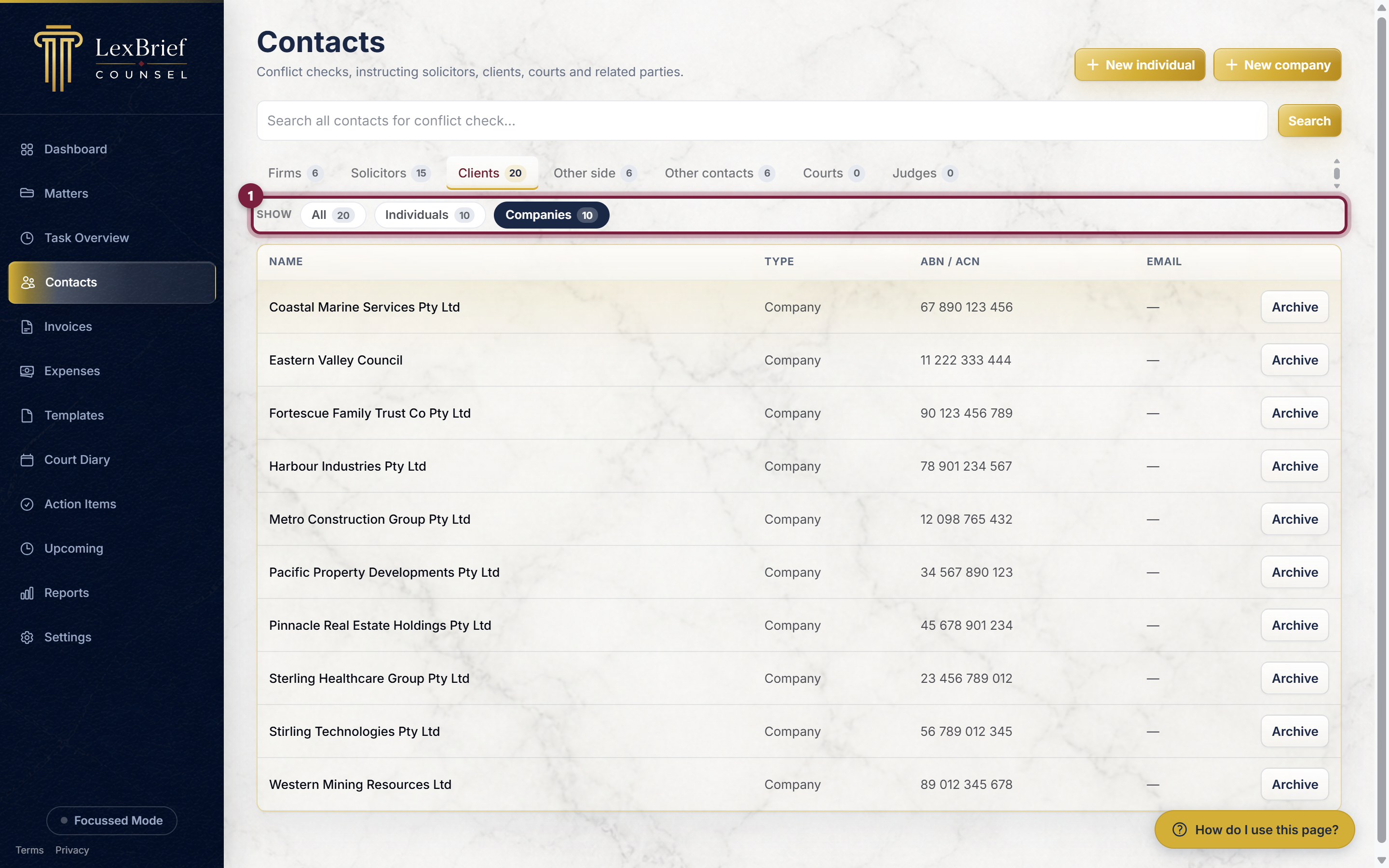
What you should see: the table below shrinks to just that kind of contact, and the button you clicked turns dark navy so you can tell at a glance which view you are in. Nothing is deleted or hidden permanently – this only changes what is shown on screen.
Add a firm
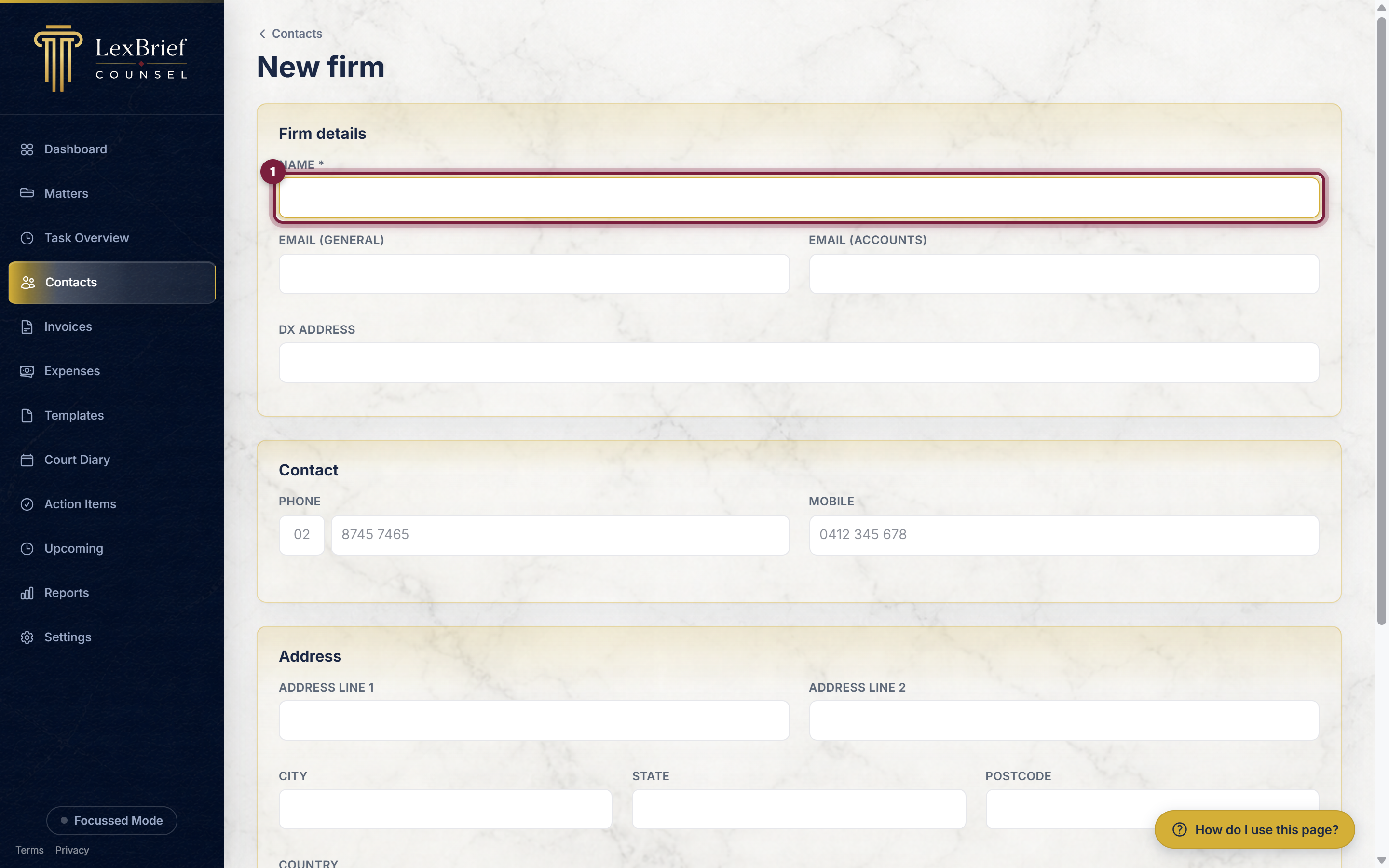
1. Click "New firm"
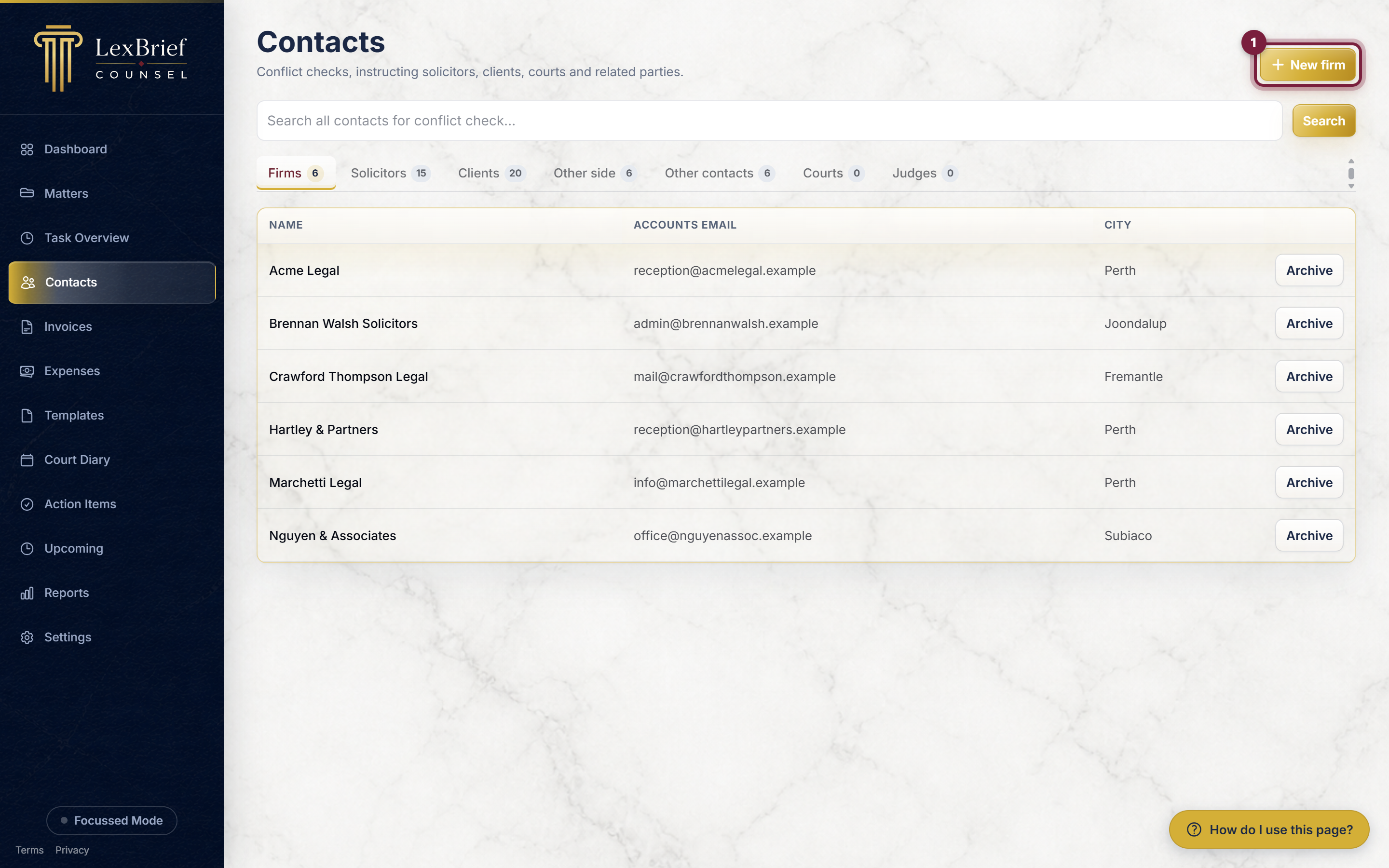
On the Contacts page, click the Firms tab, then click the gold New firm button in the top-right corner.
2. Enter the firm's name
The only box you must fill in is Name. Type the firm's name.
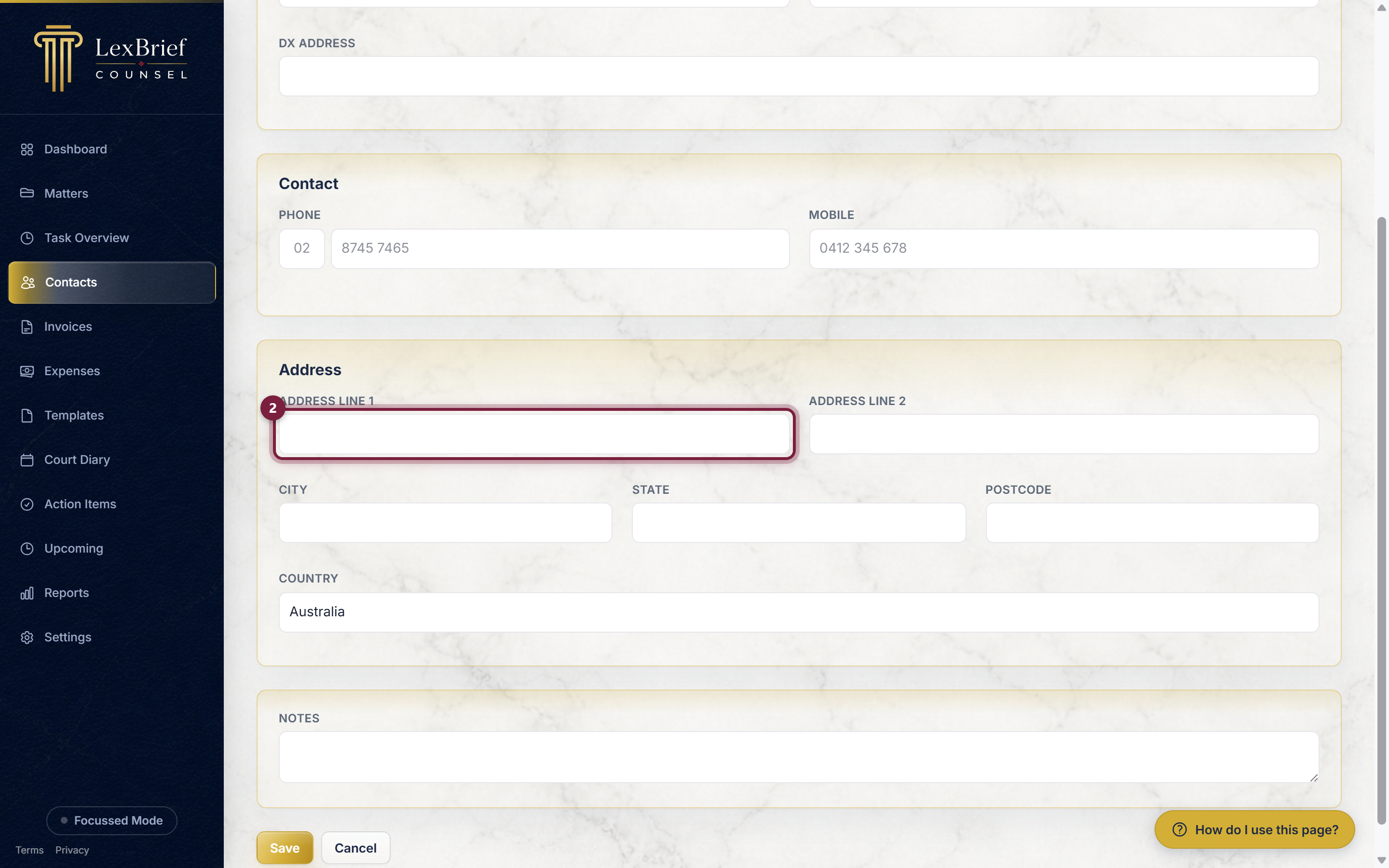
3. Add the address and contact details (optional)
Fill in the firm's Address, phone and DX if you have them. These flow through onto invoices and letters, so it is worth adding, but you can always come back later.
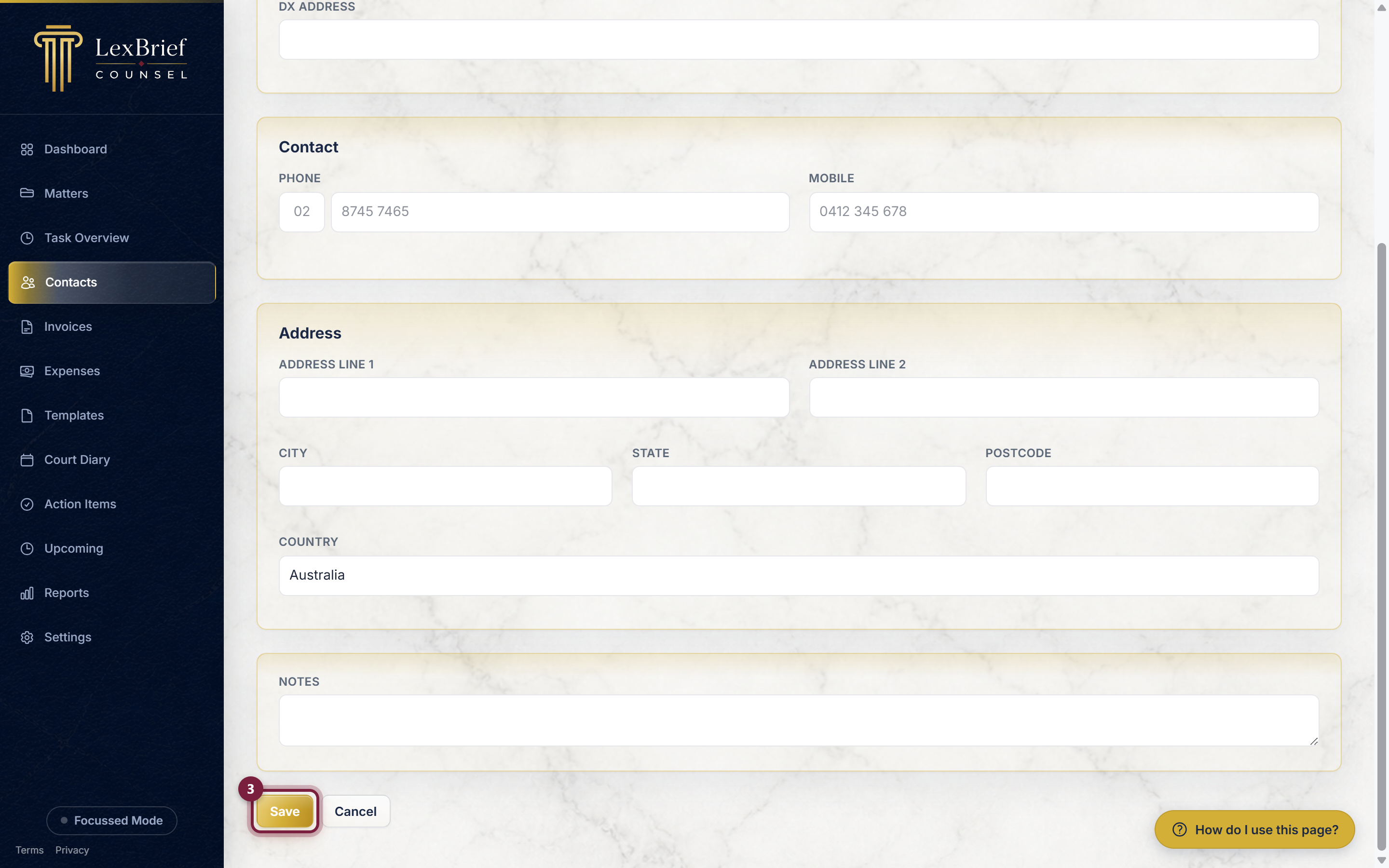
4. Save
Click Save at the bottom. The firm now appears on the Firms tab.
Add a solicitor
A solicitor is a person at a firm. Adding the firm first (above) makes this easier.
1. Open the new solicitor form and link the firm
On the Contacts page go to the Solicitors tab and click New solicitor. Enter the solicitor's First name and Last name, then choose their Firm from the list.
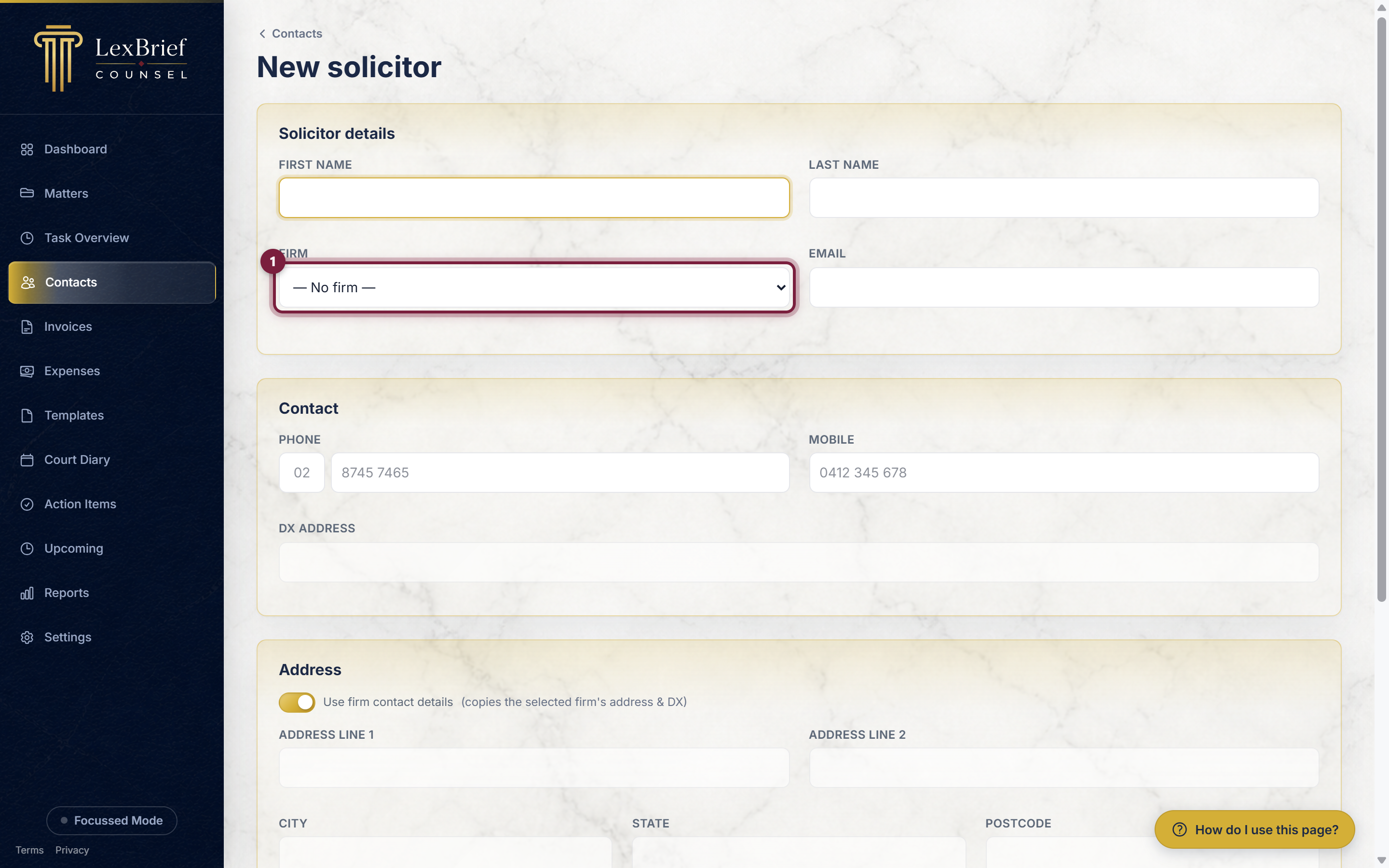
2. Reuse the firm's address
Because a solicitor usually shares the firm's address, the Use firm contact details switch is on by default – it copies the firm's address and DX onto the solicitor, so you do not retype them. Leave it on, or switch it off if this solicitor has their own address.
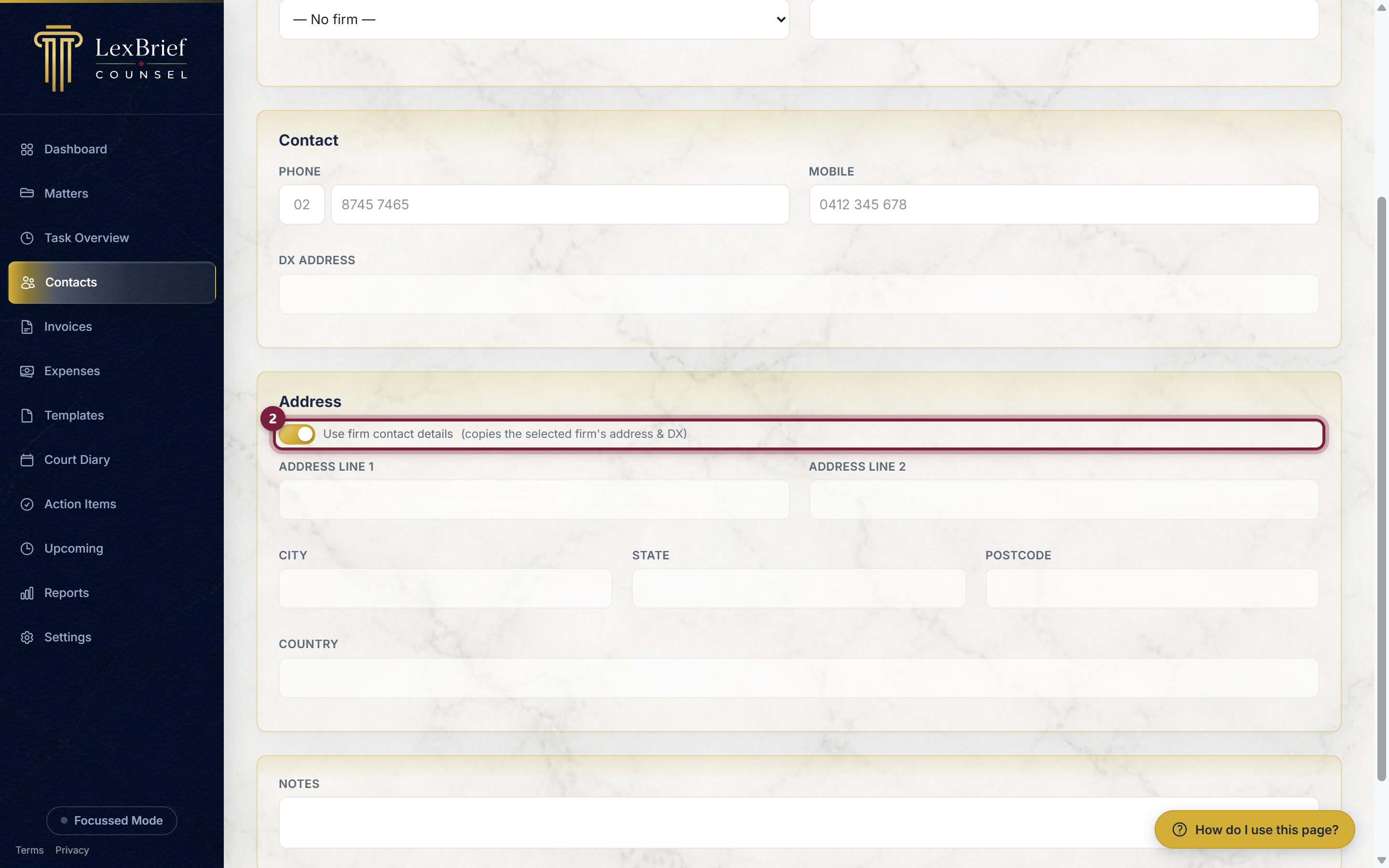
Then click Save.
Add a client
A client can be a person or an organisation. LexBrief asks which at the top of the form, and shows the right boxes for each.
A person (individual)
On the Contacts page go to the Clients tab and click New individual. Fill in the First name and Last name, plus email and phone if you have them.
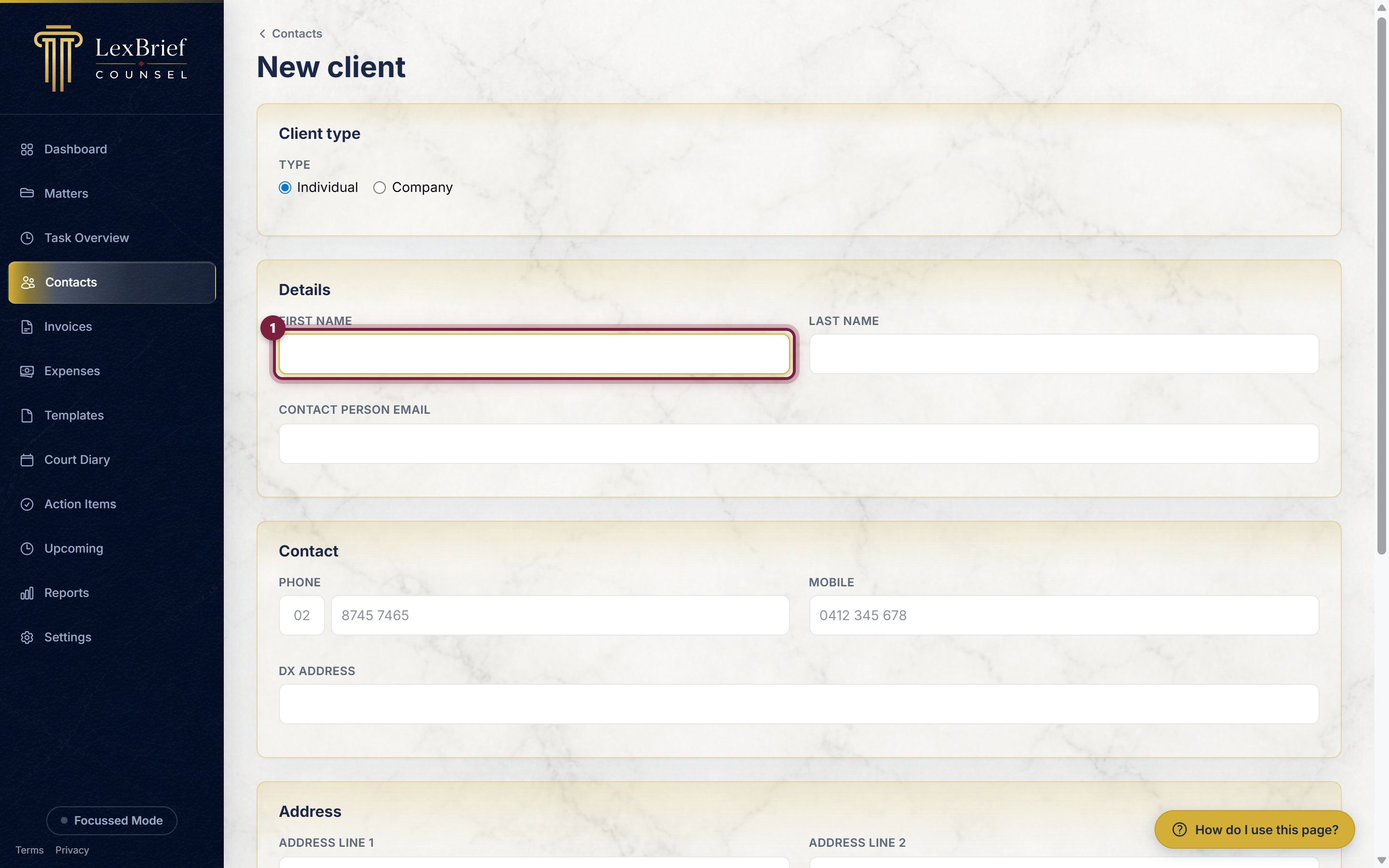
An organisation (company)
For a company, click New company instead. Here the key box is Entity name (the organisation's name), and you can add its ABN / ACN and a contact person.
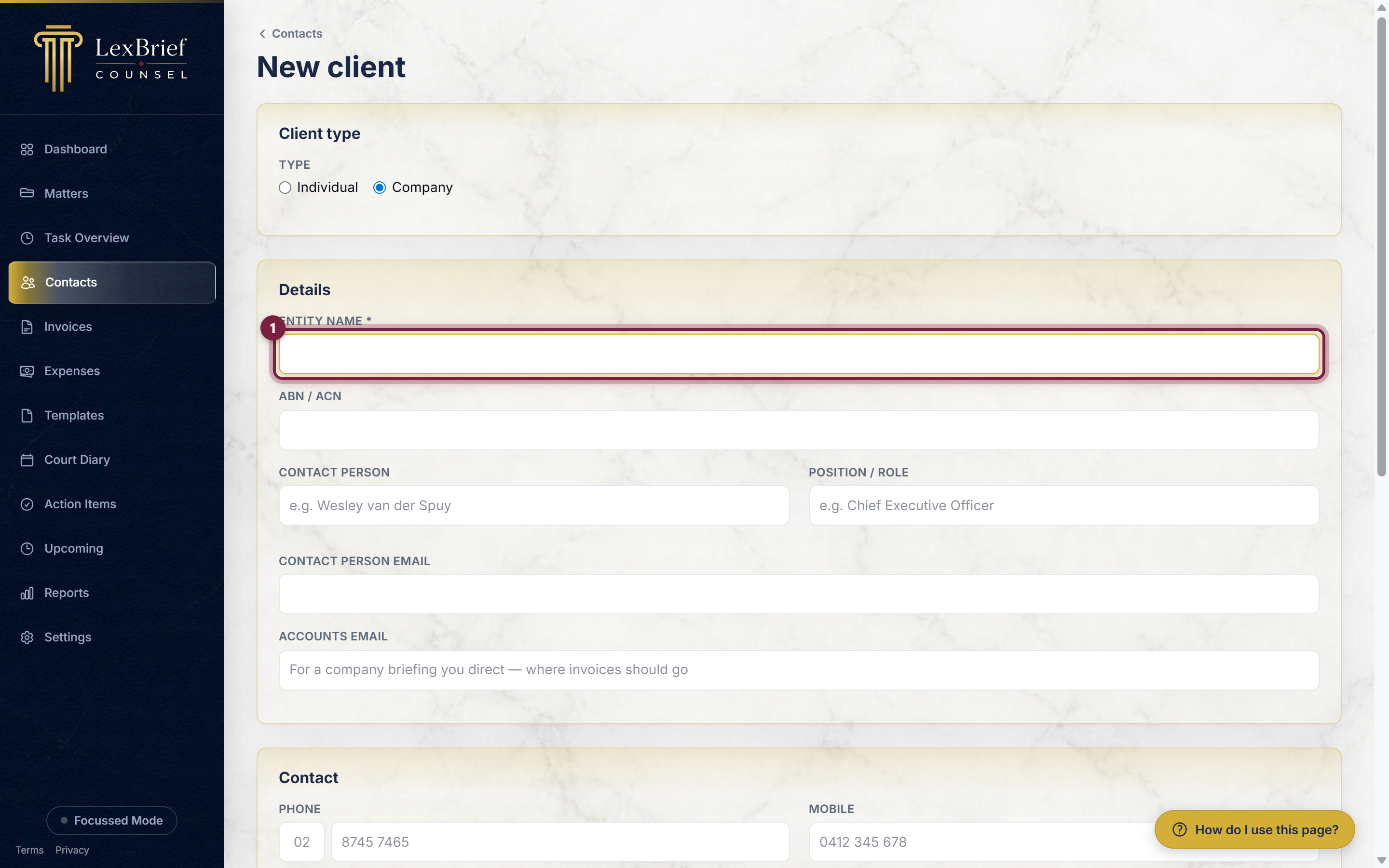
Click Save, and the client is ready to pick when you create a matter.
Send invoices to an accounts email
For a company that briefs you direct, the person you actually deal with and the people who pay your invoices are often not the same. So a company client has two email boxes instead of one.
1. Set the Type to company
On the client form, set Type to the company option. The two email boxes appear as soon as you do.
2. Fill in Contact person email
This is the email of the individual you correspond with at the organisation. It is the box that used to simply be called Email – only the label changed, so anything you entered before is still there.
3. Fill in Accounts email
Directly beneath it is Accounts email. This is where invoices should go: the accounts team, billing inbox or bookkeeper. Leave it empty if there is no separate address.
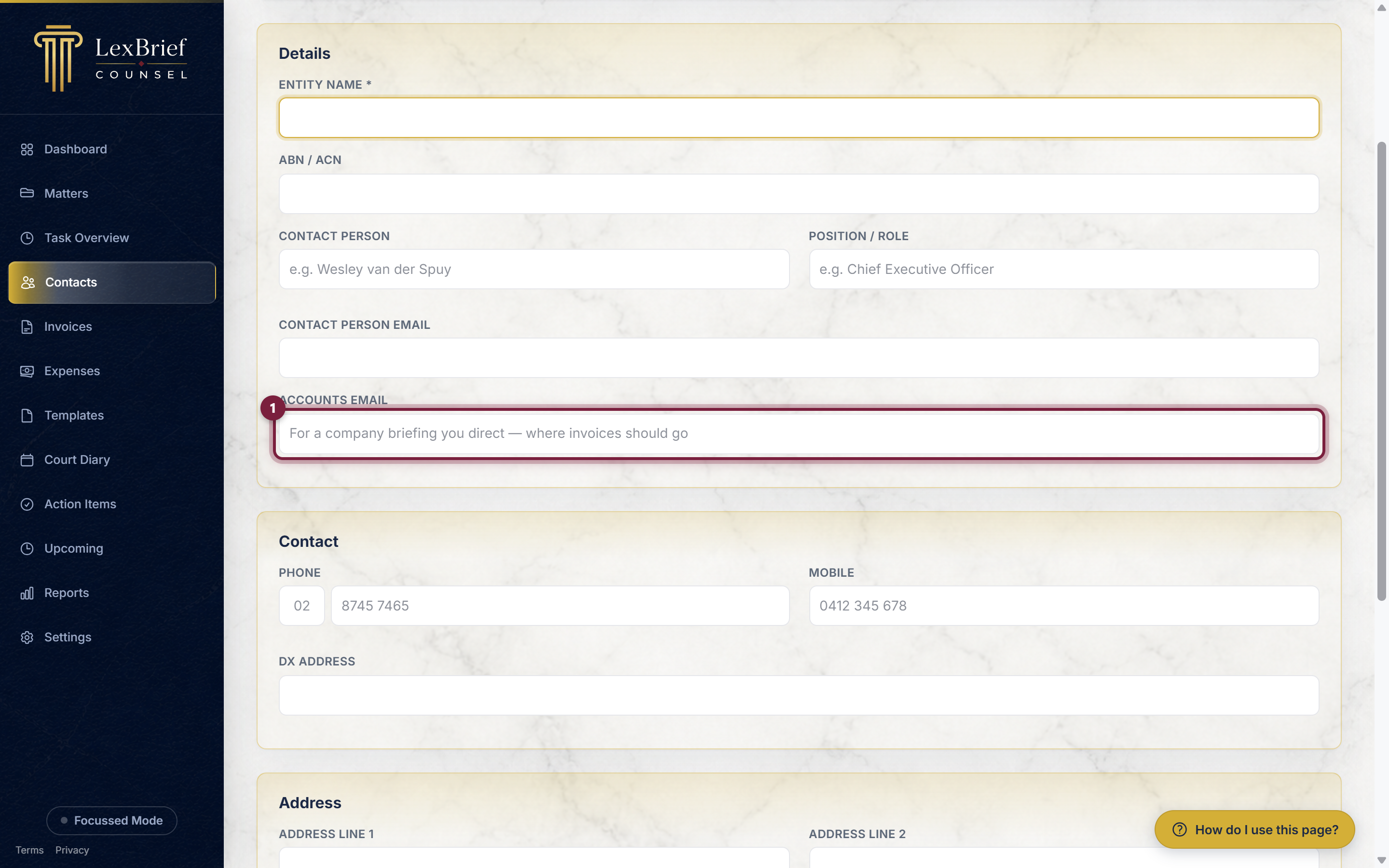
What you should see: both boxes together, one above the other. If you switch Type back to the individual option, Accounts email disappears – a person has only one email address, so LexBrief does not ask for a second one.
Then click Save.
What next
Contacts come together on a matter – that is where you pick the client, instructing firm and solicitor:
- Matters – create a matter and attach these contacts to it.
- Browse all help guides
Stuck on anything at all? Email support@lexbrief.au – a real person reads it, usually the same working day.