

If at any point your screen does not match what this guide describes, stop and email support@lexbrief.au – we would rather help than have you guess.
The short version
In order, this is what happens:
- Any time during your trial – you can export your own data from Settings → Data → Data Export.
- About a week before your trial ends – an email headed Your LexBrief Counsel trial ends soon reminds you to take that copy while you still have full access.
- On the day your trial ends – an email headed Your LexBrief Counsel trial has ended arrives with a link to download your data.
- When you open that link – a page with a Download the ZIP file button, and an Email me the password button. The password arrives in a second, separate email.
Before you start
A note on wording used throughout this guide:
- The dark strip of links down the left-hand side of the screen inside LexBrief is the menu.
- The row of words across the top of the Settings page (Profile, Banking, and so on) are the tabs. Click a tab to switch to it.
- A ZIP file is a single file that holds a whole folder of other files inside it, squeezed down for sending. You open it with a free tool on your own computer, and out come the ordinary spreadsheets and documents inside.
- Your data copy is a ZIP file that is encrypted. That means it is scrambled, and it needs a password before anything can be read out of it. This is why the password matters, and why it arrives separately.
Taking a copy while your trial runs
This is the best moment to take a copy, because you still have full access and you choose exactly what you take. You do not have to wait for the trial to end, and you can do it as often as you like.
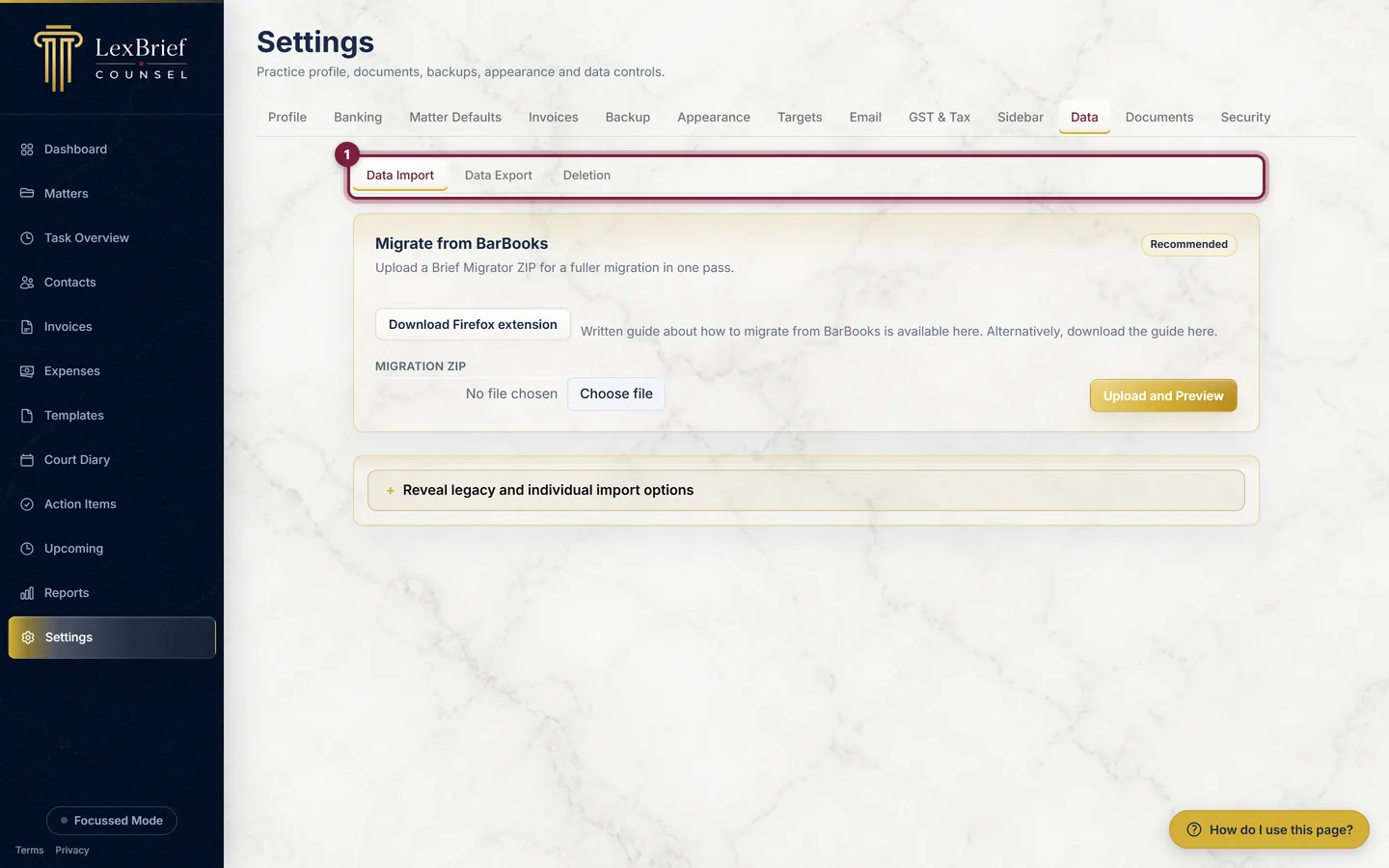
- Click Settings at the very bottom of the left-hand menu.
- Click the Data tab across the top.
- Click the Data Export inner tab.
What you should see: a card headed Export Data, with a row of tick boxes under the words Data types. Every kind is ticked to begin with.
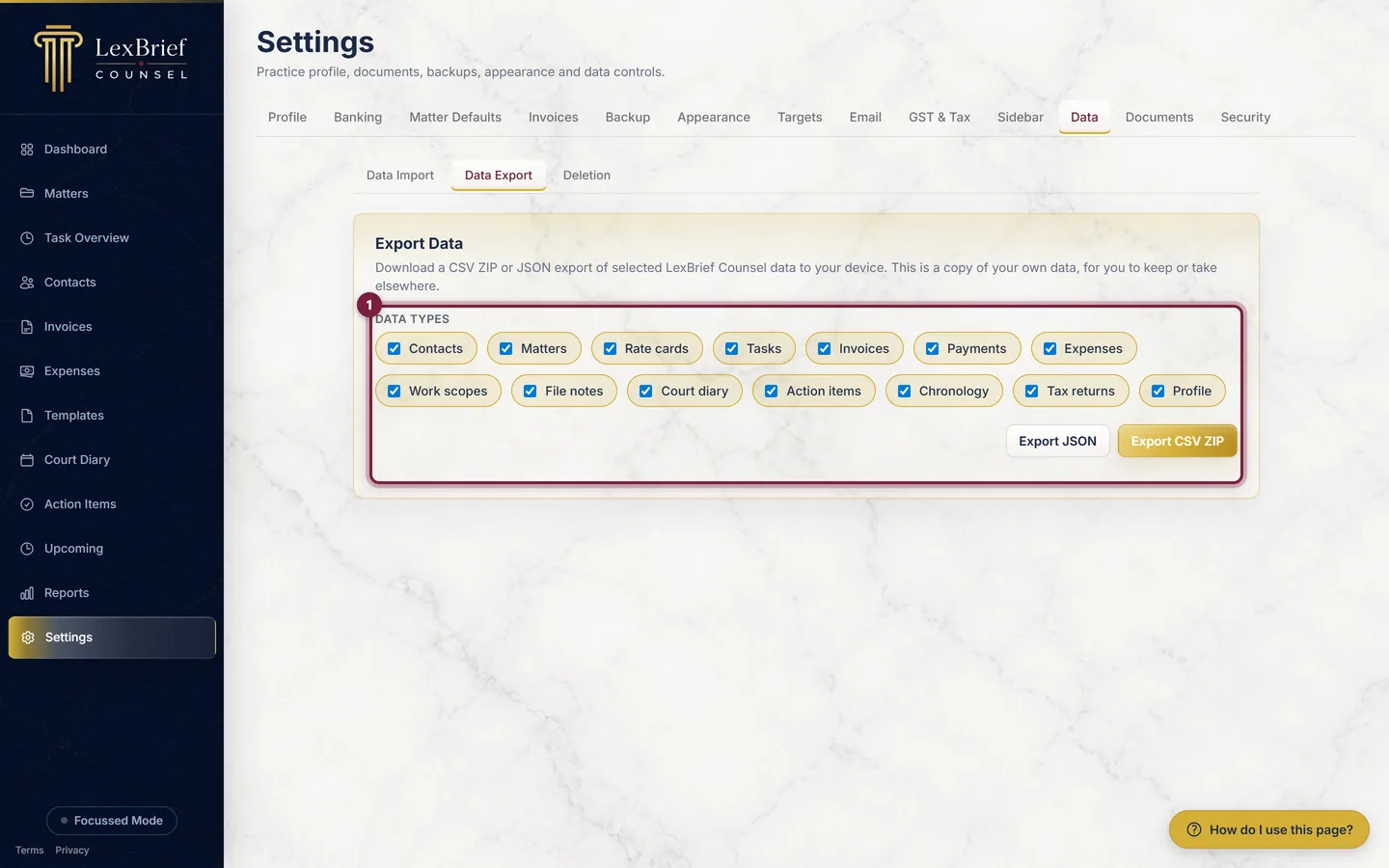
- Leave every tick box ticked to take everything, or untick the kinds you do not want.
- Click Export CSV ZIP for a set of spreadsheets you can open in Excel, or Export JSON for a single structured file.
What you should see: the file downloads to your computer in the usual way, into your Downloads folder unless your browser asks you where to put it.
The "trial ends soon" email
About a week before your trial is due to end, you receive an email headed Your LexBrief Counsel trial ends soon. It tells you the date the trial ends, and it points you at the export described above.
It arrives while you still have full access, on purpose. If you want a copy of your data, this email is your prompt to take one at the easiest possible moment.
If you would simply like more time, reply to that email, or write to support@lexbrief.au. Trials are extended readily.
The day your trial ends
On the day your trial ends, access to your LexBrief address is paused and you receive an email headed Your LexBrief Counsel trial has ended.
That email contains a link labelled Download your data. It goes to a page on the LexBrief site, not into the app, so it works even though your account is paused.
What you should see when you open the link: a page headed Download your data, with two buttons on it:
- Download the ZIP file – downloads your data copy to your computer.
- Email me the password – sends the password for that file to the email address on your account.
You will want both. Take them in either order.
Getting the password
The ZIP file is encrypted, so it will not open until you enter its password. The password is not in the email that carried the link. It is sent to you in a second, separate email, and only when you ask for it.
Nobody has forgotten to send it. It is held back deliberately, so that no single email in your inbox contains both the file and the key to open it.
- On the download page, click Email me the password.
- Go to your inbox and look for an email headed The password for your LexBrief Counsel data.
What you should see on the page: the Email me the password button is replaced by a green message confirming the password has been emailed to the address on your account, and suggesting you check your junk folder too.
Copy the password from that email and keep it with the ZIP file. Without it, the file cannot be opened – not by you, and not by us.
What is inside the ZIP file
Everything from your account, in three forms, so that whatever you want to do next is possible:
- A folder named data-csv – your records as spreadsheets, one file for each kind: contacts, matters, rate cards, tasks (your time entries), invoices, payments, expenses, work scopes, file notes, court diary, action items, chronology, tax returns and your profile. Open them in Excel, Numbers or Google Sheets, or import them into other software.
- A folder named documents – your own files, exactly as they are: receipts you uploaded, invoices and costs agreements LexBrief generated for you, documents you filed against a matter, and your templates. If you edited an invoice's document before sending it, that edited version is the one that comes home, because it is the document your client actually received. These are ordinary PDF and Word files.
- A file named barbooks.db – a complete copy of your whole account in one database file. You will not need to open this yourself. It exists so that nothing is left behind, and so your account could be restored in full if you ever came back.
There is also a README.txt file inside, which explains each part in plain English.
Opening the ZIP file
Your computer may be able to open the file on its own. If it asks for a password and then refuses, it is because ordinary Windows folders cannot read this kind of encryption. Use a free tool instead:
- On Windows, install 7-Zip. On a Mac, install Keka. Either is free.
- Right-click the downloaded file and open it with that tool.
- Paste in the password from the password email when you are asked for it.
What you should see: the folders data-csv and documents, the file barbooks.db, and README.txt. Drag them out to a folder of your own.
Treat the unpacked files as you would any client file: they hold confidential material, so keep them somewhere appropriately secure.
How long you have
The download link arrives on the day your access ends. Nothing is deleted at that point.
- Your account is paused first. Everything is still held, and a trial can be extended at this stage with a single email.
- About a week later, if you have not been in touch, the account is closed and you receive a second email headed Your LexBrief Counsel trial has concluded. It carries the same download link, which continues to work.
- Your data is then kept for a further period – at least 30 days from that notice – before it is permanently deleted. The download link stays live through that whole window, and beyond it for a short time.
In practice you have roughly a month and a half from the end of your trial. The exact dates are in the emails themselves, and the retention terms are set out in section 13 of our Terms.
If you have lost the link
You do not need to email anyone for it.
- Go to counsel.lexbrief.au in your browser.
- Type your email address into the Email address box – the one your trial was set up with.
- Click Continue.
What you should see: a short message saying that if your address is registered, an email is on its way.
That page serves whoever is asking. While your trial is running it sends you the address of your workspace. Once your trial has ended, that address no longer exists, so it sends you your data download link instead – the only thing that can still help you. Look for an email headed Your LexBrief Counsel data download.
Open that link and, as before, click Email me the password for the password.
If something goes wrong
Email support@lexbrief.au. A real person reads it, usually the same working day. It is worth writing if:
- the download link says it has expired or does not exist;
- the password email has not arrived after a few minutes and is not in your junk folder;
- the password will not open the file;
- something you expected to find is missing from the ZIP file; or
- you would simply like more time on your trial.
If your data is close to being deleted and you are having trouble, say so in the first line of your email and we will hold things where they are while it is sorted out.
What next
- Settings – the Data tab in context, including exactly what each export tick box covers.
- Backups – encrypted safety copies of your data, made on a schedule rather than at the end of a trial.
- Browse all help guides
Worried about a deadline, or unsure whether you have everything? Email support@lexbrief.au before the date in your email passes – it is always easier to help while your data is still there.