

If at any point your screen does not look like the picture, stop and email support@lexbrief.au – we would rather help than have you guess.
Before you start
The Upcoming page does not hold any information of its own – it simply gathers together what you have already recorded in two other places. So it only has something to show once you have some dates and to-dos in the system:
- future court dates come from the Court Diary (a matter's Key dates);
- open to-do items come from your Action Items.
If those two pages are empty, the Upcoming page will be empty too – that is normal. Fill them in first (the guides above walk you through it), and your items appear here automatically.
A note on wording: the dark strip of links down the left-hand side of the screen is the menu. When we say "click Upcoming in the left-hand menu", we mean click the word Upcoming in that dark strip.
What the Upcoming page is
The Upcoming page is a read-only digest. It pulls your soonest court dates and your open to-do items into one list so you do not have to check the Court Diary and Action Items separately every morning. Two things are worth knowing:
- It is read-only – you do not add or change anything here. To edit an item, you click it and LexBrief takes you back to where it lives (see Jumping to the matter or date, below).
- It is built entirely from what you type in yourself. There is no artificial intelligence guessing at your diary – it is just a tidy view of your own Court Diary and Action Items.
Keep it separate in your mind from the two pages it draws on:
- the Court Diary is where you record and edit court dates, and shows all of them (not just the soonest);
- Action Items is where you record and edit your to-do list;
- Upcoming just gathers the nearest items from both into one short list to glance at.
Opening the Upcoming page
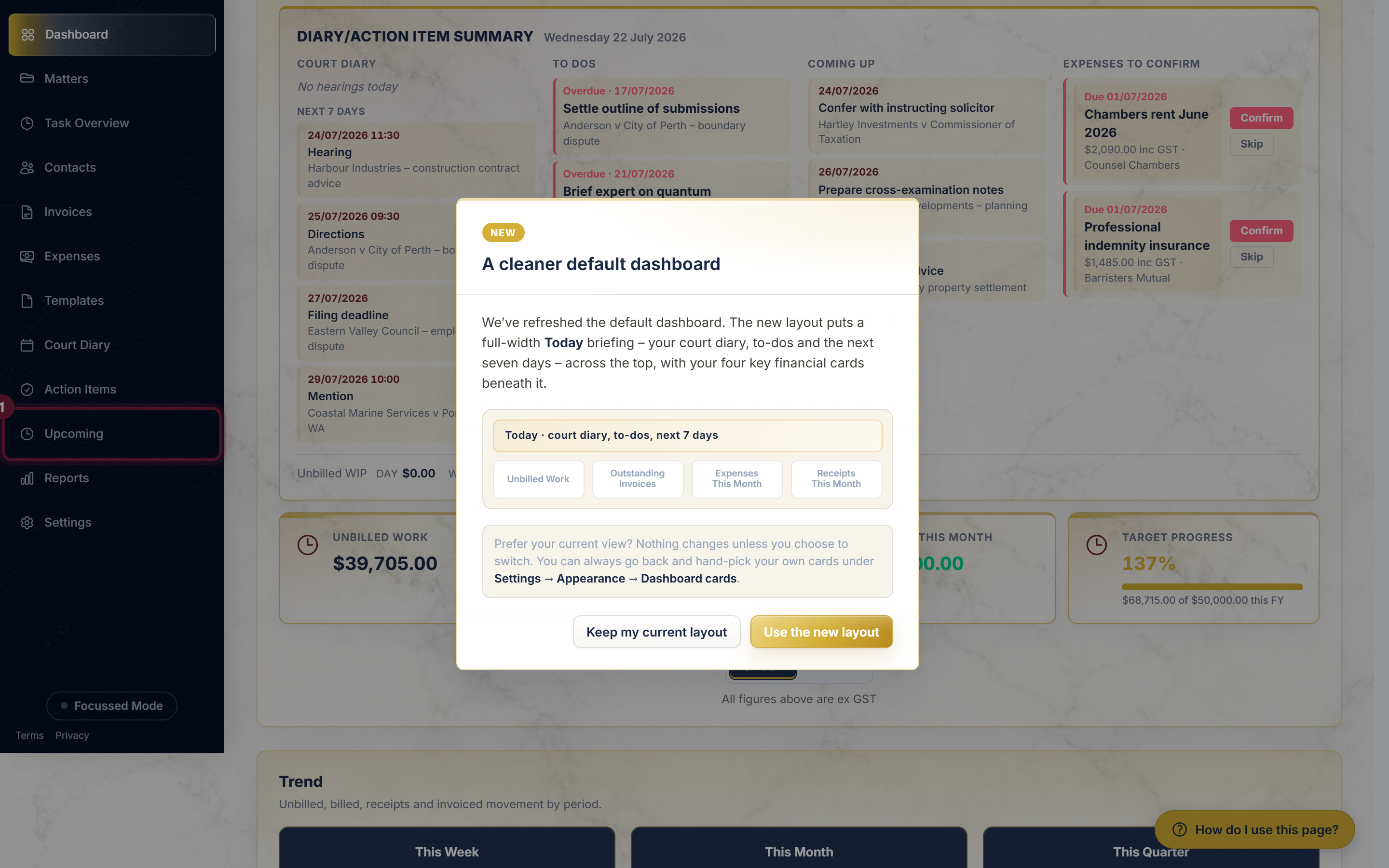
Click Upcoming in the left-hand menu.
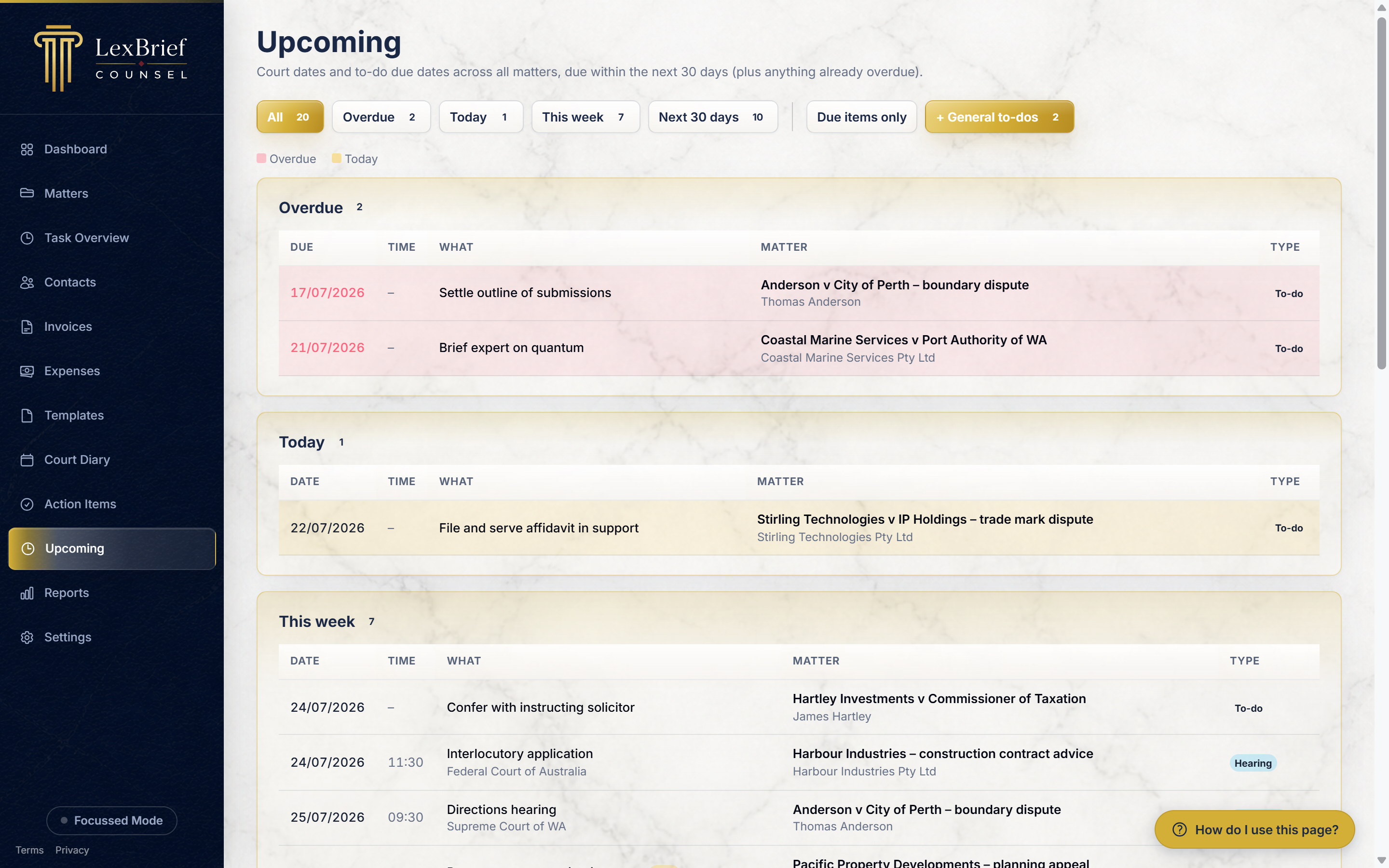
The page opens showing everything due within the next 30 days, plus any to-do items that are already overdue, grouped by how soon they are.
How to read the list
Items are sorted into groups by how soon they are due, and within each group the soonest is at the top:
- Overdue – to-do items whose due date has already passed.
- Today – anything due today.
- This week – anything due in the next seven days.
- Next 30 days – anything due later in the coming month.
Each row tells you the date, the time (if one was set), what it is, which matter it belongs to, and its type – a court date, or a to-do item. Overdue rows are tinted red and today's rows are tinted gold, so the pressing things stand out.
Narrowing the list by time
Along the top of the page is a row of buttons. Each one shows a number – how many items fall in it – so you can see your workload at a glance.
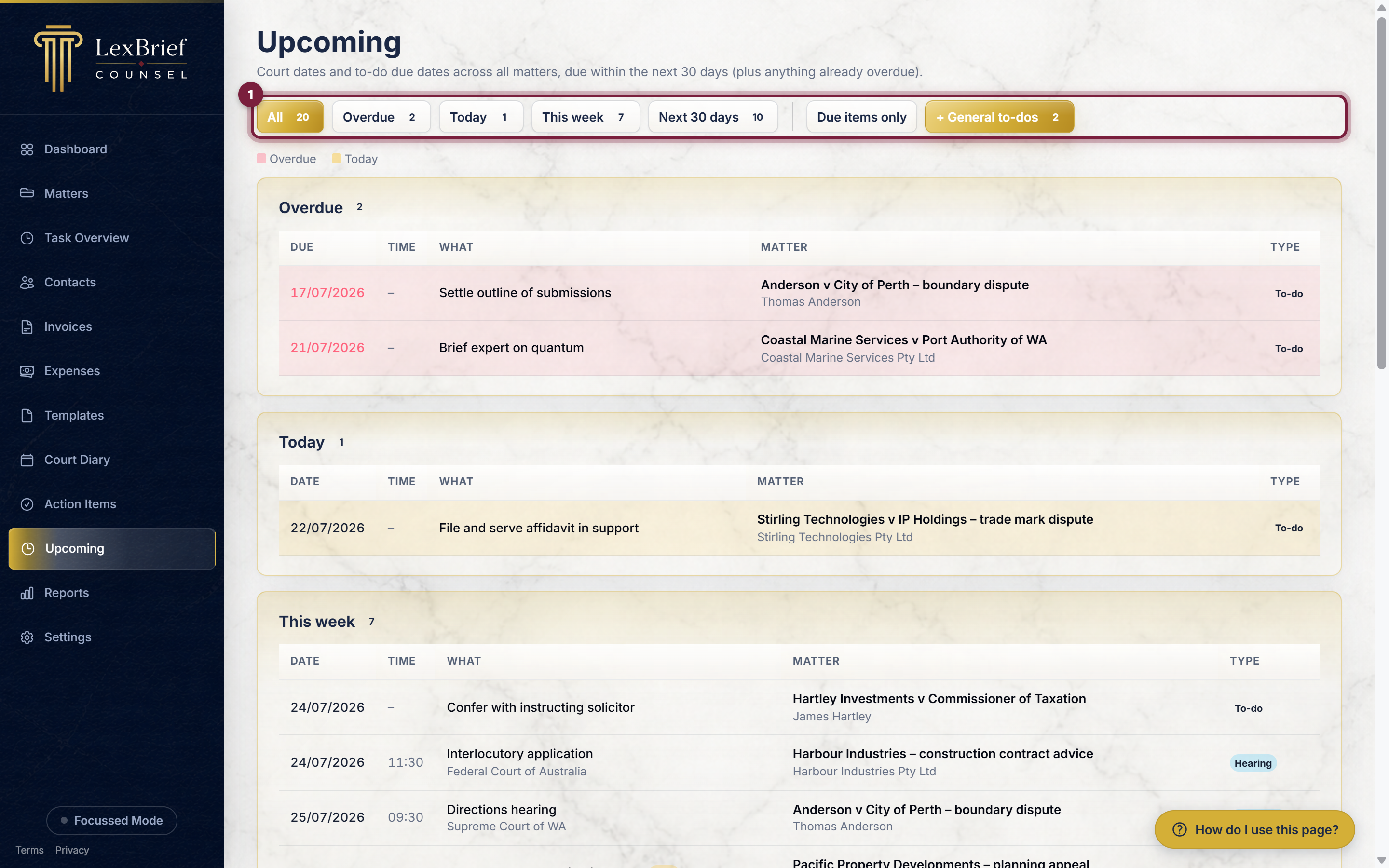
All shows everything. Click Overdue, Today, This week or Next 30 days to show just that group – handy when you only want to see, say, what is due today.
What you should see. The button you clicked turns gold, and the list below narrows to just that group.
To-dos with no due date
Some jobs do not have a fixed deadline – "finish the advice for the client", say. These have no due date, so they cannot sit in a "this week" or "next 30 days" group. Instead they gather in their own General to-dos section at the bottom of the page.
Two buttons on the right control whether these show:
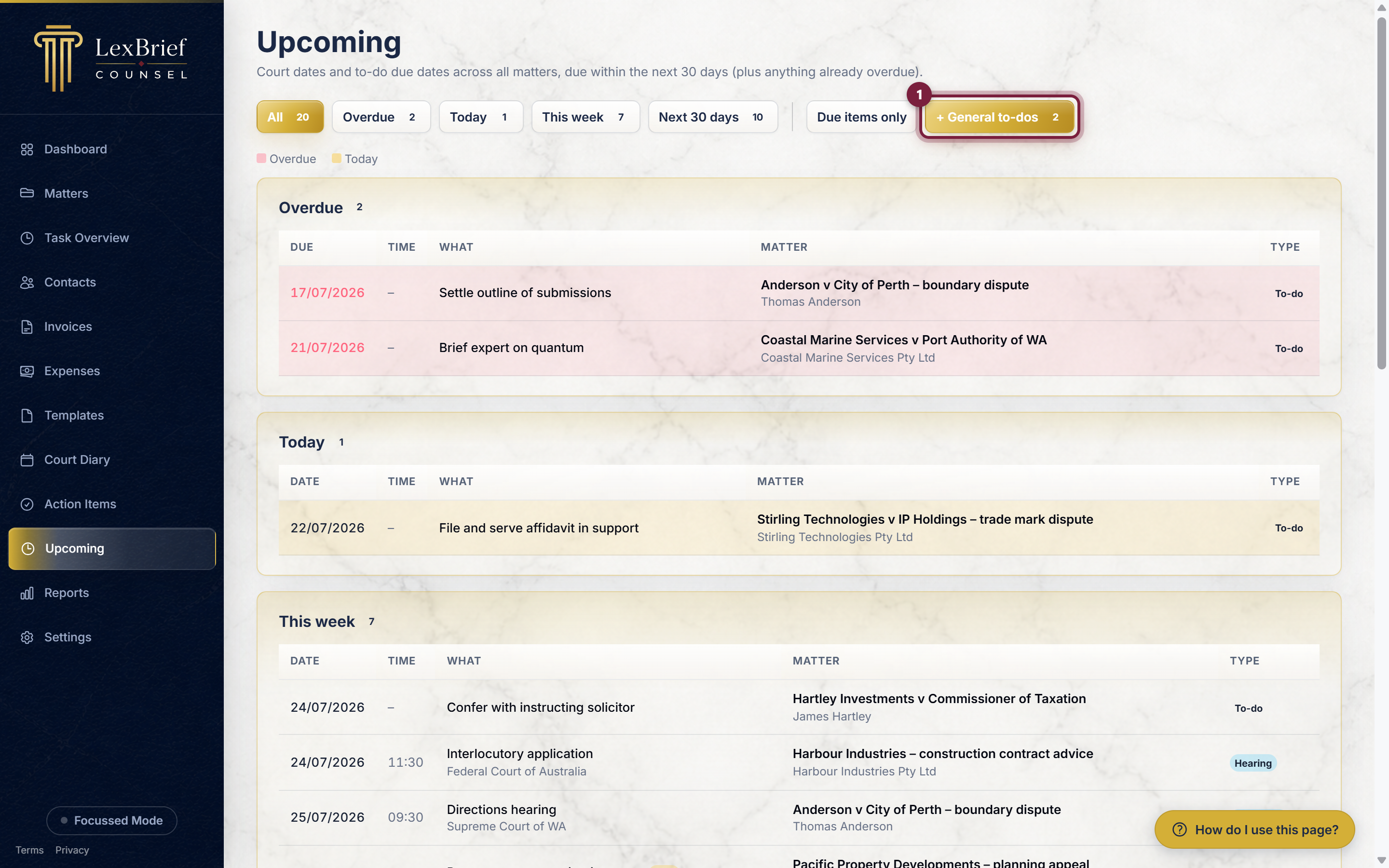
- + General to-dos (the default) includes the undated jobs, so nothing is out of sight.
- Due items only hides them, so you see only things with an actual date – useful when you just want to focus on deadlines.
Jumping to the matter or date
Because this page is just for looking at, every row is a shortcut to where you can actually change something:
- Click the job or date in the "What" column to open it for editing – a court date opens on its matter's Key dates tab; a to-do item opens on its own edit page.
- Click the matter's name in the "Matter" column to jump straight to that matter.
So the Upcoming page is where you spot what needs doing, and one click takes you to where you do it.
What next
The Upcoming page is only as useful as the two lists it draws on, so make sure those are up to date:
- Court Diary – recording your court dates and deadlines.
- Action Items – keeping your per-matter to-do list.
- Browse all help guides
Stuck on anything at all? Email support@lexbrief.au – a real person reads it, usually the same working day.