

If at any point your screen does not look like the picture, stop and email support@lexbrief.au – we would rather help than have you guess.
Before you start
Work scopes are for capped-fee matters – a matter where you have agreed a ceiling on your fee. So you need a matter set up with the Capped fee arrangement before the scope buckets appear. If you have not set that up, or you are not sure which fee arrangement your matter uses, see the Matters guide, which explains the fee modes.
A note on wording: the dark strip of links down the left-hand side of the screen is the menu. When we say "click Matters in the left-hand menu", we mean click the word Matters in that dark strip.
What work scopes are
Say you have agreed a capped fee of $10,000 to run a matter. That single figure does not tell you much as the work goes along – you cannot easily see whether the conferences are eating the budget, or whether the submissions are on track.
A work scope is a named bucket of work – for example Submissions, Conference, Drafting or Review. On a capped matter you can give each bucket its own estimate (how much of the cap you expect it to use), then tag your time to a bucket as you go. LexBrief adds up the time in each bucket and shows you, per bucket and for the matter as a whole:
- what you estimated,
- what you have actually spent, and
- anything spent above the estimate (which you might charge for, if your costs agreement allows).
The Scopes tab
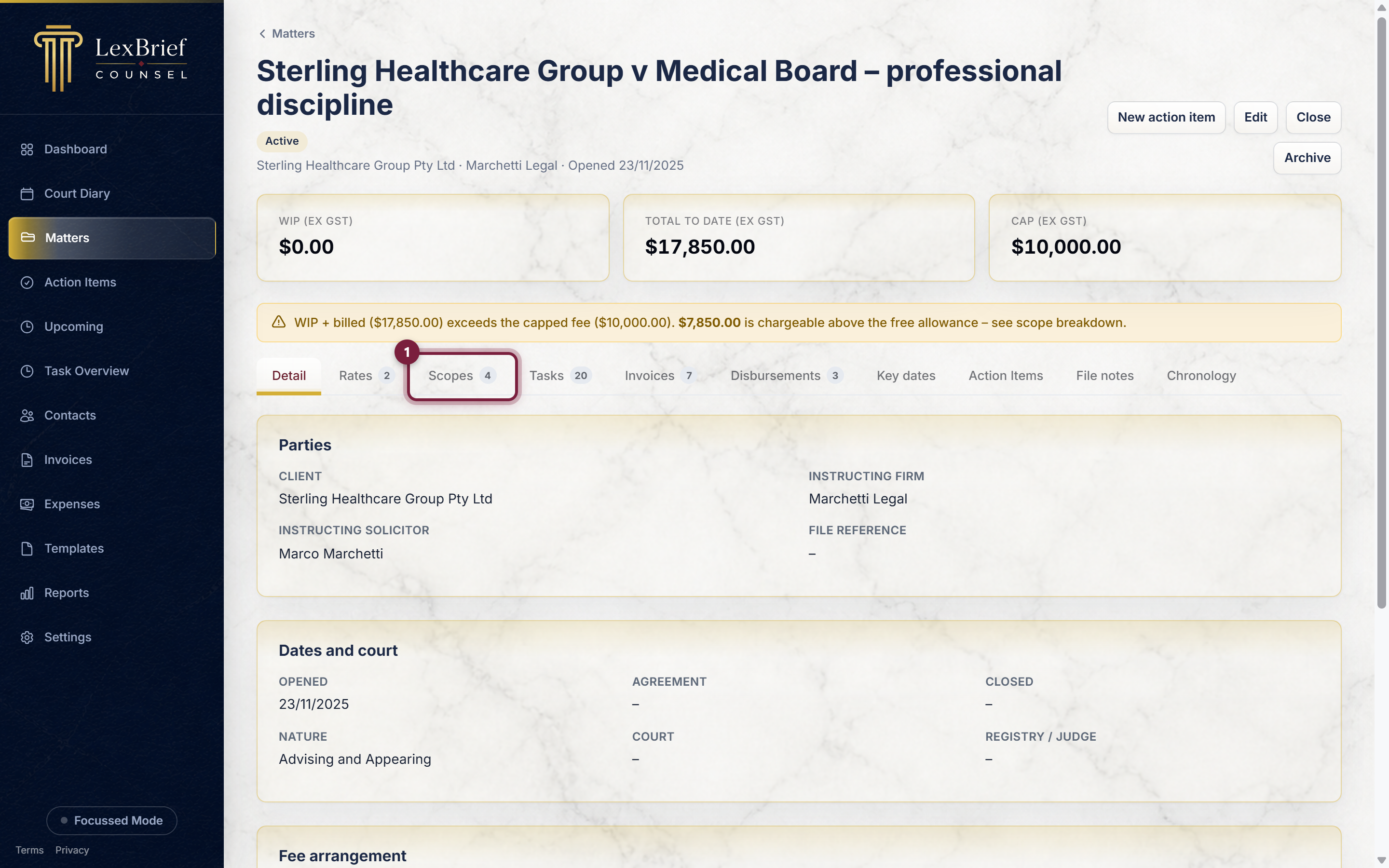
Open the matter (click Matters in the left-hand menu, then click the matter). On a capped matter, one of the tabs across the middle of the page is Scopes. It only appears on capped matters.
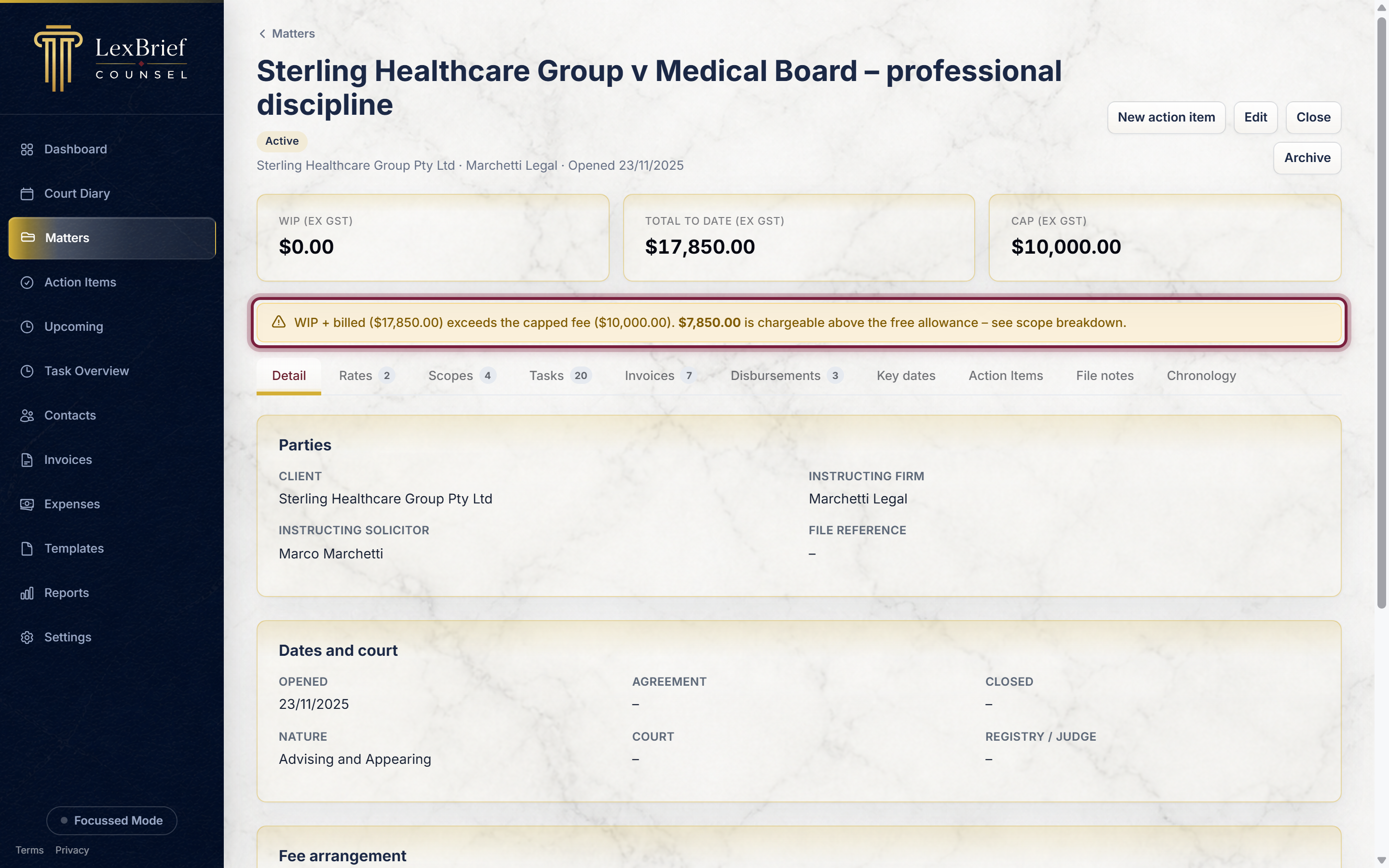
You may also notice a yellow warning strip near the top of the matter once your recorded time passes the cap. It tells you how much you are over and how much is chargeable above the free allowance.
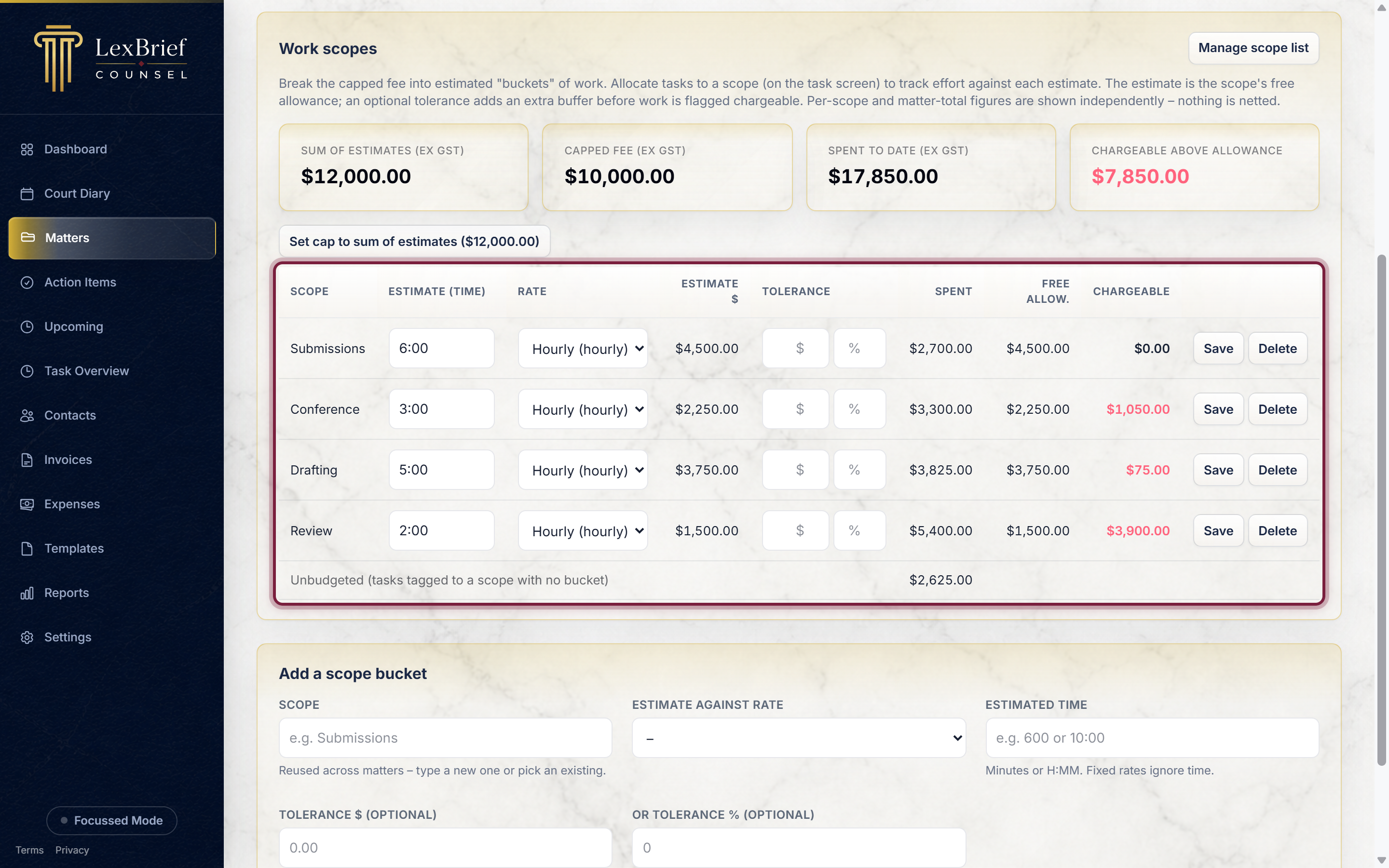
Click the Scopes tab. At the top is a row of summary figures for the whole matter, and below it a table with one row per bucket.
Add an estimate bucket
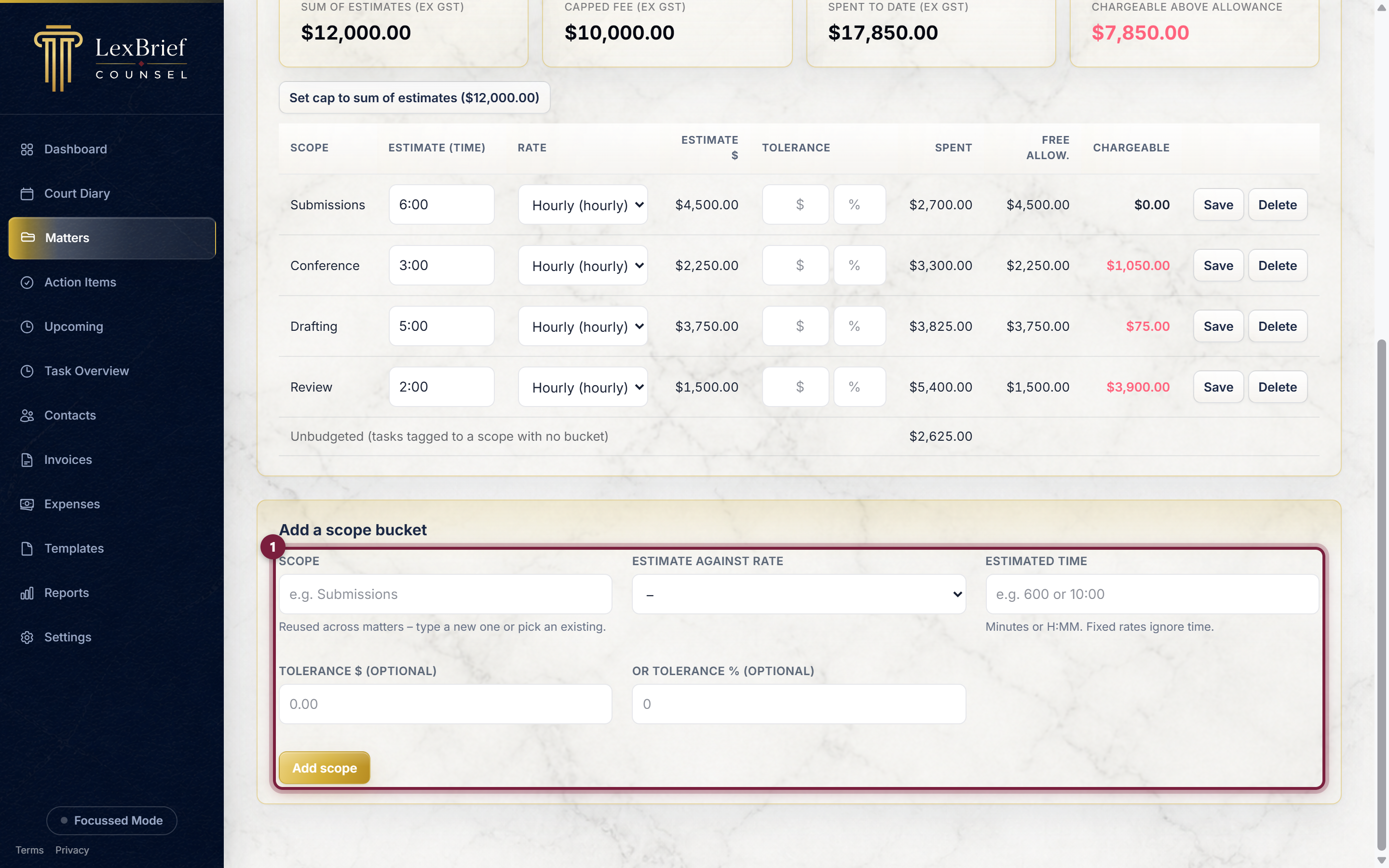
You build up your buckets at the bottom of the Scopes tab, in the Add a scope bucket section.
1. Name the scope
In the Scope box, type the name of the bucket – for example Submissions. As you type, LexBrief offers any scope names you have used before, so you can pick one from the list that appears or type a brand-new one.
2. Estimate the work
Choose which of the matter's rates the estimate is measured against in the Estimate against rate box, then type your Estimated time for this bucket (in minutes, for example 360, or as hours and minutes, for example 6:00). LexBrief turns that into a dollar estimate for you.
You can also add an optional Tolerance – a small buffer (in dollars or as a percentage) before work in that bucket counts as over. Leave it blank if you do not want one.
3. Click "Add scope"
Click Add scope. The new bucket appears in the table above, ready to track time against. Repeat for each part of the work you want to budget.
Set the cap from your estimates
Once your buckets add up to the fee you have in mind, you can make the matter's cap match them in one click. When the sum of your estimates is different from the current cap, a button appears above the table: Set cap to sum of estimates, with the total shown on it.
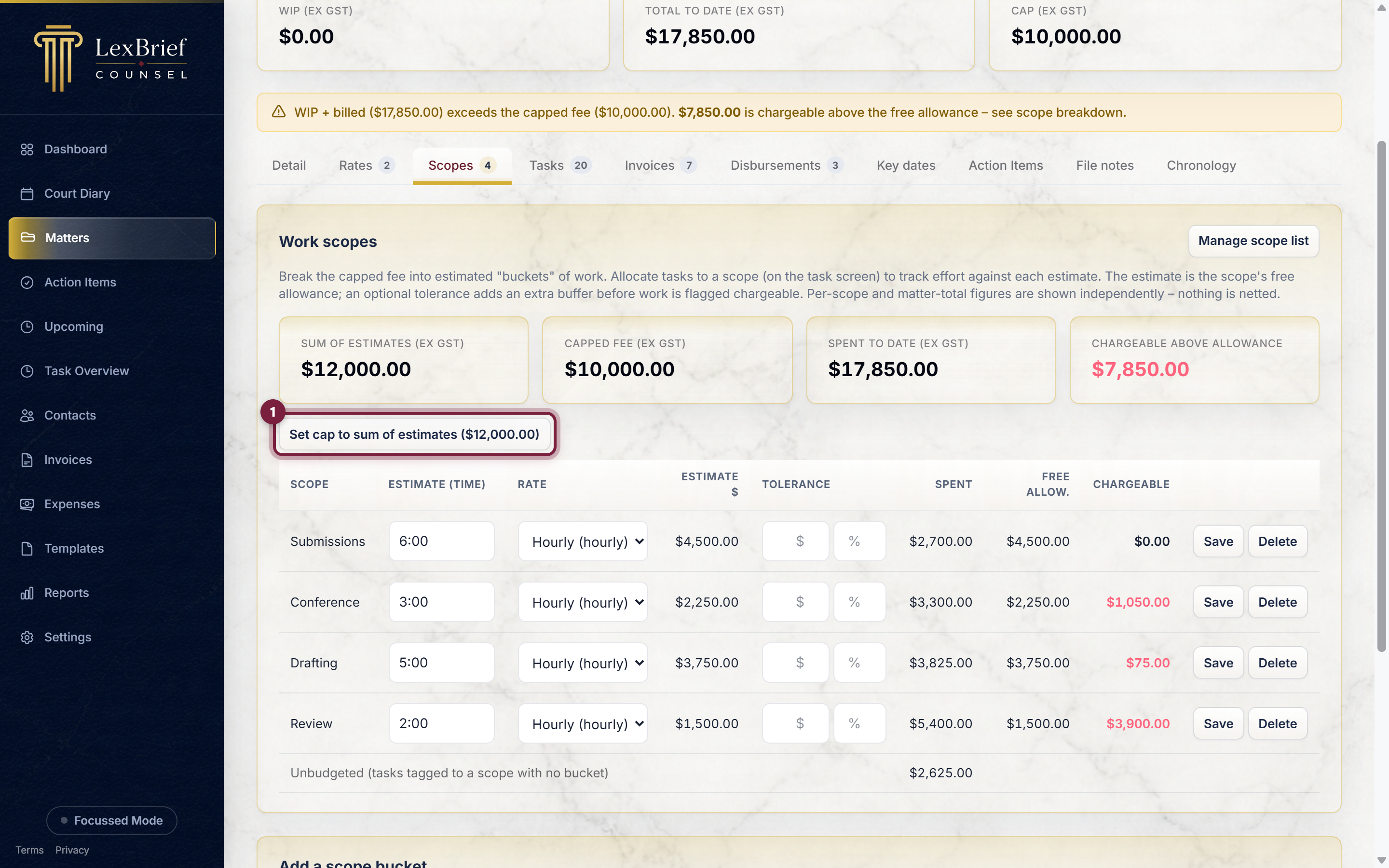
Click it and the matter's capped fee becomes the total of your bucket estimates. This is optional – it is just a shortcut so your cap and your budget agree.
Tag your time to a scope
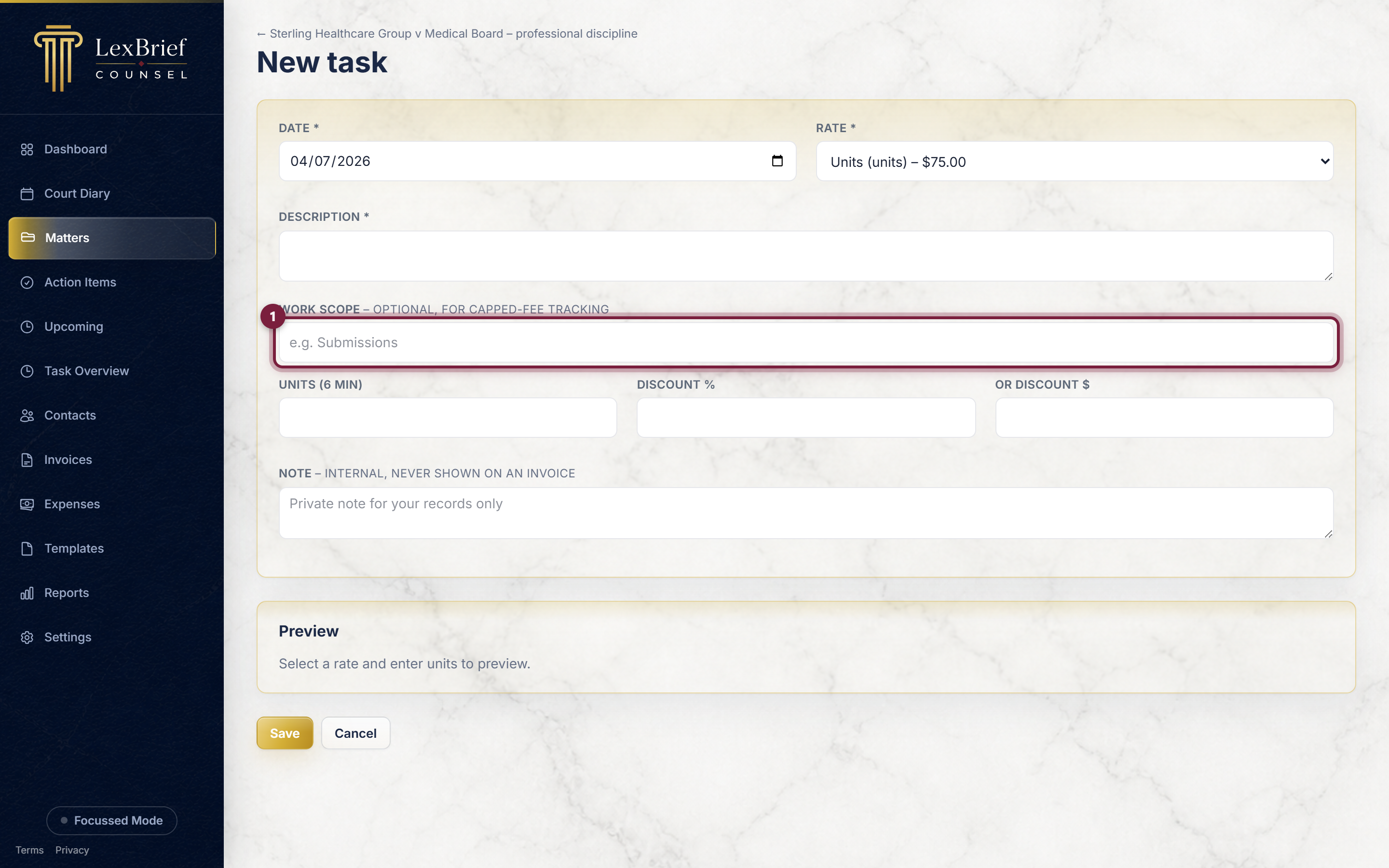
An estimate is only half the picture – LexBrief needs to know which bucket each piece of work belongs to. You do that when you record time, using the Work scope box on the task.
On the matter's Tasks tab, add or open a task. Below the description is a Work scope box. Start typing and choose the bucket from the list that appears (or type a new name).
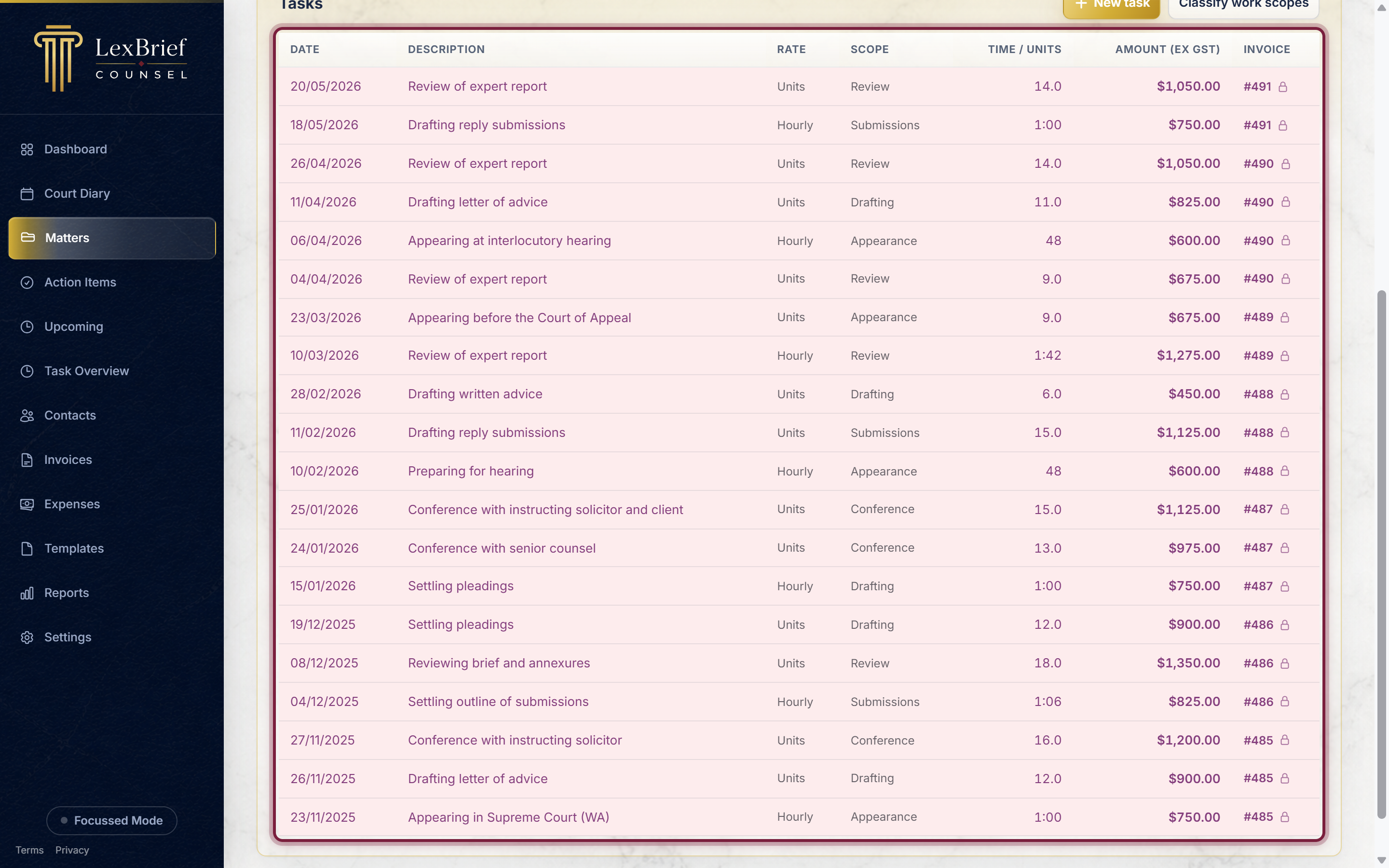
Once tasks are tagged, the bucket a task belongs to shows in the Scope column of the Tasks list.
Reading the figures
Back on the Scopes tab, each bucket's row shows, left to right:
- Estimate (time and $) – what you budgeted for that bucket.
- Spent – the value of all the time you have tagged to it so far.
- Free allowance – the estimate plus any tolerance you set. This is the amount that is "included".
- Chargeable – anything spent above the free allowance. When this is more than zero it shows in red, so an over-running bucket jumps out at you.
The summary cards at the top do the same for the whole matter: the sum of your estimates, the capped fee, the total spent to date, and the total chargeable above the allowance.
Remember: these figures are there to inform you. If a bucket runs over and your costs agreement lets you charge for it, that is your call to make when you raise the invoice – LexBrief does not do it for you.
The work-scope list
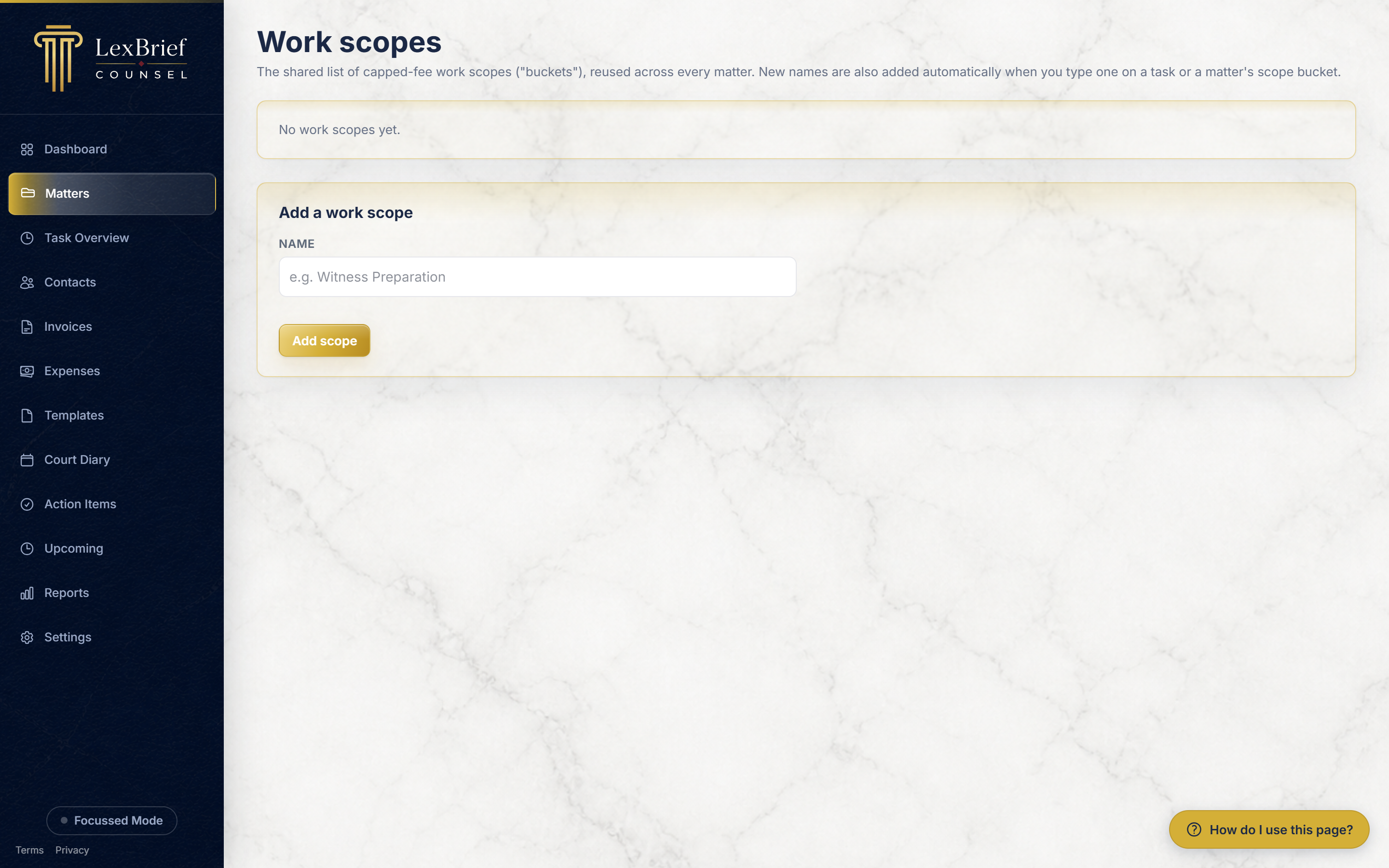
The scope names – Submissions, Conference, and so on – are shared across all your matters, so once you have used a name it is offered everywhere. You can see and tidy the full list on the Work scopes page.
Open a matter's Scopes tab and click Manage scope list (top-right of the Work scopes card). You can rename a scope, archive one you no longer use, or add a new one.
Classifying past time in bulk
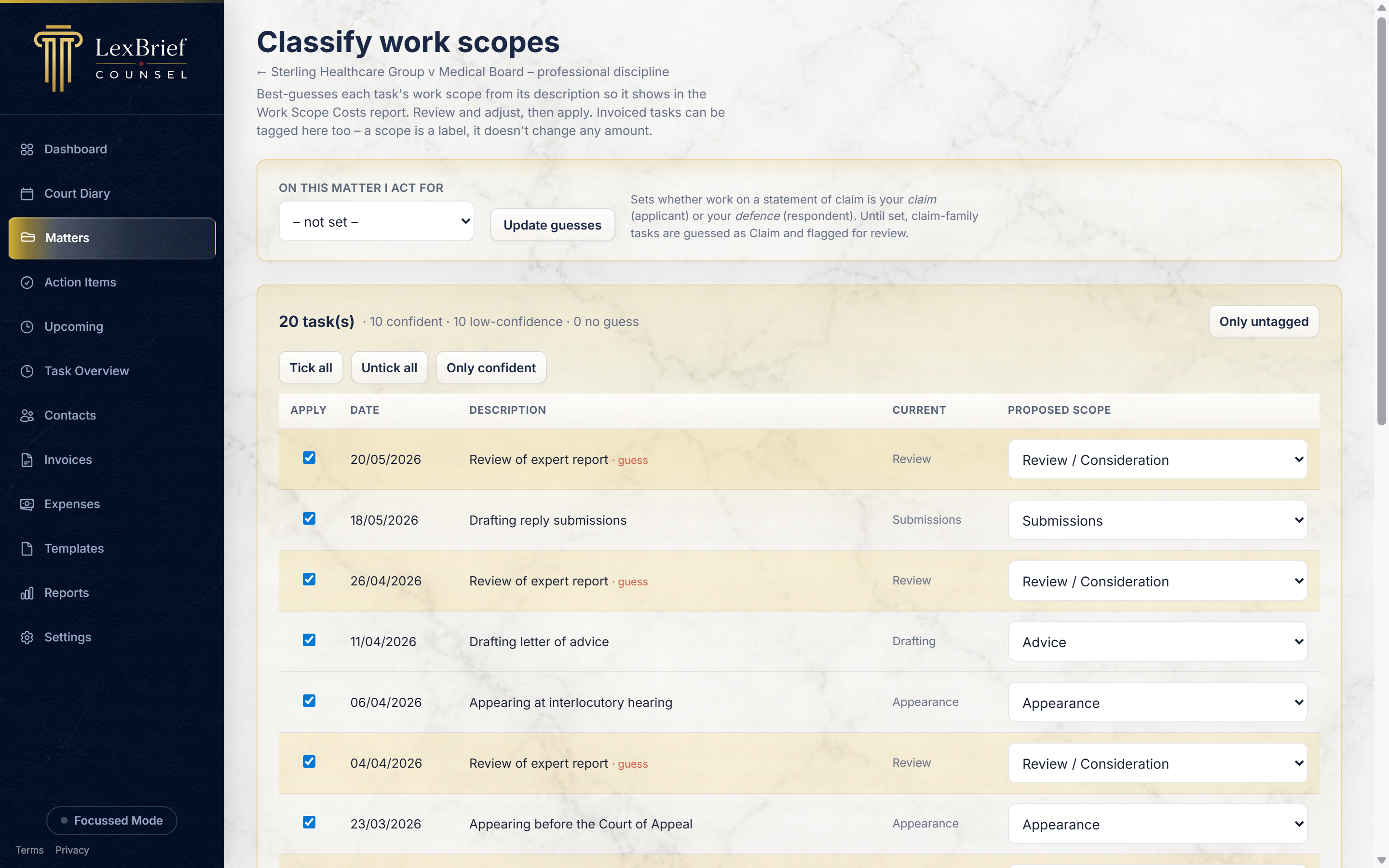
If you have a lot of time already recorded without scope tags – for example after bringing matters across from another system – there is a helper that guesses the scope for each task from its description, so you do not have to tag them one by one.
On the matter's Tasks tab, click Classify work scopes. LexBrief lists every task with its best-guess scope. Adjust any you disagree with, tick the ones to apply, and click Apply ticked rows.
What next
Work scopes connect to the rest of your practice:
- Matters – set a matter's fee arrangement to Capped so the Scopes tab appears.
- Reports – the Work Scope Costs report compares your estimates against what you actually spent, across every matter, so you can budget future capped fees more accurately.
- Browse all help guides
Stuck on anything at all? Email support@lexbrief.au – a real person reads it, usually the same working day.