

If at any point your screen does not look like the picture, stop and email support@lexbrief.au – we would rather help than have you guess.
Before you start
If this is your very first time in LexBrief, read Your first day in LexBrief Counsel first. This guide is about reports on their own.
Reports are built from what you have already put into LexBrief – your matters, the time you have recorded, your invoices and your expenses. The more of that you have entered, the more your reports will show. You do not need to set anything up first; you can open the Reports page any time.
A note on wording: the dark strip of links down the left-hand side of the screen is the menu. When we say "click Reports in the left-hand menu", we mean click the word Reports in that dark strip.
What reports are
A report is a summary of your figures for a period you choose – for example, a whole financial year, one quarter, or any date range. LexBrief works out the numbers for you and lays them out on screen. You can then save the report as a file to keep, print, or send to your accountant.
The Reports page and its three tabs
Click Reports in the left-hand menu. The page opens on a list of every report you can run.
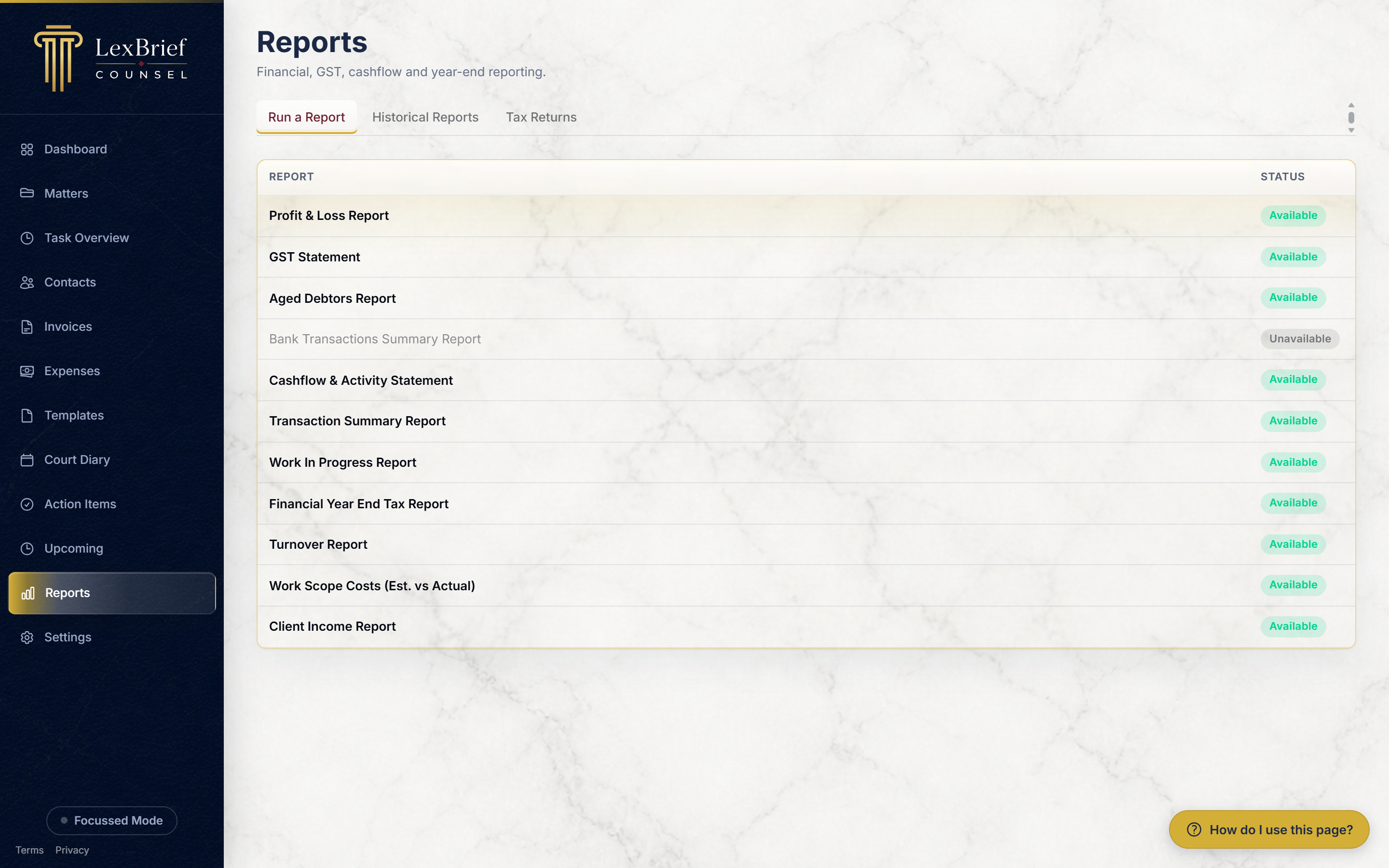
Near the top are three tabs – think of them as three sections of the page you can switch between:
- Run a Report – the list of reports you can produce. This is where you start.
- Historical Reports – the last few reports you have downloaded, so you can grab any of them again in one click.
- Tax Returns – a place to record a tax return you have lodged for a financial year (more on this near the end).
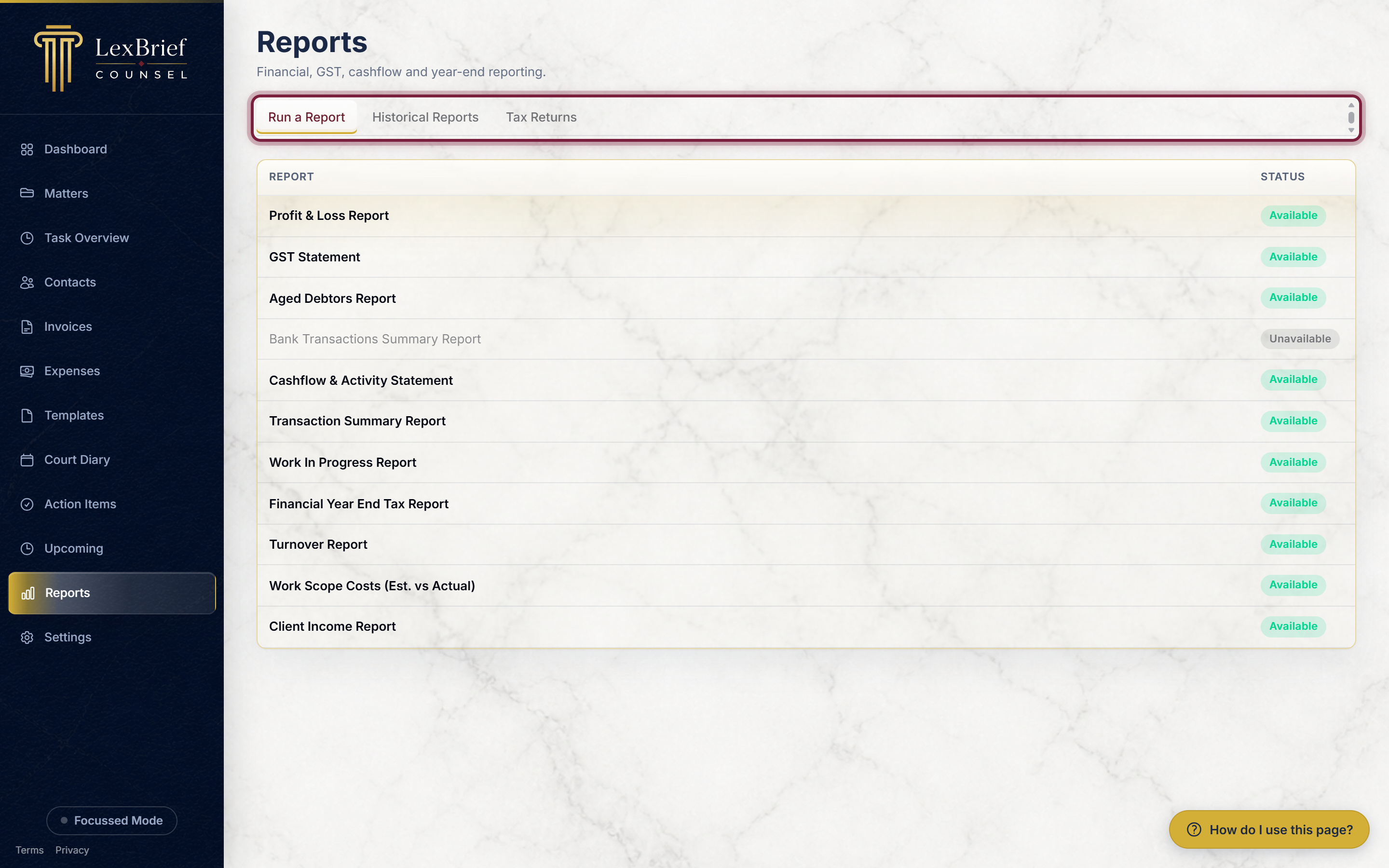
Most of the time you will use Run a Report, so let us do that.
Run a report
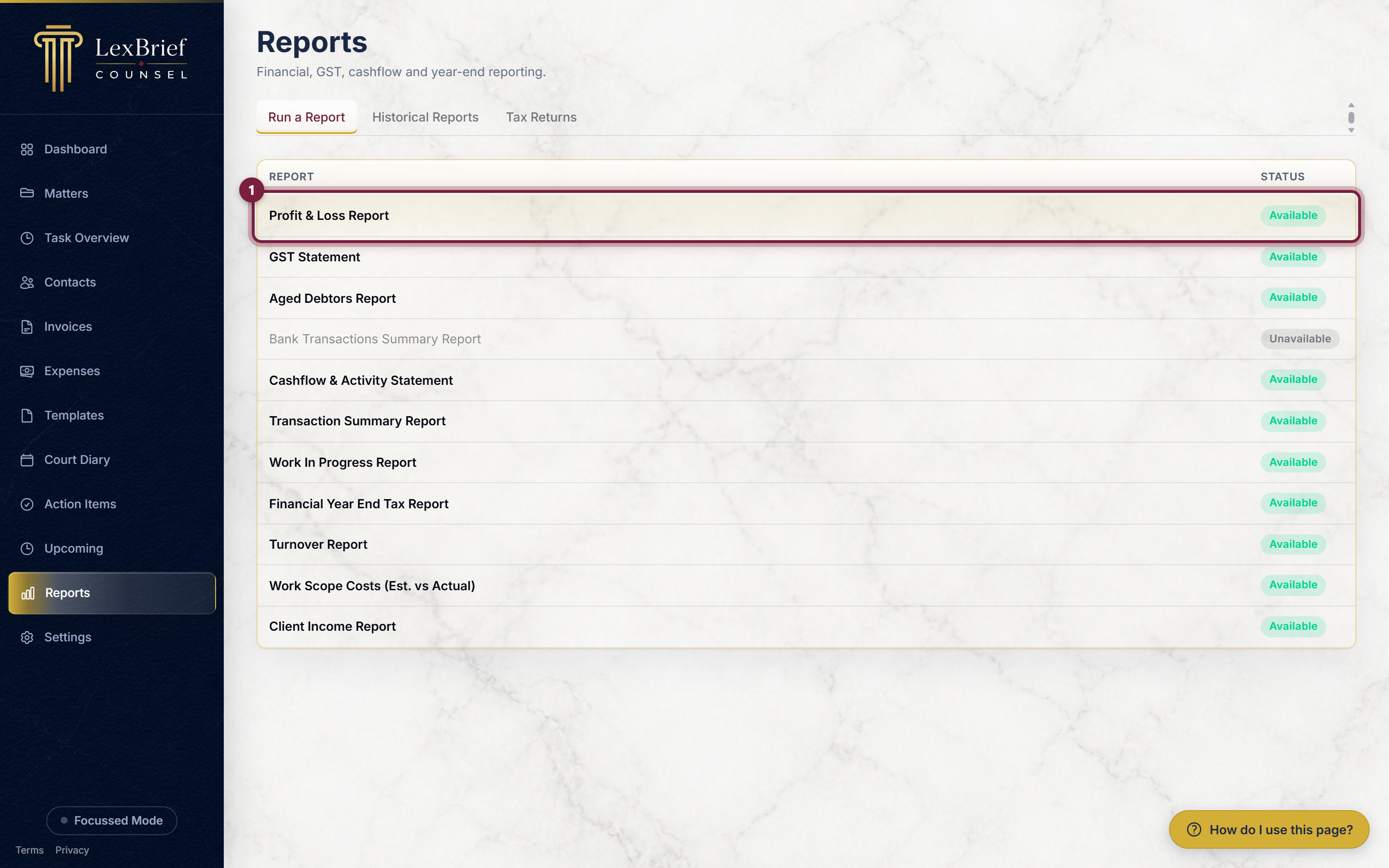
1. Choose which report you want
On the Run a Report tab, each report is a row in the list. A green Available label on the right means you can run it. Click the name of the report you want. In this example we will use the Profit & Loss Report.
2. Choose the period
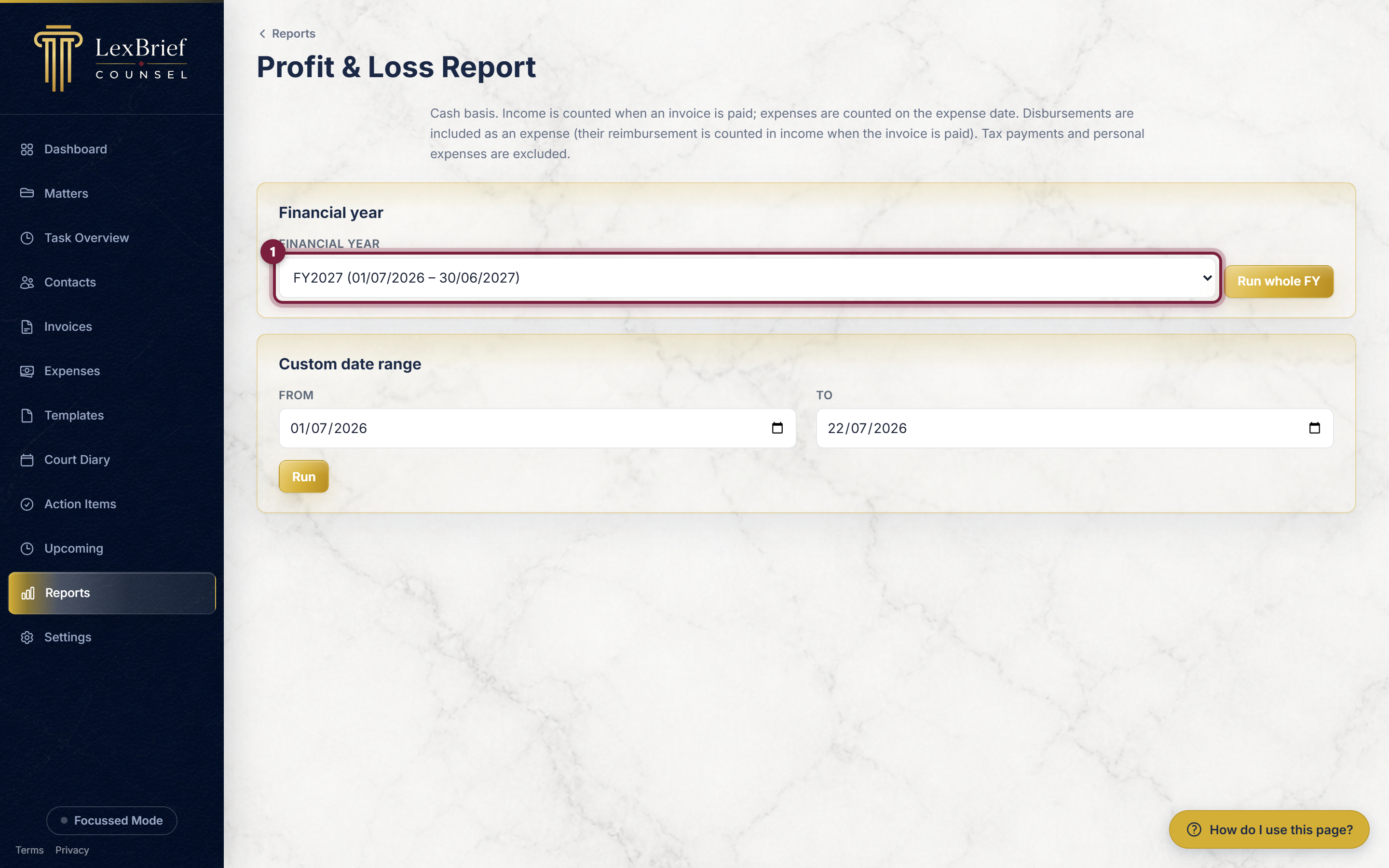
The report opens with a short form asking which period to cover. There are two ways to choose, and you only use one of them:
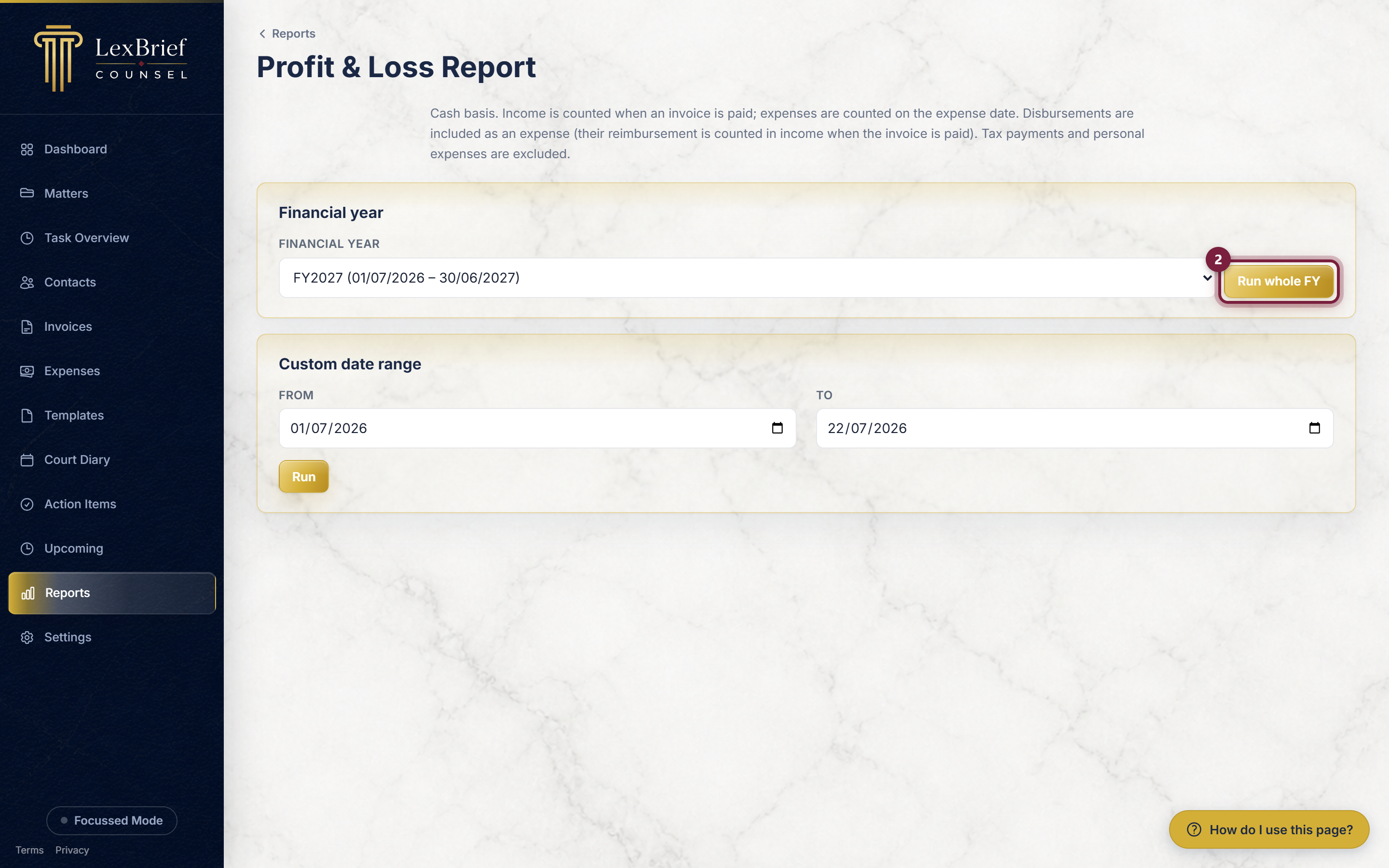
- Pick a financial year from the list that appears (for example FY2026, which runs 01/07/2025 – 30/06/2026), then run the whole year; or
- Type a From and To date in the "Custom date range" box for any period you like.
3. Run it
Once you have chosen the period, click the Run button (on the financial-year box it reads Run whole FY).
The report appears on screen, laid out as a set of tables with your figures. At the very top is your name and practice details, then the report title and the period it covers.
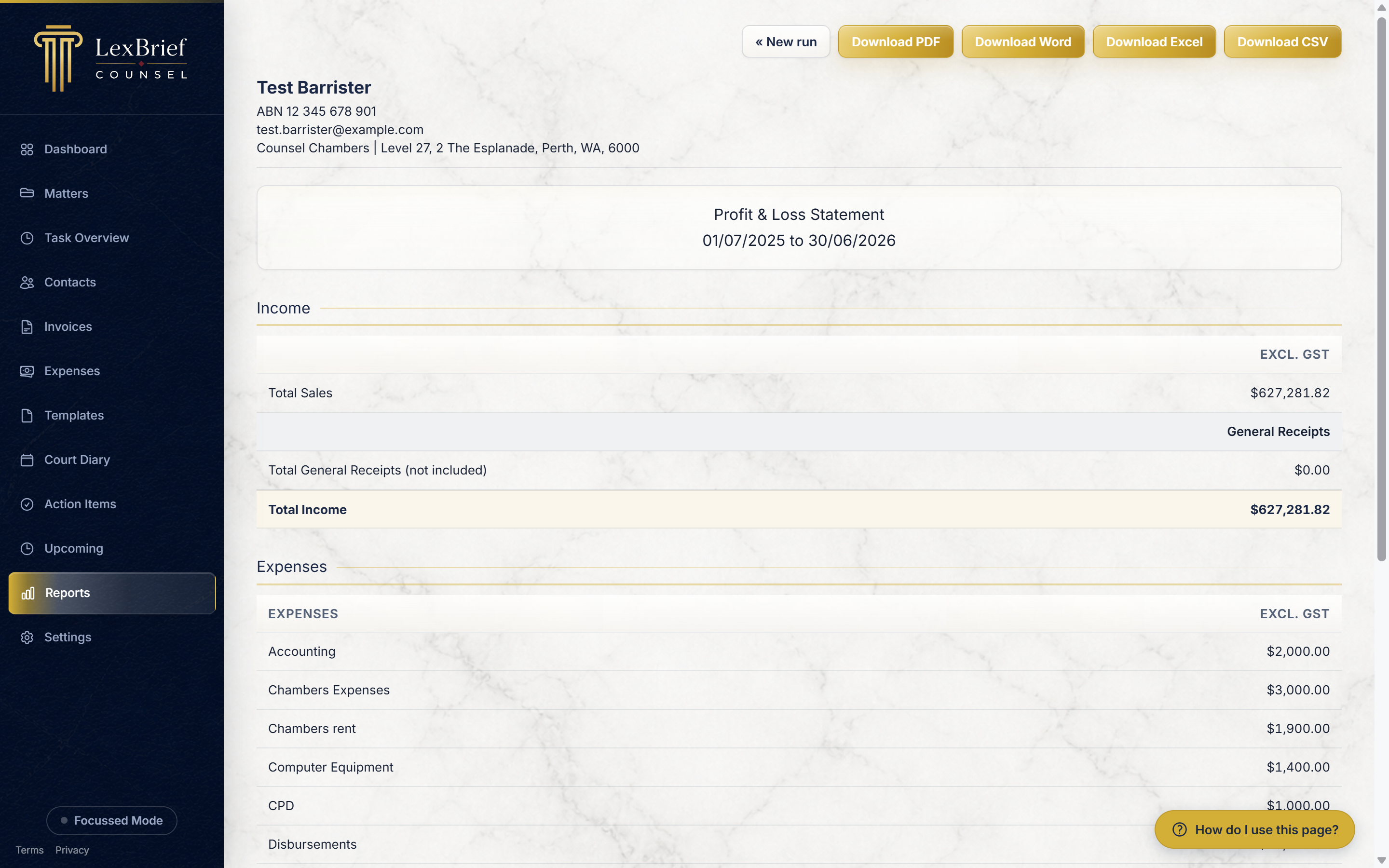
What you should see: the report title (for example "Profit & Loss Statement"), the dates of the period, and your figures filled in below. If the figures are all zero, it usually means there was no activity in the period you chose – try a different financial year or date range.
Download it – as a PDF, Word, Excel or CSV file
Every report can be saved in four file formats. The buttons are along the top-right of the report.
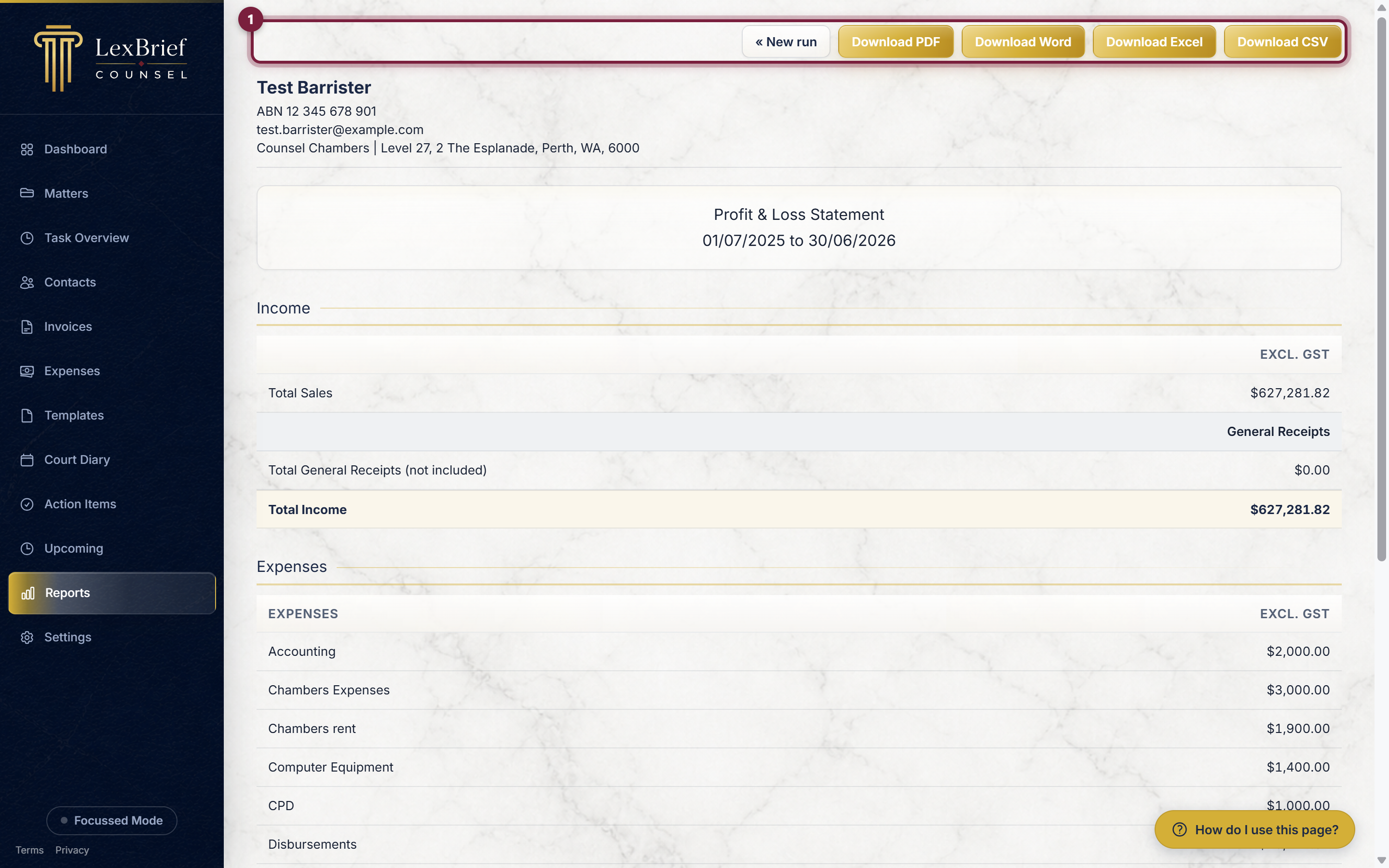
Click the format you want:
- Download PDF – a neat, printable copy that looks exactly like the page. Best for sending to a client or your accountant, or for filing.
- Download Word – the same report as a Word document, if you want to edit or add a note before sending.
- Download Excel – a spreadsheet, if you (or your accountant) want to sort, filter or add up the numbers yourself.
- Download CSV – a plain data file that almost any accounting program can read in.
Find a report you ran before
Every file you download is kept for you, so you never have to rebuild the same report twice. Click the Historical Reports tab near the top of the Reports page.
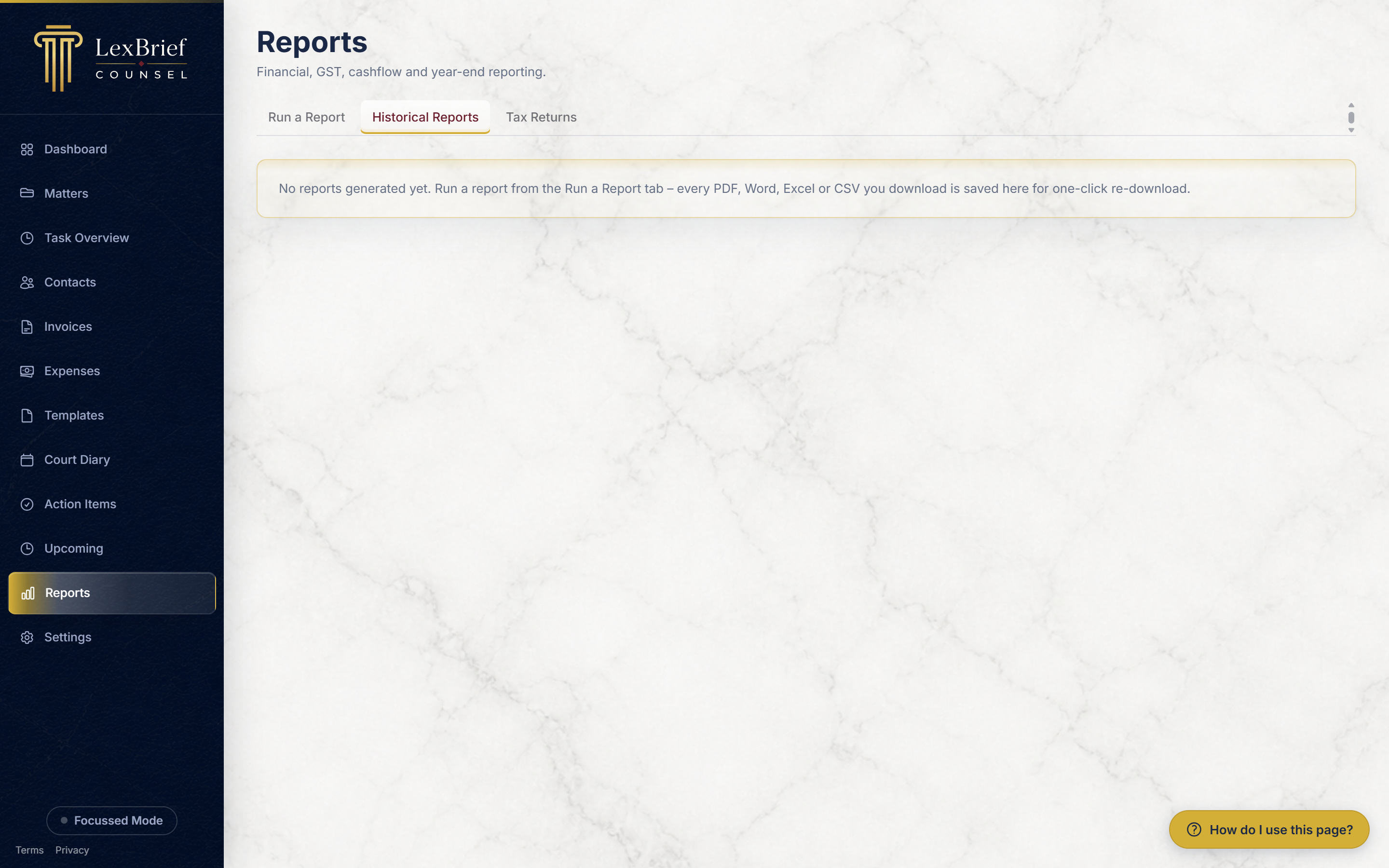
You see the last few reports you produced, each with the period it covered, its file format, and when you made it. Click Download on any row to save that exact file again.
This list keeps the ten most recent reports. Older ones drop off the bottom as you make new ones – but you can always run the report again from the Run a Report tab.
What each report tells you
Here is what each report is for, in one line. You run them all the same way you just learned.
- Profit & Loss Report – your income less your expenses for the period, so you can see what you made.
- GST Statement – the GST you collected and the GST you paid, laid out the way a Business Activity Statement (BAS) needs it.
- Aged Debtors Report – who owes you money and how overdue each unpaid invoice is.
- Cashflow & Activity Statement – the cash that came in and went out, plus a summary of your activity.
- Transaction Summary Report – a line-by-line list of your income and expenses, grouped by type.
- Work In Progress Report – the time and costs you have recorded but not yet invoiced.
- Financial Year End Tax Report – a year's income, expenses and tax payments, for your tax return or accountant.
- Turnover Report – your total billings over time.
- Work Scope Costs (Est. vs Actual) – for capped or budgeted work, how your actual time compares with what you estimated.
- Client Income Report – for one client, what you invoiced and what you received, broken down by matter.
- Office Expense Report – your practice running costs, gathered together.
Tax Returns
The Tax Returns tab is a place to record a tax return once you have lodged it for a financial year. You enter the year and the total tax you actually paid, and LexBrief keeps a note of it. It can also lock that year's expenses so they cannot be changed by accident once the return is in – which is exactly what you want after you have lodged.
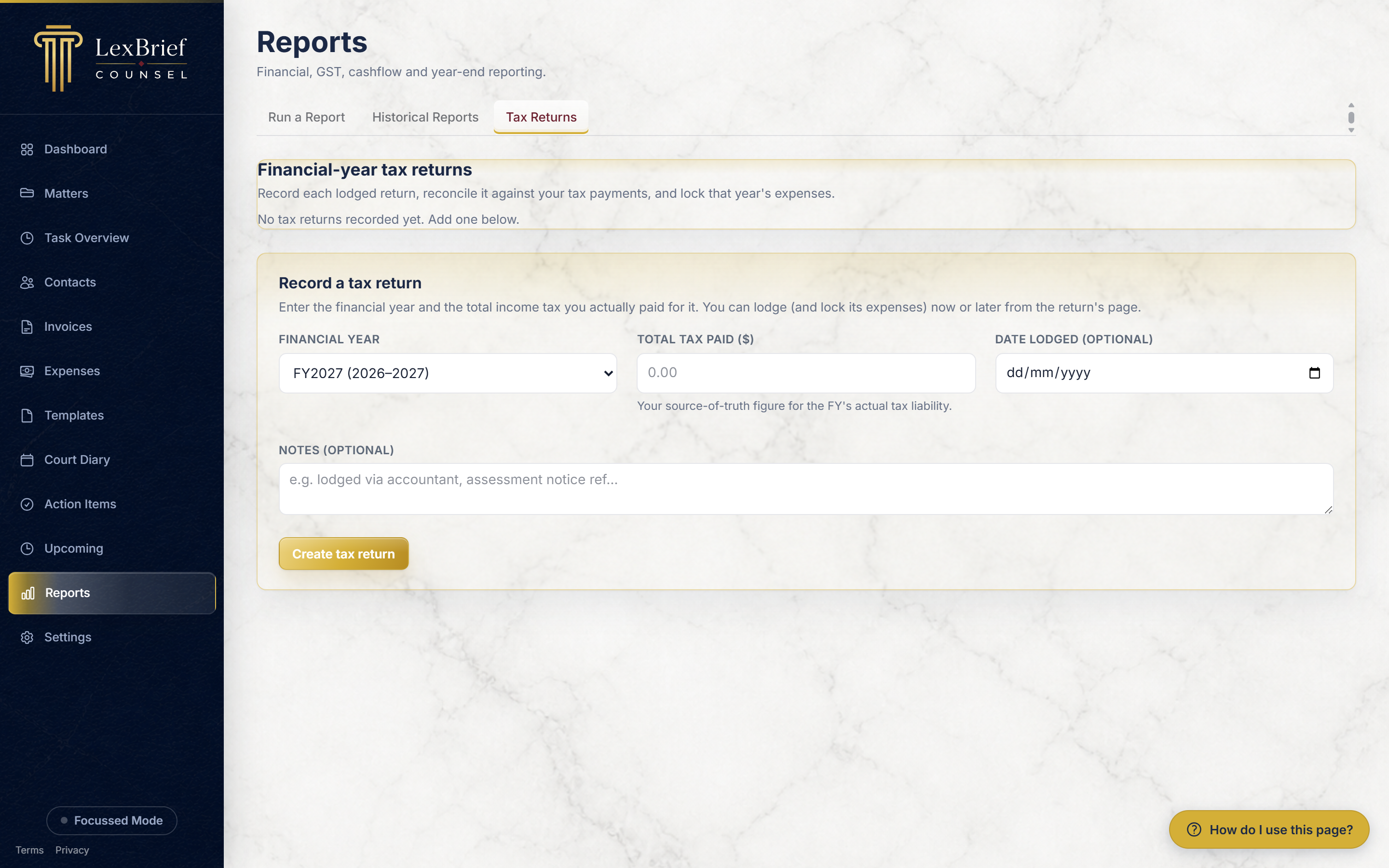
This is an optional record-keeping tool for after tax time, not something you need to touch to run the reports above. When you are ready to record a lodged return, open this tab and use the "Record a tax return" form – or email support@lexbrief.au and we will walk you through it.
What next
Reports draw on the rest of your practice, so the fuller your records, the more useful they are:
- Invoices – income shows up in your reports once an invoice is paid.
- Expenses – costs and disbursements you record feed the expense side of your reports.
- Browse all help guides
Stuck on anything at all? Email support@lexbrief.au – a real person reads it, usually the same working day.