

Like Dropbox, this is a setup where you hold your own registration rather than sharing one of ours. That is the right way round: the code is issued to you, it stays on your own instance of Brief, and you can stop using it whenever you like without asking anyone. The registration itself is free and involves no card. If at any point your screen does not look like the description, stop and email support@lexbrief.au – we would rather help than have you guess.
What it does
You type a company's name once on the contact form, a dropdown appears with matching registered entities, you pick the right one, and its ABN or ACN drops into the form.
It reads the Australian Business Register, the same public register behind ABN Lookup. The register is free to search, but the machine-readable version Brief uses requires you to register once and be issued an authentication code, which the register calls a GUID. Obtaining that code is what this guide is for.
What it fills in, and what it never will
What arrives when you pick a result:
- ABN or ACN – always, formatted for you.
- Entity name – only if you have left it blank. Brief tidies the register's ALL CAPS into normal case, so a name stored as
SMITH LEGAL PTY LTDarrives as Smith Legal Pty Ltd. - State and Postcode – only if you have left them blank.
It will never fill in a street address, a phone number or an email. The register does not publish them. It holds the entity's registered name, its ABN or ACN, its status, and the state and postcode of its registered address, and nothing more. This is the one thing that surprises people, so it is worth knowing before you start. If what you want is a firm's street address filled in automatically, that is a different lookup with a different provider – see setting up address lookup.
Brief never overwrites something you have already typed. A field you filled in yourself stays as you left it.
Where it appears in Brief
Once your code is saved, a Look up ABN / ACN box appears on:
- Contacts › New client, when you choose Company
- Contacts › New other contact, when you choose Company
It sits just above the Entity name field and follows whatever you type there, so in practice you type the company name once and the dropdown offers matches as you go.
It does not appear on individual contacts, who have no ABN, and it does not appear on the Firm form. Until the code is saved it is not shown at all: there is nothing to turn on or off, because the presence of the code is the switch. See Contacts for the forms themselves.
Before you start
- Your own ABN and the entity name it is registered under.
- Your chambers postal address.
- An email address you will keep. The register emails your code there, and uses it again if the terms change later. Their form asks for a corporate group address rather than a personal one; a chambers address is fine.
- About fifteen minutes.
Step 1: read the two pages the ABR asks you to read
Go to abr.business.gov.au/Tools/WebServices.
The page asks you to review the limitations of the service and the web services agreement before registering. Two things in that agreement are worth actually noting, because they bind you:
- You must not use the data in a way that is misleading, and must not suggest the Commonwealth endorses you or your practice.
- If an entity's information is withdrawn from the register, you must delete your copies of it. In practice this is why Brief only ever fills a form field with what you accept. It does not keep a private mirror of the register.
You cannot complete the registration form without accepting the agreement, so read it once now rather than at the last click.
Step 2: fill in the registration form
From that page, open the registration form. It asks for:
- Applicant type – choose Individual/Sole trader.
- Contact details – given name, family name, phone number and email (the address your code will be sent to), all required. There is a website field as well; your chambers profile page, or leave it blank.
- Business details – your own ABN, and the entity name as registered.
- Address details – street address, suburb, state, postcode and country.
- "Please describe how you will use the service" – required free text.
That last box is the one everybody stalls on. It is a genuine question and a vague answer invites a follow-up email, which costs you days. Be specific and boring. Here is wording you can adapt – change the details to your own circumstances before you send it:
I am a barrister in sole practice.

I use a single user practice management application to record matters, contacts and invoices for my practice. When I add a company as a client or as another party to a matter, the application searches the ABN Lookup web services by entity name and returns the matching entities so that I can select the correct one and record its ABN or ACN against the contact record.

The service is used interactively, by me, a small number of times per day. It is not used for bulk extraction, redistribution, resale, or to build a copy of the register. No information is republished. Only the entity name I type is sent to the service.

Searches are made by the application's own server rather than by the browser, so the authentication GUID is not exposed to any web page.
Then accept the agreement and submit.
Step 3: wait for the GUID email
The register processes the application and emails you an authentication code. It is a long identifier made of letters, digits and hyphens.
Allow a few days. It is not instant, and there is no status page to check. If a fortnight passes with nothing, reply to the confirmation you received, or contact the register through the same Web Services page.
Treat the code as a credential. It is not as sensitive as a password – the worst a stranger could do with it is make free searches of a public register in your name – but it identifies you to the register, so do not post it in a shared document or forward the email around.
Step 4: paste it into Brief
- In Brief, go to Settings › Matter Defaults.
- Choose the Contact Lookup sub-tab.
- Paste the code into ABR web-services GUID.
- Click Save.
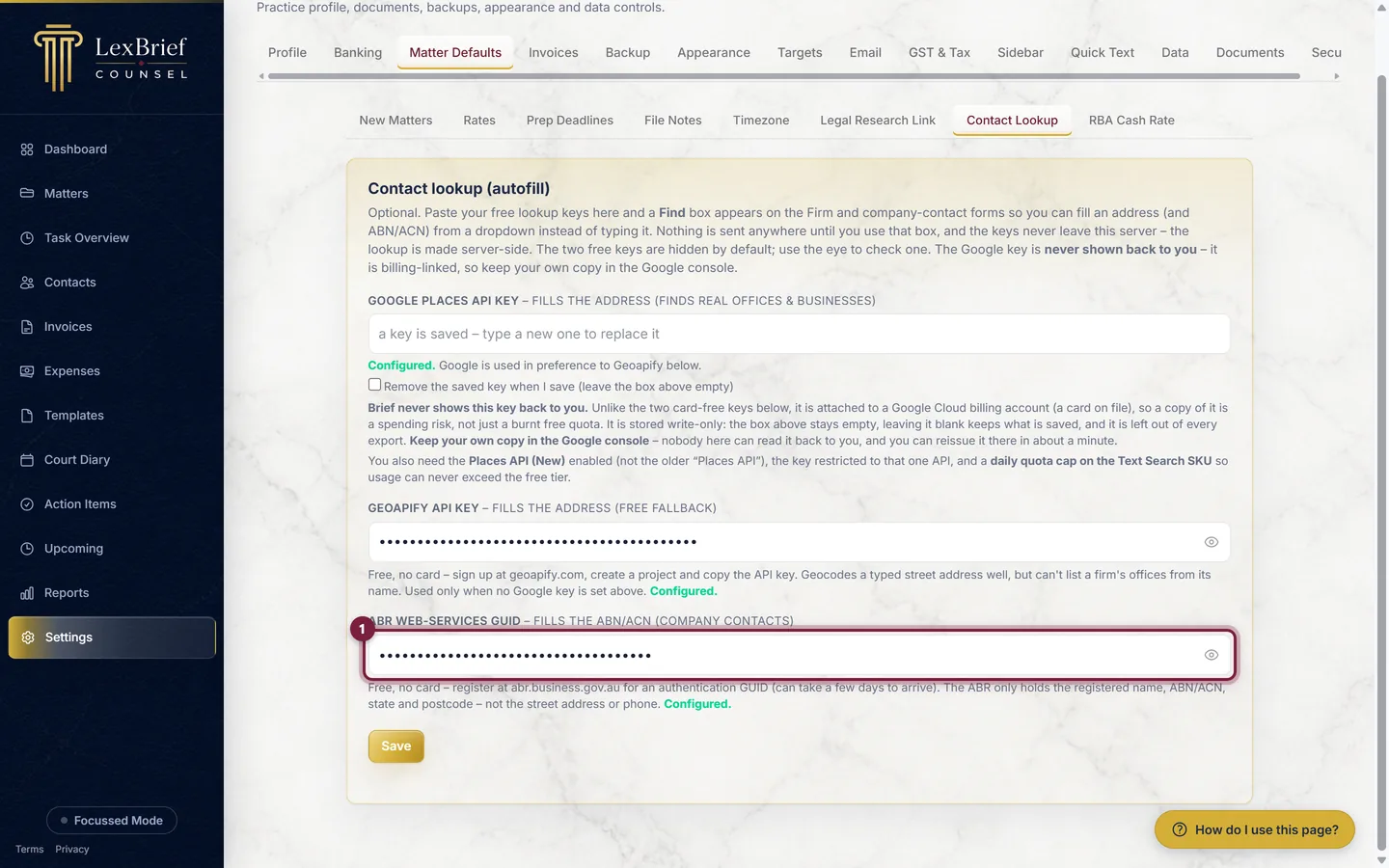
The field is masked once saved, so you see dots rather than the code. Click the eye icon at the right-hand end of the field if you ever need to read back what is in there. The card then reads Configured.
The code stays on your own instance of Brief, on the server. It is deliberately left out of the Settings › Data › Export file, so it will never turn up in a download or a backup you hand to somebody else. More on the card itself at Settings › Contact lookup.
Step 5: test it
- Go to Contacts › New other contact, or New client.
- Choose Company.
- Start typing a company you know, for instance a firm you brief with.
- A dropdown appears under Look up ABN / ACN with matching entities, each showing the registered name and the ABN.
- Click the right one. The ABN or ACN fills in, and the entity name, state and postcode fill in if you left them blank.
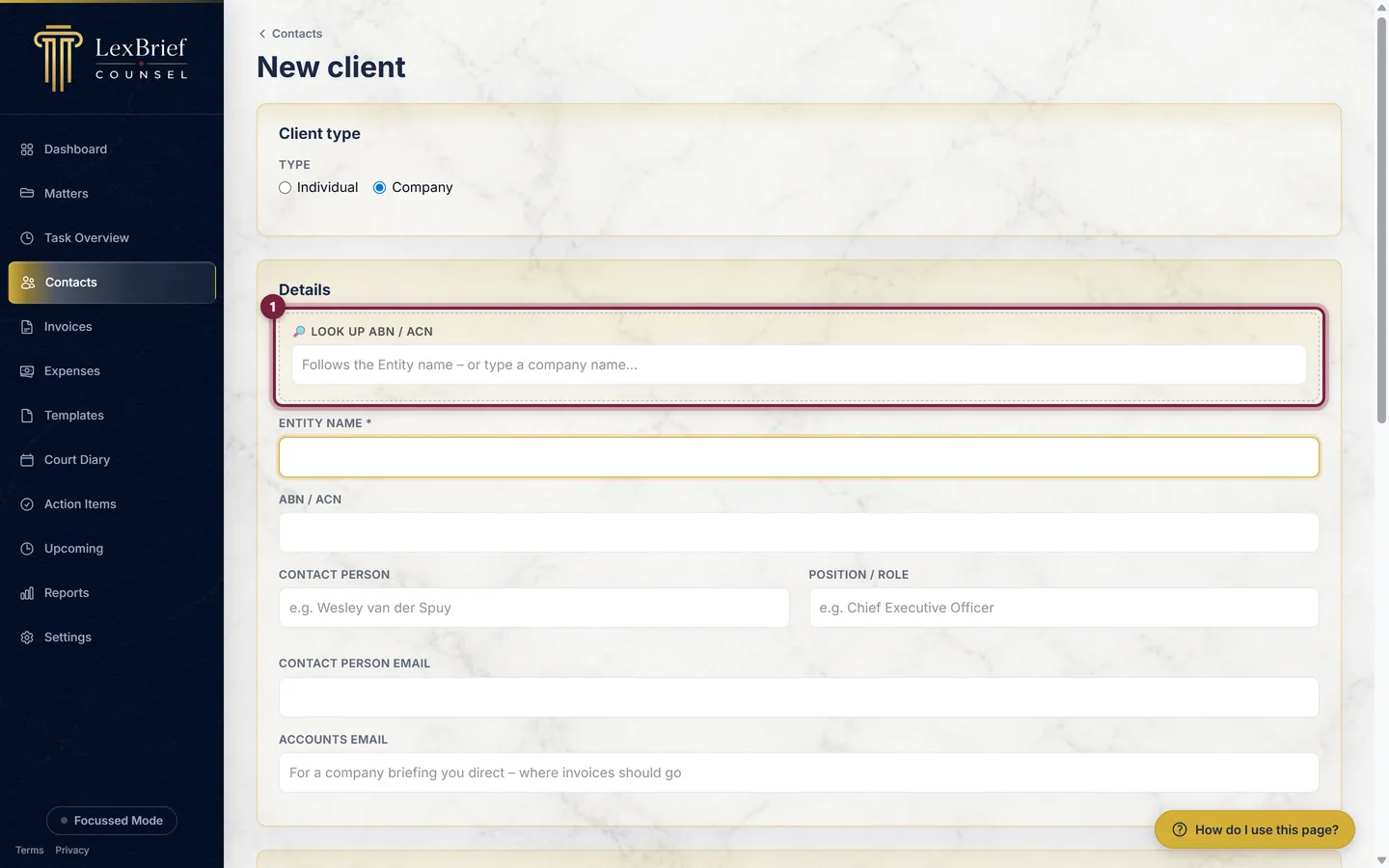
The picture shows the box as it sits before you type; the list of matches appears beneath it once you start. A good test is a large firm's name, because you will see several entities come back across different states, each labelled with its registered name and ABN – which is exactly the point of picking from a list rather than trusting the first hit.
If something goes wrong
- No lookup box appears on the form. The code is not saved. Check that Settings › Matter Defaults › Contact Lookup says Configured, and that you are on a Company contact – individuals have no ABN, so the box is not shown for them. If you have just saved it, reload the page.
- "No matches." Search on fewer words. The register matches on the registered name, which is often not the trading name you know the business by: a firm you know as one thing may be registered as a trustee company under another. Try the distinctive word on its own.
- The name comes back oddly capitalised. The register stores names in capitals and Brief converts them to normal case, which is right almost always but gets genuine acronyms wrong. Just correct it in the field before saving.
- Nothing else fills in. Expected. See what it will never fill in above: street address and phone are not in the register.
- "Lookup is unavailable right now." Either the register's service is down or your code has been rejected. Re-check the code for a stray space at either end, then try again in an hour.
What leaves your machine
Only the company name you type into the lookup box, sent over an encrypted connection to the Australian Business Register. Nothing else: no matter, no client record, no invoice, no financial figure.
The search is made by Brief's own server rather than by your browser, so your code is never present in any web page. And nothing is sent at all until you type in that box – adding a contact by hand sends nothing anywhere.
What next
- Setting up address lookup – the companion guide, for filling in street addresses.
- Contacts – clients, firms and other contacts, and the forms these boxes appear on.
- Settings › Contact lookup – where the codes are stored and what each one turns on.