
Like Dropbox, this is a setup where you hold your own registration rather than sharing one of ours. The key is issued to you, you paste it into your own instance of Brief, and you can revoke it at any time without asking us. If at any point your screen does not look like the description, stop and email support@lexbrief.au – we would rather help than have you guess.
What it does
On a firm or company contact form you type a name or an address, press Look up, and choose the right result from a dropdown. Brief fills in the street address, suburb, state, postcode and country.
The point of using Google rather than a free map lookup is that Google knows businesses, not just streets. Type a firm's name and a city and you get that firm's actual office, with its address. That is the behaviour most people picture when they hear "address lookup".
Where it appears in Brief
Once a key is saved, a Find an address box appears on:
- Contacts › New firm
- Contacts › New client, when you choose Company
- Contacts › New other contact, when you choose Company
The box pre-fills itself from the name you have already typed, so usually you type the firm's name, press Look up, and choose. It is deliberately a button rather than a search-as-you-type field, because every press is a billable call: Brief makes one call when you ask for it, and none while you are typing. See Contacts for the forms themselves.
Read this first: is it worth it to you?
There are two ways to get address lookup in Brief, and they are not equal.
Geoapify is free, needs no credit card, and you can set it up yourself in five minutes: sign up at geoapify.com, create a project, copy the key, and paste it into Settings › Matter Defaults › Contact Lookup. Done.
The catch is what it can do. Geoapify reads OpenStreetMap, which is a map of places, not a directory of businesses. It resolves a typed street address very well. It cannot reliably turn a firm's name into that firm's offices: a national firm may appear in one or two cities and be missing from the rest, because OpenStreetMap only knows a building by a business name if a volunteer has tagged it. That limitation is the reason Google support was added to Brief.
Google Places does what you actually want, and the searches you would make sit comfortably inside Google's free monthly allowance. But Google will not issue the key without a billing account, which means a card on file. That is the whole trade-off, and nothing in this guide can remove it.
- If you mainly want to stop typing street addresses, use Geoapify. Free, no card, five minutes, and you can do it yourself today.
- If you want to type a firm's name and get its office, follow this guide.
If you set up both, Brief uses Google and keeps Geoapify as the fallback.
What it will actually cost
In ordinary use, nothing, month after month. Two things make that true:
- Google publishes a permanent monthly free allowance for each Maps Platform product. The kind of search Brief makes is a Text Search returning the address, the business name and the address components, and its free allowance runs to thousands of calls a month. A busy practice adding contacts by hand makes a handful a day.
- Google usually offers new Cloud customers a trial credit valid for a limited period on top of that.
We deliberately do not quote Google's figures here. The free allowance, the per-thousand price above it and the trial credit all change without notice, and a number printed on this page would be wrong before long. Read the current ones straight from the source: Google's Maps Platform pricing page for the allowance and the rate, and Google Cloud's own free-trial page for whatever credit is on offer. Look for the Places API Text Search line.
The residual risk is not your normal use. It is a mistake, or a leaked key, running up calls you did not make. Step 5 below closes that off with a hard daily cap, and it is the step not to skip.
Step 1: create the Google Cloud project
- Go to console.cloud.google.com and sign in with the Google account you want this attached to. A personal account is fine; use one you will keep.
- Accept the Google Cloud terms if prompted.
- At the top of the page, open the project picker (the dropdown beside "Google Cloud"), then choose New project.
- Name it something you will recognise in a year, LexBrief lookup for instance, and create it.
- Make sure the project picker now shows that project. Everything after this must happen inside it.
Google rearranges this console regularly, so the menu names below are a description of what you are looking for rather than a promise of what you will see. If a name does not match, search the console for the words in bold – the console has a search box at the top and it is usually faster than the menus. We describe these steps in prose rather than pictures for the same reason: screenshots of somebody else's console go stale within months.
Step 2: turn on billing
- Open Billing from the console's main menu.
- Link a billing account, creating one if you have none.
- Enter your details and a card.
You are charged nothing at this point. If you are a new customer, Google applies whatever trial credit currently applies; when that runs out, an account that has not been upgraded pauses rather than silently charging you. Once you are on a normal paid account, the monthly free allowance still applies, so ordinary use still costs nothing.
Step 3: enable the right API
This is the step people get wrong, so read the name twice.
- Go to APIs & Services › Library.
- Search for Places.
- Enable Places API (New).
There is also an older entry called simply Places API. That is the legacy product and Brief does not use it. Enabling the wrong one produces a key that looks perfectly fine and fails on every search. If in doubt, enable Places API (New) and leave the legacy one off.
Step 4: create the key and restrict it
- Go to APIs & Services › Credentials (under Google Maps Platform the same page may be called Keys & Credentials).
- Choose Create credentials › API key. The key appears in a dialog. Copy it somewhere you can find it again – you will paste it into Brief at step 6, and Brief will never show it back to you afterwards.
- Open the key's settings, usually via Edit API key or by clicking its name in the list.
- Under API restrictions, choose Restrict key, and tick Places API (New) and nothing else.
- Under Application restrictions, choose None.
- Save.
Why "None" for application restrictions, when Google's own advice is to set them? Because those restrictions assume the key is used from a web page or a phone app, where the key is visible to anyone who looks. Brief does not work that way: the search is made by Brief's own server, so the key is never delivered to your browser and never appears in a page. The only server-side option Google offers is an IP address restriction, and Brief runs behind a connection whose address can change, so an IP restriction would silently break your lookups one day for no visible reason.
The API restriction in step 4 is the one that matters: it means a copy of the key can do nothing at all except the one kind of search, inside the cap you are about to set.
Step 5: cap the daily usage
Do not skip this. It is your spending guarantee. It converts "I trust nothing goes wrong" into "nothing can go wrong beyond a set number of calls a day".
- Find the Quotas page for the Places API. It appears under Google Maps Platform › Quotas, and equivalently under APIs & Services › Places API (New) › Quotas & system limits.
- In the API selector at the top, choose Places API (New).
- Find the quota line for Text Search requests per day. Depending on the layout you get, it may read simply Requests per day with the Text Search method named beside it.
- Open that line's menu and choose Edit quota.
- Untick Unlimited, enter a low number such as 50, and save.
Fifty a day is roughly ten times what you will use, and a small fraction of what the free monthly allowance permits, so you would have to work quite hard to reach it. If you ever do, raise it. It is your own cap, not Google's.
Belt and braces, and worth the extra minute: open Billing › Budgets & alerts, create a budget of one dollar, and give it an email alert. Then any charge at all, ever, reaches you the same day.
Step 6: paste the key into Brief
You do this yourself. Nobody needs to install it for you, and you should not send the key to anyone, including us.
- In Brief, go to Settings › Matter Defaults.
- Choose the Contact Lookup sub-tab.
- Paste the key into Google Places API key.
- Click Save.
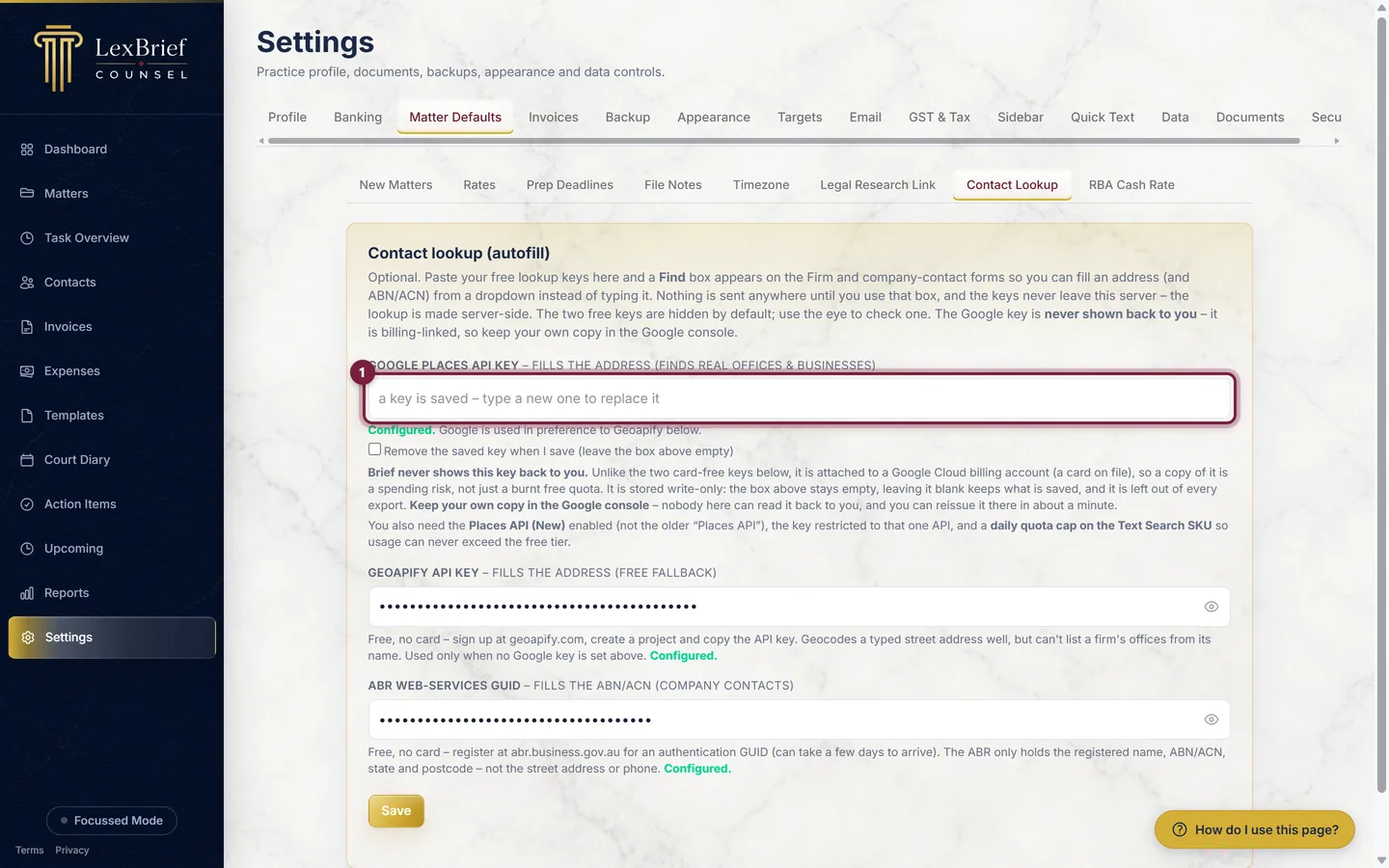
The card then reads Configured, and the Find an address box appears on your contact forms. More on the card at Settings › Contact lookup.
Brief will not show this key back to you
The ABR code used by ABN lookup is card-free, so Brief masks it but will reveal it if you click the eye icon. This key is attached to your card, so it is held under stricter rules:
- The box is always empty, even when a key is saved. Nothing renders the stored value, so it cannot be read off the screen, shoulder-surfed, or caught in a screenshot.
- Leaving the box blank means "leave it as it is." Saving other settings on that tab will not wipe your key.
- Removing it is a separate, deliberate act. Once a key is stored, a Remove the saved key tickbox appears beneath the field. Tick it, leave the box empty, and save. It is a tickbox rather than a button precisely so that it cannot happen by accident.
- The key is left out of every export and is never written to a log.
The practical consequence: keep your own copy in the Google console. Nobody at LexBrief can read the key back to you, because nothing in the application can. If you lose it, delete that key in the console and create another, which takes about a minute.
That is also the answer if you ever suspect a copy of the key went somewhere it should not: revoke and reissue. Because you restricted it to one API at step 4 and capped it at step 5, the worst case in the meantime is bounded to searches you can see, under a cap you set.
Step 7: test it
- Go to Contacts › New firm.
- Type a firm name into Name.
- The Find an address box below will already contain what you typed. Press Look up, or Enter.
- Pick the right office from the dropdown. Street, suburb, state, postcode and country fill in.
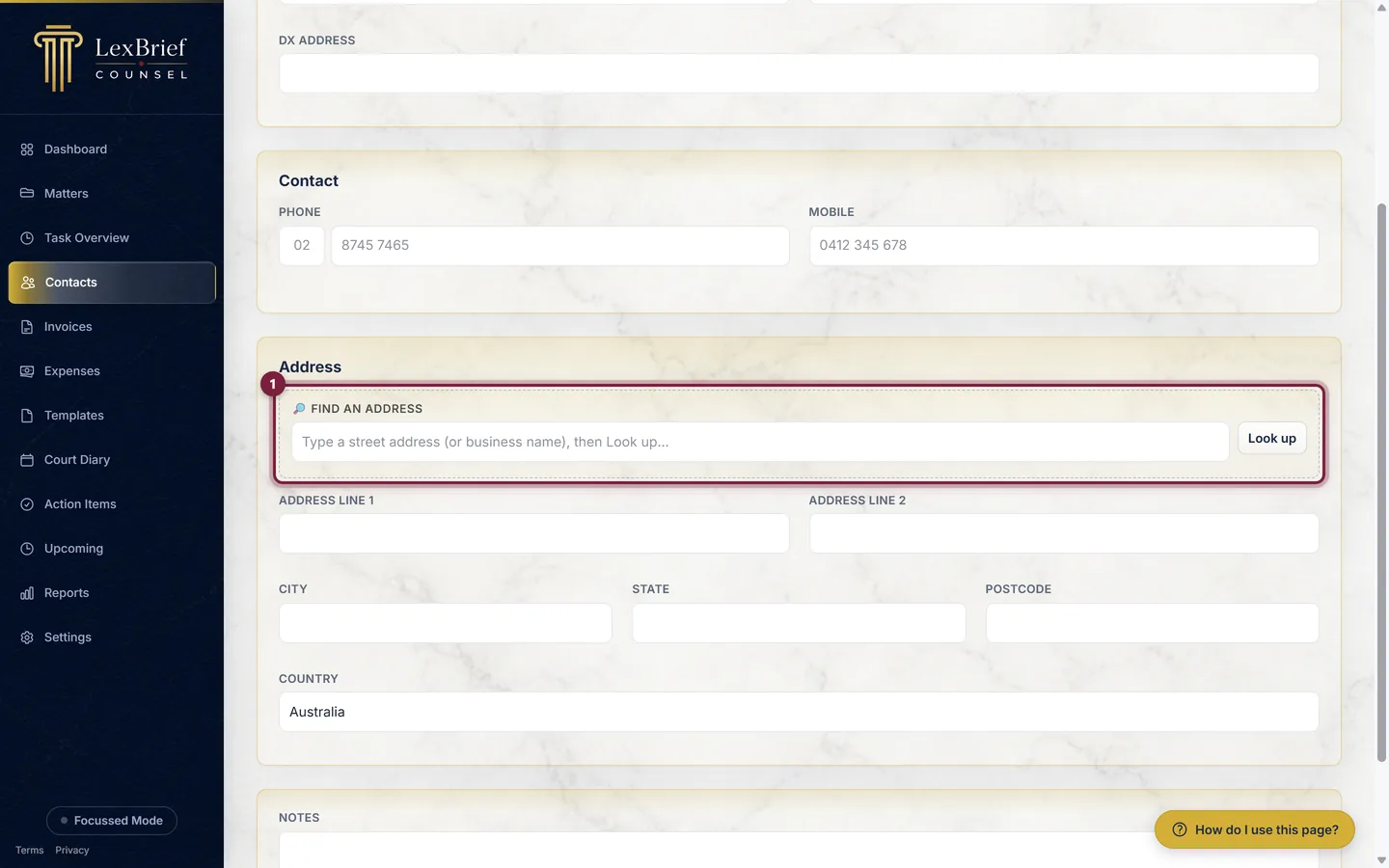
The picture shows the box as it sits before a search; the results appear beneath it once you press Look up. Try a firm with several offices. You should see them listed separately, each labelled with the business name and its full address, which is the whole advantage over a plain map lookup.
If something goes wrong
- The box does not appear at all. The key has not saved. Check Settings › Matter Defaults › Contact Lookup: it will say Configured or not. Remember the field is always blank on screen, so an empty box is not evidence that nothing is saved. Read the status line, not the field.
- "Lookup is unavailable right now." Almost always one of four things, in order of likelihood: Places API (New) was not the API you enabled; the key's API restriction does not include it; billing is not linked to that project; or you have hit your daily cap. Work back through steps 2 to 5.
- "No matches." Add the suburb or city to the search. Google matches best when the query looks like something a person would search.
- The right firm comes back with the wrong office. Pick a different row from the dropdown rather than editing afterwards. The dropdown labels each result with its full address for exactly this reason.
- The address arrives without a street number. Some businesses are registered against a building rather than a street number. Type the street address instead of the name and look that up.
What leaves your machine
Only the text you type into the lookup box and press Look up on, which is a business name or an address. It goes over an encrypted connection to Google, and Brief asks Google for only three things back: the formatted address, the business name, and the address components.
Nothing else is sent. No matter, no client, no invoice, no financial figure, and nothing at all until you press the button. The request is made by Brief's own server, with the key in a request header rather than in the address line, so the key appears in no page and in no browser history.
What next
- Setting up ABN / ACN lookup – the companion guide, free and card-free, for company ABNs.
- Contacts – firms, clients and other contacts, and the forms this box appears on.
- Settings › Contact lookup – where the keys are stored and what each one turns on.