

This one has more steps than most, because Dropbox requires you to create your own connection rather than trusting one of ours. That is a deliberate choice and it works in your favour – see what Brief can and cannot reach. Follow the steps in order and it is straightforward. If at any point your screen does not look like the description, stop and email support@lexbrief.au – we would rather help than have you guess.
What it does
Once connected, Brief will put a copy of certain documents into folders you nominate in your Dropbox:
- A folder for each new matter, with that matter's establishment documents (costs agreement, costs disclosure and, on a direct brief, the rule 22 disclosure) filed inside it.
- The PDF of every invoice you send, filed into a year, quarter and month tree so your invoices are already sorted when you or your accountant go looking.
It also does one thing in the other direction: if you link a matter to a folder in your Dropbox, Brief will quietly notice when the documents in that folder change and keep a record of the versions. That is read-only. Brief never alters or deletes anything in your Dropbox.
This is per-user and private. Your Dropbox is yours; nobody else's Brief account can see it.
What Brief can and cannot reach
Brief does not ship with a Dropbox app of its own. You create one, in your own Dropbox account, and Brief uses it. That is why the setup has an extra step – and it is worth the ten minutes, because it means:
- The connection can only ever act on your Dropbox account.
- Brief asks for permission to read your folder listing and to write files, and nothing else.
- Brief never asks for permission to create share links, so nothing it files can be made publicly linkable.
- Nothing is sent anywhere unless you trigger it. There is no background upload of your matters.
You can withdraw the whole thing at any time from your own Dropbox account settings, without asking us. See disconnecting.
Before you start
- A Dropbox account you can sign in to. A personal account is what this has been tested on; if you use a Dropbox Business or team account, it should work but tell us how you get on – you would be the first.
- Ten minutes, and both Brief and Dropbox open in the same browser.
- Somewhere to put things: decide now which folder in your Dropbox your matters should live under, and which folder your invoices should live under. They can be the same folder or different ones. Create them in Dropbox first if they do not exist – Brief will not let you pick the very top of your Dropbox.
Step 1: create your own Dropbox app
This part happens on Dropbox's website, not in Brief.
- Go to dropbox.com/developers/apps and sign in if asked. This is Dropbox's own site.
- Click Create app.
- Choose Scoped access.
-
For the access type, choose Full Dropbox.
This one cannot be undone. The other option, App folder, confines the app to a single sandbox folder. If you pick it by mistake, Dropbox gives you no way to change it – you have to delete the app and start again. Worse, everything will appear to work: Brief will connect happily and the folder picker will simply show nothing. If your folder picker looks empty at step 4, this is almost certainly why.
- Give the app a name you will recognise – LexBrief is a sensible choice. Dropbox shows this name to you later when it asks whether to allow the connection, so a name you recognise makes that screen easier to read. Dropbox requires the name to be unique across all of Dropbox, so if it is taken, add something of your own – LexBrief Smith, for instance.
- Click Create app.
You will land on your new app's settings page. Leave it open.
Now set its permissions
- Click the Permissions tab.
-
Tick exactly these three:
account_info.readfiles.metadata.readfiles.content.write
- Press Submit at the bottom of that page. This is the step people miss. If you tick the boxes and navigate away, the permissions are not saved, and later Brief will tell you the connection does not include file write access.
Then go back to the Settings tab of your app. Two things there are what Brief needs: the App key and the App secret (you will have to click Show to see the secret). Keep the page open for the next step.
You do not need to fill in a redirect URI. Leave it blank – Brief deliberately does not use one.
Step 2: paste the key and secret into Brief
- In Brief, open Settings from the menu down the left-hand side.
- Click the Integrations section, then the Dropbox tab.
- The status will read Not configured. Under Your Dropbox app, paste your App key into the first box and your App secret into the second.
- Click Save app details.
The app key is not a secret – it only identifies your app – so Brief shows it back to you afterwards and you can check it against the console. The app secret is treated as a genuine secret: once saved it is never displayed again, and the box is relabelled Replace app secret. Leaving that box blank when you save something else means keep the secret I already have, so you never have to re-paste it.
The status should now read Not connected, with a line confirming app secret saved ✓. If it still complains that the secret is missing, you saved the key without the secret – paste the secret in and save again.
Step 3: connect the two
Brief now has your app's details, but Dropbox has not yet been asked whether it is allowed to use them. That is this step. It is two clicks and a copy-paste, but Dropbox shows you a warning screen along the way that deserves an explanation before you meet it.
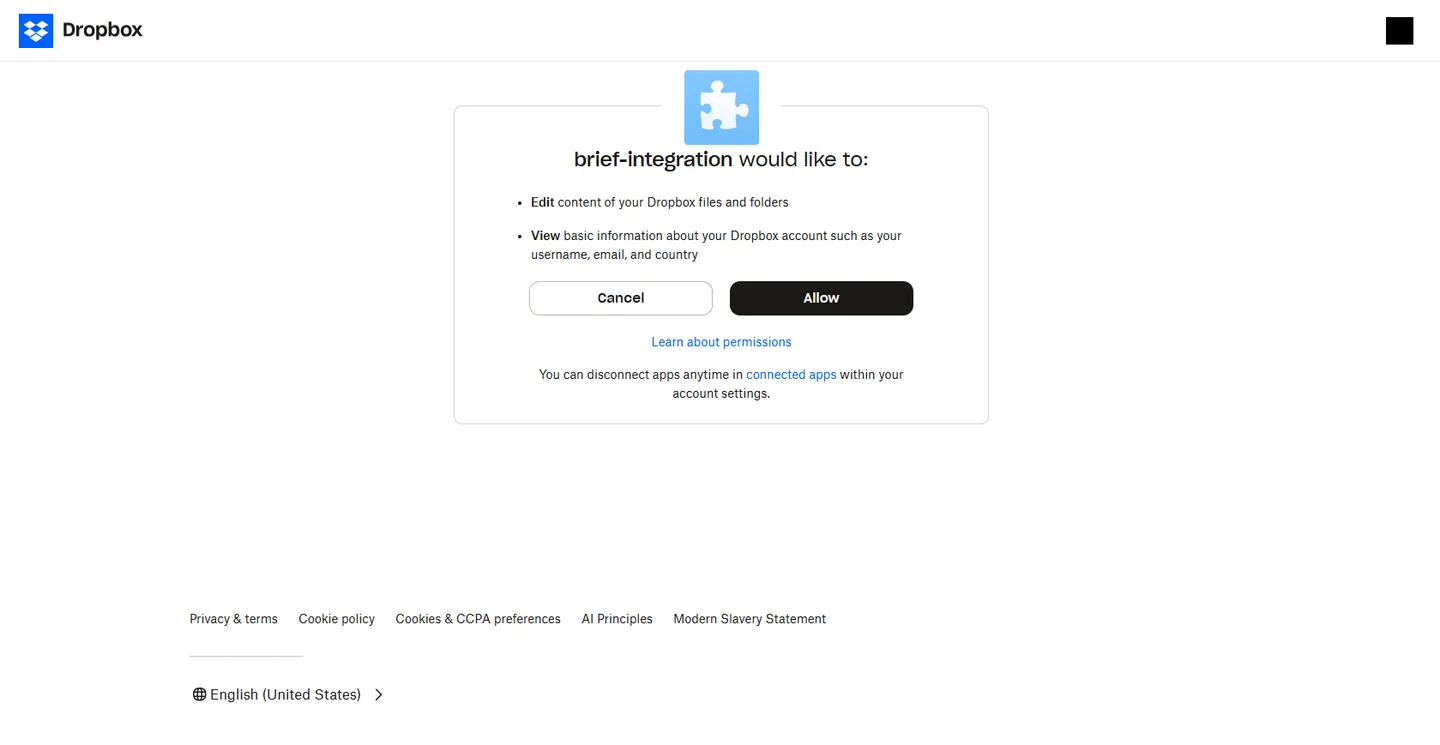
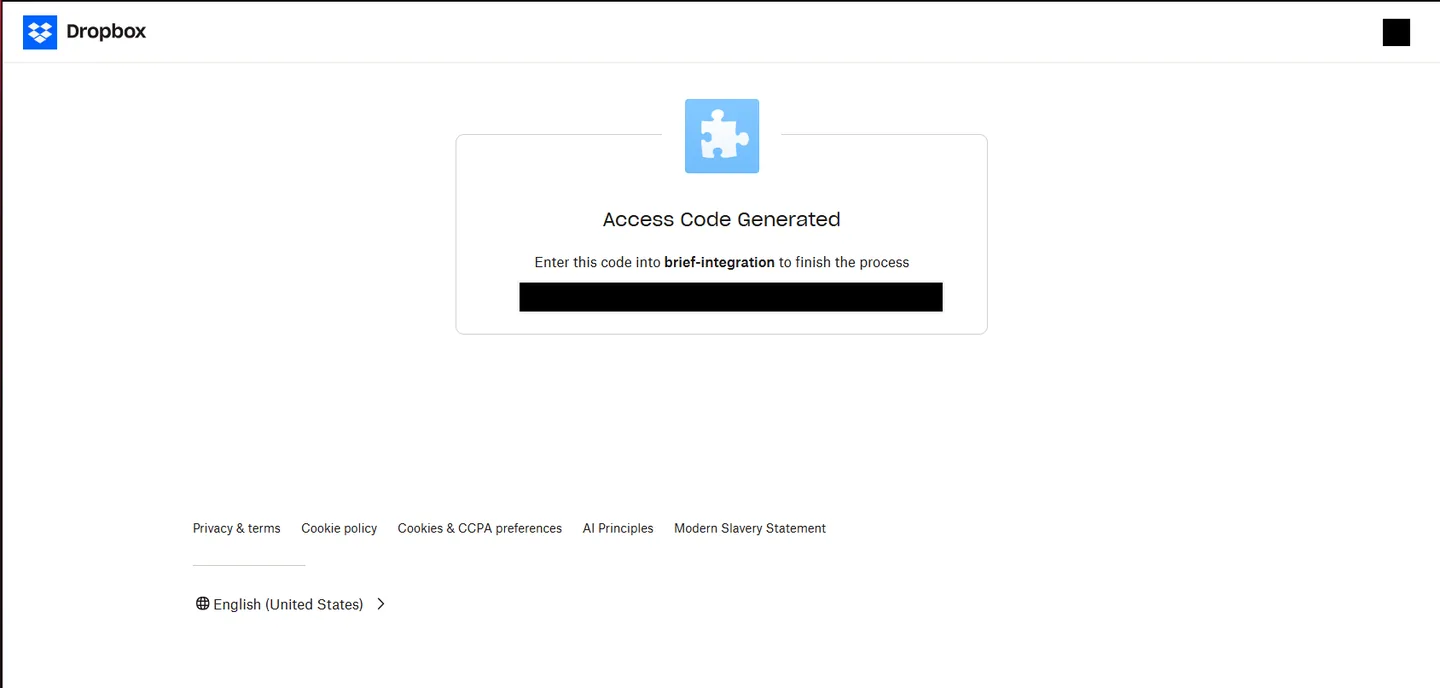
Two notes on the pictures below. The app in them is called brief-integration, because that is what it was called when they were taken – yours will show whatever name you gave it. And the access code itself is blacked out, because it is a live credential; yours will have a code where the black box is.
-
Click Step 1: Connect to Dropbox. It opens Dropbox in a new tab on purpose – leave the Brief tab alone, you are coming back to it.
-
Dropbox may show an orange warning first, headed "Before you connect this app", saying words to the effect of "Make sure that you know and trust this developer… This app only has a small number of users and may not be the app you were intending to link".
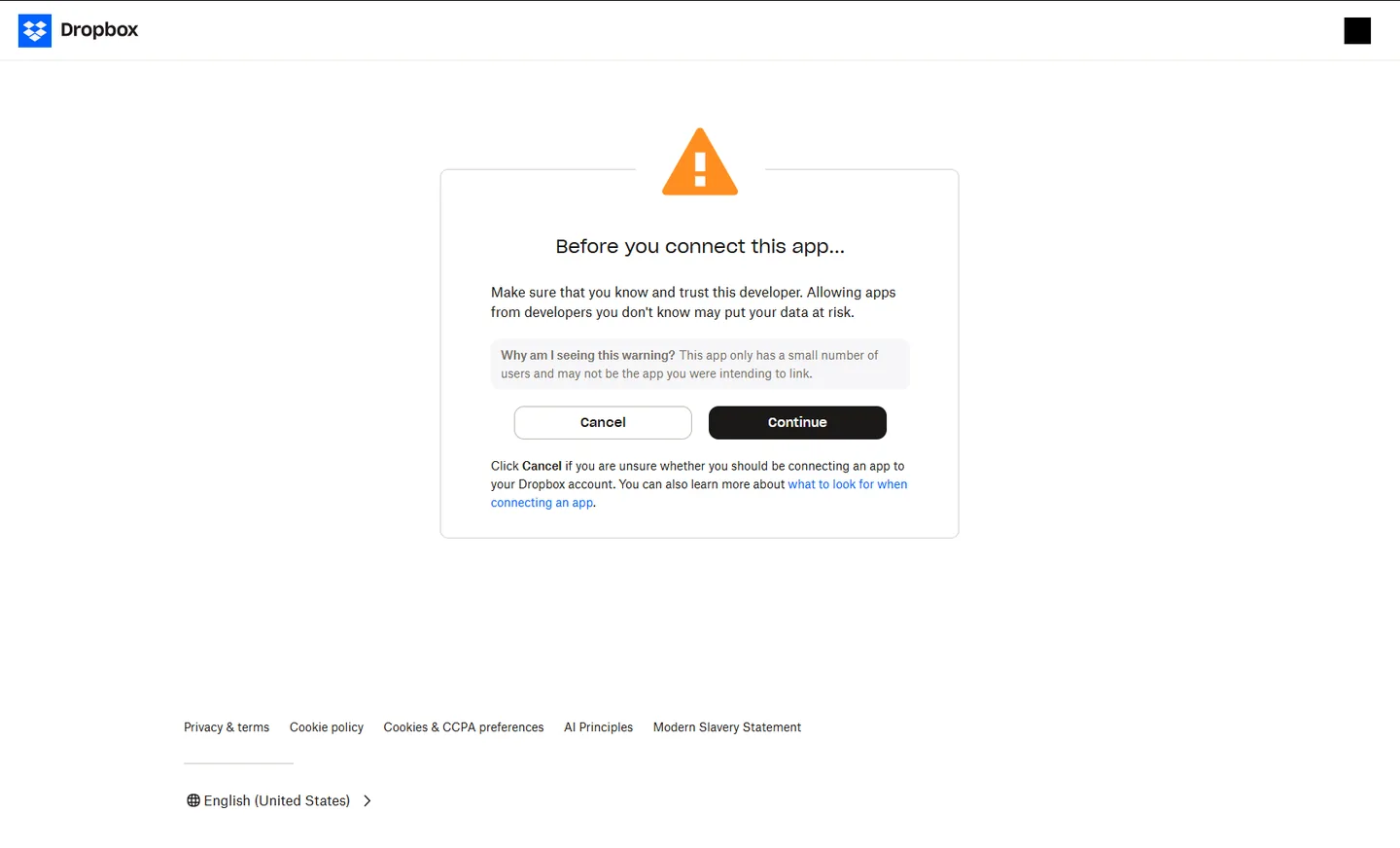
This is expected, and it is not a problem. Dropbox shows that warning for any app with few users. The app in question is the one you created five minutes ago, in your own account, and it will only ever have one user – you. That is exactly why the count is small. Click Continue.
-
Dropbox then asks whether to allow the connection, naming your app and listing what it may do – editing the content of your Dropbox files and folders, and viewing basic information about your account such as your username, email and country. Click Allow.
-
Dropbox shows a page headed Access Code Generated with a code in a box. Copy it.
-
Go back to the Brief tab, paste the code into the Access code box under Step 2: paste your code, and click Finish connecting.
Do it promptly. The code can only be used once and it expires quickly. If you leave it sitting for a while, Brief will tell you Dropbox rejected the code – just click Step 1 again and paste the new one straight away.
What you should see. A green banner reading "Connected to Dropbox as your@email.com.", and the card's status changing to Connected ✓ with your account name and today's date. The access code itself is exchanged for a long-lived connection and then thrown away – it is never stored or shown again.
Step 4: choose your folders
Connecting tells Brief it may write to your Dropbox. It still does not know where. There are two separate places to nominate, and mapping one does not map the other.
- Still in Settings, click the Documents section, then the Cloud storage tab.
- Find the Dropbox block. It should show Connected and your email address.
- Under Dropbox Matters folder, click Choose a folder…. A picker opens showing your Dropbox folders. Click a folder name to go into it, use ← Up to go back, and when you are inside the folder you want, click the button at the bottom that reads Use "…" as the Matters root.
- Do the same for Dropbox Invoices folder.
Two things about the picker are worth knowing. It only lists folders, never files – so a folder that looks empty may well have documents in it. And you cannot select the very top of your Dropbox; you must go into a folder first. That is deliberate, so Brief can never scatter folders across the root of your Dropbox.
If the picker opens and shows nothing at all, and you are certain you have folders, go back and read the warning at step 1 about Full Dropbox versus App folder.
You can change or remove either mapping later with the Change and Remove buttons. And if you rename or move the folder within Dropbox afterwards, nothing breaks – Brief follows the folder rather than the name.
What gets filed, and when
Nothing is copied to Dropbox in the background. Every copy is the result of something you did.
- A new matter. On the new-matter form there is a switch to create a folder for the matter in your cloud storage, on by default. Brief creates a folder named after the matter under your Matters root, and files the matter's establishment documents into an Establishment Documentation folder inside it.
- An invoice you email. On the invoice email screen there is an Add to Dropbox option, on by default. The PDF that was attached to the email is filed under your Invoices root, in a financial-year, quarter and month tree – an invoice issued in July 2026 lands in
FY 2027 / Q1 / Jul. Filing happens after the email has gone, so a filing problem can never stop an invoice being sent. - An invoice you are not emailing. Use the File to cloud button on the invoice itself. Note that Export PDF does not file anything – it only downloads to your computer.
Filing the same invoice twice replaces the copy rather than leaving you with "invoice (1).pdf". Existing folders are reused, not duplicated – if you already keep a folder called Sept, Brief uses it rather than creating a second one called Sep.
One important point about invoices, which applies whether or not you use Dropbox: Brief does not keep a copy of the invoices you send. The copy filed to your Dropbox is the archive. See Invoices.
If you have both Dropbox and OneDrive connected, copies go to both. There is no "which one is active" setting – whichever clouds are ready and mapped each get a copy, and each reports its own result.
Linking a folder to a matter
Separately from the two roots above, you can point an individual matter at a folder in your Dropbox where you keep that matter's working documents. Open the matter, click its Documents tab, find the Cloud folders card and click Choose Dropbox folder.
Once linked, Brief checks that folder about once an hour and records the versions of the documents it finds, so you have a history of how a document changed over time. There is a Check now button if you do not want to wait, and Unlink to stop. This is read-only – Brief reads that folder and writes nothing to it.
If something goes wrong
The Dropbox card shows a Last problem line whenever something has failed, so that is the first place to look. The common ones:
- "Dropbox rejected that access code." The code was used already or has expired. Start step 3 again and paste the new code straight away.
- "Dropbox rejected your app key or app secret." One of the two is wrong or has a stray space. Check both against the app's Settings tab in the Dropbox console and save again.
- "The Dropbox connection does not include file write access." The permissions were not submitted. Go back to the app's Permissions tab, confirm the three boxes are ticked, press Submit, then reconnect.
- "No Dropbox Matters folder is mapped in Settings yet." You are connected but have not done step 4.
- The folder picker is empty. Almost always the App folder mistake from step 1. You will need to create a new app with Full Dropbox access and paste the new key and secret in.
- "The cloud copy did not complete." Shown on the invoice or matter after the event. If you have two clouds connected you may see a green success banner for one and this warning for the other – that is the point of showing both. The document itself is unaffected; only the copy failed.
If you deleted the destination folder in Dropbox, Brief will tell you the copy could not be saved. Re-map the folder in Settings and try again.
Disconnecting
Two buttons at the foot of the card, and they do different things:
- Disconnect makes Brief forget the connection but keeps your app key and secret, so reconnecting later is just step 3 again.
- Remove app details removes the key and the secret – and the connection with them.
Neither withdraws the permission at the Dropbox end. To do that as well – and this is the one that truly revokes access – open Dropbox › Settings › Connected apps and remove your app from the list. You can do that at any time, without telling us, and Brief simply stops being able to file anything.
What next
- Matters – creating a matter, and the switch that makes its folder.
- Establishment documents – what gets generated and filed into that folder.
- Invoices – sending an invoice, and filing its PDF.