

If at any point your screen does not look like the picture, stop and email support@lexbrief.au – we would rather help than have you guess.
Before you start
You will need two things already in place:
- Your own Word templates for the documents – uploaded on the Document Templates page. If you have not done that, read Templates first. LexBrief does not supply the wording; these are your documents, in your form, with the matter's details dropped into them.
- A matter to generate them for. See Matters.
A note on wording: the dark strip of links down the left-hand side of the screen is the menu. The row of words across the middle of a matter's page are its tabs.
What the set contains
Which documents are generated depends on how you were briefed:
- Firm brief (a solicitor instructed you) – Costs Agreement and Costs Disclosure.
- Direct brief (the client came to you directly) – those two, plus a Rule 22 Disclosure.
The rule 22 disclosure is deliberately not offered on a firm brief, because the obligation does not arise there.
Each document is produced as a PDF and as an editable Word file, named after the matter, the document and the date – for example Smith v Jones – contract dispute Costs Agreement 24-07-2026.
One-time setup: map your templates
LexBrief has to be told which of your templates is the costs agreement, which is the disclosure, and so on. You do this once.
- Click Settings at the bottom of the left-hand menu.
- Click the Documents tab, then the New Matter Documents tab beneath it.
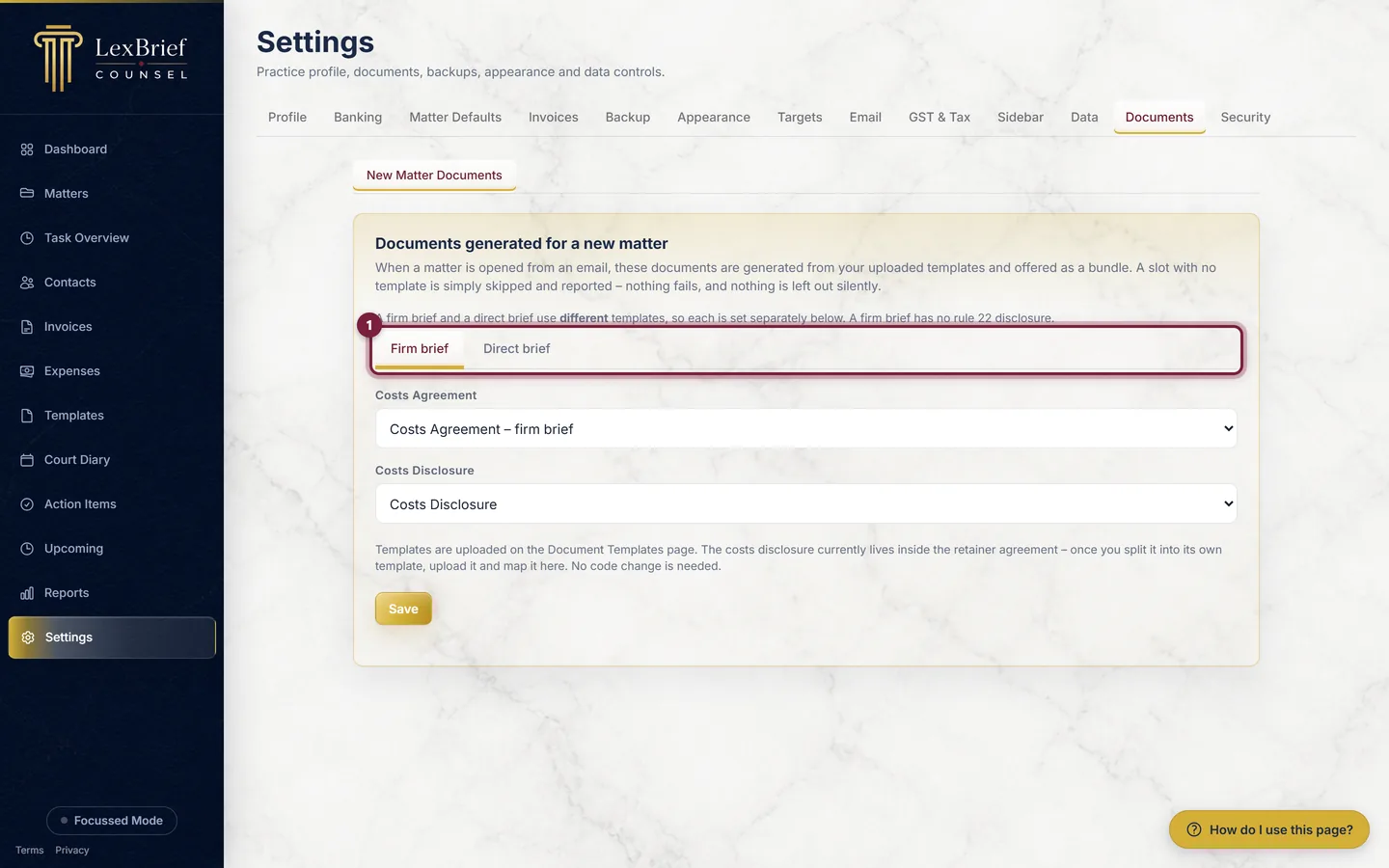
The card is headed Documents generated for a new matter and has two tabs of its own: Firm brief and Direct brief.
- On the Firm brief tab, choose a template for Costs Agreement and one for Costs Disclosure.
- Click the Direct brief tab and do the same, plus Rule 22 Disclosure.
- Click Save. One Save covers both tabs, so nothing is lost when you switch between them.
A slot you leave on (no template – skip this document) is simply left out of the set, and LexBrief tells you it was skipped. Nothing fails silently.
If your costs disclosure currently sits inside your costs agreement as one document, that is fine – map the agreement and leave the disclosure slot empty until you split them.
What a matter needs first
Two things on the matter itself feed straight into the documents, so they must exist before anything can be generated:
- Fee estimate (ex GST) – your good-faith estimate of total professional fees. The costs disclosure quotes it. This is required when you create a matter.
- Scope of retainer – what you are retained to do. Leave it blank and LexBrief uses a standard scope with the matter's description written into it.
Both are on the matter form and are covered in Matters. They also exist as template tokens – {{fee.estimate}} and {{retainer.scope}} – so you can put them wherever you like in your own wording.
Generating them with a new matter
The easiest moment is when you open the matter. On the new-matter form, near the bottom, is a switch: Generate establishment documents now. It is on by default whenever your templates are mapped.
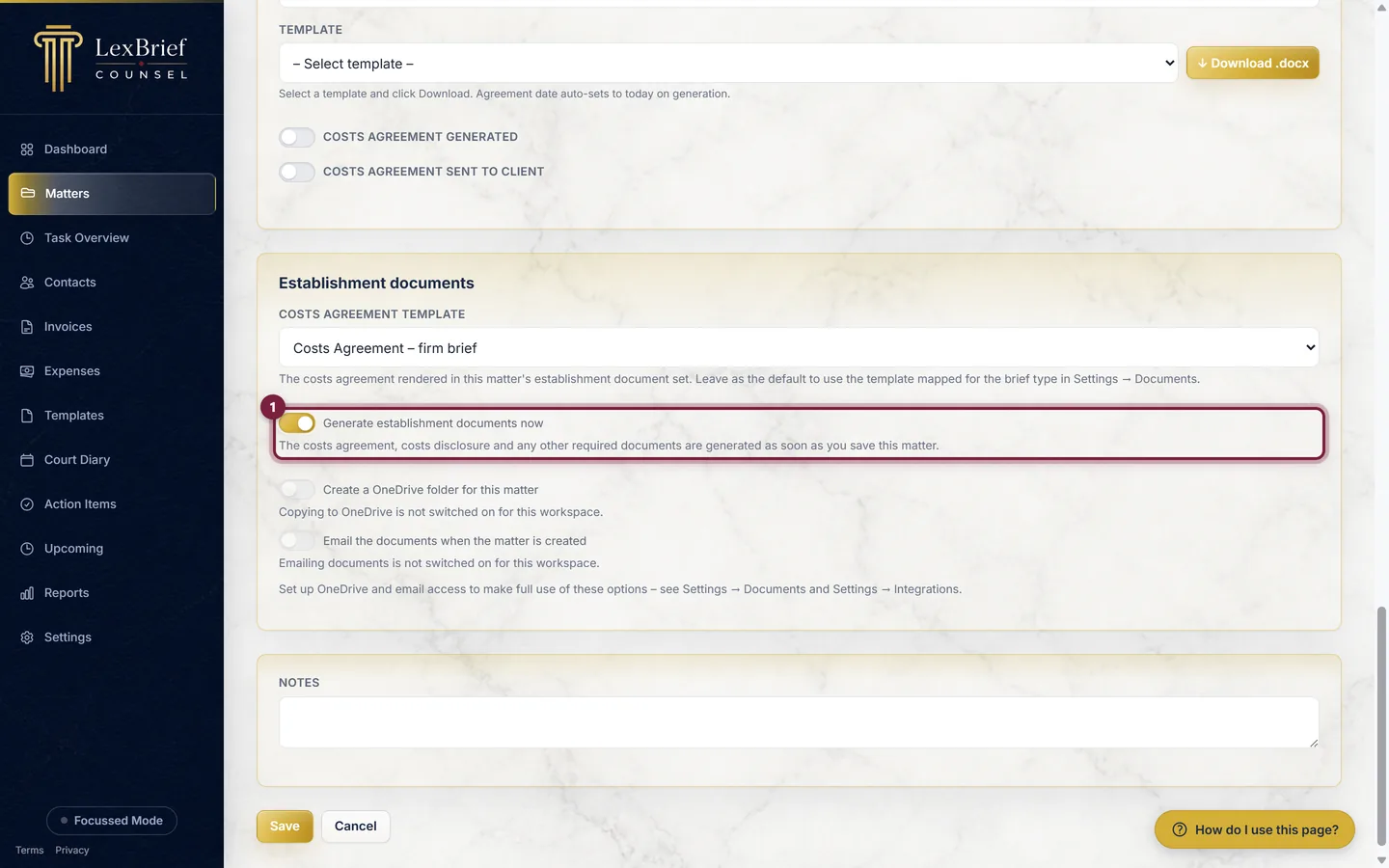
Beside it you can pick which Costs Agreement template this particular matter should use, or leave it on (Brief-type default) to use the one you mapped in Settings.
Save the matter and the documents are produced as part of the same step. While it works you will see an overlay reading "Creating the matter and generating documents…", and the Save button cannot be pressed twice.
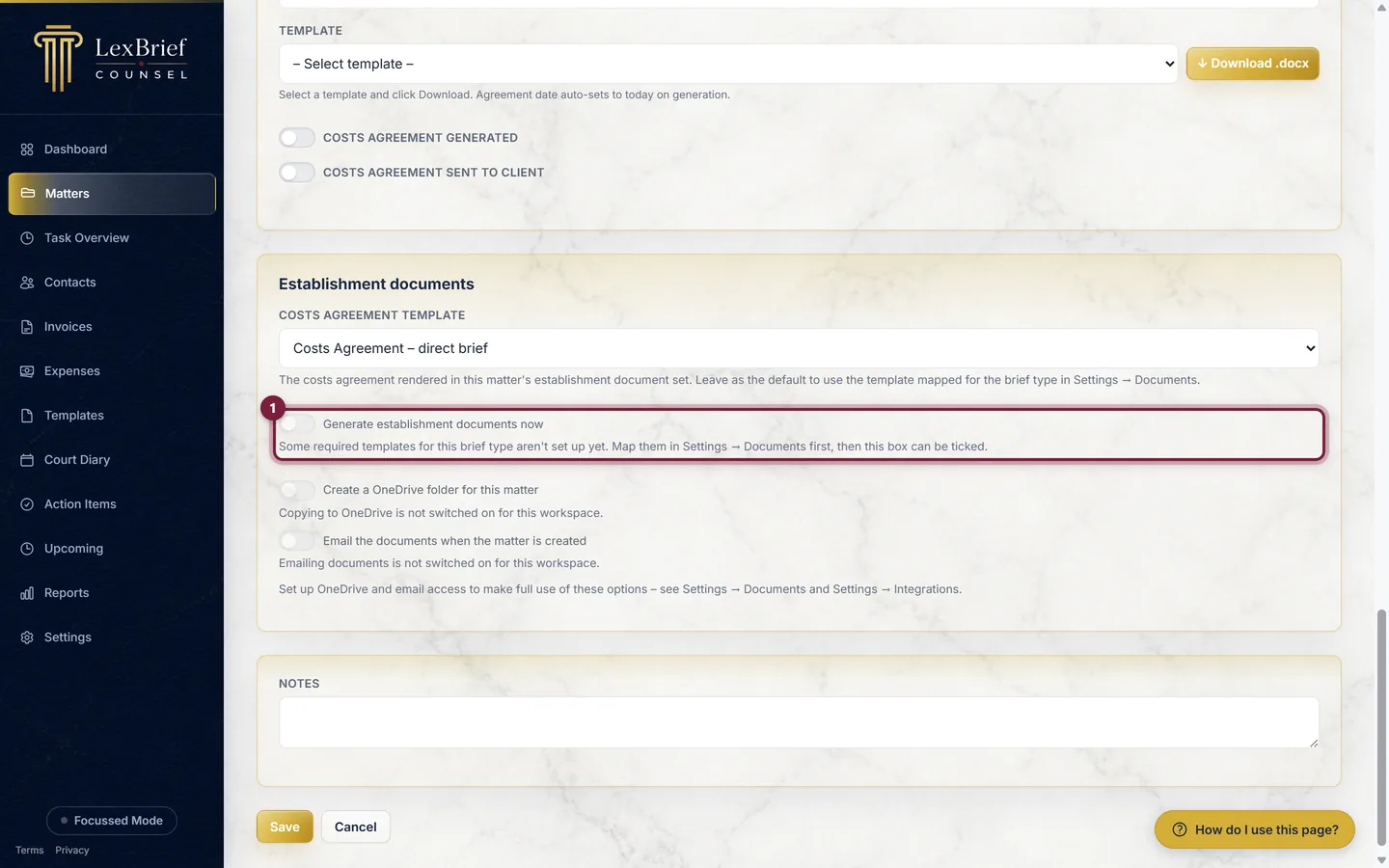
If your templates are not mapped yet, the switch is shown but greyed out, with a line telling you to map them in Settings first.
Generating them later
You can produce the set at any time from the matter itself.
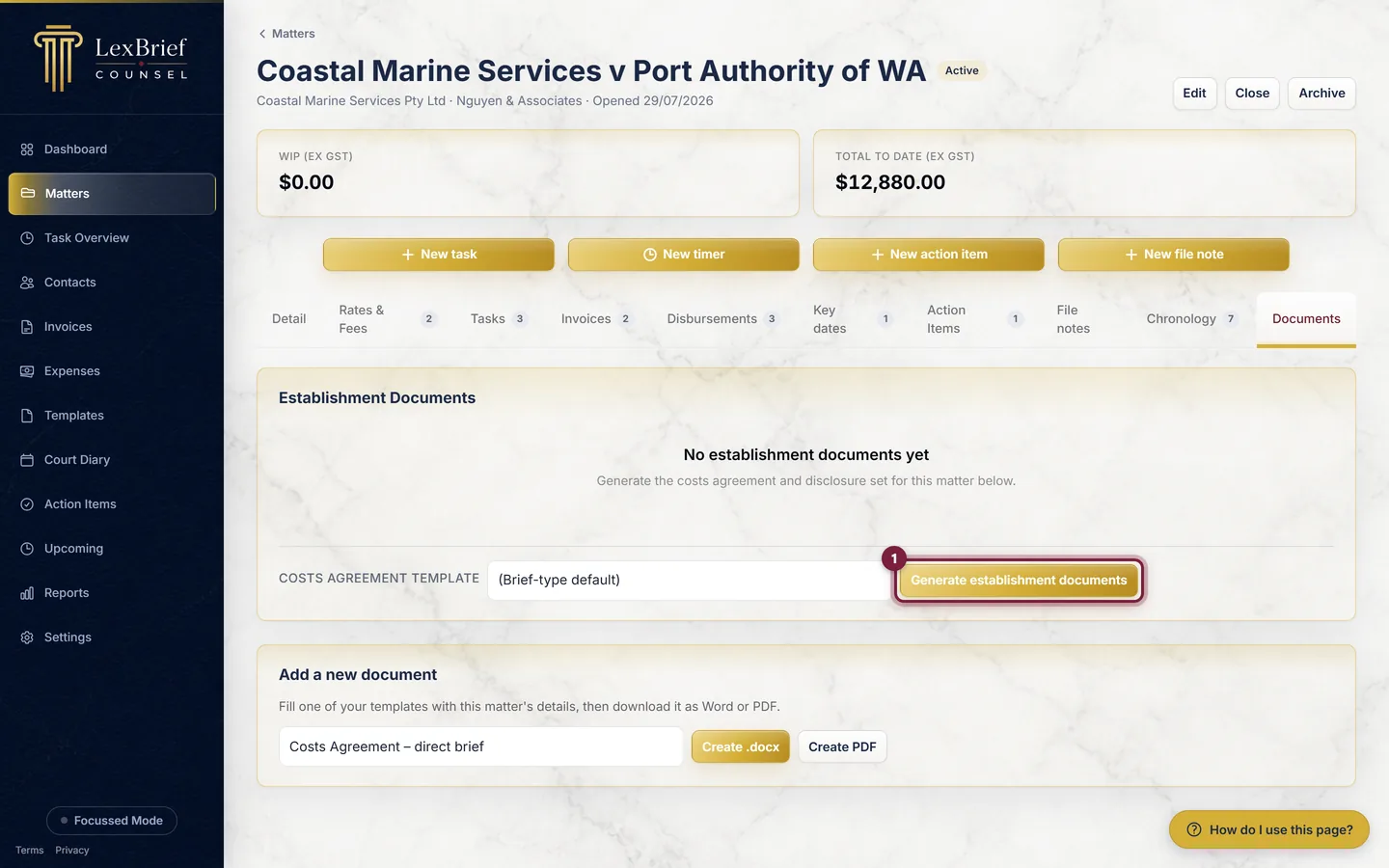
- Open the matter and click its Documents tab.
- Find the Establishment Documents card. Before anything has been generated it says "No establishment documents yet".
- Choose a Costs agreement template if you want something other than the default.
- Click Generate establishment documents.
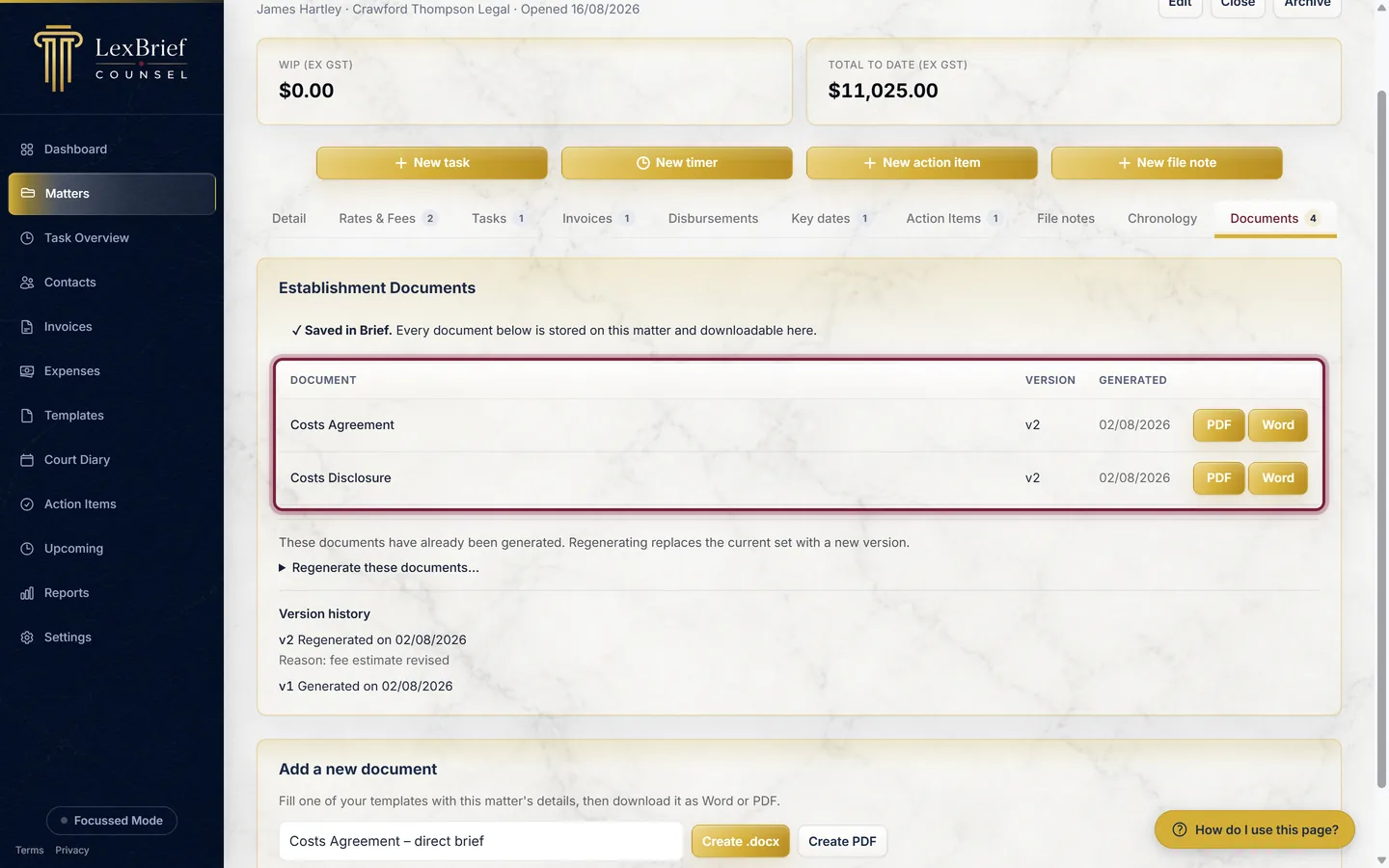
What you should see. The card fills with a row per document, each showing its version (v1), the date it was generated, and PDF and Word buttons.
Downloading them
Each document has two buttons:
- PDF – the finished document, ready to send.
- Word – the same document as an editable
.docx, for when you need to adjust a clause before it goes out.
Both are the document as generated, from your template, with this matter's details in it.
If the recipient needs to edit or sign it
The PDFs LexBrief generates come out locked. That is a setting, Lock the PDFs I generate, and it is on to begin with.
A locked PDF opens normally and prints normally. What the recipient's PDF reader will not let them do is edit it, annotate it, fill anything in, or copy text out of it – and Word will not import it to re-save as an altered version.
That matters here more than anywhere else in LexBrief, because a costs agreement is often sent for signature or comment.
.docx is not affected by this setting at all – it opens and edits exactly as any Word document does.
What locking does not do. The restriction is advisory. The document opens without a password, so free tools can strip it. Treat it as something that stops accidental edits and casual alteration – not as protection against someone determined to rewrite the document. It is a sensible precaution, not a guarantee.
To turn it off, go to Settings → Documents → Document security and switch off Lock the PDFs I generate. It applies to every PDF LexBrief generates, not just these ones. See the Settings guide.
Emailing them to the client
If sending email from your own chambers mailbox is switched on for your workspace, the Establishment Documents card has an Email to client button. It opens a covering email with the generated documents already attached as PDFs. Nothing is sent until you press Send.
On that screen, underneath the Message box, you will see a read-only Signature panel. That is your real email signature – bold, italics, links and your chambers logo included – shown exactly as the recipient will get it, so there is no guessing. It is set up once at Settings → Email → General, and the Settings guide walks you through it.
If you have not saved a signature, no panel appears and the email goes out exactly as it did before.
Regenerating after a change
If something the documents quote has changed – the fee estimate revised, the scope tightened, a template corrected – you regenerate the set.
This is deliberately more than one click, because it replaces documents you may already have sent.
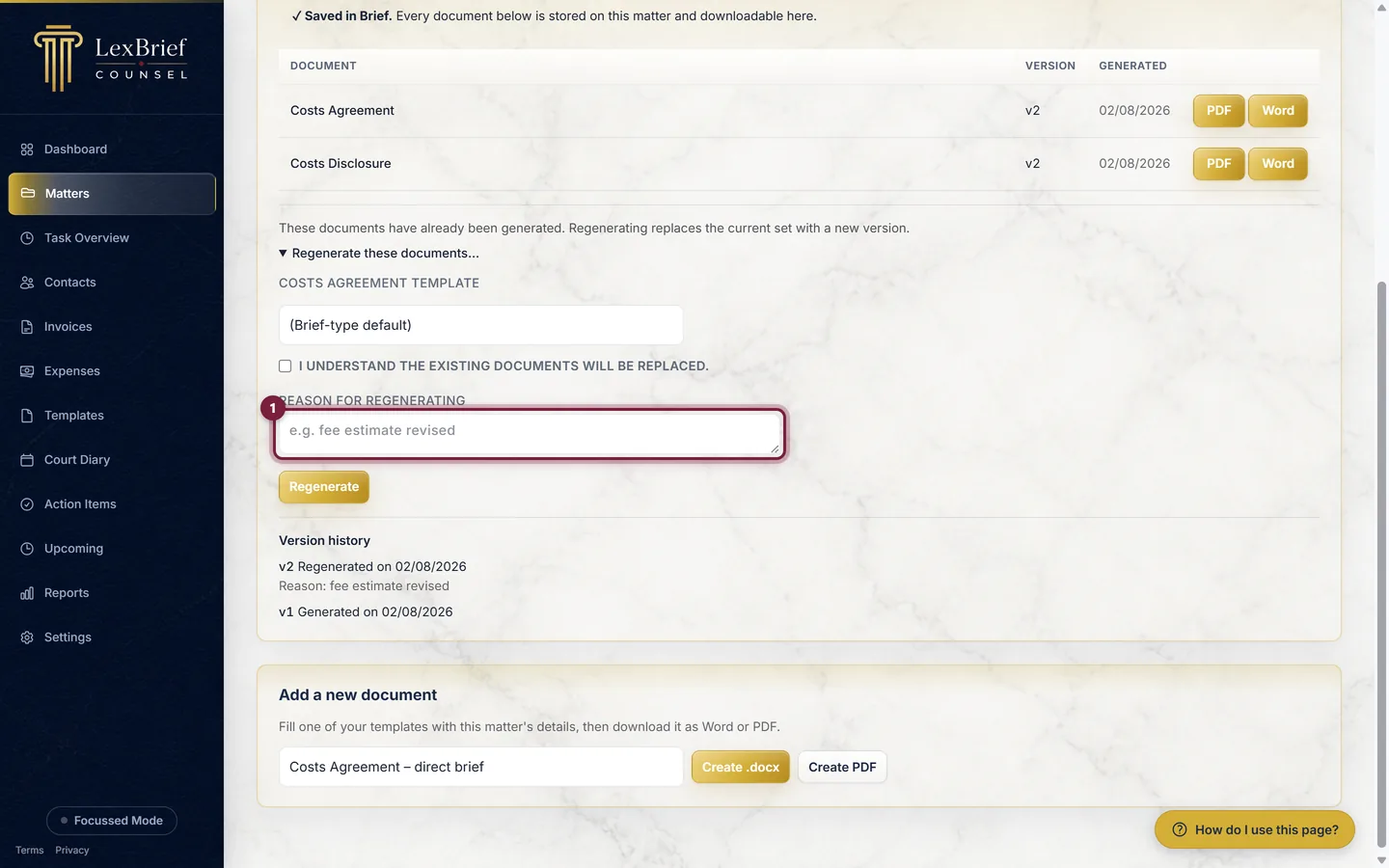
- On the Establishment Documents card, click Regenerate these documents… to open the form.
- Tick I understand the existing documents will be replaced.
- Type a short reason – for example fee estimate revised. It is required.
- Click Regenerate.
What you should see. The documents move to v2, and a Version history list appears at the bottom of the card recording each version, the date, and the reason you gave.
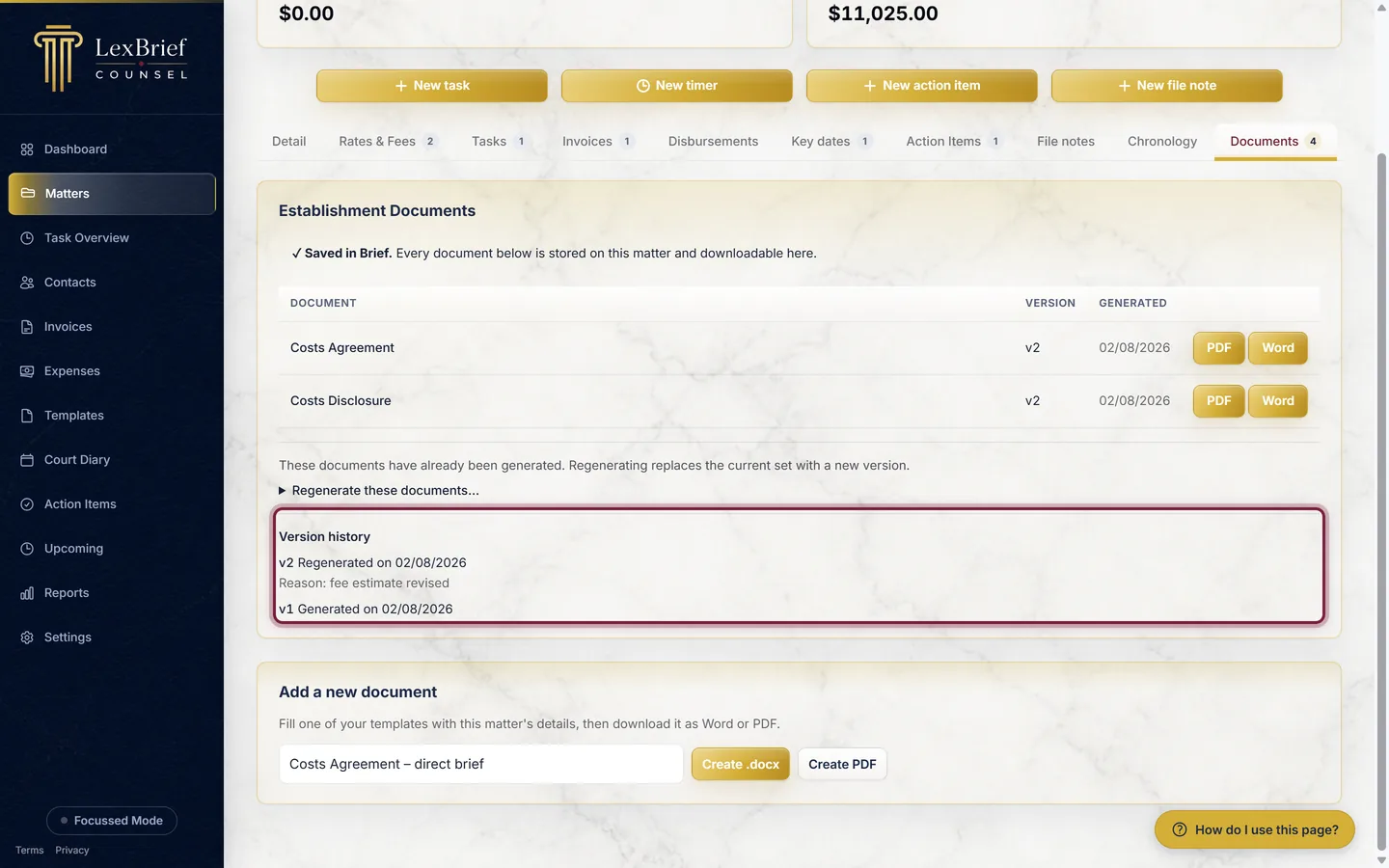
That history is the point of asking for a reason. Six months later, "why is this the second version of the costs agreement?" has a written answer on the matter.
Where they are stored
The card always tells you where the set is, so you never have to guess. At its top you will see ✓ Saved in Brief – every document is held on the matter and can be downloaded here whenever you need it.
If your workspace has cloud storage connected and copying switched on, the same banner says whether the copies reached your cloud, and offers a Copy to OneDrive button for a set generated before the folder was mapped. If a folder is mapped but copying is switched off for your workspace, it says that too, rather than leaving you wondering where the folder went.
If you see nothing about cloud storage at all, it is simply not set up for your workspace – the documents are still safely stored in LexBrief.
If the button will not let you
Generation is blocked in two situations, and in both LexBrief says which one it is rather than failing quietly.
- "Set a fee estimate and scope of retainer on the matter details…" – the matter is missing something the documents have to quote. Click through to the matter's Edit form and fill it in.
- "Some required templates aren't set up yet…" – one or more slots for this brief type has no template mapped, and the message names which. Map them in Settings → Documents, then come back.
What next
- Matters – the fee estimate and scope of retainer live on the matter form.
- Templates – uploading the Word templates these documents are built from.
- Settings – the Documents tab in context.
- Browse all help guides
Stuck on anything at all? Email support@lexbrief.au – a real person reads it, usually the same working day.