

If at any point your screen does not look like the picture, stop and email support@lexbrief.au – we would rather help than have you guess. The pictures in this guide were taken on a phone-sized screen, so they match what you will see.
Before you start
You need two things:
- Your phone, with its usual web browser. On an iPhone that is Safari (the blue compass). On an Android phone that is usually Chrome (the coloured circle).
- The web address you were given when you signed up, and your email and password for LexBrief.
A note on wording: the strip of buttons that sits along the very bottom of the screen on a phone is what we call the bottom bar. It is how you move around on a small screen, in place of the menu you see down the side on a computer.
How LexBrief works on a phone
LexBrief is a website, so on a phone you simply open it in your browser and sign in – there is no separate app to install and no app store involved. On a small screen it automatically rearranges itself: the figures stack into neat cards, and a bottom bar appears with the handful of things you do most.
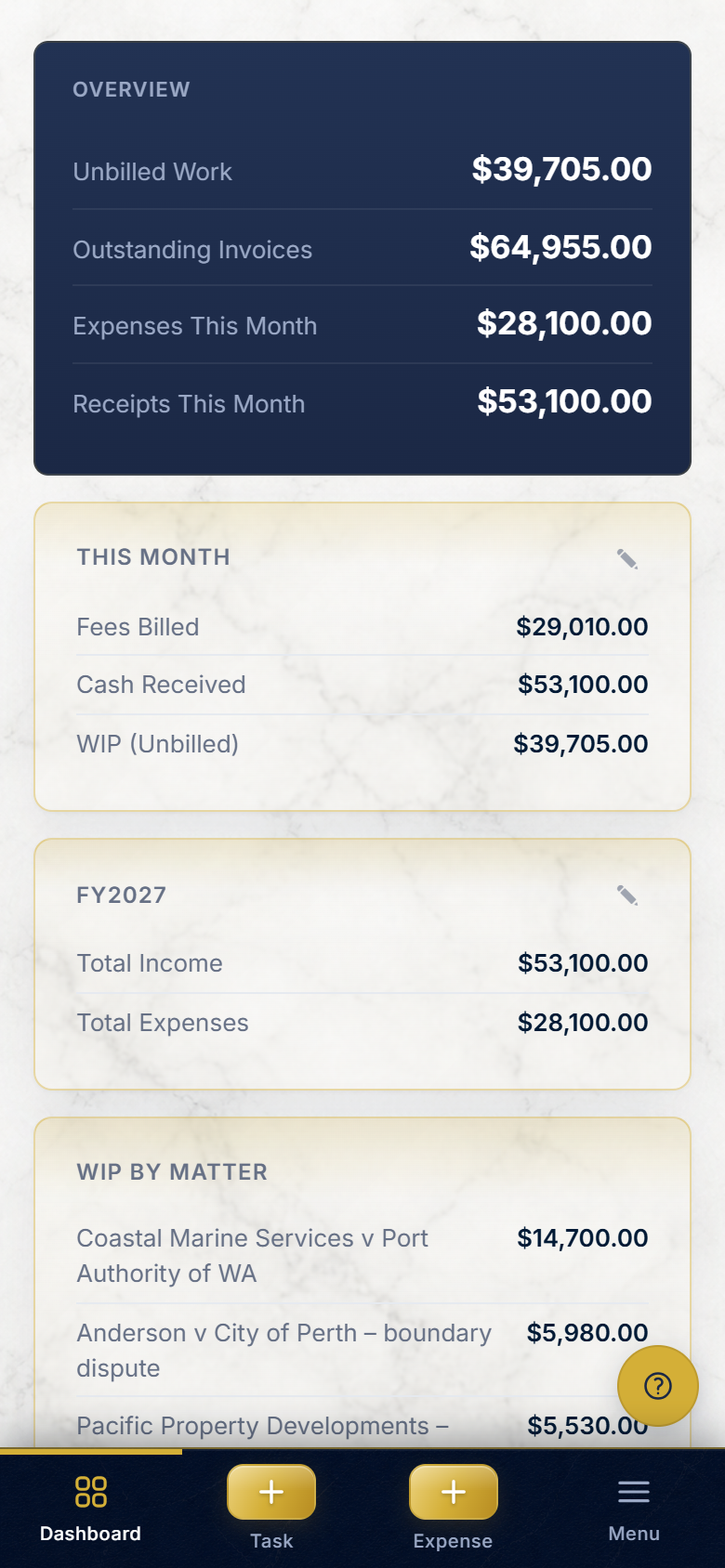
You can use it just like this, in the browser, every day. But because you will likely open it often, it is worth spending one minute adding it to your home screen, so it becomes an icon you tap once – and opens full screen without the browser's address bar in the way. The next sections show how, for iPhone and for Android.
Signing in on your phone
Open your browser, type in the LexBrief web address you were given, and press go. You will see a sign-in screen. Enter your email and password, the same ones you use on your computer, and tap Sign in.
Add to your home screen (iPhone)
Do this once, in Safari, while LexBrief is open on the screen.
- Tap the Share button. It is the square with an arrow pointing up out of it, in the bar at the bottom of Safari (or top-right on some models).
- A panel slides up. Scroll down the list of options and tap Add to Home Screen.
- You will see the name LexBrief and its icon. Tap Add in the top-right corner.
What you should see: a LexBrief icon now sits on your home screen alongside your other apps.
Add to your home screen (Android)
Do this once, in Chrome, while LexBrief is open on the screen.
- Tap the menu button – the three dots stacked in a column, in the top-right corner of Chrome.
- In the list that appears, tap Install app (on some phones it is worded Add to Home screen).
- A small box asks you to confirm. Tap Install (or Add).
What you should see: a LexBrief icon now sits on your home screen with your other apps.
Opening it from the icon
From now on, tap the LexBrief icon on your home screen. It opens full screen, without the browser's address bar, so it feels like a normal app. If it asks you to sign in, enter your email and password as usual.
The bar along the bottom
On a phone, the strip along the bottom of the screen is how you get around. It has four buttons:
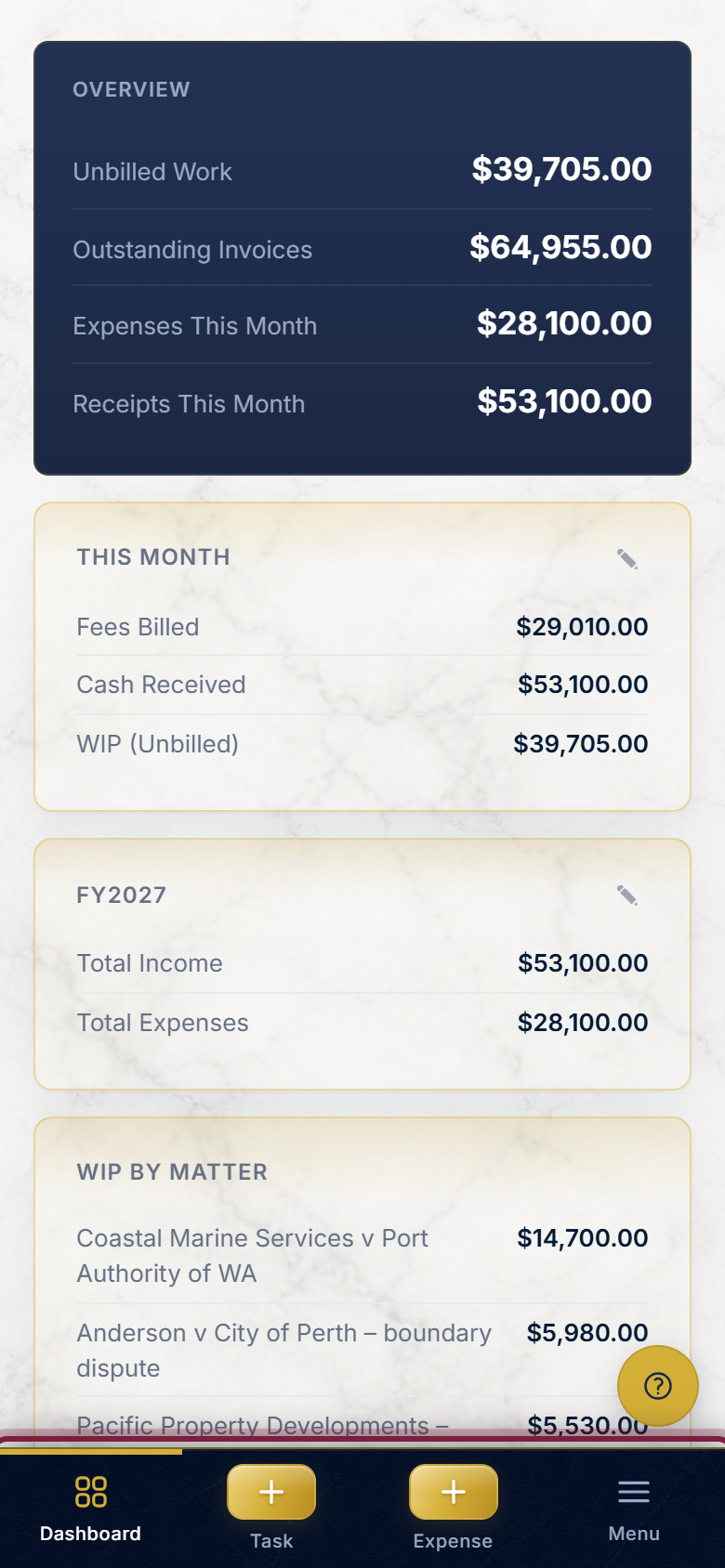
- Dashboard – takes you to your home screen (the cards of key figures).
- Task – the gold plus button that opens the quick form for noting time. This is covered below.
- Expense – the gold plus button that opens the quick form for noting a cost. Also covered below.
- Menu – opens the full list of everything else (Matters, Invoices, Contacts, Settings, and so on), the same pages you have on your computer.
So the two gold plus buttons in the middle are the quick ways to add a time entry or an expense from anywhere, and Menu is where you reach everything else.
The mobile home screen
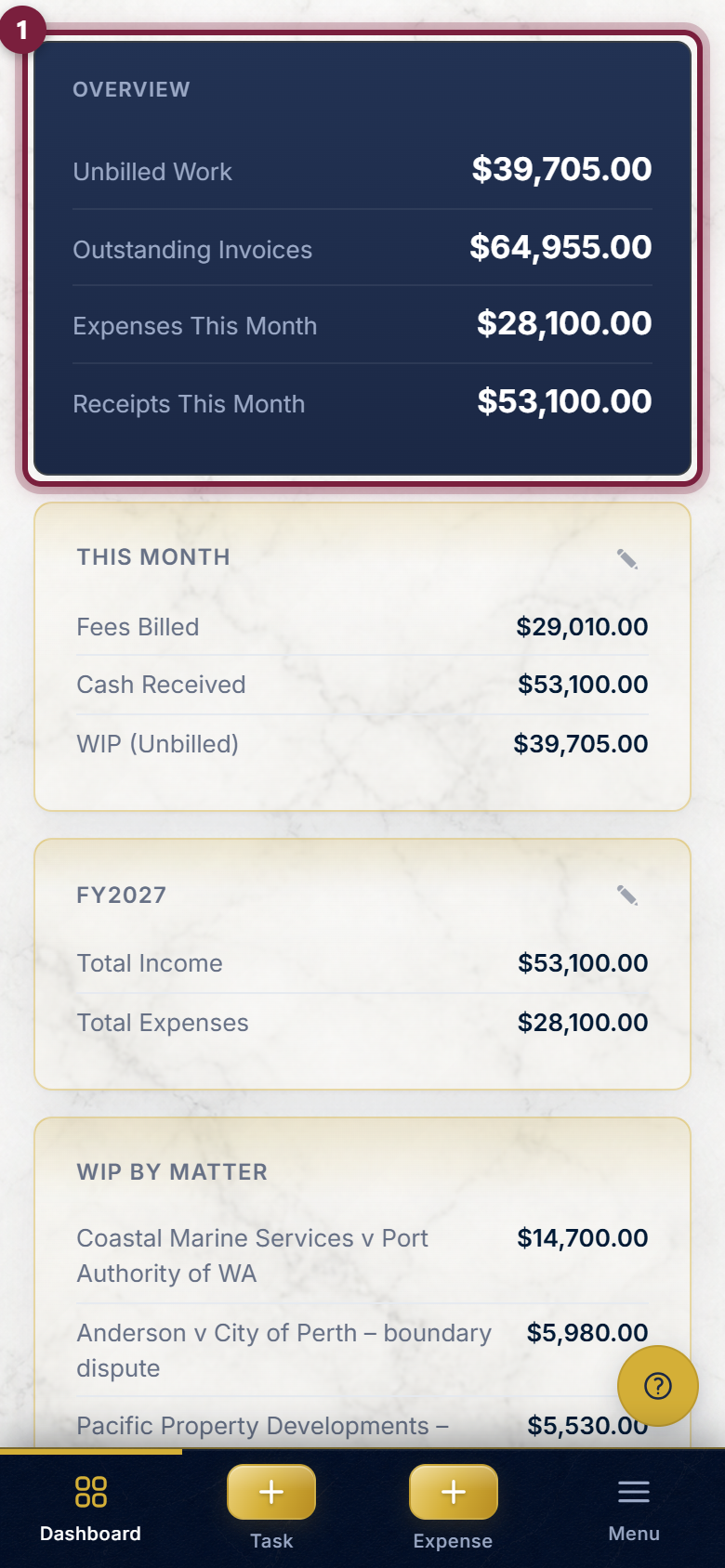
Tap Dashboard in the bottom bar. On a phone your home screen shows a set of stacked cards, each with a few key figures – your unbilled work, what clients still owe you, and what has come in and gone out this month.
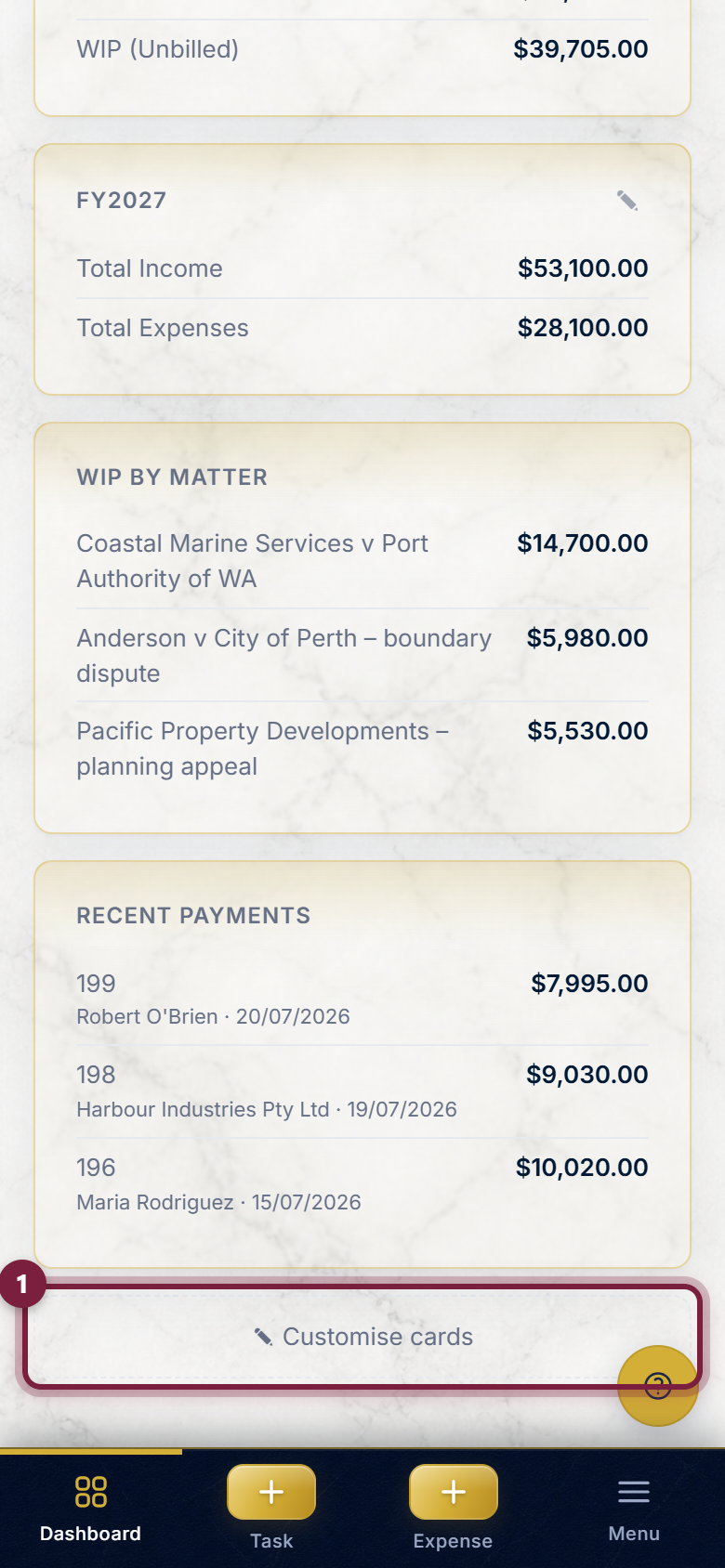
If you would like to change which cards appear here, tap the Customise cards button below them and tick the ones you want.
Quickly add a time entry
This is the quickest way to record a piece of work while you are away from your desk. Tap the gold Task button in the bottom bar. A simple form opens.
1. Choose the matter
The Matter is the file the work belongs to. Tap the Matter box and choose the right file from the list.
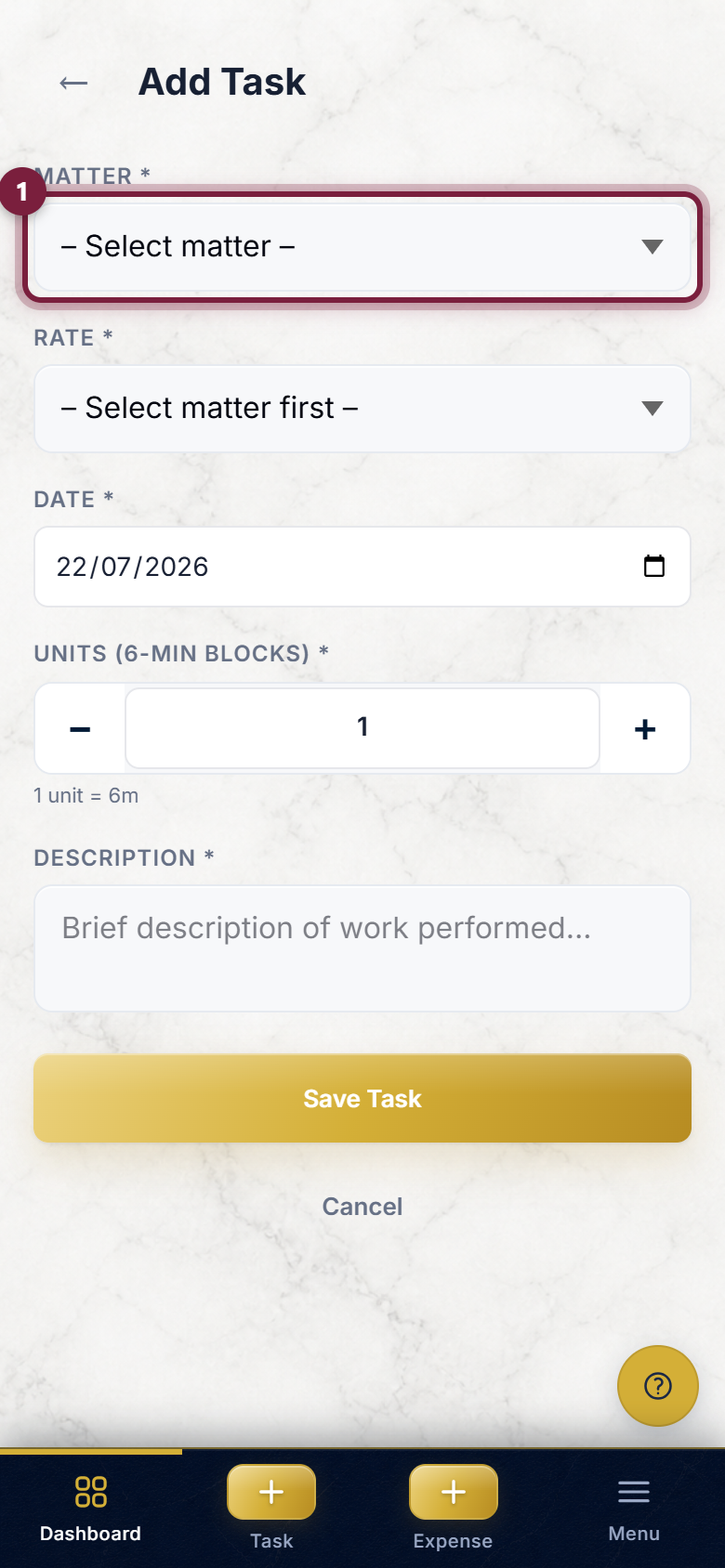
What you should see: once you pick a matter, the Rate box below it fills with the rates set up on that file. Tap it and choose which rate applies.
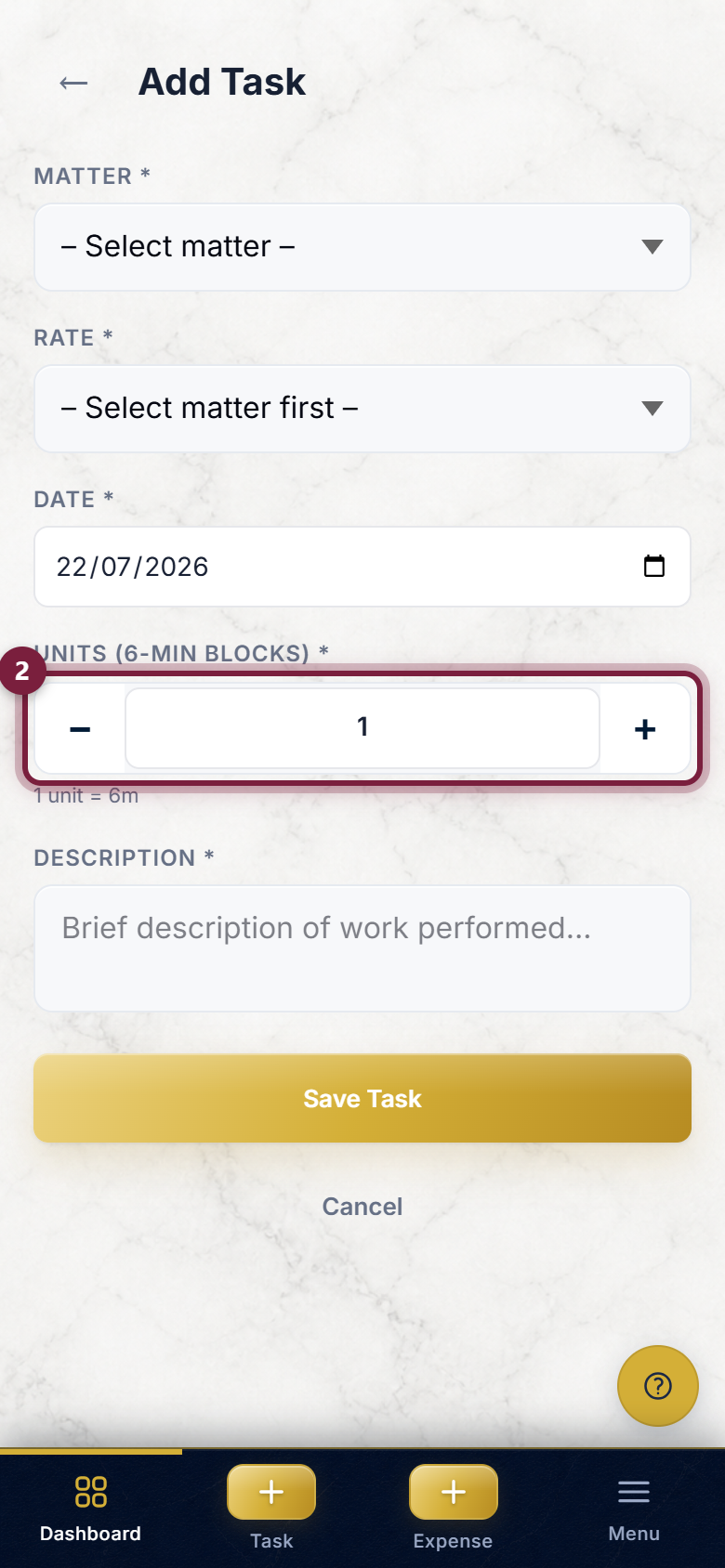
2. Set how much time
Time is counted in units, where one unit is six minutes (a tenth of an hour). Use the minus and plus buttons to set the number of units – the small line underneath tells you the total in plain minutes and hours as you go.
3. Describe the work and save
Type a short note of what you did in the Description box, then tap the gold Save Task button.
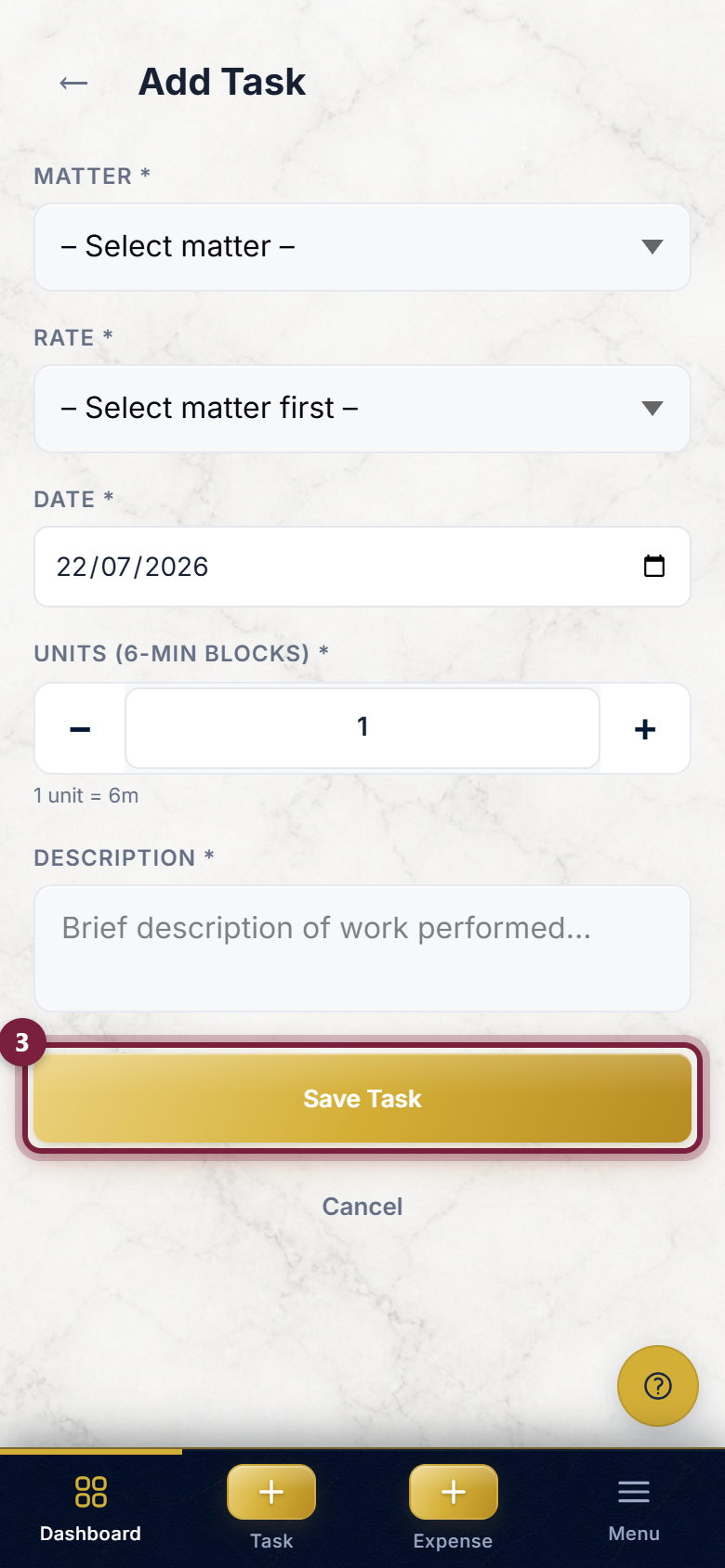
What you should see: you are taken back to your home screen with a short confirmation. The time is now recorded against that matter, and will show up in your unbilled work.
Quickly add an expense
Just as handy for noting a cost on the go – and you can photograph the receipt straight from your phone. Tap the gold Expense button in the bottom bar.
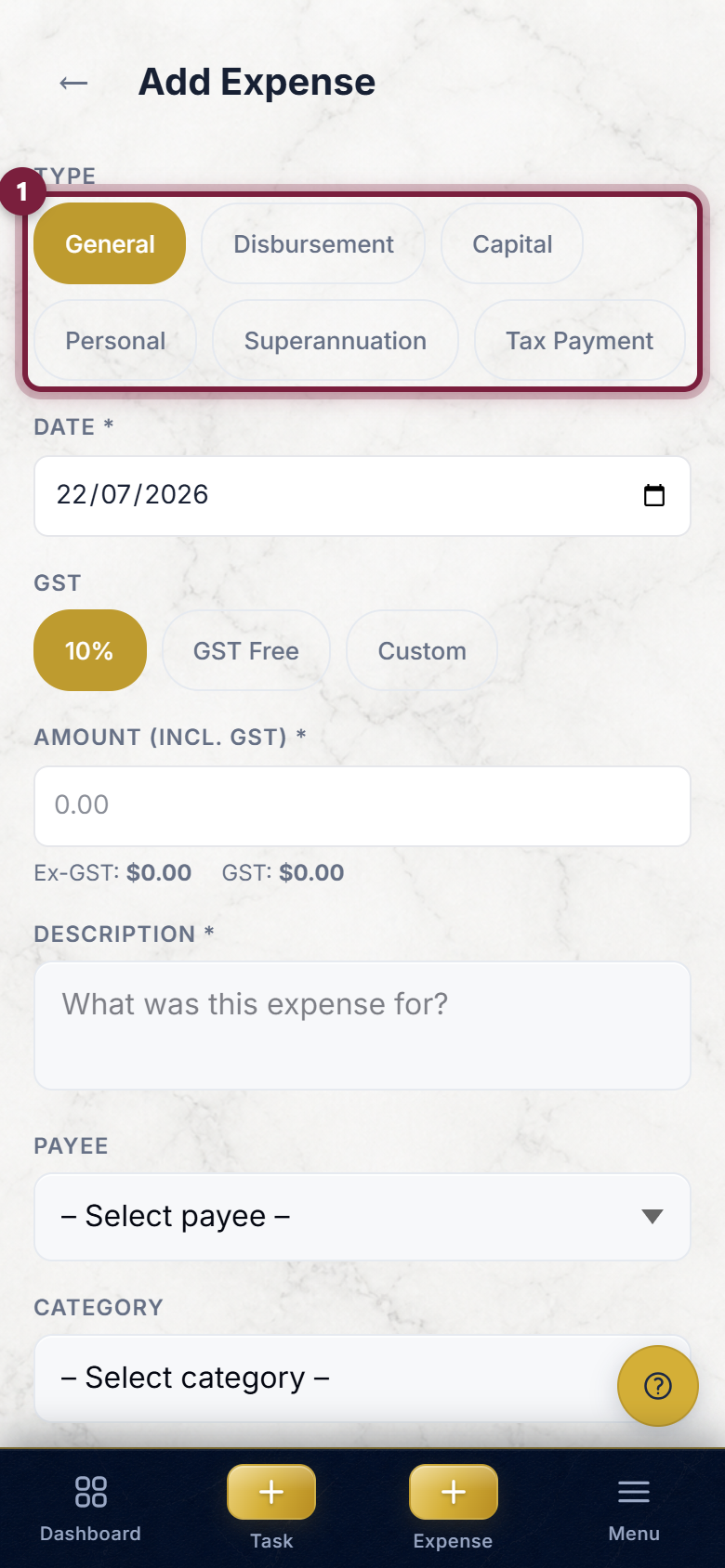
1. Choose the kind of expense
At the top is a row of choices for the Type of expense – General, Disbursement, Capital, Personal, Superannuation, or Tax Payment. Tap the one that fits. For most everyday costs, leave it on General. Choose Disbursement if the cost belongs to a particular matter and you will pass it on to the client – a matter box then appears for you to pick the file.
2. Enter the amount
Leave the GST choice on 10% for a normal expense (or tap GST Free, or Custom to type in an exact GST amount). Then type the total Amount (incl. GST) you paid. LexBrief works out the GST and shows the split just below.
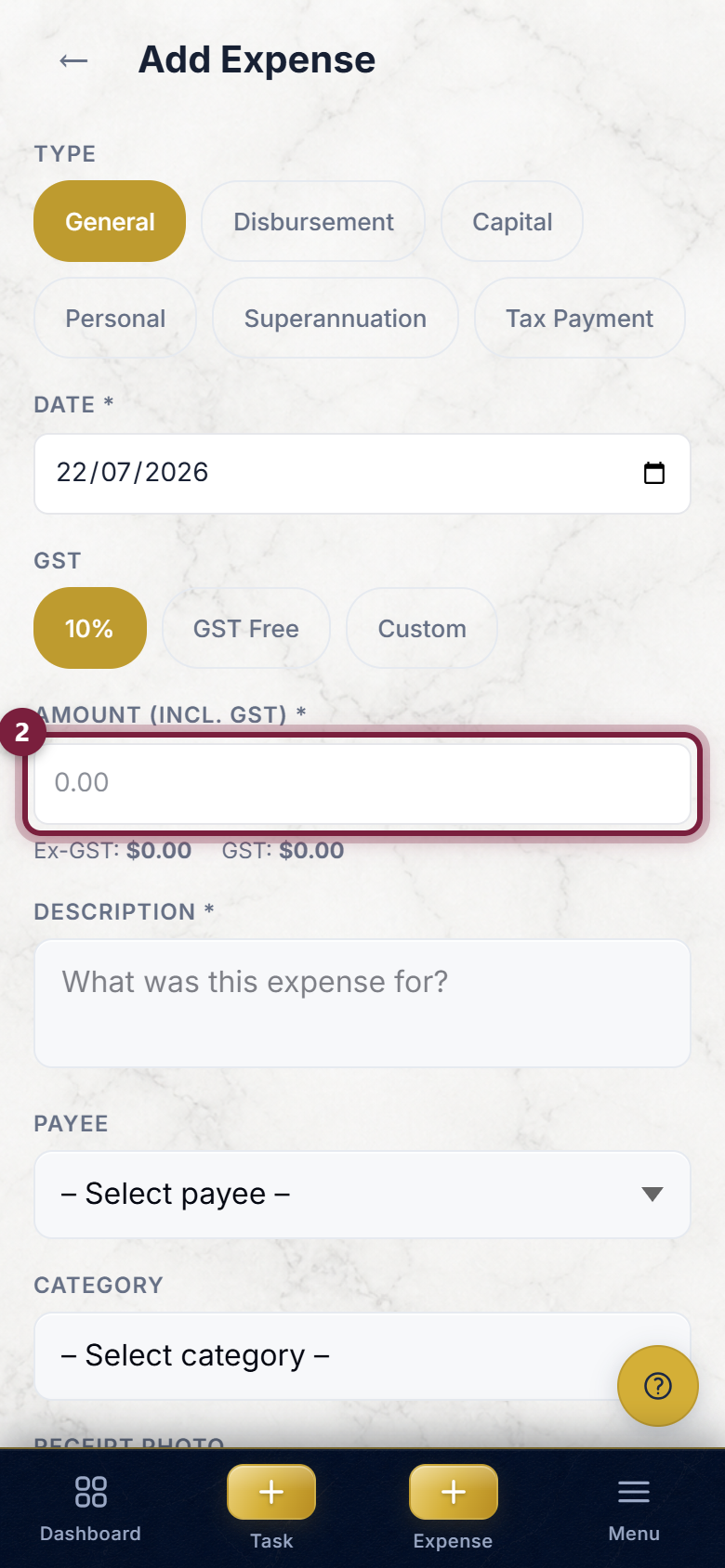
3. Photograph the receipt (optional)
Fill in a short Description, and choose a Payee and Category if you like. To keep the receipt, tap the Receipt Photo area – your phone offers to take a photo, choose one from your gallery, or attach a file.
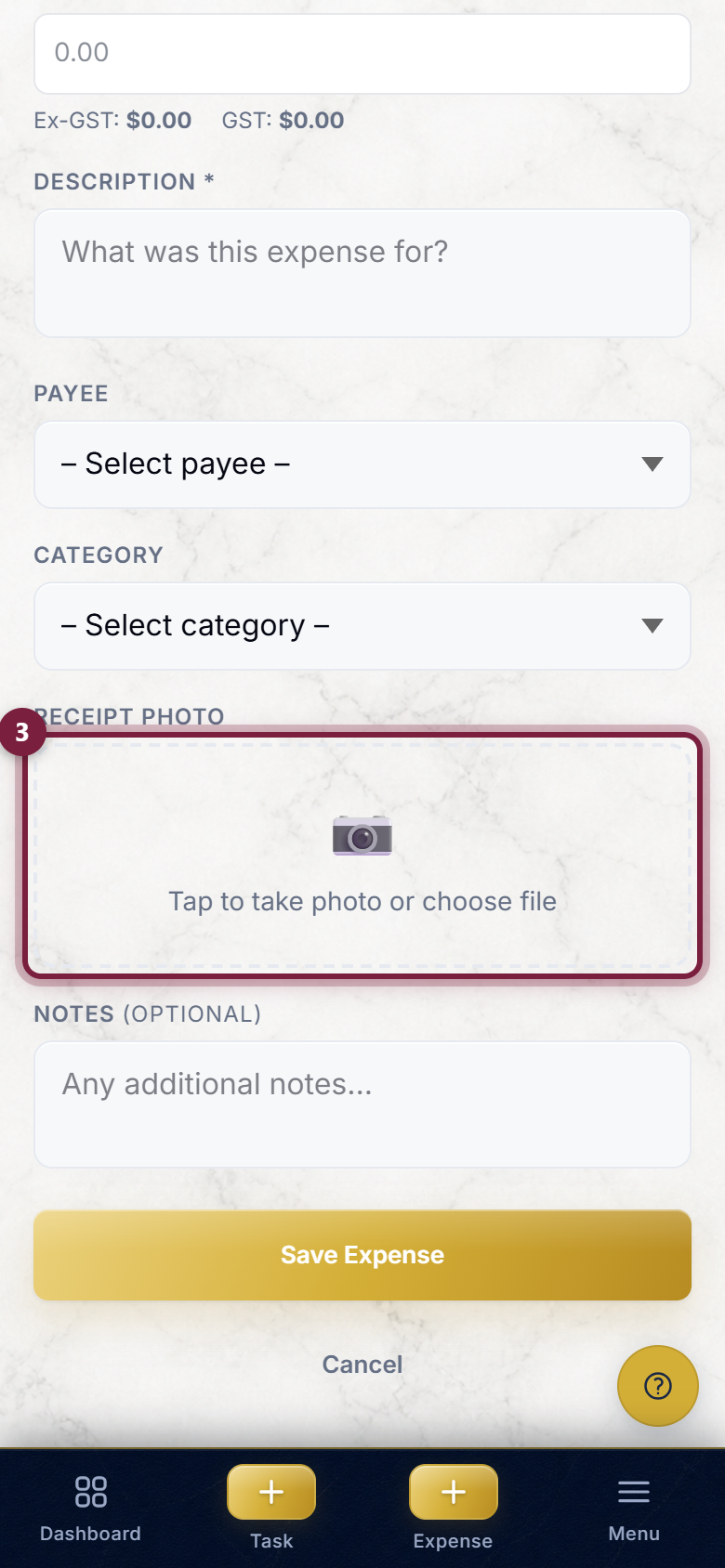
When you are done, tap the gold Save Expense button at the bottom.
What you should see: you are taken back to your home screen with a short confirmation, and the expense is recorded.
Everything else
Everything you can do on your computer, you can do on your phone – the screens are simply narrower and stacked to fit. To reach any other part of LexBrief, tap Menu in the bottom bar and choose the page you want: Matters, Invoices, Contacts, Reports, Settings, and the rest. They behave exactly as the guides for those features describe.
What next
The quick-add forms feed straight into the same records you manage on your computer, so the deep guides apply on your phone too:
- Recording time – timers and the fuller way to record and edit time entries.
- Expenses – the kinds of expense, disbursements, and receipts explained in full.
- Dashboard – reading the figures your quick entries move.
- Browse all help guides
Stuck on anything at all? Email support@lexbrief.au – a real person reads it, usually the same working day.