

Is this switched on for you?
This is switched on one workspace at a time, and it is not generally available. Unlike Dropbox, you cannot set this one up on your own. Each practitioner needs their own application registration inside their chambers Microsoft tenant before Brief is allowed to act on their behalf, and that is arranged between us and your chambers IT contact. It is done once per person.
So check this first. Open Settings from the menu down the left-hand side and click the Integrations section. If there is no Microsoft 365 tab there, the feature has not been enabled for your workspace yet. That is not a bug and there is nothing on your screen that will fix it – nothing in the rest of this guide will work until the registration exists. Email support@lexbrief.au and we will tell you what is involved for your chambers.
If the tab is there but the card says Not configured, the registration is part-done at our end. Send us the wording shown on the card and we will finish it.
What it does
Connecting your Microsoft account unlocks four things, each of which you trigger yourself:
- Email an invoice from your own chambers mailbox, with the invoice PDF attached and your covering wording already filled in.
- File a copy of the invoice you emailed into a folder in your OneDrive, sorted into a financial-year, quarter and month tree.
- Give each new matter its own OneDrive folder, with the matter's establishment documents filed into an Establishment Documentation folder inside it.
- Email those establishment documents to the instructing solicitor or the client when you open the matter.
It also does one thing in the other direction. If you link a matter to a folder in your OneDrive, Brief quietly records milestone versions of the documents it finds there, so you have a dated history of your own drafts. That is read-only: Brief never renames, moves, changes or deletes anything in your OneDrive.
Nothing happens on a timer except that read-only version check. No email is ever sent without you pressing Send, and every filed copy comes from a switch you can turn off before you act.
What Brief can and cannot reach
The connection is delegated. It acts only as you, on your own mailbox, your own OneDrive and your own calendar. It cannot see or touch another chambers member's mail or files, and no future change to Brief would alter that, because the limit is set by Microsoft rather than by us.
The permissions Brief asks for are:
- Send mail as you – the invoice and establishment-document emails.
- Read your mail – read-only, and deliberately so. Brief is never given permission to modify, move or delete a message, so it cannot alter your mailbox or tidy anything out of your Sent Items.
- Read and write your own files – the OneDrive folders you nominate.
- Read and write your own calendar.
Some of those support features you may not have switched on. A permission being granted does not switch a feature on; each capability has its own separate control, and where one is off the connection simply is not used for it.
This has nothing to do with Brief's AI features. Those are entirely separate, switched on separately, and off unless you have asked for them. Connecting Microsoft 365 does not enable any of them and does not send anything to an AI service.
Before you start
- Your chambers Microsoft account – the one you use for Outlook. Not a personal Microsoft account.
- A Microsoft 365 tab under Settings › Integrations. See above if it is not there.
- Somewhere to put things. Decide now which folder in your OneDrive your matters should live under, and which folder your invoices should live under. They can be the same folder or different ones. Create them in OneDrive first if they do not exist, because Brief will not let you pick the very top of your drive.
- About fifteen minutes, most of which is the folder-choosing.
Step 1: connect your Microsoft account
- Sign in to Brief as you normally do, with your usual password and authenticator code. Nothing about signing in changes.
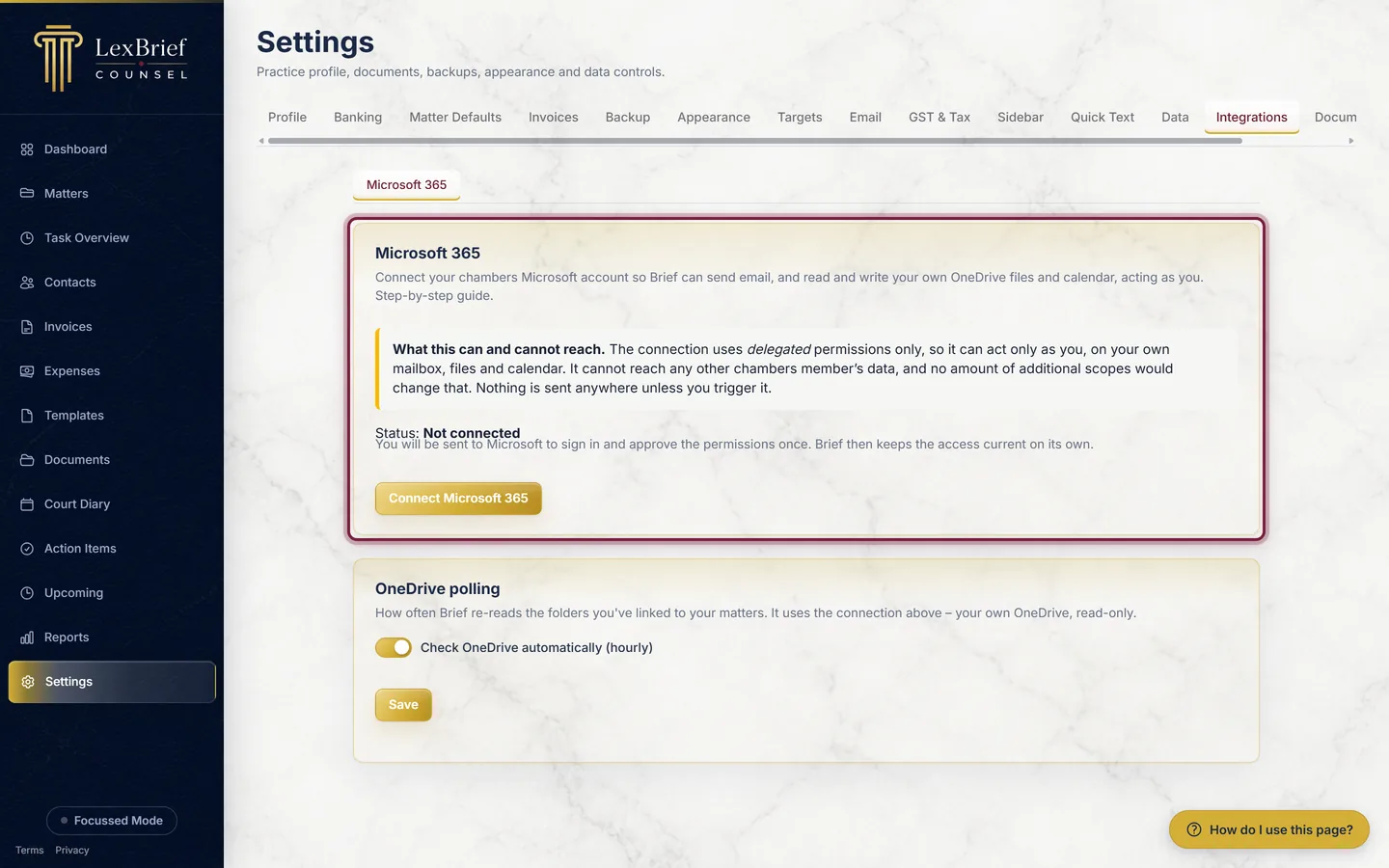
- Open Settings from the menu down the left-hand side, click the Integrations section, then the Microsoft 365 tab.
- The card should read Status: Not connected. Click Connect Microsoft 365.
-
Brief hands you to Microsoft's own sign-in page. Sign in with your chambers account. Microsoft asks which account to use even if you are already signed in elsewhere, so pick deliberately.
-
Microsoft may then show a screen listing what Brief is asking for, which is the list under what Brief can and cannot reach. Approve it. If your chambers IT has already approved those permissions centrally, you will not see that screen at all, and that is normal rather than a step you missed.
- Microsoft returns you to Brief. The card should now read Connected ✓ followed by your chambers email address, and the date you signed in.
Microsoft's sign-in and consent screens are not pictured here on purpose. They are Microsoft's pages, not ours, and they change without notice – a screenshot of them would be out of date before it was useful.
If sign-in fails, two messages are worth telling apart. Not configured means something is missing at our end, so send us the wording and we will fix it. A Microsoft error mentioning AADSTS50011 means the return address registered with Microsoft does not match your workspace exactly; that is one for us and your chambers IT contact between us, and retrying will not help. Anything else – a refused password, a request for an authenticator code – is ordinary Microsoft sign-in behaving as it does anywhere else.
Step 2: choose your two OneDrive folders
Connecting tells Brief it may write to your OneDrive. It still does not know where. There are two separate destinations to nominate, because matters file by name and invoices file by date, and one folder cannot sensibly serve both. Mapping one does not map the other.
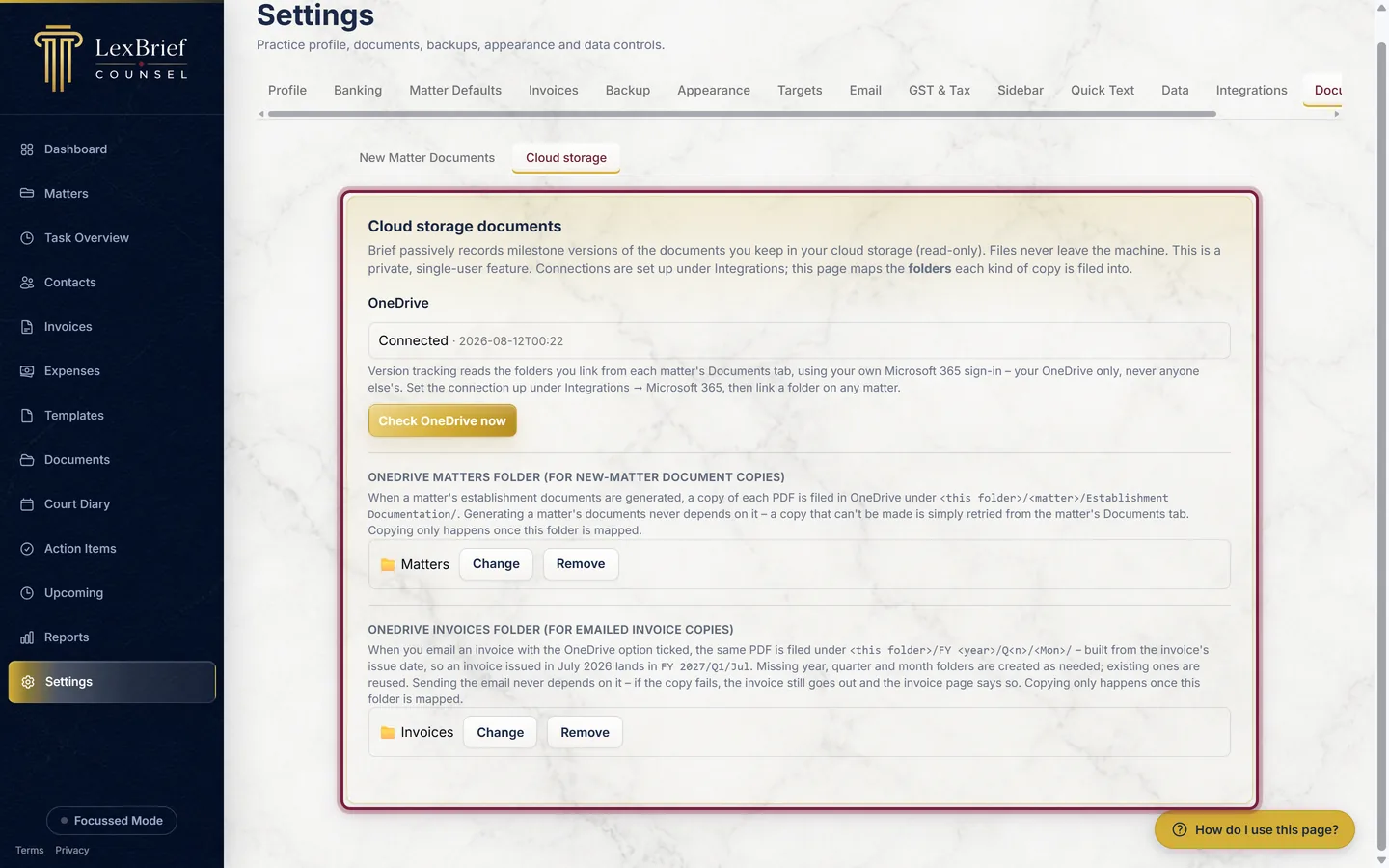
- Still in Settings, click the Documents section, then the Cloud storage tab.
- Find the OneDrive block. It shows the connection status and, beneath it, the two folder settings.
- Under OneDrive Matters folder, click Choose a folder….
- A picker opens listing the folders in your OneDrive. Click a folder name to go into it, use ← Up to come back out, and when you are inside the folder you want, click the button at the foot of the picker that reads Use "…" as the Matters root.
- Do the same under OneDrive Invoices folder.
The picker itself is not pictured. It reads your live OneDrive as you click, so any screenshot of it would either be empty or would be somebody else's folder names.
Three things about it are worth knowing. It lists folders only, never file names, so a folder that looks empty may well be full of documents. You cannot choose the very top of your OneDrive – you must go into a folder first, which is deliberate, so Brief can never scatter folders across the root of your drive. And if you later rename or move a chosen folder within OneDrive, nothing breaks: Brief follows the folder itself rather than its name.
Once a folder is mapped, the setting shows its name with Change and Remove buttons beside it. There is also a Check OneDrive now button on the block, which re-tests the connection there and then.
What lands where
- Matters folder. Each new matter gets its own folder here, named after the matter, with the establishment documents filed inside an Establishment Documentation subfolder.
- Invoices folder. Emailed invoice copies are filed underneath it in a financial-year, quarter and month tree built from the invoice's issue date. An invoice issued in July 2026 lands in
FY 2027 / Q1 / Jul. Missing folders are created as needed and existing ones are reused, never duplicated. Filing the same invoice twice replaces the copy rather than leaving you with "invoice (1).pdf".
Emailing an invoice
Open an issued invoice and click Email invoice. A draft cannot be sent: the button is there on a draft, but it explains itself rather than opening the compose screen, because a draft carries no invoice number, its tasks are still editable, and issuing it afterwards produces a different document. Issue it first.
The compose screen fills in the recipient from the matter, the subject and covering wording from your saved template, and attaches the invoice PDF. Edit anything you like; the edits apply to that one message. Nothing sends until you press Send.
Beneath the message is an Add to OneDrive option, ticked by default, which files the same PDF into your Invoices folder. Leave it on. If a cloud is not ready to file, its option is shown disabled with the reason printed beside it rather than quietly hidden.
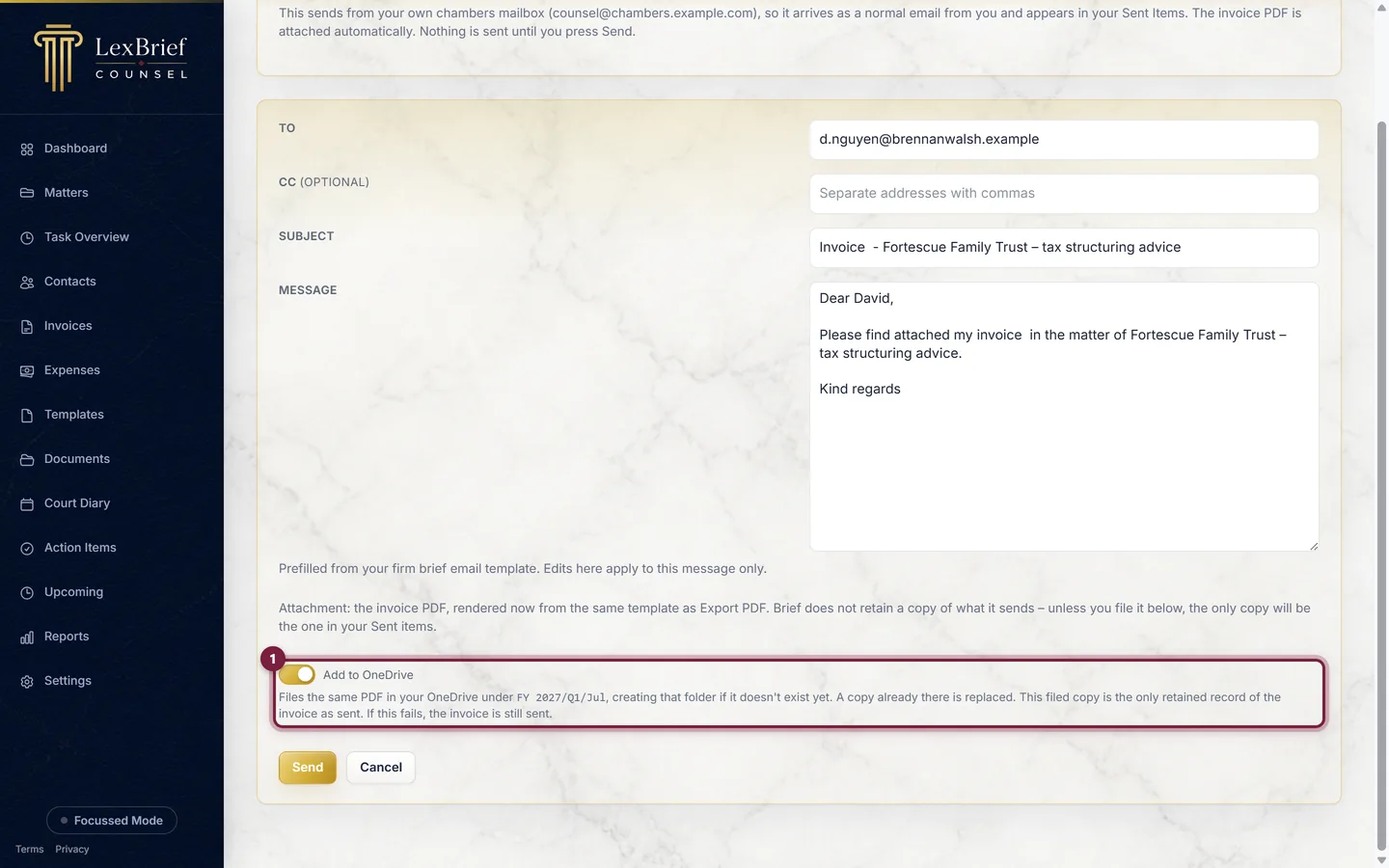
The email leaves from your own mailbox and appears in your Outlook Sent Items, exactly as if you had written it there. Filing happens after the email has gone, from the very bytes that were attached, so a filing problem can never stop or undo an invoice reaching the client. If the copy fails, the invoice page says so plainly.
If you have both OneDrive and Dropbox connected, you get an option for each and copies go to both. There is no "which one is active" setting, and each reports its own result, so you may see a success for one and a warning for the other.
One thing worth knowing about invoices. Brief does not keep a copy of the invoice PDF it sends. It builds the document at the moment you press Send, attaches it, and discards it. So the filed OneDrive copy, together with the one in your Sent Items, is your record of the invoice exactly as the client received it. It also means that if you later change your invoice template, re-opening an old invoice in Brief shows it in the new template rather than as it was sent. Leaving Add to OneDrive ticked is what keeps a faithful record. See Invoices.
Opening a new matter
The new-matter form carries a short set of follow-on options near the bottom, all ticked by default. The same options appear on the confirmation screen if you create a matter from an email.
- Generate establishment documents now – produces the costs agreement, costs disclosure and any other required documents from your templates as soon as you save the matter.
- Create a OneDrive folder for this matter – makes the matter's folder under your Matters root and links it to the matter's Documents tab.
- Email the documents when the matter is created – takes you straight to a covering email with those documents attached and the wording filled in. As always, nothing sends until you press Send.
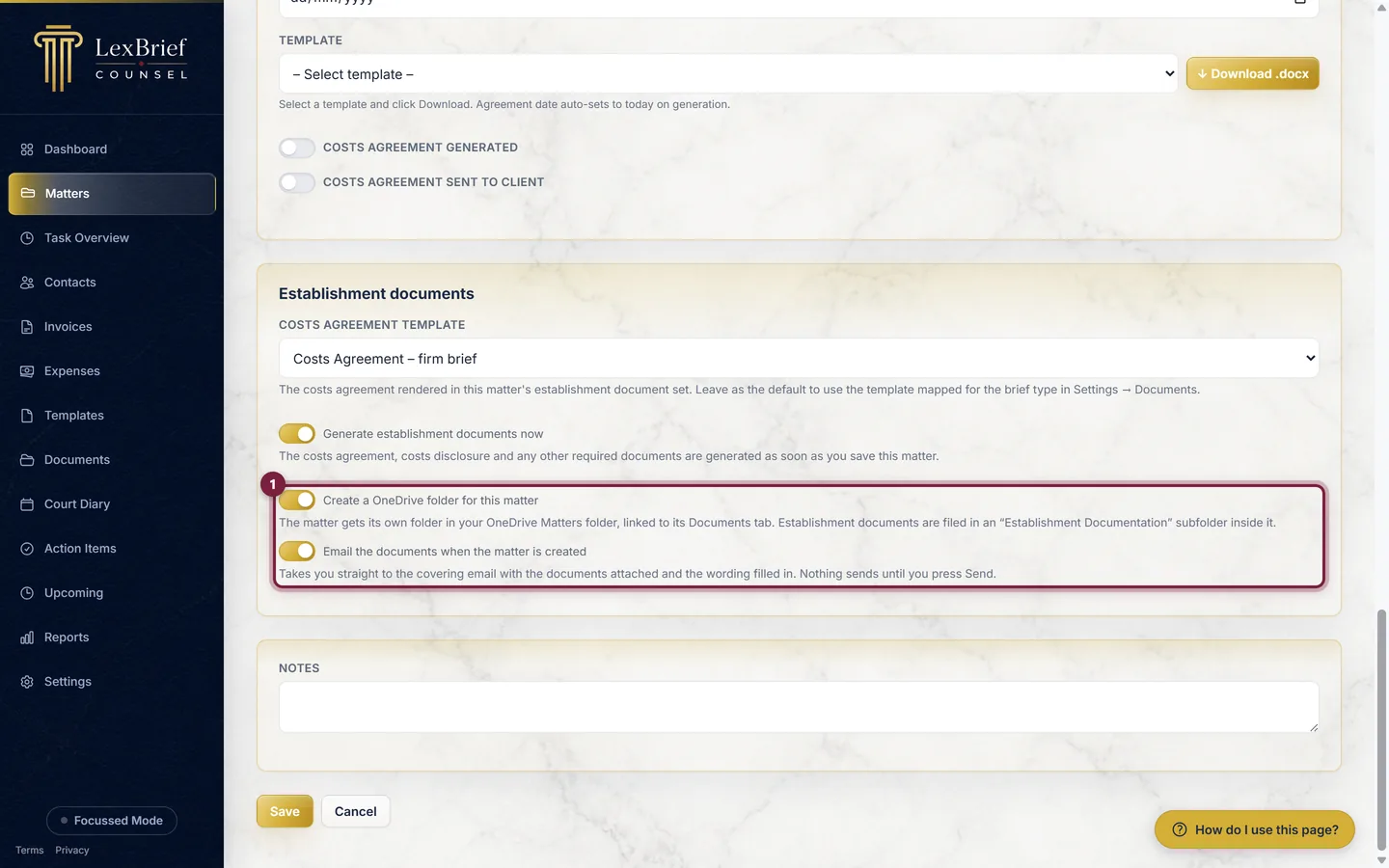
Untick any of them for a particular matter and it simply does not happen. If one is greyed out, the reason is printed next to it rather than left for you to guess – that is the point of showing it disabled instead of hiding it.
Linking a folder to a matter
Separately from the Matters root above, you can point an individual matter at the folder where you already keep that matter's working papers. Open the matter, click its Documents tab, find the cloud folders card and click Choose OneDrive folder. The same folders-only picker opens.
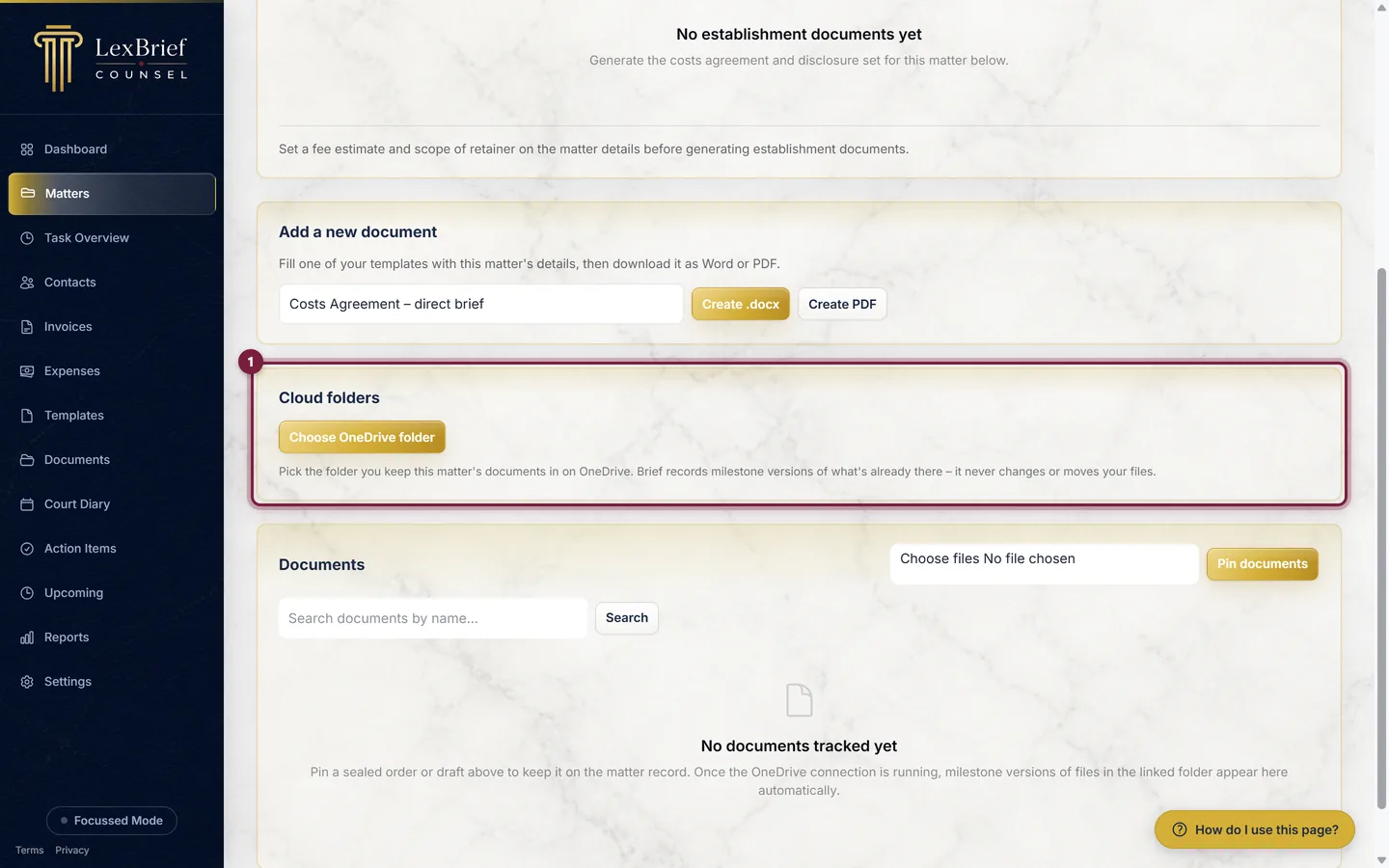
Once linked, Brief records milestone versions of the documents it finds there, so you have a history of how a document changed. There is a Check now button if you do not want to wait for the automatic check, and Unlink to stop. Automatic checking is hourly and can be turned off under Settings › Integrations › Microsoft 365, on the OneDrive polling card. This is read-only throughout: Brief reads that folder and writes nothing to it.
Your standard covering wording
Worth ten minutes once. Open Settings and click the Email section. There you set the subject line and covering message Brief uses for invoice emails, and separately for establishment-document emails.
Each has its own wording for a firm brief and for a direct brief, because one is addressed to the instructing solicitor and the other to the client, and they read quite differently. A Placeholders tab lists what you can drop into the wording – the matter description, the invoice number, the solicitor's name and so on – and each box shows the built-in wording that is used if you leave it empty.
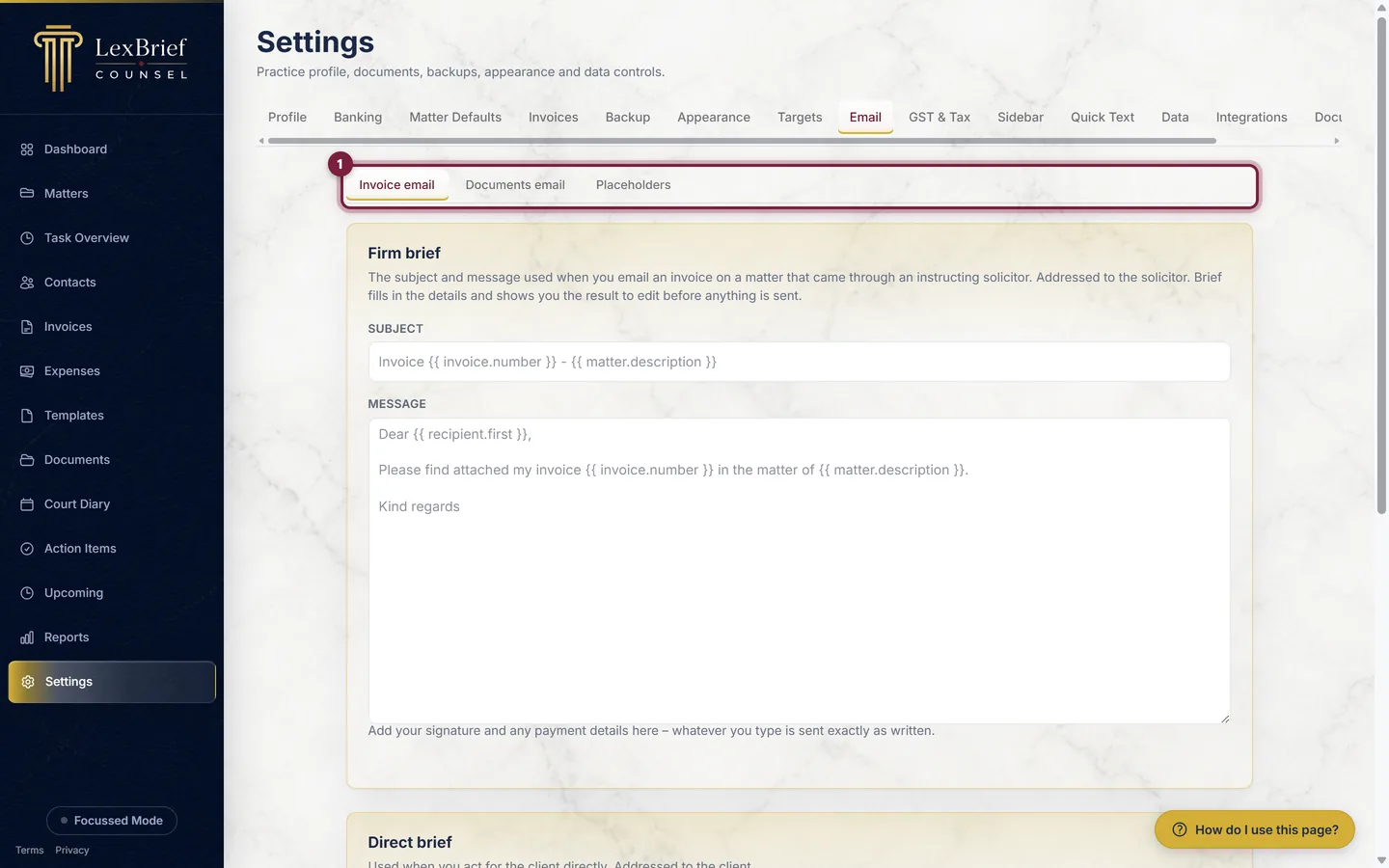
Whatever you type is sent exactly as written, so this is the place to put your signature and any payment details.
If something goes wrong
Brief does not hide a feature that is unavailable. It shows it, switched off, with the reason attached, so the wording on screen is the first place to look. The common ones:
- "Microsoft 365 is not connected yet." Step 1 has not been done, or the connection was removed. Go back to Settings › Integrations › Microsoft 365 and press Connect.
- "The Microsoft 365 connection does not yet include OneDrive file access. Reconnect to consent to it." You are signed in, but the file permission was not granted. Press Sign in again on the Microsoft 365 card and approve it when asked. The cloud storage settings show the same state as Awaiting OneDrive permission.
- "The connected account has not granted permission to send mail." The sending permission has not been consented to at the chambers end. This one needs your chambers IT contact rather than anything you can do in Brief.
- "No OneDrive Matters folder is mapped in Settings yet." You are connected but have not done step 2 for that root. Nothing is broken; Brief simply does not know where to put the folder.
- "No OneDrive Invoices folder is mapped in Settings yet." The same, for invoices. Invoices will still email perfectly well; only the filed copy is unavailable.
- "Microsoft 365 is not configured for this workspace." Something is missing at our end rather than yours. Send the wording shown to support@lexbrief.au.
- "Invoice is still in draft." Issue the invoice, then email it.
- A last problem line on the Microsoft 365 card. Brief records the most recent failure there. A connection can also lapse from the Microsoft side – consent withdrawn, sessions revoked, or a chambers sign-in policy forcing re-authentication – and all three mean the same thing to you: press Sign in again.
Attachments have a size limit. A very large set of establishment documents is refused before anything is sent, with the offending files named, and you are kept on the compose screen with your edits intact so you can untick something and try again.
Disconnecting
The Microsoft 365 card has two controls once you are connected. Sign in again repeats step 1, which is what to reach for after a permission change or a lapsed connection. Disconnect makes Brief forget the stored connection, after asking you to confirm.
Disconnecting is local to Brief. It removes the stored access from this machine only; it does not withdraw the permission at the chambers end. To do that as well, the app's consent has to be removed in Microsoft Entra, which is a job for your chambers IT contact. If you have any reason to think the connection has been misused, ask for both.
What next
- Matters – creating a matter, and the switch that makes its folder.
- Establishment documents – what gets generated and filed into that folder.
- Invoices – issuing an invoice, sending it, and filing its PDF.
- Setting up Dropbox – the same filing, into a Dropbox you connect yourself.
Anything that does not behave as described here is worth a message to support@lexbrief.au rather than a second attempt. Brief is written to say what is wrong rather than fail silently, so quoting the wording on screen is usually enough for us to find it straight away.