

Nothing here needs setting up. Quick Text is already working the next time you type a task description – this guide is for when you want to know why the little list appeared, or you want to make it your own. If at any point your screen does not look like the description, stop and email support@lexbrief.au – we would rather help than have you guess.
What Quick Text is
Quick Text is five separate lists of stock phrases, one for each place in LexBrief where you write a short line of your own words. Click into one of those boxes and the whole list drops down beneath it. Type a few letters and the list narrows to the entries containing them. Click the one you want, and it goes into the box.
That is the whole feature. It suggests, it never decides: the box stays an ordinary box you can type anything into, and if you ignore the list entirely nothing changes.
The lists are yours and they are private to your own LexBrief. You can add to them, reword them, and delete anything you do not want – including the entries we shipped.
Where it appears
There are five lists, and each one belongs to a particular box:
- Task – the Description box on the task form that opens over the matter page when you click New task, and the same box on the mobile quick-add task form. See Matters.
- Timer – the Description box in a timer’s details panel on the Timers page, on a computer and on a phone alike. See Recording time.
- File note – the Title box when you add a file note to a matter. See File notes.
- Diary entry – the Description box when you add or edit a key date on a matter. See Court diary.
- Action item – the What needs doing? box on the New action item form you reach from the Action Items page. See Action items.
Two places where you might expect the list and will not find it. When you add an action item from inside a matter, rather than from the Action Items page, that form has no suggestions on it. And when you edit an existing file note, the Title box still offers you the list but the Save as quick text link described below is not there. Neither is a fault; they are simply not wired up.
The lists are kept apart on purpose. What you want to write on a court date is not what you want to write on a fee task, so narrowing the Diary entry list never shows you a task phrase.
Using it as you type
- Click into the box. The whole list appears beneath it straight away, before you have typed anything. That is worth doing once for each of the five boxes, just to see what is in there.
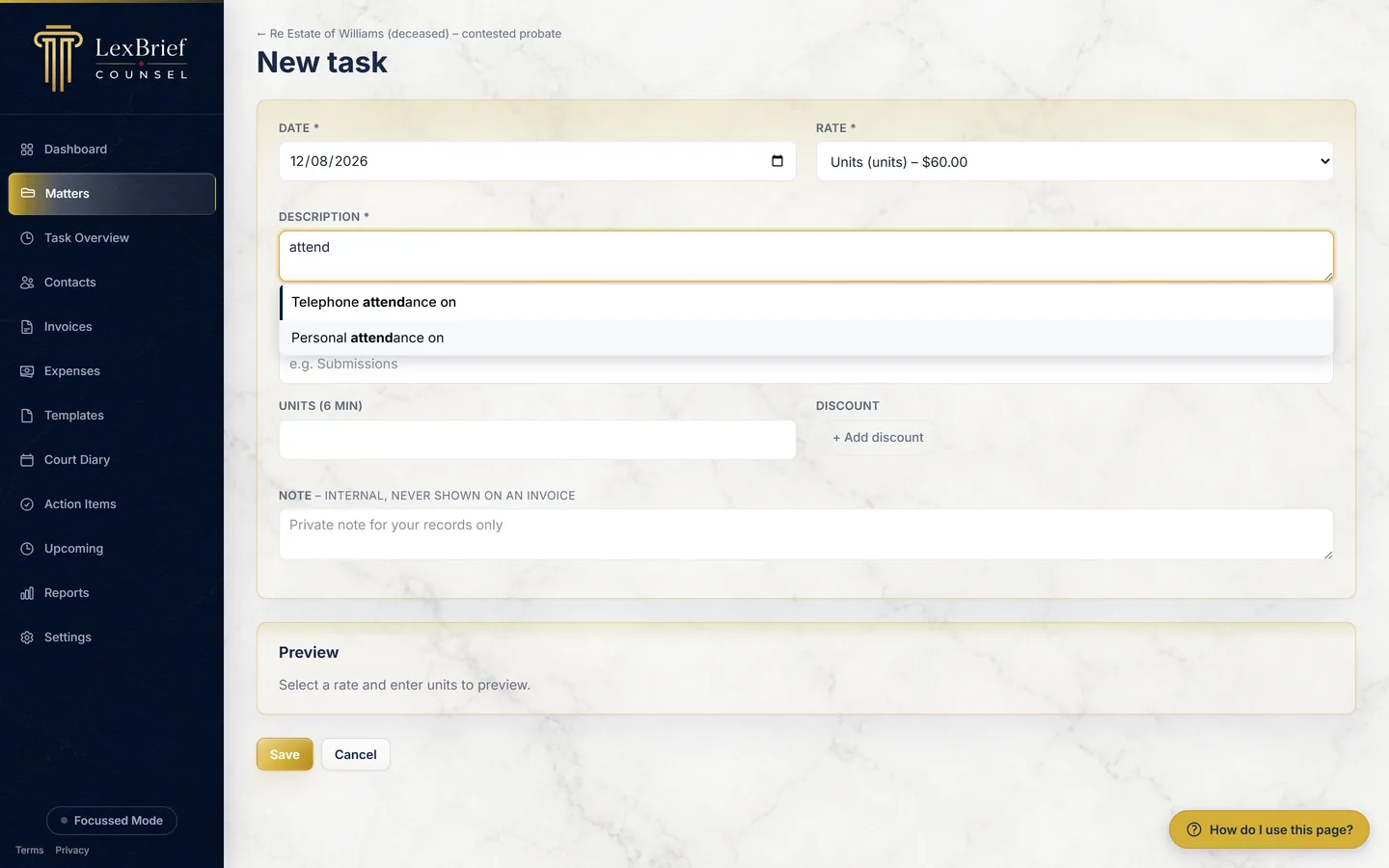
- Start typing to narrow it. The list keeps only the entries that contain what you typed. The match can be anywhere in the entry, not just at the start – so typing
attendfinds both Telephone attendance on and Personal attendance on. Capital letters make no difference. The letters you matched are shown in bold in each entry, so you can see why it survived. - Pick one. Click it with the mouse, or use the up and down arrow keys to move the highlight and press Enter. The cursor is left at the end of the text, ready for you to carry on typing the specifics.
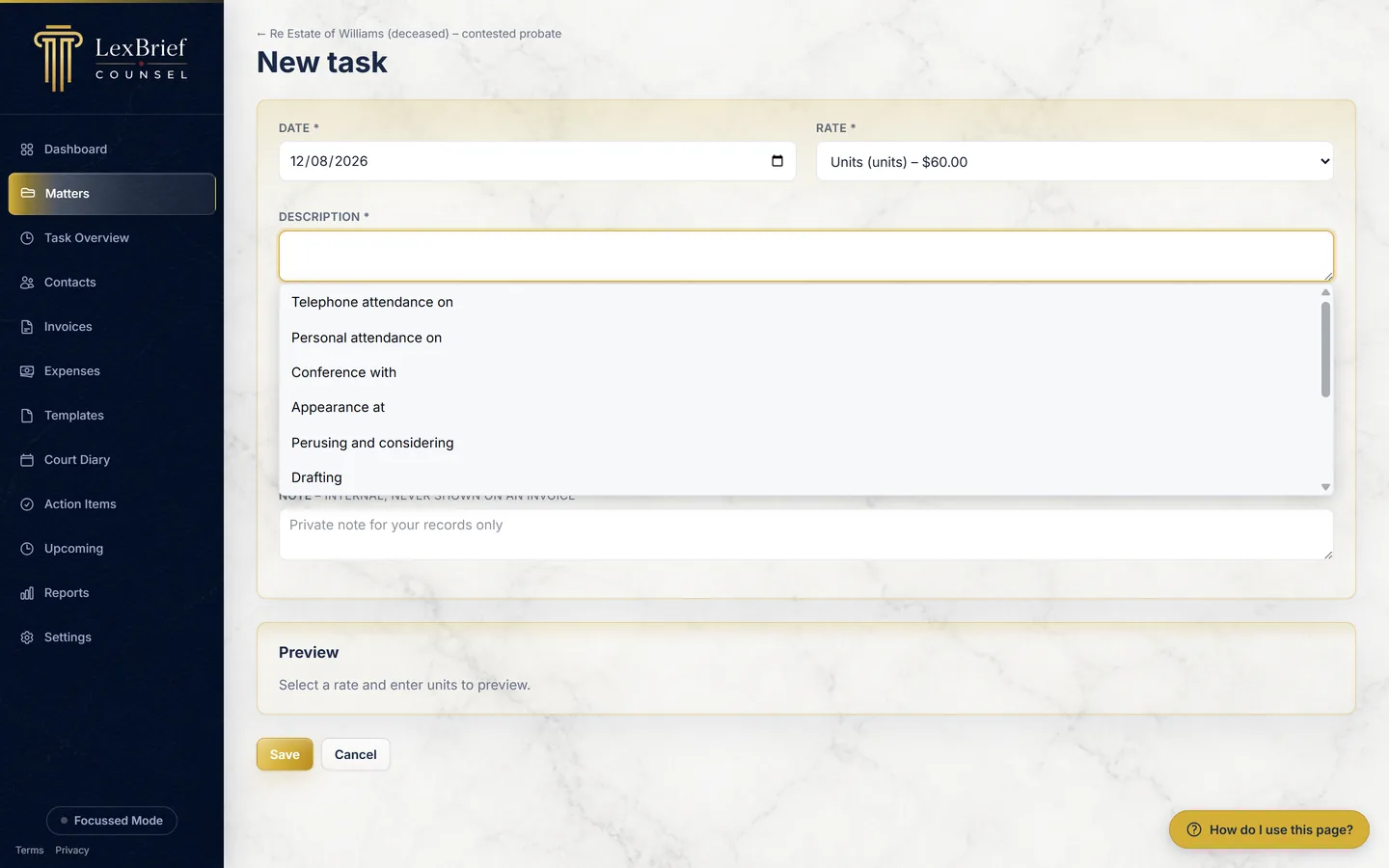
Picking an entry replaces whatever was in the box. That is why the sensible order is to pick first and type afterwards – if you type half a sentence and then pick a phrase, your half-sentence is gone. Many of the starter entries end with a deliberate trailing space for exactly this reason, so you can pick Conference with and simply keep typing.
Two keys to know. Enter only picks something when the list is open and an entry is highlighted; otherwise it does what it always did, so a description box that runs to several lines still takes a new line, and a one-line box still submits the form. Escape closes the list and nothing else – on the task form, which slides in over the page, that means dismissing the suggestions does not throw away the form you were filling in.
If a list is empty, nothing appears. That is the only reason the box would stay bare when you click into it.
Saving a phrase you have just typed
You usually notice that you write something often while you are writing it, not while you are sitting in Settings. So underneath most of these boxes there is a small link reading Save as quick text. Type the phrase, click the link, and it is added to that box’s list there and then. The link briefly reads Saving… and then Saved to quick text, and goes back to normal after a couple of seconds.
Two things it does quietly and well. If the same phrase is already in that list it is not added twice, so clicking the link on a habit you have already saved does no harm. And it saves the phrase exactly as it stands in the box, so if you have already typed the specifics into it, trim them off first – you want Telephone attendance on, not Telephone attendance on the plaintiff’s solicitor about discovery.
The link adds to that one list only. Copying a phrase between the Task and Timer lists is done in Settings – see below.
Editing your lists in Settings
Open Settings from the menu down the left-hand side, then click the Quick Text tab. Across the top of that panel are five sub-tabs, one per list: Task, Timer, File note, Diary entry and Action item. Click one to work on that list. Saving anything brings you straight back to the same sub-tab.
To add an entry, type it into the Add an entry box at the top and click Add. Trailing spaces are kept, so ending an entry with a space lets you carry straight on typing when you pick it later.
To reword an entry, edit it in place in the list below and click the Save button on its row. Each row is its own little form, so you can change one entry without disturbing the rest.
The entries appear in a fixed order that you cannot drag about. New ones take their place in the list rather than always going to the bottom, so if you have just added something and cannot see it, look through the list rather than only at the end of it.
Body templates
Two of the five lists – File note and Action item – can carry a second, longer piece of text called a body template. The other three cannot, because those parts of LexBrief have only one box to fill.
The idea is a skeleton for the longer box. A file note entry called Telephone attendance on might carry a body template that lays out the headings you always want – who was on the call, how long it ran, what was discussed – leaving you to fill in the substance. Pick that title on the file note form and the Note box beneath fills with the skeleton. The same applies to an action item title and its Notes box.
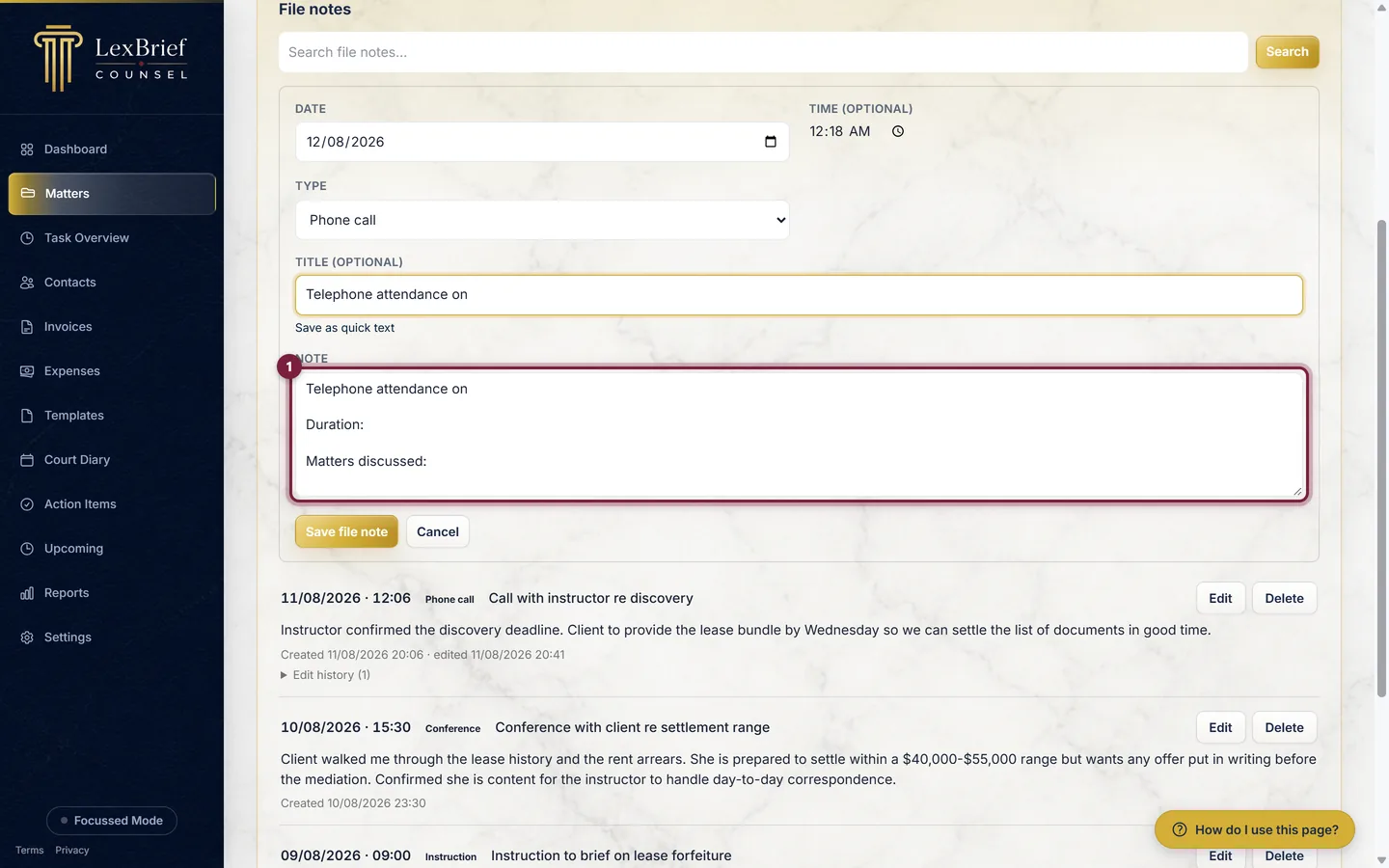
There is nothing clever in a body template and no special codes to learn. Whatever you type into the Body template box in Settings is what appears, word for word, and you then type into it in the ordinary way.
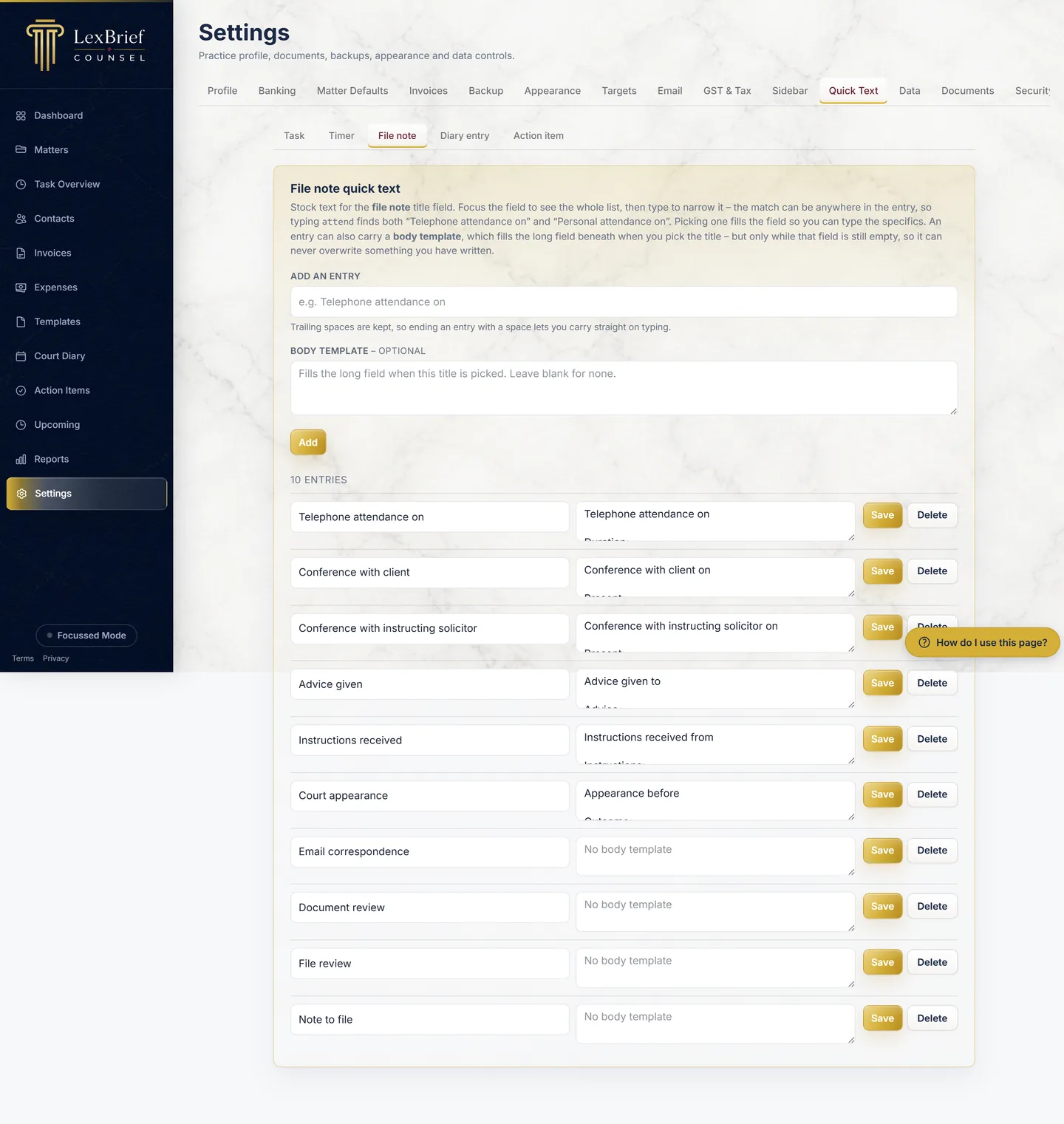
The one thing worth knowing. A body template only fills the long box while that box is still empty. If you have already written your note and then go back and pick a title, nothing at all happens to what you wrote. That is deliberate, and it is not a fault: the alternative would be a stray click silently wiping out a note you had just typed. If you want the skeleton, pick the title first and write afterwards. If you have already written the note and want the skeleton anyway, clear the box, then pick the title again.
A body template is optional on every entry. Leave the box blank and picking that title simply fills the title and leaves the long box alone.
The Task and Timer lists
These two are separate lists, but the phrases you want in them overlap almost completely, so LexBrief gives you a way to copy between them – and only between them. No other pair of lists is joined up.
- When you add an entry on the Task or Timer sub-tab, there is a tickbox reading Also add to the Timer list (or the Task list, on the Timer sub-tab). Tick it and the entry is created in both.
- For an entry that already exists, use the small → Timer (or → Task) button on its row.
The copy is made once and that is the end of it. The two entries are entirely independent afterwards, so rewording one never changes the other, and deleting one never deletes the other. If the phrase is already in the other list, copying it does nothing rather than giving you a duplicate.
Deleting an entry
Every row has a Delete button, and it asks you to confirm before it does anything. Deleting removes the entry from the suggestions for good – including the entries LexBrief shipped. They are not put back the next time the app updates or restarts, so you can prune the starter list down to the phrases you actually use and it will stay pruned.
Deleting an entry never touches anything you have already written. A task, note or diary entry whose wording came from a Quick Text entry is your text now; it is not a link to the list, and the list can change or vanish without altering a word of it.
If you empty a list completely, that box simply stops offering suggestions. You can always start it again by adding an entry, or by using the Save as quick text link on the box itself.
What Quick Text does not do
- It never touches money. An entry is text and nothing else – there is no rate, no number of units and no work scope attached to it. Picking a phrase can never quietly change what a task is worth.
- It does not fill anything in for you. Nothing is suggested until you click into the box, and nothing is entered until you pick it.
- It is not a template. For documents built from your own precedents – letters, costs agreements, fee notes – see Templates. Quick Text is only for the short line you type into LexBrief itself.
Your lists are included in the data you can export from the Data tab in Settings, as a quick text file alongside everything else, so they form part of your own copy of your data.
What next
- Recording time – timers, and the description you write when you stop one.
- Matters – adding a task to a matter.
- File notes – the title and the note itself.
- Court diary – key dates and their descriptions.
- Action items – your to-do list on a matter.